
POS V1 – the classic point-of-sale screen
POS V1 is the classic SmartPOS Hub point-of-sale screen: the sale form and cart on the left, product tiles on the right, payment buttons along the bottom. It shows every sale field at once, which suits counters that use many options. This page walks a cashier through a full sale.
Before you start
Section titled “Before you start”- A cash register must be open for you (the POS asks for it). See Cash register and closing.
- Products must exist at your location with stock (or with stock tracking off). See Add products.
- Your role needs the permission to sell at the POS (User Management › Roles).
The screen
Section titled “The screen”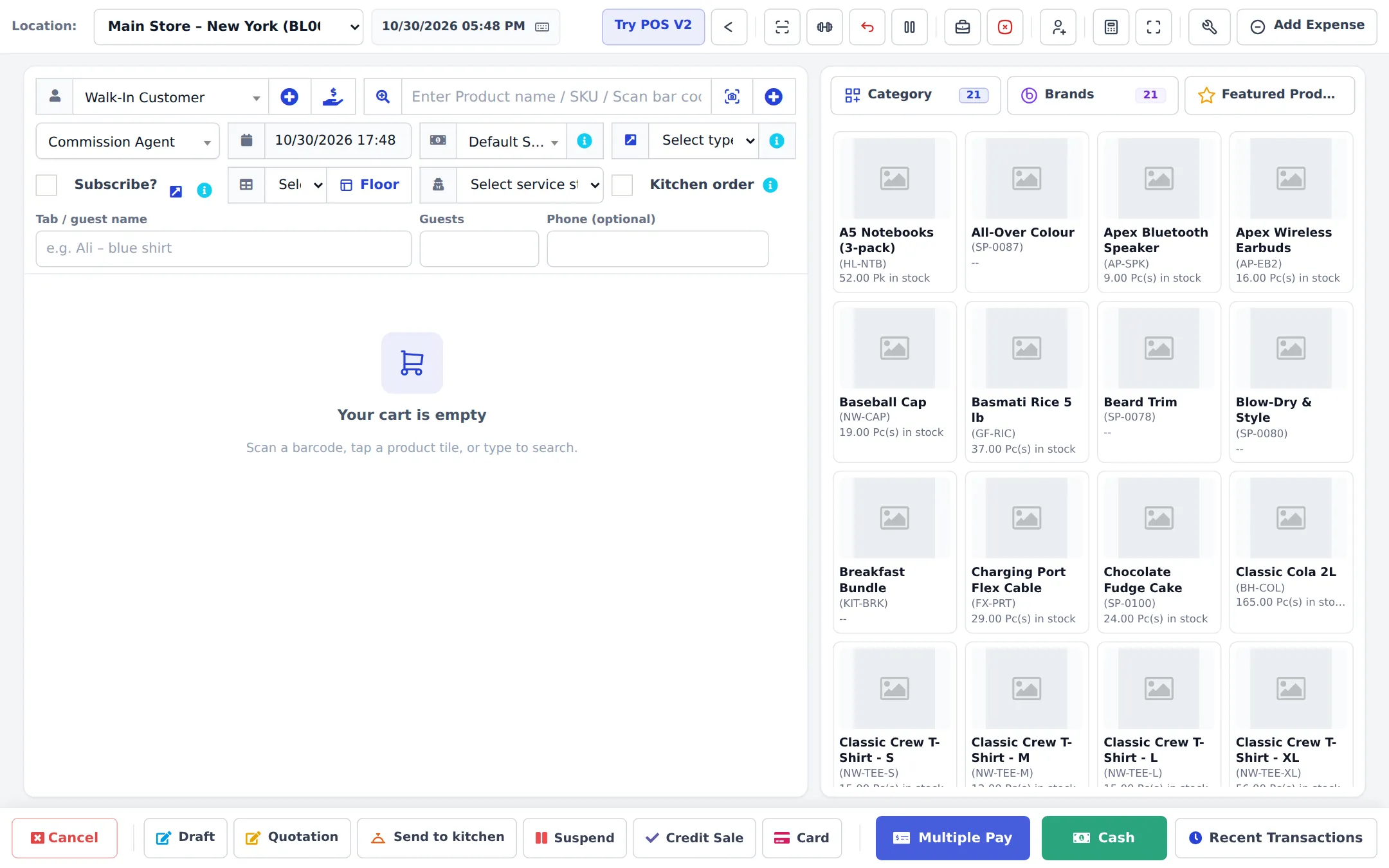
- Top bar: Location, date and time, Try POS V2, and icon buttons for recent sales, suspended sales, sell return, register details, close register, calculator, full screen and Add Expense.
- Customer box: search customers, + to add one, and the hand icon (Receive Payment) to collect money the customer owes.
- Product search: type a name or SKU, or scan a barcode. The camera icon scans with your device camera (if camera scanning is on).
- Sale fields: price group, commission agent, sale date, types of service, subscription, table and service staff — only those your business uses.
- Right side: Category, Brands and Featured Products filters and the product tiles with stock.
- Totals: Items, Subtotal, Discount (−), Order Tax (+), Shipping (+), Packing charge (+) and Total Payable. Click the edit icons to change discount, tax or shipping.
Make a sale
Section titled “Make a sale”-
Pick the customer (or leave Walk-In Customer).
-
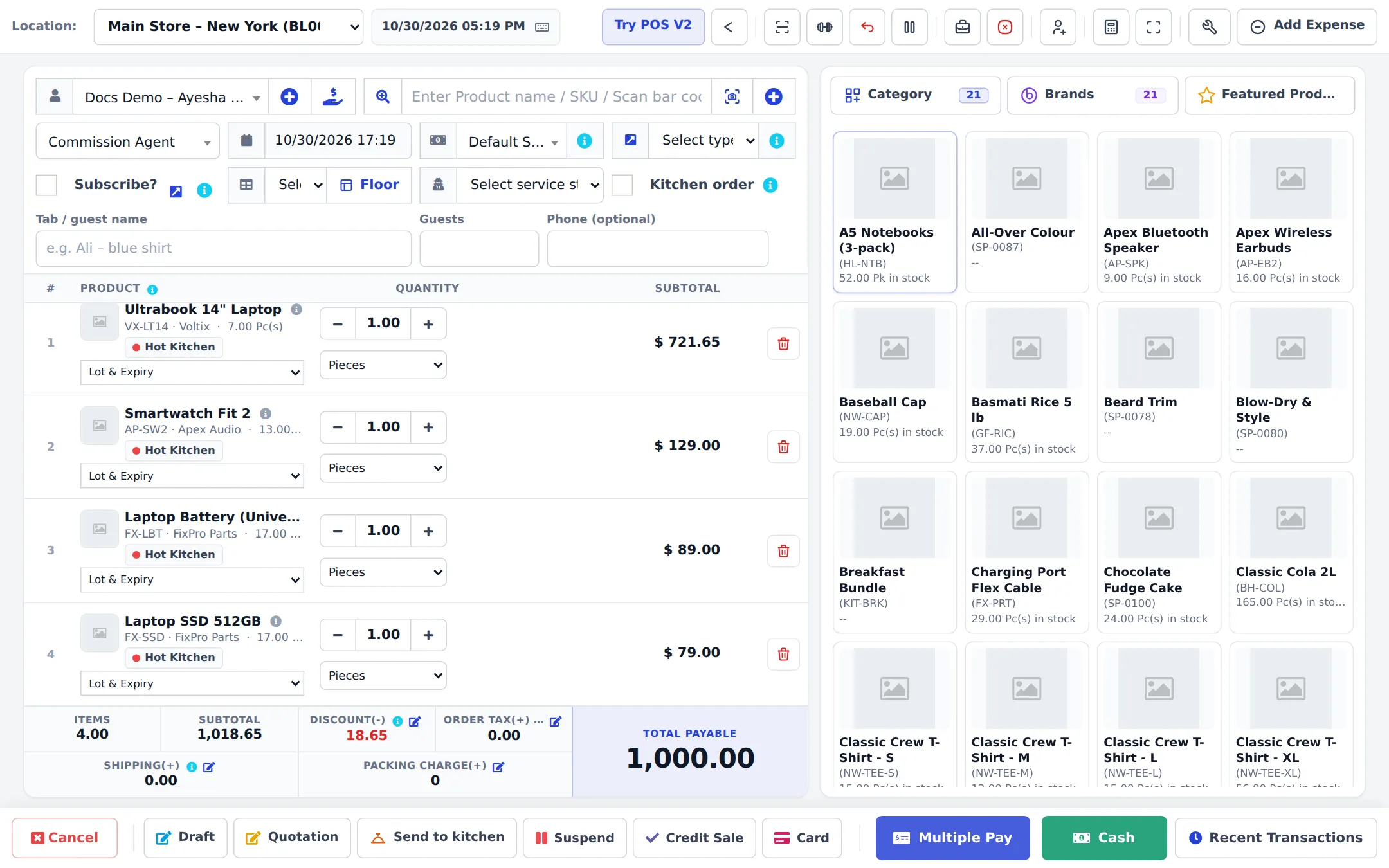
Scan or search products, or tap tiles. Each line shows the SKU, brand and stock; use − / + for quantity and the unit dropdown for sub-units.
-
To change one line, click the product name: unit price, discount, tax, note, serial or lot (depending on the product).
-
To change the whole order, click the edit icon next to Discount (−), Order Tax (+) or Shipping (+).
-
Press a payment button: Cash or Card for a full payment, Multiple Pay for split or part payments, Credit Sale for no payment.
-
In Multiple Pay, enter the amount, method and account, then Finalize Payment.
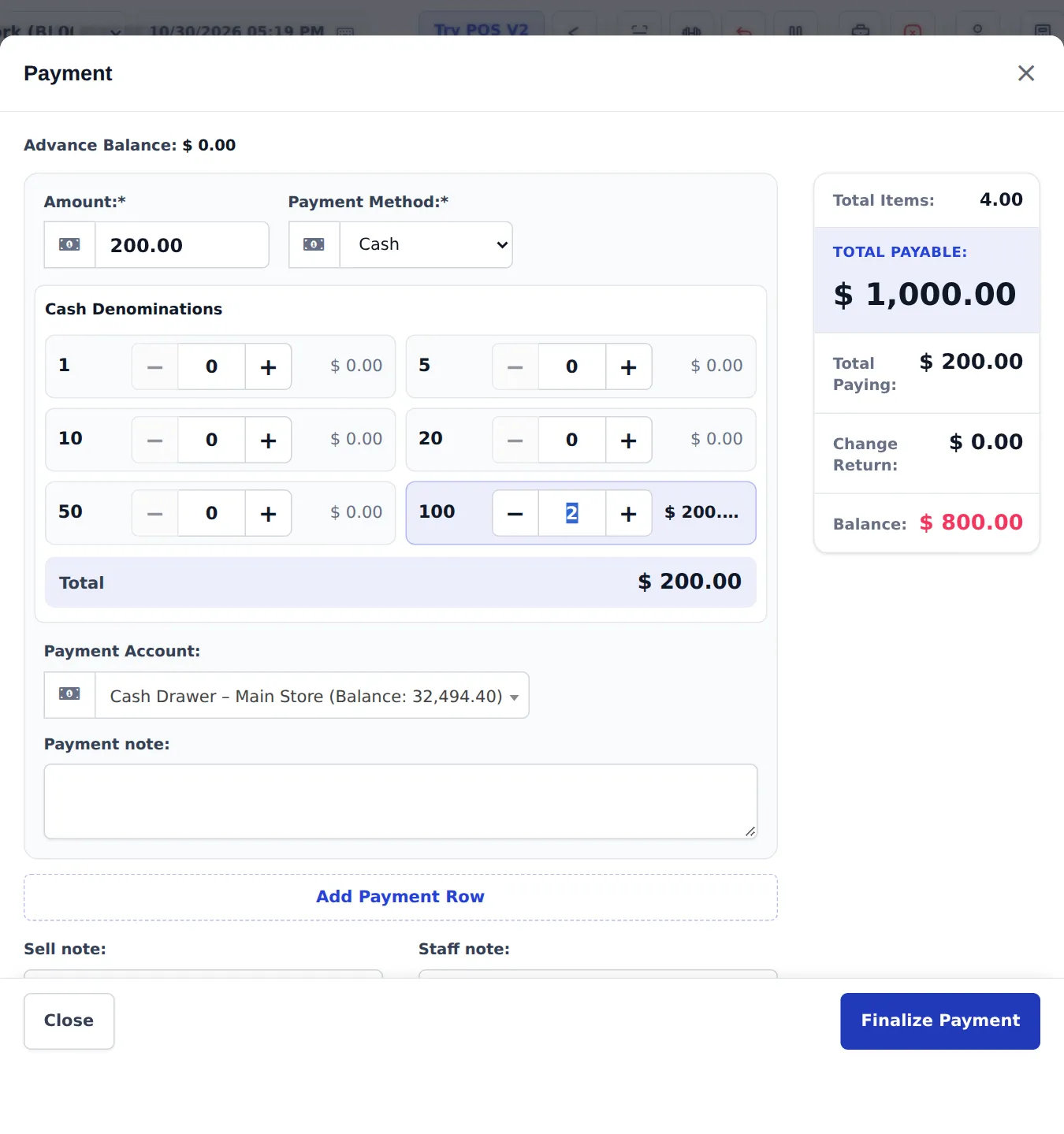
The Multiple Pay window. -
The receipt prints (if printing is on) and the POS clears for the next sale.
Park, save and come back
Section titled “Park, save and come back”- Suspend parks the sale with a note. Resume it from the suspended sales icon.
- Draft and Quotation save the cart without finishing it — see Quotations, drafts and orders.
- Recent Transactions shows your last Final, Quotation and Draft sales with Edit, Print and Delete.
On a phone
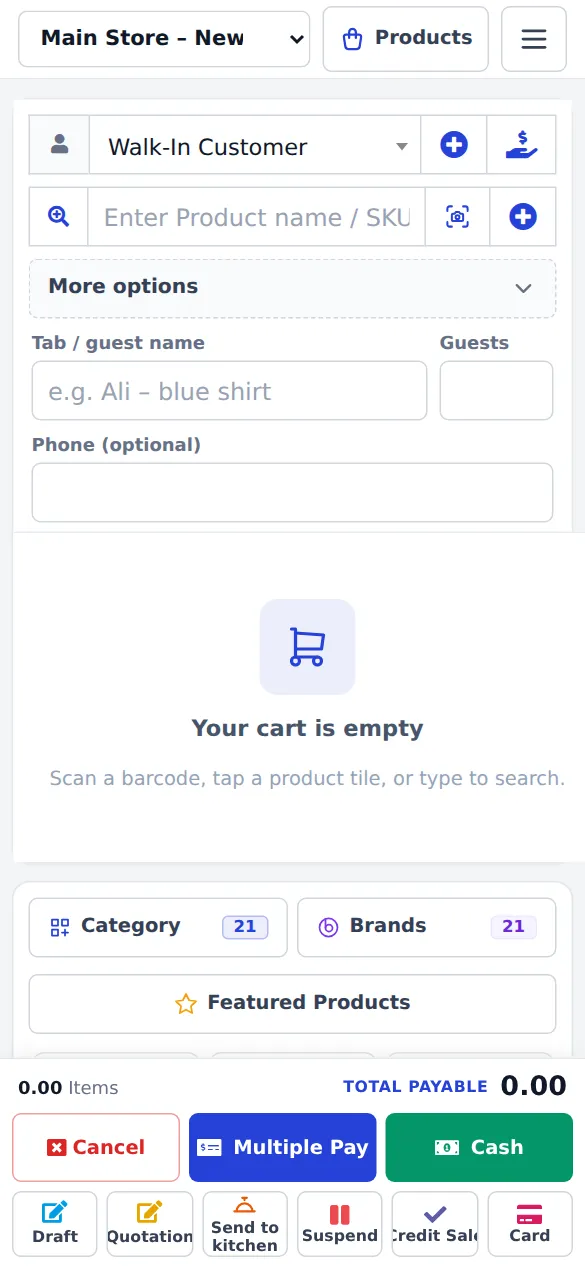
Section titled “On a phone”On screens under 768 px wide the POS becomes one scrolling column: the header stays pinned, products open in a full-screen sheet (Products button), and a bottom dock holds the total and Cancel · Multiple Pay · Cash, with Draft, Quotation, Suspend, Credit Sale, Card below. Less-used fields fold under More options.
- Keyboard shortcuts are listed in Settings › Business Settings › POS (for example shift+p opens the payment window).
- If a product is out of stock, the POS warns you; whether you can still sell depends on your stock settings.
- To switch screens at any time, press Try POS V2. Both screens share the same register and sales.
Frequently asked questions
How do I open POS V1?
Press POS in the top bar or go to Sell › POS. If your business set POS V2 as the default, use the Switch to POS V1 link inside POS V2.
How do I change the price of one line?
Click the product name in the cart to open its line window and change the unit price or discount. This only works when your role is allowed to edit prices from the POS.
How do I resume a suspended sale?
Open the suspended sales list from the POS top bar (the pause icon), find the sale and open it. It loads back into the cart so you can finish it.
Can I edit a sale after it is finished?
Yes, if your role allows it. Open Recent Transactions and press Edit, or use Sell › All sales › Actions › Edit. Your business can limit how many days back a sale may be edited.
Where are the extra fields on a phone?
On phones, less-used sale fields are folded under More options. They open by themselves if a required field is empty when you pay.
Why does the POS show Customer Due under the customer?
The customer has unpaid sales. The amount is their current balance due, so you can collect it or check the credit limit before selling more on credit.