
Hotel module (HMS) – rooms, bookings and housekeeping
The Hotel Management (HMS) module runs the rooms side of a hotel, resort or guest house: room types and rates, bookings, check-in and check-out, a live room board, housekeeping, guests and occupancy reports. Booking money goes through normal SmartPOS Hub payments, so guest ledgers, cash accounts and profit and loss stay complete.
What the module includes
Section titled “What the module includes”All pages are under Hotel (HMS) in the sidebar.
| Menu item | What it does |
|---|---|
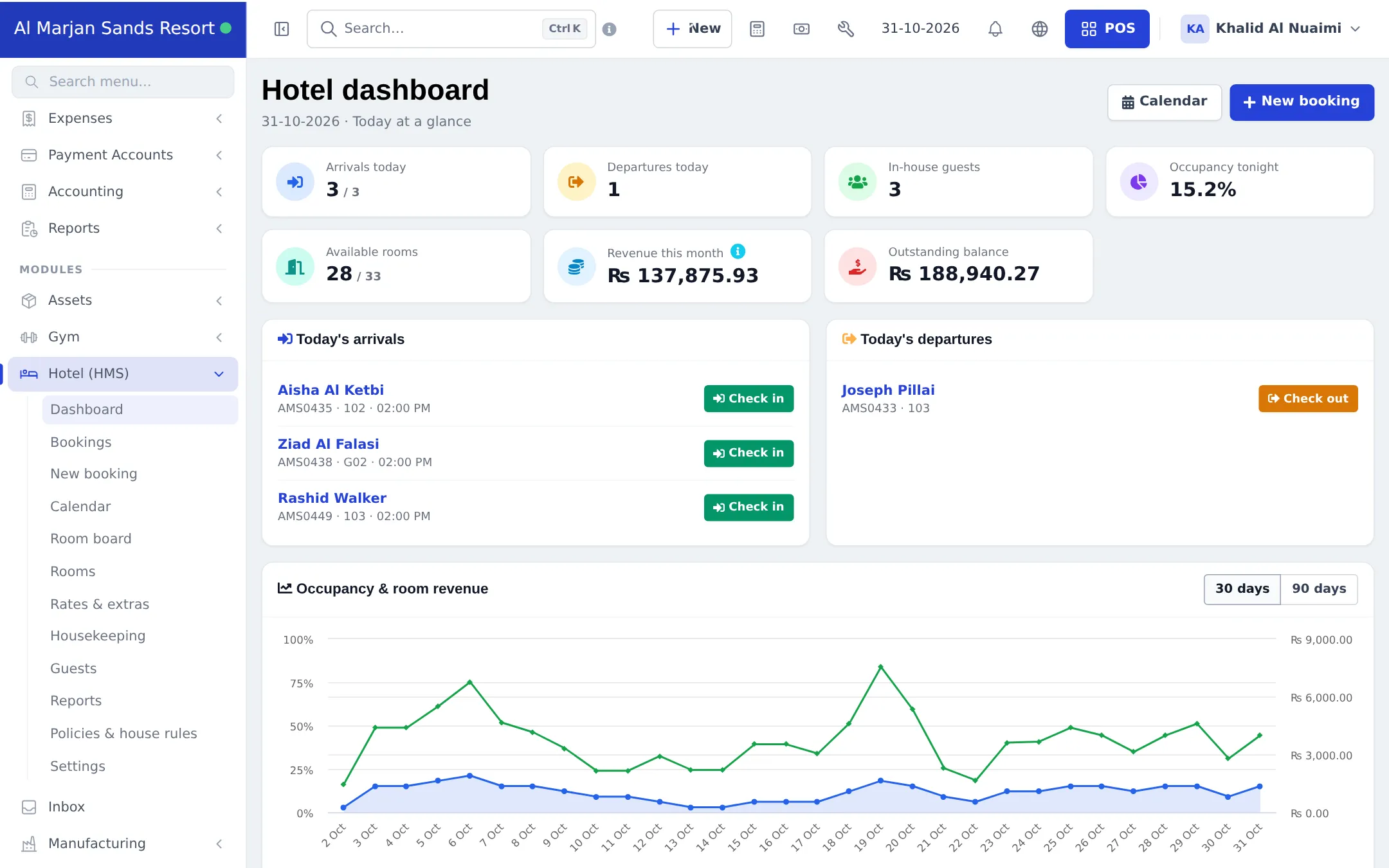
| Dashboard | Arrivals, departures, in-house guests, occupancy tonight, available rooms, revenue this month and outstanding balance, with Check in / Check out buttons |
| Bookings / New booking | Booking list with filters, and the booking form (several rooms, guest ID, extras, coupon) |
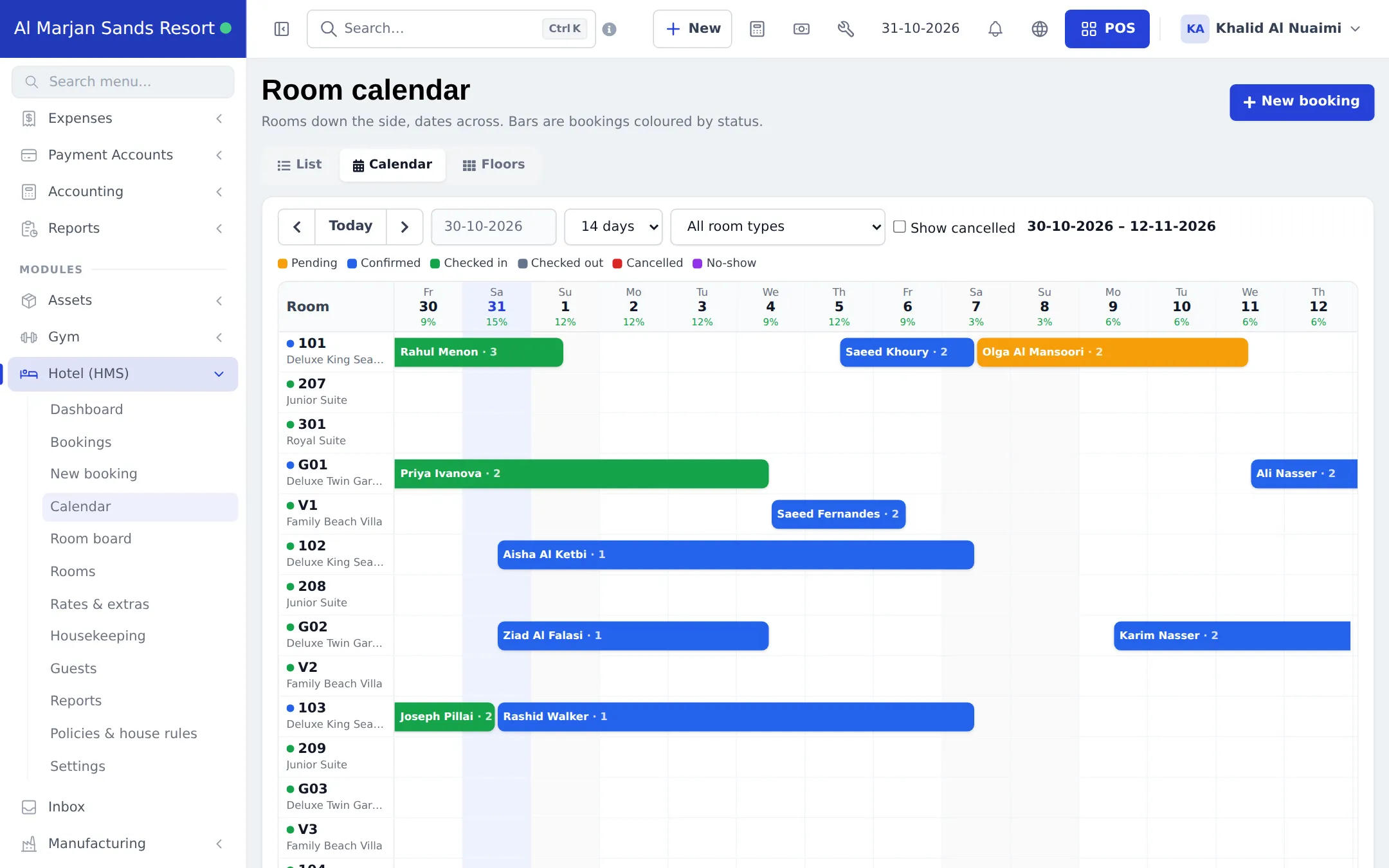
| Calendar | Rooms down the side, dates across; click an empty cell to book that room |
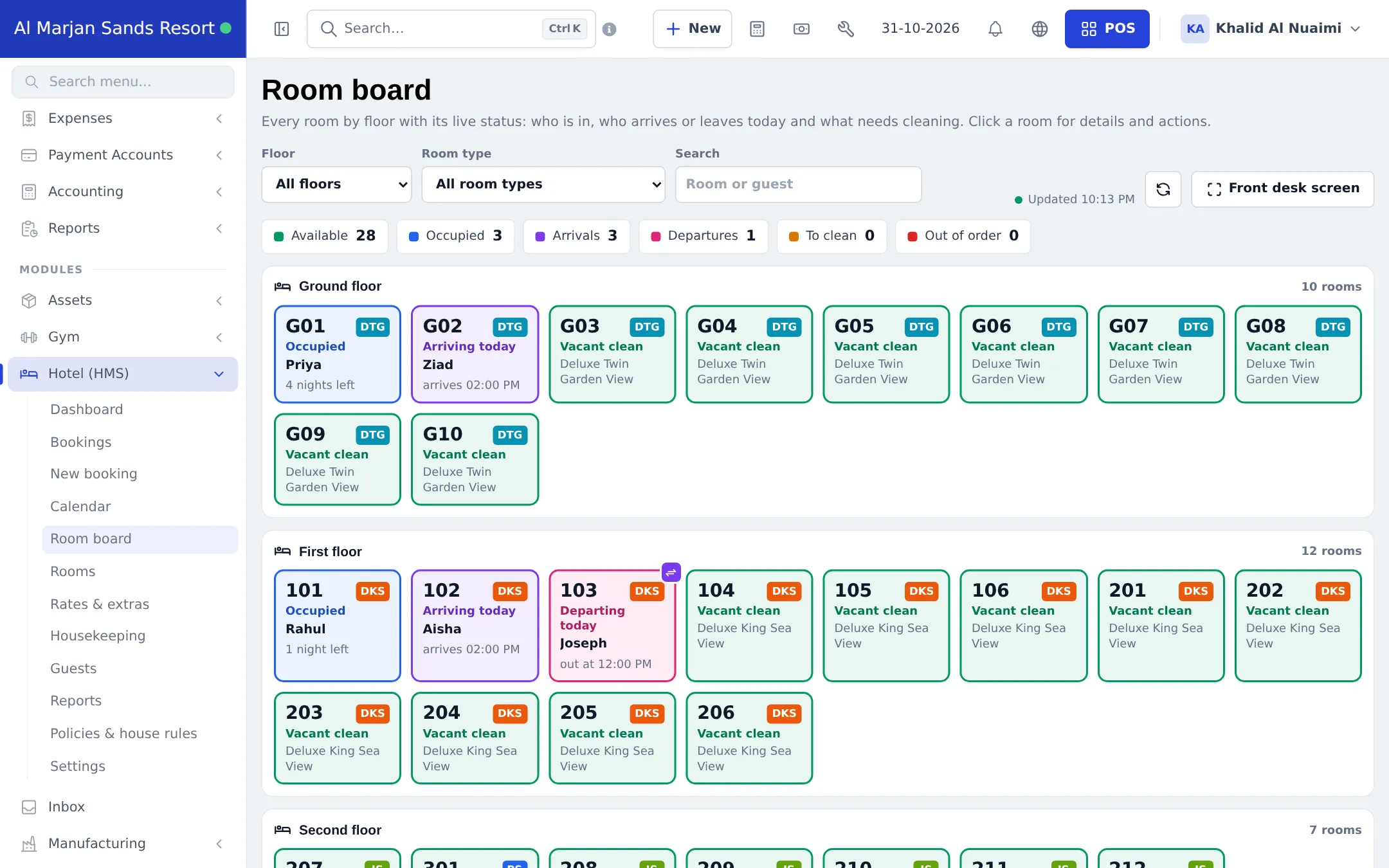
| Room board | Every room by floor with its live status; a Front desk screen mode |
| Rooms | Floors, room types (prices, photos, amenities) and rooms, with bulk add |
| Rates & extras | Seasonal rates, extras and coupons |
| Housekeeping | Room status board for cleaners |
| Guests | Customers who stayed, with nights and spend |
| Reports | Occupancy, ADR and RevPAR, revenue by room type and source, payments due, cancellations |
| Policies & house rules | Check-in/out times, pets, smoking, children, cancellation rules |
| Settings | Booking numbers, default times and tax, booking rules, housekeeping, terms |
Before you start
Section titled “Before you start”- Create the business location that runs the hotel (Settings › Business Locations).
- Add a tax rate for room charges if you charge one (Settings › Tax Rates).
First-time setup
Section titled “First-time setup”- Switch the module on: Settings › Business Settings › Modules, turn on Hotel Management (HMS), and click Update settings.
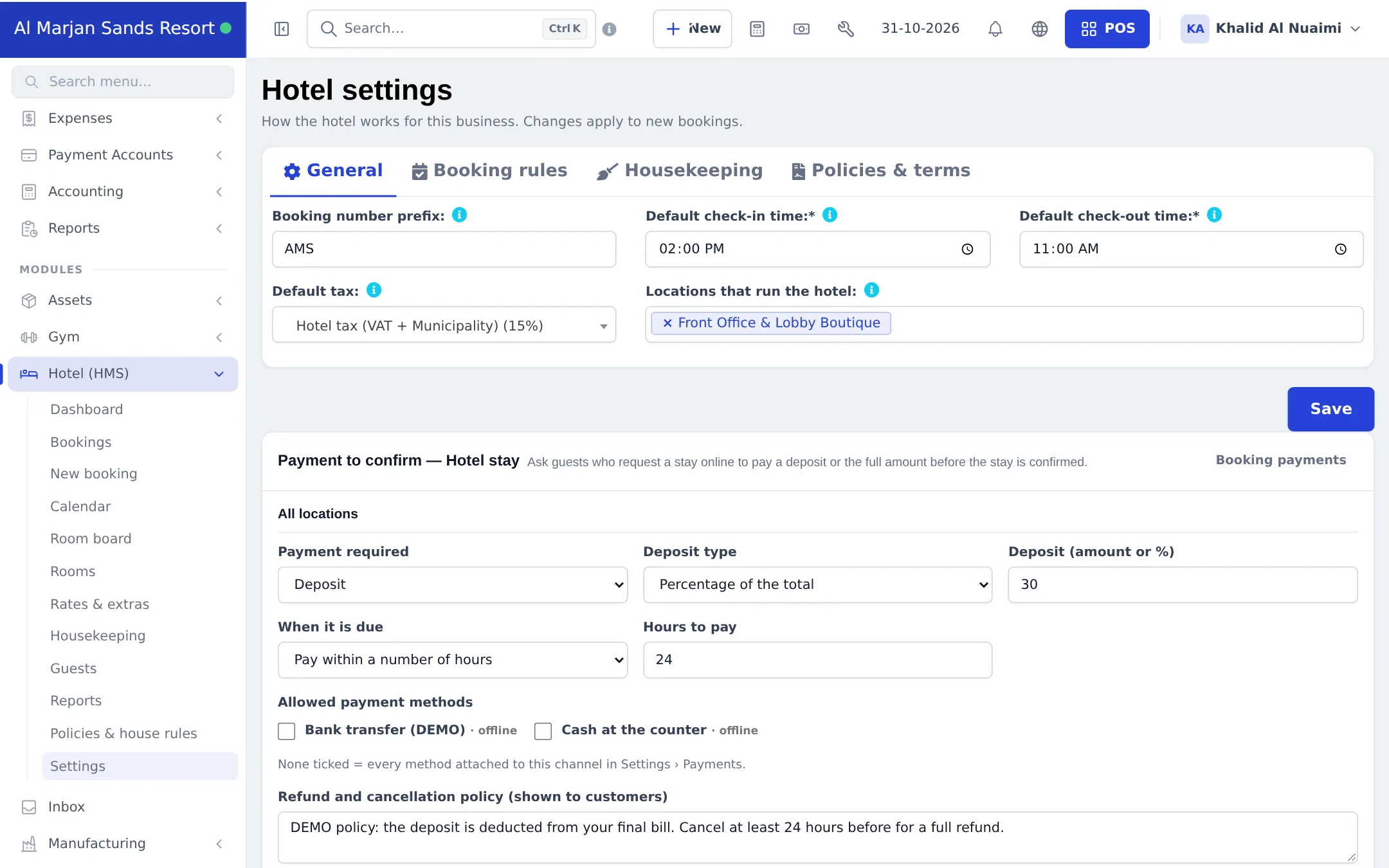
- Open Hotel (HMS) › Settings. On General, set the Booking number prefix, Default check-in time, Default check-out time, Default tax and the Locations that run the hotel. Check the Booking rules, Housekeeping and Policies & terms tabs, then click Save.
- Open Hotel (HMS) › Rooms. Add your floors, then room types (base and weekend price, maximum adults and children, extra beds, amenities, photos), then the rooms themselves. Use bulk add for ranges such as 101–120.
- Open Rates & extras to add seasonal prices, extras (breakfast, airport pickup) and coupons.
- Fill in Policies & house rules so they print on confirmations.
- Give your front-desk and housekeeping roles their Hotel permissions in User Management › Roles.
Everyday use
Section titled “Everyday use”Take a booking
Section titled “Take a booking”- Click New booking (or click an empty cell on the Calendar).
- Choose or quick-add the guest, enter arrival and departure, adults and children, and pick a room type and room. The price is worked out from base, weekend, seasonal and long-stay rates.
- Add extras, a coupon or a discount, and save. Take a deposit with Add payment if needed.
Check in and check out
Section titled “Check in and check out”- On the Dashboard, today’s arrivals have a Check in button and today’s departures a Check out button.
- Check-in records the guest’s ID and can move the guest to another free room of the same type. The room becomes occupied.
- Check-out warns you about any balance due and offers Add payment. The room becomes dirty for housekeeping.
- A booking moves through Pending → Confirmed → Checked in → Checked out, or ends as Cancelled or No-show (with an optional fee).
Watch the rooms
Section titled “Watch the rooms”The Room board shows every room by floor: vacant clean, inspected, vacant dirty, being cleaned, occupied (with nights left), arriving today, departing today, reserved and out of order. The counters at the top work as filters, and it refreshes itself.
Settings explained
Section titled “Settings explained”| Tab | Main options |
|---|---|
| General | Booking number prefix, default check-in and check-out times, default tax, locations that run the hotel |
| Booking rules | Child age limit, deposit % to confirm, default weekend days, same-day turnover, overbooking (off by default), blocking maintenance rooms |
| Housekeeping | Whether rooms become dirty automatically after check-out |
| Policies & terms | Cancellation policy and the terms printed on invoices and confirmations |
Permissions
Section titled “Permissions”| On the Roles page | What it allows |
|---|---|
| Hotel: view dashboard | The hotel dashboard |
| Hotel: view all bookings / Hotel: view own bookings only | All bookings, or only bookings the user created |
| Hotel: create bookings | New bookings and quick-add guest |
| Hotel: edit / re-price bookings | Change and confirm bookings |
| Hotel: cancel bookings & mark no-show | Cancel and no-show |
| Hotel: delete bookings | Delete bookings |
| Hotel: check guests in / Hotel: check guests out | Check-in and check-out |
| Hotel: add booking payments / edit / delete | Payments on bookings |
| Hotel: room calendar | The room calendar |
| Hotel: housekeeping (change room status) | Housekeeping board and room status |
| Hotel: manage rooms, room types & amenities | Rooms setup |
| Hotel: manage seasonal rates, extras & coupons | Rates & extras |
| Hotel: view reports / Hotel: settings | Reports and settings |
A housekeeping role usually needs only Hotel: housekeeping (change room status). Admins have every permission.
In the SmartPOS Business app
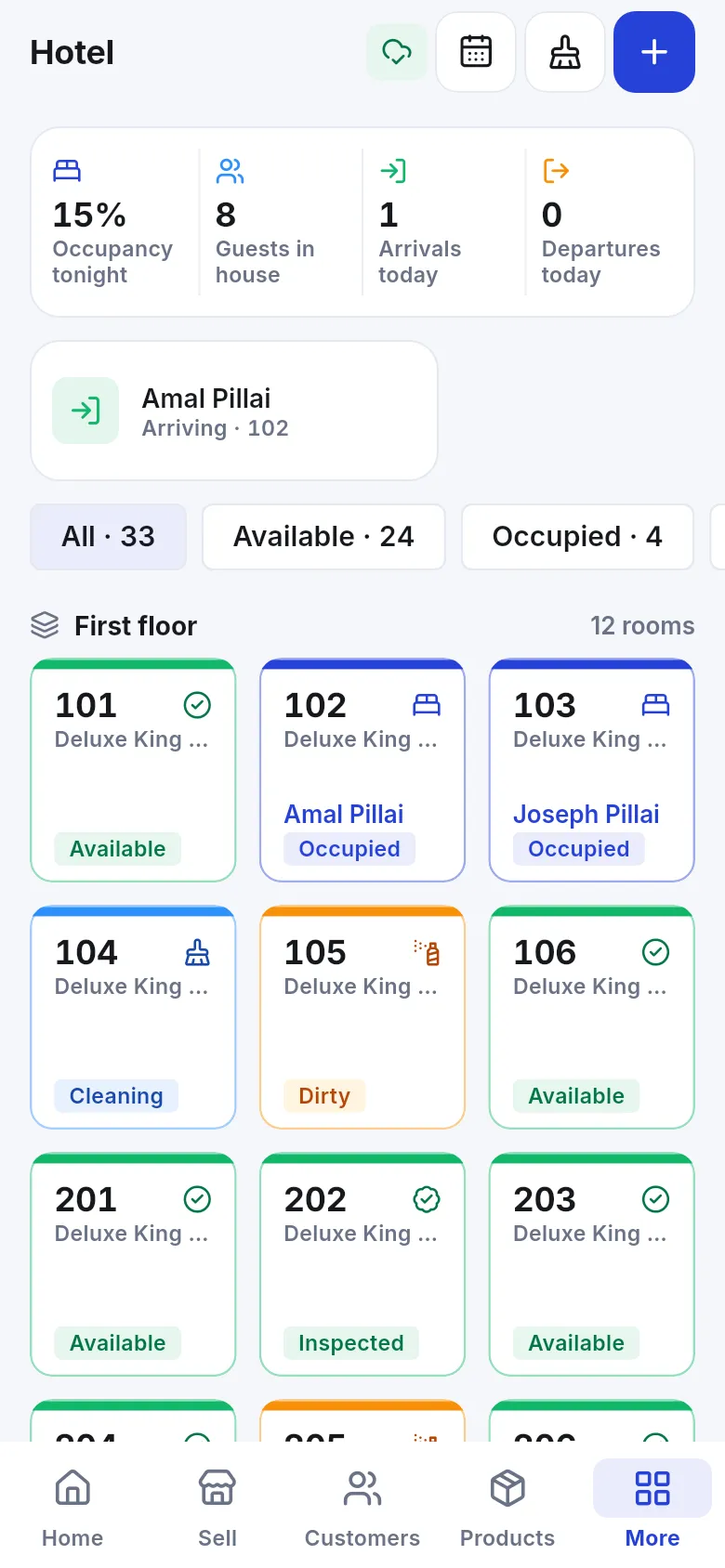
Section titled “In the SmartPOS Business app”The Hotel screen shows occupancy tonight, guests in house, arrivals and departures, and the room board by floor. Staff can open a room, create a booking, and housekeepers change room status from their phone.
Tips and mistakes to avoid
Section titled “Tips and mistakes to avoid”- Give every room a location; a booking can only use rooms of one location.
- Keep overbooking off unless you really want rooms to be bookable twice.
- Set an out-of-order “until” date for rooms under repair, so they become bookable again automatically.
Related pages
Section titled “Related pages”Frequently asked questions
Who is the Hotel module for?
Hotels, resorts, guest houses, motels, serviced apartments and hostels that rent rooms by the night. It works next to your restaurant, shop or spa in the same SmartPOS Hub account.
Can one booking include several rooms?
Yes. A booking can hold several rooms, as long as all of them belong to the same location.
How do I charge a deposit?
Set Deposit % to confirm in Hotel settings, then take payments on the booking with Add payment. To ask online guests to pay before the stay is confirmed, use the Payment to confirm section, part of Booking payments.
What happens to a room after check-out?
It becomes Dirty (or Available, depending on your housekeeping setting) so housekeeping knows to clean it. Change the status on the Housekeeping board or the Room board.
Can I set weekend and seasonal prices?
Yes. Each room type has a base and weekend price. Under Rates & extras you add seasonal rates for date ranges, extras charged per stay, night or person, and coupons. Long-stay discounts are also available.
Does hotel revenue appear in my profit and loss?
Yes. Booking revenue shows as its own row in the Profit / Loss Report, and payments appear in the guest's ledger like any other sale.
Can housekeeping staff use a phone?
Yes. The SmartPOS Business app has a Hotel screen with the room board and a housekeeping view where staff change room status with one tap.
What if the module is not in my plan?
Hotel pages show a message that the feature is not in your plan with a button to see plans. Upgrade from Settings › Package Subscription or contact support.