
Restaurant step 8: take an order at the POS
This page follows one restaurant order through its whole life: the waiter or cashier takes the order at the POS, the kitchen cooks it, the guest gets the bill and pays. Practise it with a few test orders before opening day.
Before you start
Section titled “Before you start”- Steps 1–7 are done: menu, modifiers, tables, kitchen display and order types.
- The cash register for your branch is open (the POS asks you to open it the first time). See Cash register and closing.
The order flow at a glance
Section titled “The order flow at a glance”| Stage | Who | Where | Status |
|---|---|---|---|
| Order taken | Waiter or cashier | POS or SmartPOS Business app | Order placed |
| Cooking | Kitchen | Kitchen display | Preparing → Ready |
| Served or handed over | Waiter, counter or rider | Orders board | Served / Delivered |
| Bill and payment | Cashier or waiter | POS › Open tabs | Completed |
1. Start the order
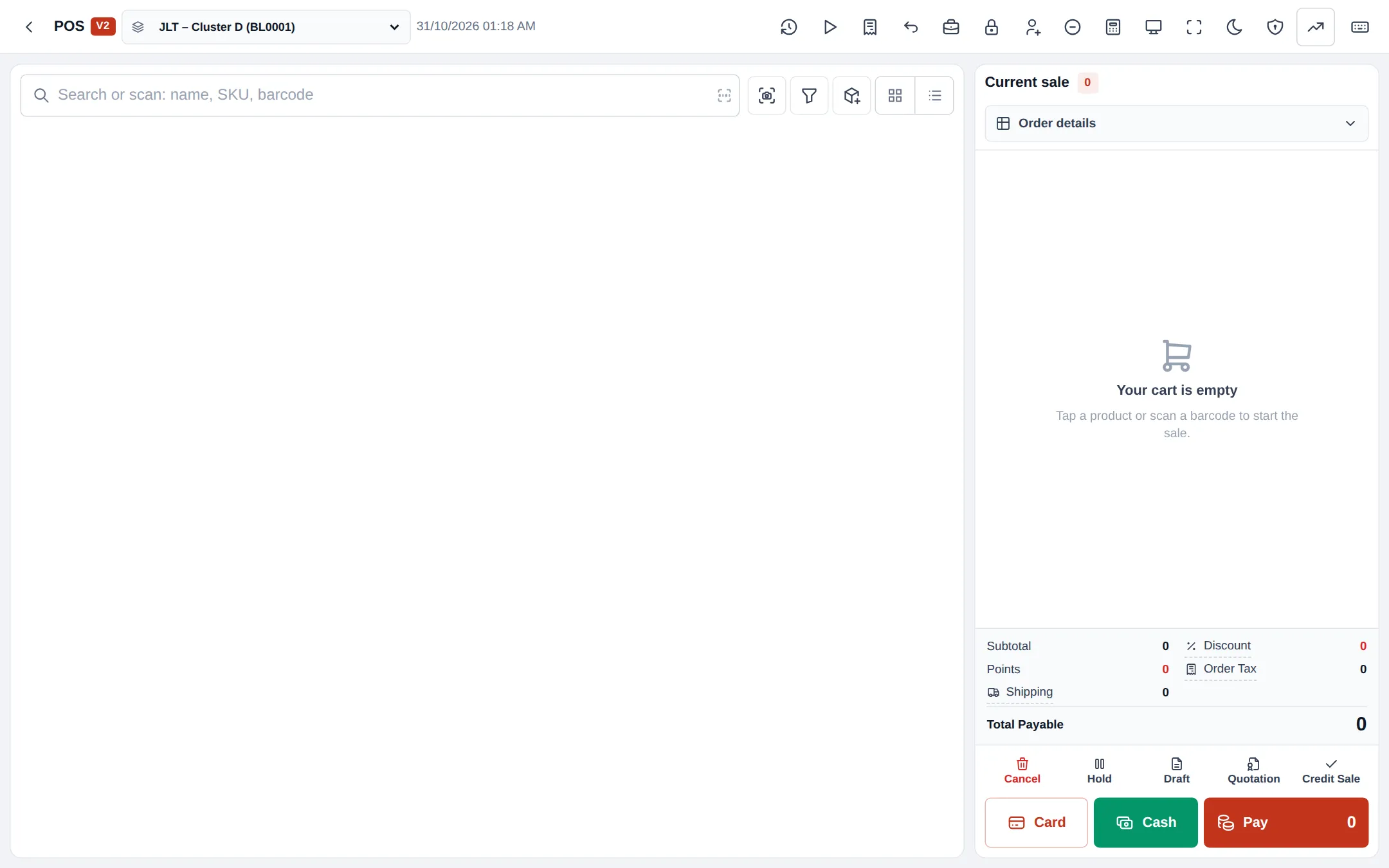
Section titled “1. Start the order”Open Sell › POS. Pick the location at the top, then open Order details under the customer box to choose the table, type of service, waiter and tab name.
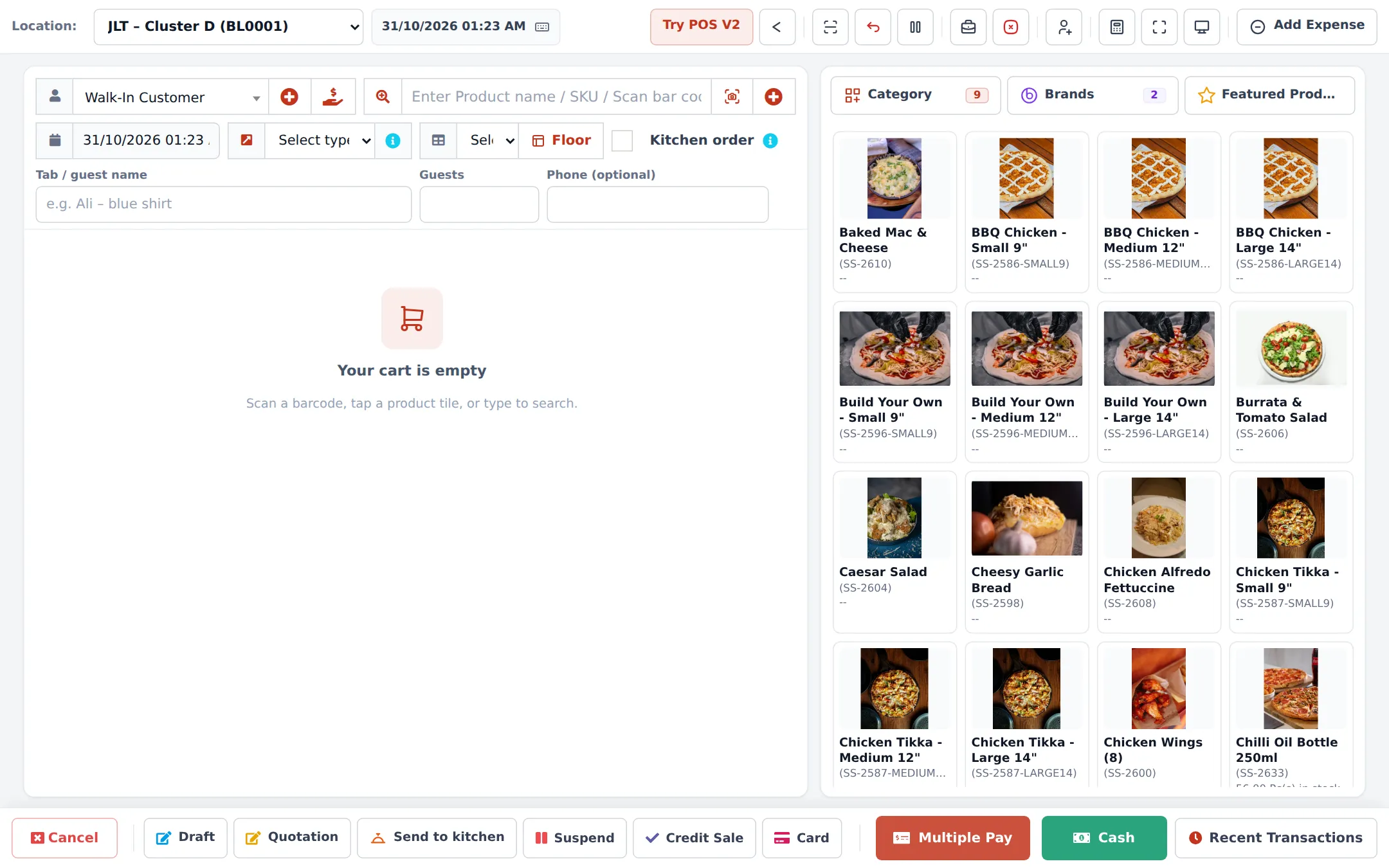
Open Sell › POS. At the top of the cart, choose the type of service, the table (or click Floor to pick it from the floor plan), and fill Tab / guest name, Guests and Phone (optional).
2. Add items and options
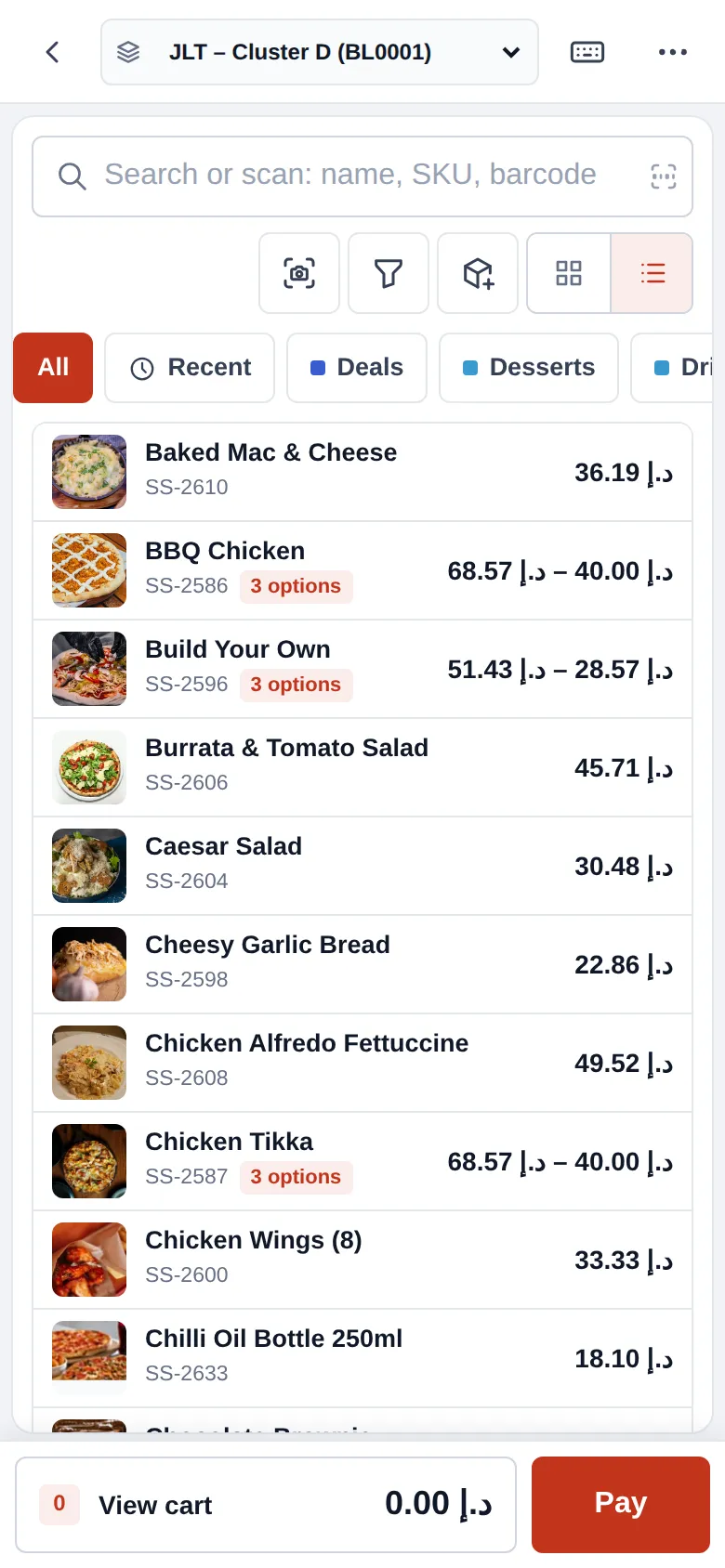
Section titled “2. Add items and options”- Tap a category, then tap an item, or search or scan it.
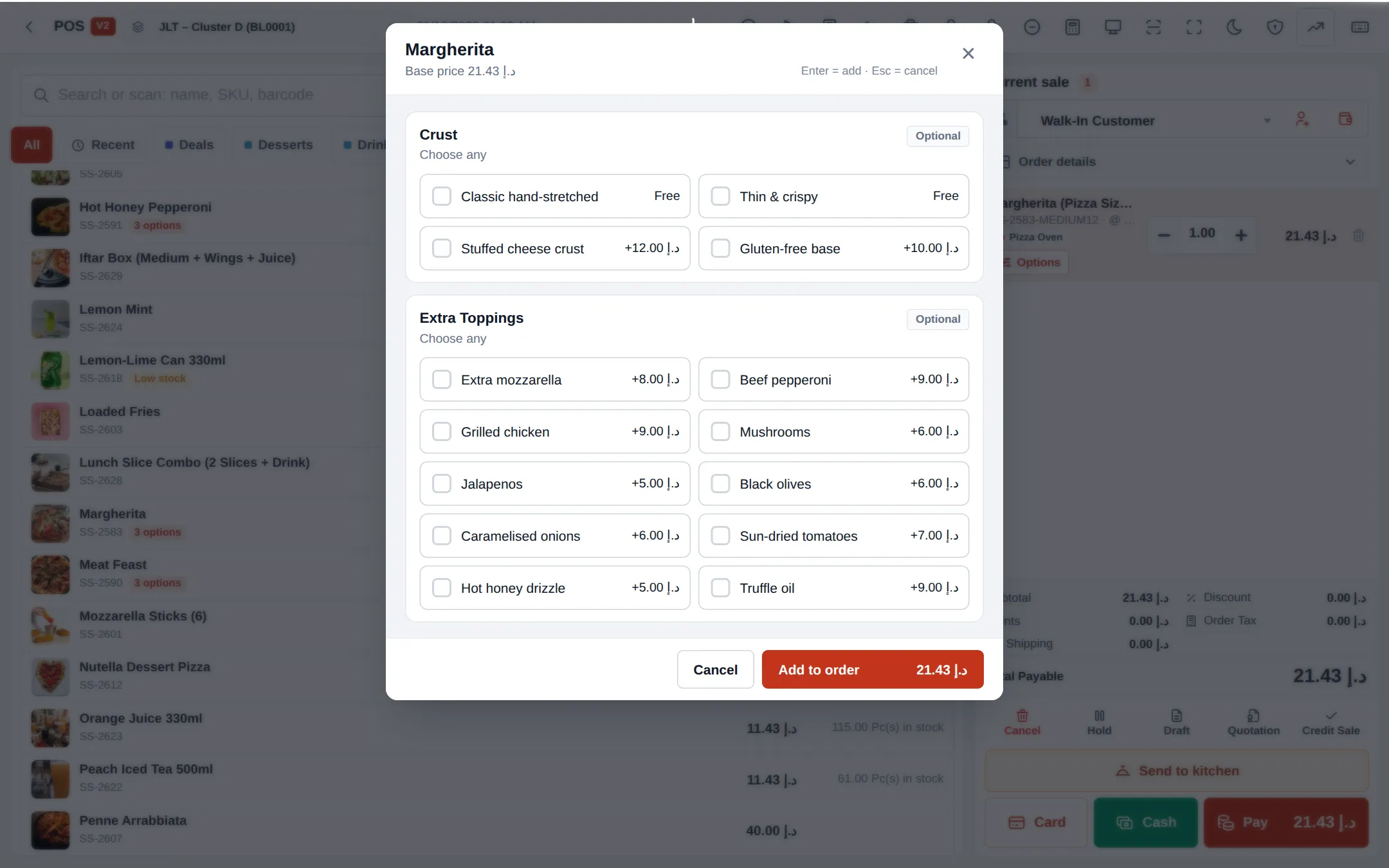
- If the item has sizes, pick one. If it has modifiers, the options window opens: answer the required sets, add extras, and tap Add to order.
- Change quantity on the cart line. To change options later, tap the options chips on the line.
3. Send it to the kitchen
Section titled “3. Send it to the kitchen”Tap Send to kitchen. The order is saved as an open tab (no payment yet), stock is taken, the table turns occupied on the floor plan and the ticket appears on the kitchen display. If no table or name is set on a walk-in, the POS asks you to name this tab first.
When the kitchen bumps the order to Ready, the waiter serves it and marks it Served on the Orders board (or the kitchen’s last status does it for you).
4. Print the bill and take payment
Section titled “4. Print the bill and take payment”- Click Open tabs in the POS header and find the table or tab name.
- Click Bill to print the pre-bill for the guests.
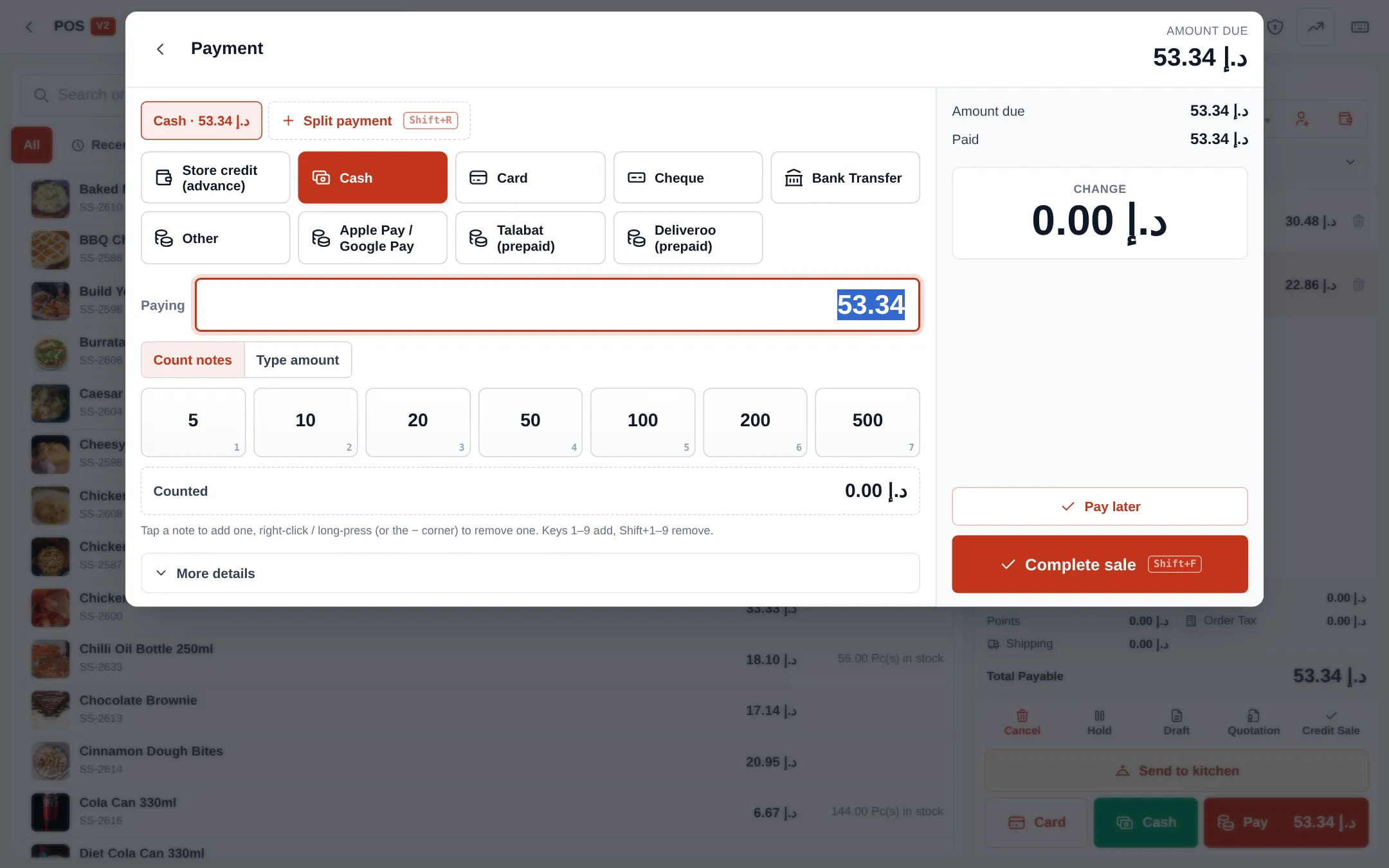
- Click Pay. The tab opens with the payment window and the amount due filled in.
- Choose the payment method. For cash, use Count notes to tap the notes handed over; the change is shown on the right.
- Click Complete sale. The receipt prints, the order moves to Completed and the table becomes free (or “needs cleaning”).
For splitting a bill across cards and cash, and for guests who pay later, see step 9.
Takeaway and counter service
Section titled “Takeaway and counter service”For takeaway, pick the Takeaway type of service, add items, and take payment straight away with Cash, Card or Pay. If Kitchen is on, the paid order still goes to the kitchen display, and the customer can follow it on the order-status screen.
Mistakes to avoid
Section titled “Mistakes to avoid”- Don’t use Cash on a dine-in order before the guests have eaten. Use Send to kitchen and take payment from Open tabs at the end.
- Don’t use Credit Sale for open tables. Credit is for customers who pay another day; see Credit and part payments.
- Check the location at the top of the POS before the first order of the day; it decides which kitchen and stock are used.
Next step
Section titled “Next step”Frequently asked questions
Which POS should a restaurant use, V1 or V2?
Both work the same way for restaurants. POS V2 is faster on touch screens and tablets and puts the tab fields under Order details; POS V1 shows the table, tab name and guests at the top of the cart. Pick one in Business Settings › POS.
Does sending an order to the kitchen take payment?
No. Send to kitchen saves the order as an open tab, takes the stock and sends the ticket to the kitchen. You take payment later from Open tabs.
Can a guest add more food after ordering?
Yes. Open the tab from Open tabs, add items and tap Send new items. Only the new items go to the kitchen, marked as Round 2.
How does a takeaway customer pay before the food is ready?
Pick the Takeaway type of service, add the items and take payment with Cash, Card or Pay. With Kitchen on, the paid order still goes to the kitchen display.
Can I print a bill before the guest pays?
Yes. Use Bill on the open tab. It prints a pre-bill marked "Bill - not a receipt" with the table, guests, items and amount due.
What if the internet goes down during service?
Use the Offline POS or the SmartPOS Business app's offline selling. Sales are kept on the device and synced when you're back online. See Offline selling.