
Business settings for your first-time setup
This guide covers the Business Settings you should fill in before your first sale: name and logo, currency and time zone, financial year, tax numbers, product options and the modules you need. It is for the owner or manager doing the first setup and takes about ten minutes. For every option on every tab, see the Business settings reference.
Before you start
Section titled “Before you start”- Sign in as the account owner (or a user whose role has the business settings permission).
- Have your logo ready (PNG or JPG) and your tax registration numbers, if you have any.
Open Business Settings
Section titled “Open Business Settings”- In the left menu click Settings › Business Settings.
- The tabs are listed on the left: Business, Tax, Product, Contact, Sale, POS, Display Screen, Purchases, Payment, Dashboard, System, Prefixes, Email Settings, SMS Settings, Reward Point Settings, Modules and Custom Labels. On a phone they become a scrollable row of chips.
- Use the Search box at the top right to jump to any setting by name.
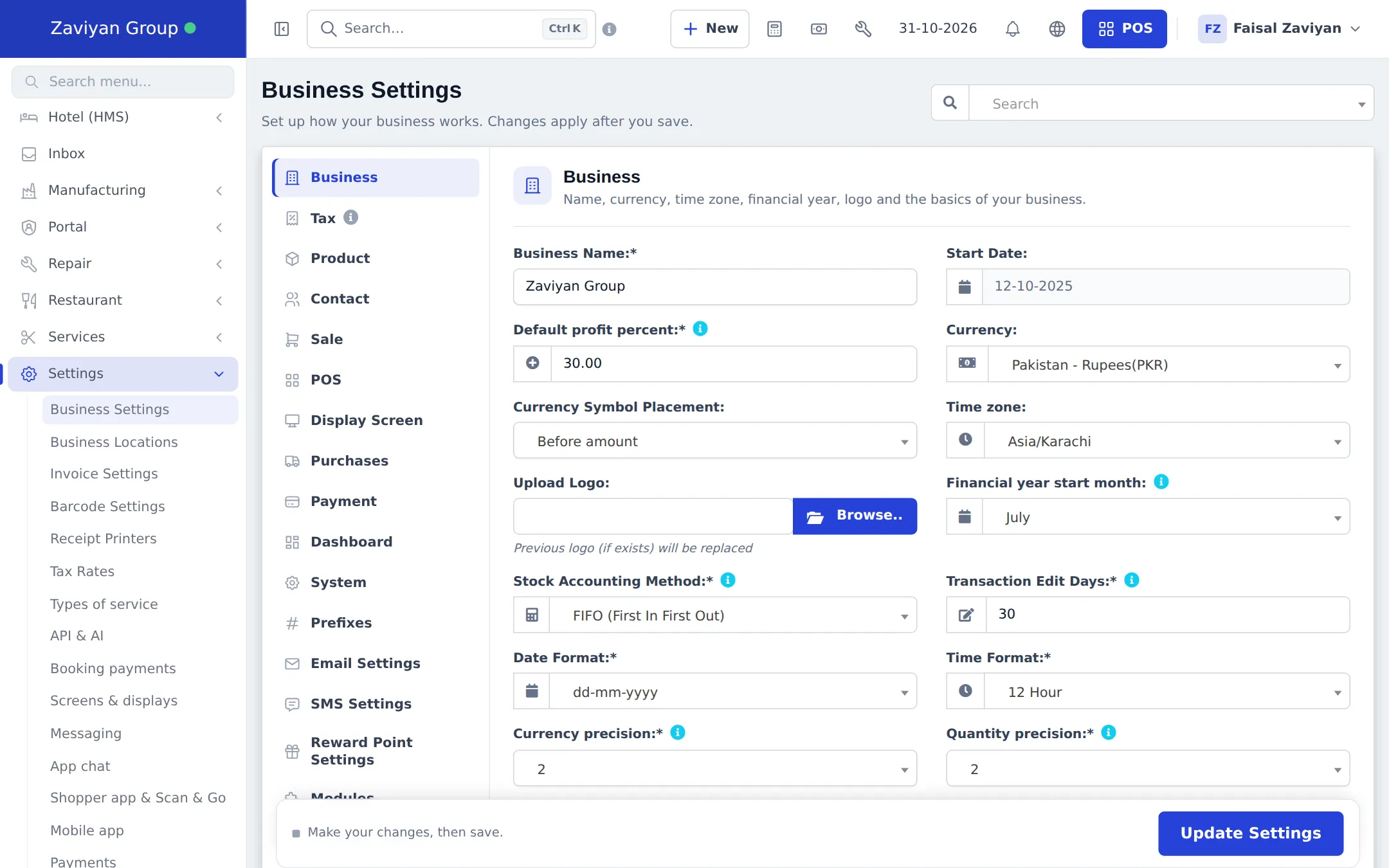
Step 1: Business tab
Section titled “Step 1: Business tab”Fill in or check:
| Field | What to enter |
|---|---|
| Business Name | The name printed on receipts and shown to customers |
| Currency and Currency Symbol Placement | Your selling currency and whether the symbol goes before or after the amount |
| Time zone | Your local time zone; sales times and “today” in reports follow it |
| Upload Logo | Your logo for receipts, invoices and the top of the menu |
| Financial year start month | The month your accounting year starts (reports use it) |
| Stock Accounting Method | How stock cost is counted, for example FIFO (first in, first out) |
| Default profit percent | The markup used to suggest a selling price from the purchase price |
| Date Format, Time Format | How dates and times appear everywhere |
| Currency precision, Quantity precision | Decimal places for money and quantities (use 3 for weighed goods) |
| Transaction Edit Days | How many days after a sale or purchase it can still be edited |
Step 2: Tax tab
Section titled “Step 2: Tax tab”Enter Tax 1 Name and Tax 1 No. (for example “VAT” and your VAT number) so they print on invoices. The tax rates themselves are added under Settings › Tax Rates; see Tax rates and tax groups.
Step 3: Product tab
Section titled “Step 3: Product tab”Switch on only what you use:
- Enable Brands, Enable Categories, Enable Sub-Categories to organise products.
- Enable Sub Units if you buy in cartons and sell in pieces (pharmacies: boxes, strips and tablets).
- Enable Product Expiry for food and medicine with expiry dates. See Expiry and batches.
- Enable Racks (plus Enable Row, Enable Position) to note where a product sits in the store.
- Enable Warranty for electronics and appliances.
- SKU prefix if you want automatic product codes to start with letters, and Default Unit for new products.
Step 4: Sale, POS and Payment tabs
Section titled “Step 4: Sale, POS and Payment tabs”- Sale: Default Sale Discount, Default Sale Tax, Allow Overselling (sell even when stock shows zero), Enable Sales Order.
- POS: keyboard shortcuts and which POS buttons to hide (Disable Multiple Pay, Disable Express Checkout, Disable Draft, Disable Suspend Sale).
- Payment: your Cash Denominations (for example 10, 20, 50, 100) so the POS can suggest change and count the drawer.
- Custom Labels (last tab): rename Custom Payment 1 to 7 to add your own payment methods, such as a mobile wallet or bank transfer.
Step 5: Purchases tab
Section titled “Step 5: Purchases tab”Turn on Enable Purchase Status, Enable purchase order and Enable Lot number if you need them. See Purchases and Serial, IMEI and lot numbers.
Step 6: Modules tab
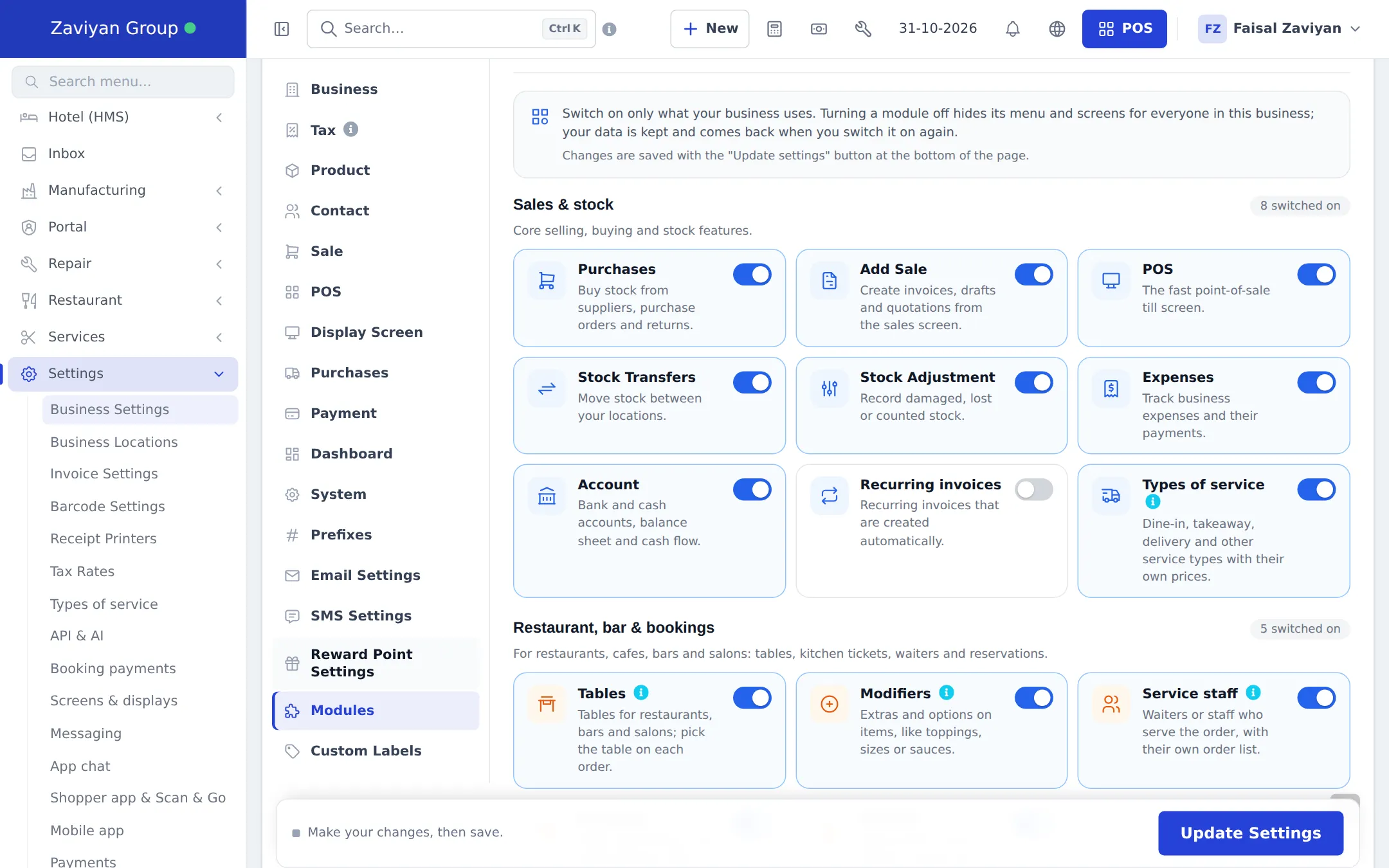
Section titled “Step 6: Modules tab”The Modules tab lists every feature you can switch on, grouped (for example Sales & stock and Restaurant, bar & bookings). Each card says what the module does.
- Click Modules in the tab list.
- Switch on what your business uses, for example Stock Transfers for several shops, Product Library to import ready-made products, Kitchen and Tables for a restaurant.
- Click Update Settings at the bottom.
Step 7: Save
Section titled “Step 7: Save”Click Update Settings in the bar at the bottom. The bar says Make your changes, then save. and warns you about unsaved changes. You should see “Settings updated successfully”.
Tips and mistakes to avoid
Section titled “Tips and mistakes to avoid”- Save once, at the end. One button saves every tab; leaving the page without saving loses your changes.
- Do not switch on everything. Extra modules add menus and fields your staff do not need.
- Set Quantity precision before importing products if you sell by weight.
- Per-shop details belong on the location. Address, phone, invoice numbering and receipt layout are per location. See Add and manage multiple locations.
Related pages
Section titled “Related pages”Frequently asked questions
Where are the business settings?
In the left menu open Settings, then Business Settings. You can also press Ctrl + K and type a setting name, or use the Search box at the top of the Business Settings page.
Why did my change not save?
Business Settings has one save button for all tabs, Update Settings, in the bar at the bottom. Changes on any tab are kept only after you click it.
Can I change the currency later?
You can, but old sales, purchases and reports keep their amounts without conversion. Set the right currency before you start selling.
Where do I upload my logo?
On the Business tab, use Upload Logo, then click Update Settings. The logo prints on receipts and invoices that show a logo.
How do I turn on a module like Restaurant or Repair?
Open the Modules tab, switch on the module and click Update Settings. If the card is greyed out with Not in your plan, your plan does not include it.
Who can change business settings?
The account owner and any role with the business settings permission. Cashiers normally cannot open this page.
What is the difference between this page and Business Locations?
Business Settings applies to the whole business. Address, invoice numbering, receipt layout, price group and payment methods per shop are set on each location under Settings, Business Locations.