
Order options – prescriptions, engraving and custom details
Order options & personalisation collects the details a customer gives when buying an item: an eyeglass prescription, a logo to print, engraving text, tailoring measurements, a cake message and pickup time, a vehicle VIN. Staff fill them in at the till; online customers fill them on the product page. Opticians, pharmacies, print shops, bakeries, tailors, jewelers, gift and trophy shops use it most.
How it is organised
Section titled “How it is organised”| Building block | What it is | Example |
|---|---|---|
| Fields | One question with a type, rules and an optional price | “Engraving text”, up to 12 letters, price per character |
| Field groups | A reusable set of fields | “Eyeglass prescription”, “Artwork”, “Delivery slot” |
| Forms | Groups in order, with their own settings and production statuses | “Prescription glasses” = Prescription + Lenses + Frame |
| Where they apply | Which variations, products, categories or brands ask the form (optionally per location) | All products in the “Spectacles” category |
There are more than 20 field types: short and long text, numbers with units, dropdown, single and multiple choice (with price and colour swatch per option), yes/no, colour, date and time (with lead time and closed days), e-mail, phone, link, file upload, signature, measurement grid, dimensions, calculated price, must-confirm tick box, heading and information text. Fields can be shown only when another field has a certain answer.
Before you start
Section titled “Before you start”- Order options & personalisation is in your plan and switched on in Settings › Business Settings › Modules.
- Your products and categories exist. See Add products.
First-time setup
Section titled “First-time setup”- Open Products › Order options. You see three tabs: Forms, Field groups and Where they apply.
- Click Import prebuilt. Your trade is listed first. Tick the forms you want (click Details to see every field and price), then Import selected. Groups you already have are reused.
- To change a form, open it from the Forms tab. Add or remove groups, set fields as required, choose what prints on the invoice, work ticket or kitchen ticket, and set the form’s production statuses and due-date field.
- Need your own? Click Add form, or build reusable groups on the Field groups tab first.
- Open Where they apply and click Attach to products. Choose categories, products, variations or brands, and optionally locations. The most specific level wins: variation, then product, then sub-category, then category, then brand.
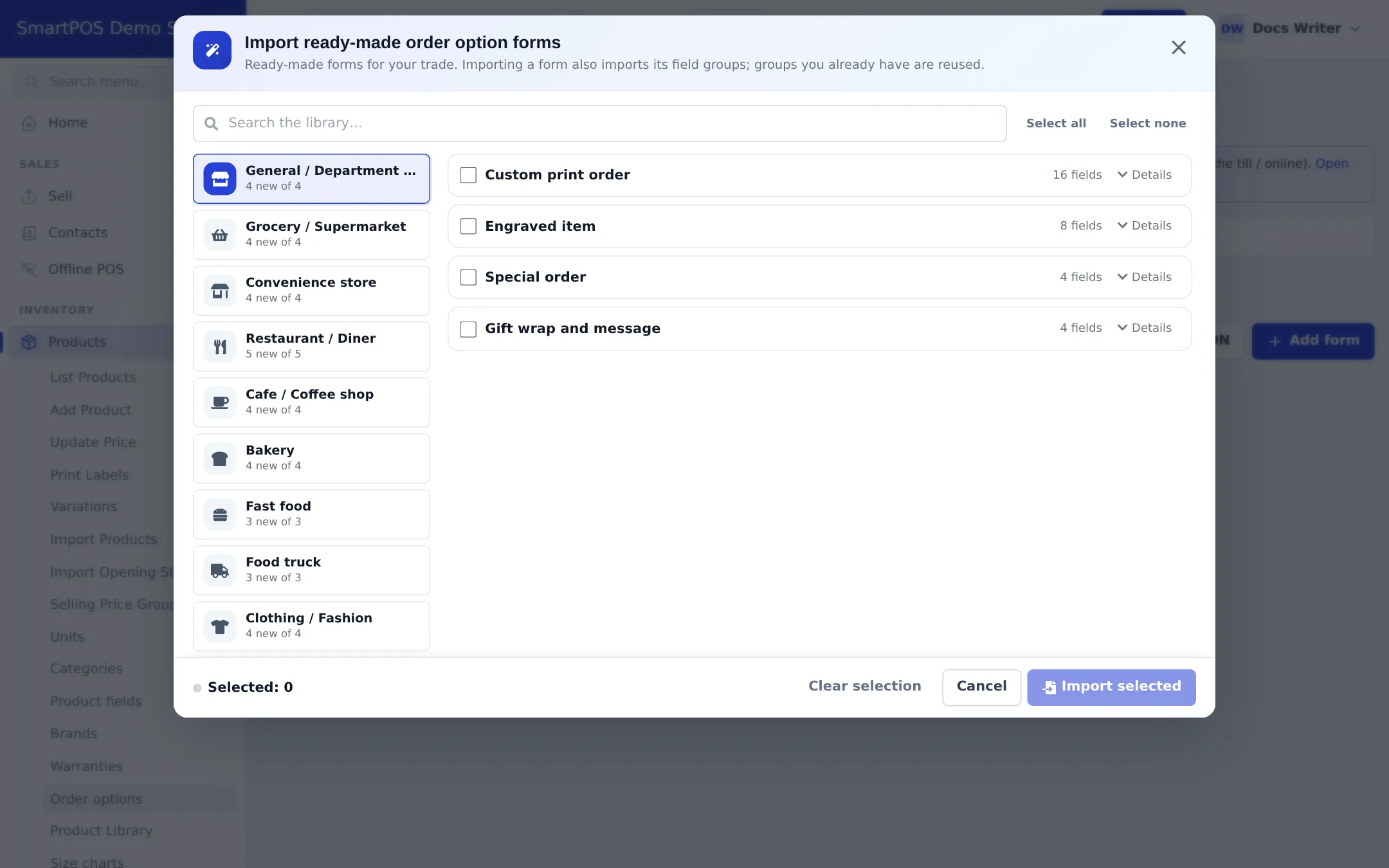
You can also set it per product: the Order options panel on Add / Edit product lets a product follow its category or brand, use chosen forms, or ask nothing.
Everyday use at the till
Section titled “Everyday use at the till”- Add the product on the POS (V1 or V2) or on Add sale. The order options window opens by itself.
- Fill in the details. Required fields are checked as you go, and the price add-on updates live.
- For a returning customer, click Use saved to fill in their saved prescription or measurements. To keep new details, tick Save on the customer for next time.
- Click Save details. The cart line shows a summary and the add-on under the product name. To change, click Options on the line.
- Customer will bring the details later? Click Finish later and save the sale as a draft, quotation, held sale or sales order.
Track personalised orders
Section titled “Track personalised orders”Open Sell › Personalised orders. The cards at the top count Open, Overdue, Due today, Ready and Details missing lines. Filter by status, location, form, due date or date range. For each line you can:
- change the production status (Waiting, Design review, Awaiting customer approval, In production, At the lab, Quality check, Ready, Out for delivery, Delivered, Collected, Cancelled — each form uses its own list), or use Apply to selected for several lines;
- open the details with the answers, add-on breakdown and status history;
- Edit details after the sale (this never re-prices the sale);
- print the Work ticket for the workshop or lab.
Every customer page also has a Personalisation tab with saved profiles (and their older versions) and the personalised items they bought.
Settings explained
Section titled “Settings explained”| Setting | Where | Effect |
|---|---|---|
| Required (per field) | Form / group editor | The sale can’t be finished without it |
| Print on invoice / work ticket / kitchen | Field and form settings | Where the answer is printed |
| Price when filled | Field | Fixed or %, per item or once per line |
| Prices include tax | Form | Option prices are tax-inclusive (default on) |
| Save to customer profile + profile type | Field group | Keeps answers for next time; prescriptions, patient, ID and hair & skin profiles are treated as sensitive |
| Statuses and due date field | Form | Production steps and the date used for Overdue / Due today |
Permissions
Section titled “Permissions”| Permission (Roles page › Order options) | Typical role |
|---|---|
| Manage order option forms, groups and where they apply | Manager |
| Fill in and edit order options on sales | Cashier, sales staff |
| View personalised orders and work tickets | Workshop, lab staff |
| Change the production status of personalised orders | Workshop, lab staff |
| View saved customer profiles (measurements, vehicles, pets…) | Sales staff |
| View sensitive customer profiles (prescriptions, medical, ID) | Optician, pharmacist |
| Add and delete saved customer profiles | Manager |
In the SmartPOS Business app
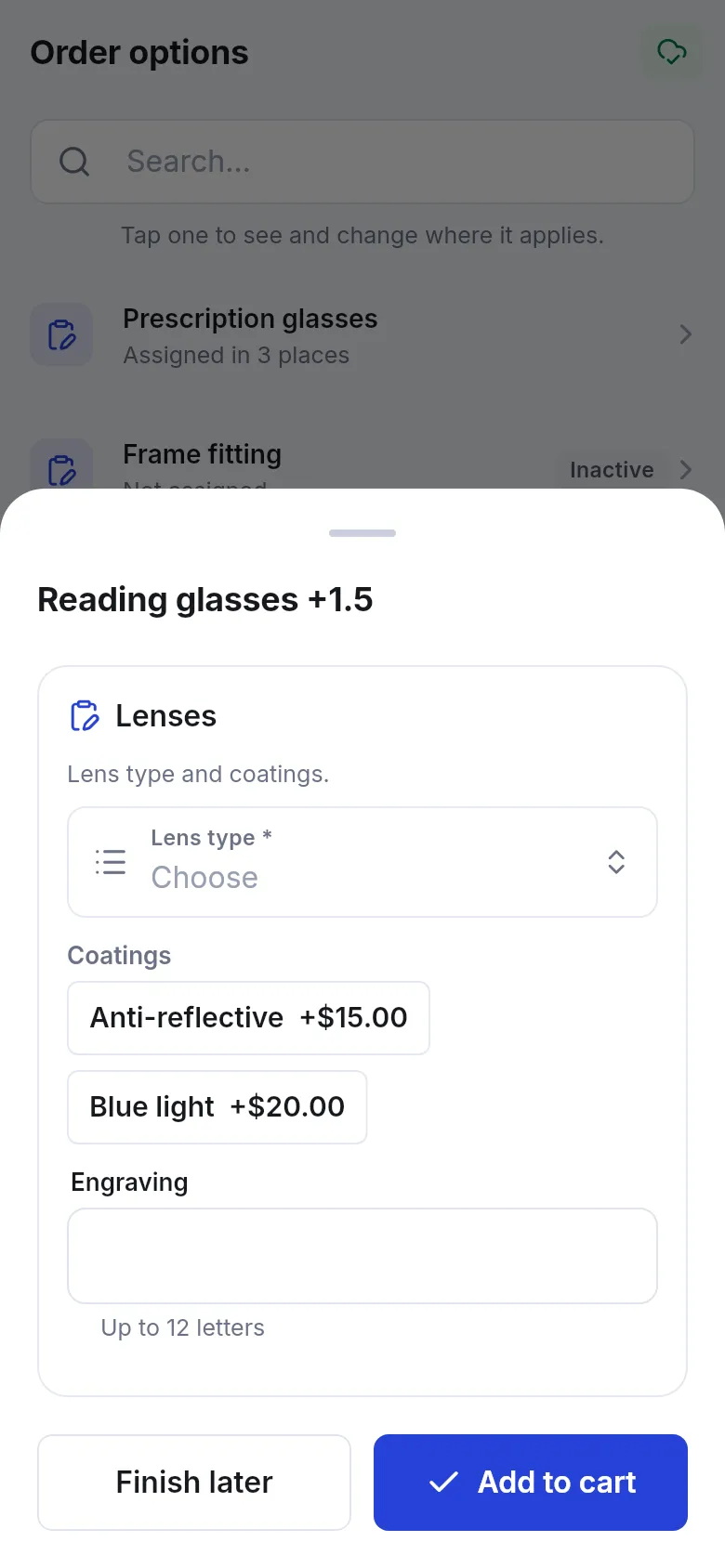
Section titled “In the SmartPOS Business app”When staff sell a personalised item in the SmartPOS Business app, the same form opens as a sheet with Finish later and Add to cart. Choices can show icons or photos.
Tips and mistakes to avoid
Section titled “Tips and mistakes to avoid”- Start from Import prebuilt. The ready-made forms already have sensible fields, prices and statuses for your trade.
- Attach at the category level so new products pick up the form automatically. Use “No order options” on a product that should skip it.
- Mark sensitive groups correctly so only the right staff see prescriptions or ID details.
- Don’t edit prices on personalised lines by hand; the line is flagged “Price check” when the charged price doesn’t match base + add-on.
Related pages
Section titled “Related pages”Frequently asked questions
What is the difference between Order options, Product fields and Modifiers?
Product fields describe the product and are filled when you add it. Order options are details the customer gives when ordering, filled at the till or online. Modifiers are paid extras such as size, toppings or sauces.
Can an order option change the price?
Yes. A field or a choice can add a fixed amount or a percentage, per item or once per line, and some fields calculate a price (for example area times a rate or price per character). The add-on is added to the item price, so tax, discounts, totals and returns work as usual.
What if the customer doesn't have the details yet?
Tap Finish later. That is allowed on drafts, quotations, held sales and sales orders. A final sale needs the required details first. Staff can add them later from Sell › Personalised orders with Edit details.
Can I reuse a customer's prescription or measurements next time?
Yes. Tick Save on the customer for next time. Next time, the form offers Use saved with the date, and you can see all saved profiles on the customer's Personalisation tab. This needs a named customer, not Walk-in.
Who can see prescriptions and ID details?
Only users with View sensitive customer profiles (prescriptions, medical, ID). Other staff see these profiles masked.
Do the details print on the receipt?
Fields marked to print on the invoice are added under the item on receipts and invoices. A separate Work ticket prints everything the workshop needs. Uploaded files print as "files attached", never the image.
Do I have to build forms from scratch?
No. Click Import prebuilt to add ready-made forms for your trade, such as eyeglass prescription, custom print order, engraved item, cake order or tailoring measurements.
Do order options work in the online store?
Yes. The same forms appear on the product page of your online store and the answers are attached to the sale when the order arrives.