
Tech store step 6: set up the repair desk
Before your first job sheet, spend 20 minutes on Repair › Settings. You choose which devices you repair, which details the front desk must record, your repair statuses and how job sheets and labels print.
Before you start
Section titled “Before you start”- The Repair module is switched on (step 1).
- Your technicians exist as users in User Management › Users.
Add device categories
Section titled “Add device categories”- Open Repair › Settings and choose Categories & fields.
- Under Add from presets, tick Mobile phone / tablet and Computer / laptop (and any others you repair). Click to add them.
- Click Field builder on a category to adjust its fields: add, rename, reorder, make fields required, or choose whether a field prints on the job sheet or the customer label.
- Use Add custom category for anything else you fix, for example game consoles.
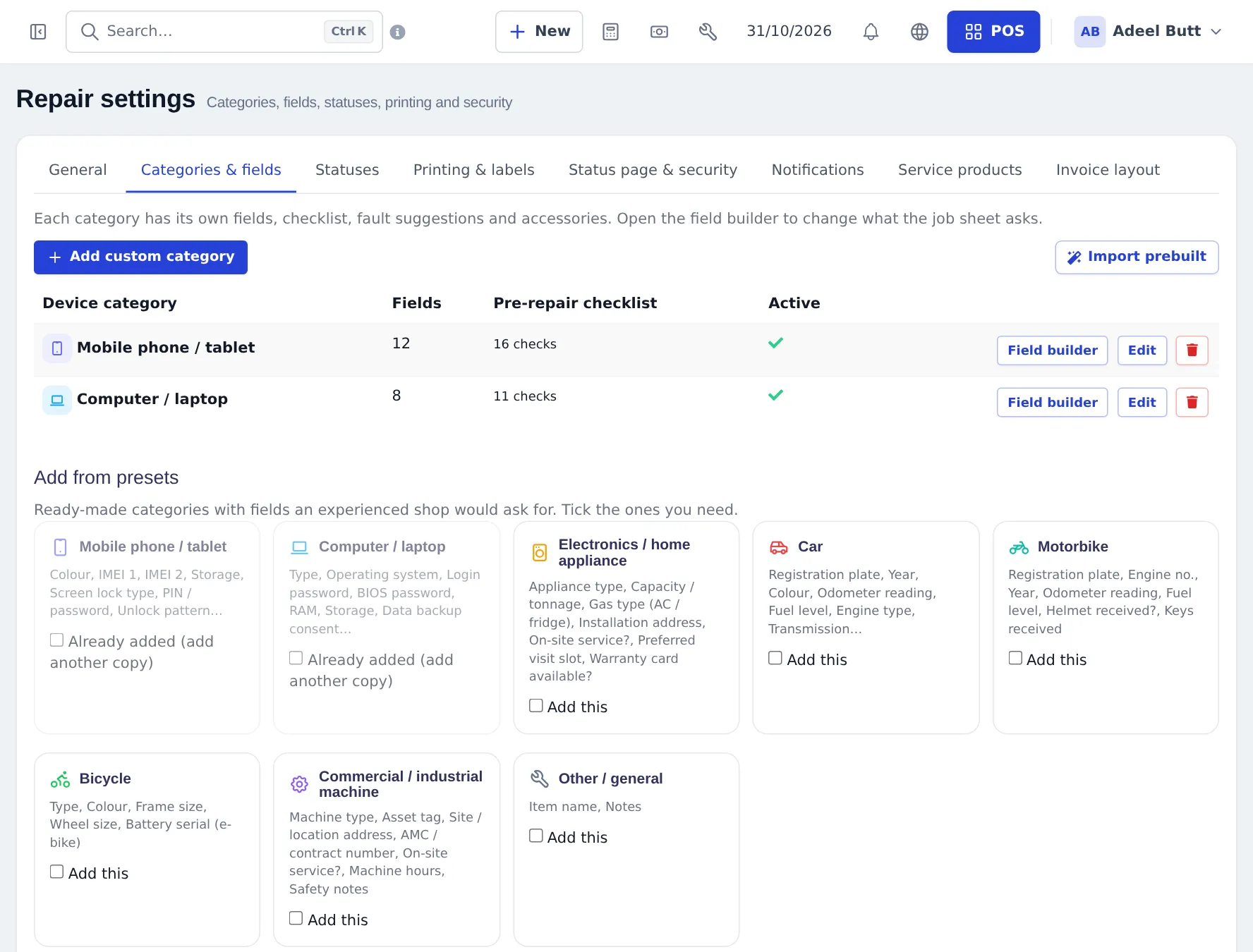
The Mobile phone / tablet preset asks for brand, model, colour, IMEI 1 and IMEI 2, storage, screen lock type with PIN or pattern, whether the Apple ID or Google account is removed, accessories, battery health and water damage. The Computer / laptop preset asks for type, operating system, login and BIOS passwords, RAM, storage, charger and data-backup consent.
Set your repair statuses
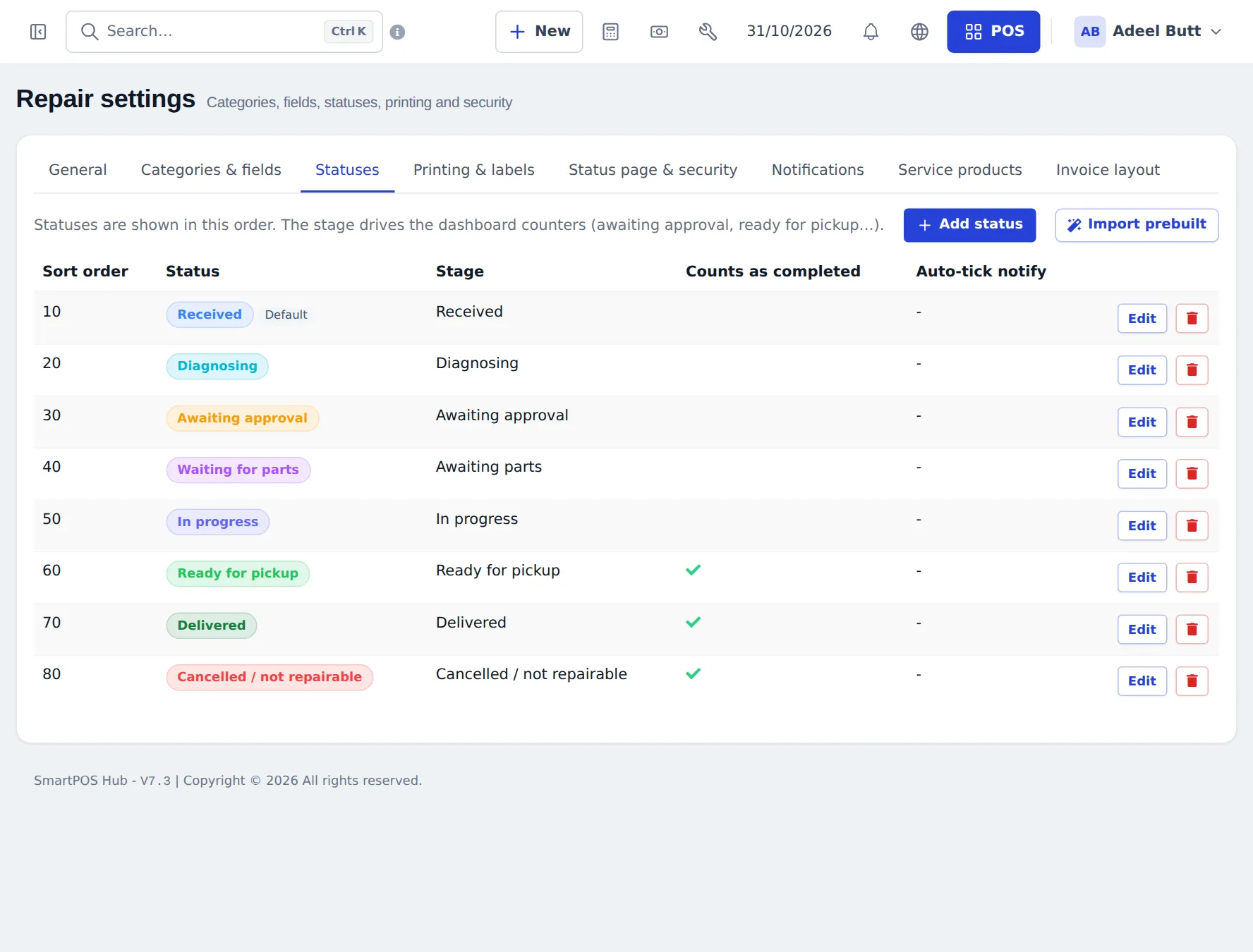
Section titled “Set your repair statuses”Open the Statuses tab. The default flow is Received → Diagnosing → Awaiting approval → Waiting for parts → In progress → Ready for pickup → Delivered, plus Cancelled / not repairable. For each status you can set the colour, Stage (drives the dashboard counters), whether it counts as completed, and an SMS or email template sent when a job moves into it.
General defaults and intake rules
Section titled “General defaults and intake rules”In General, set the job number prefix and digits, the default status, technician, warranty and days until ready, the default service type (Carry-in, On-site, Pickup & delivery), urgent and express surcharges, and intake rules: Customer must accept terms, Customer signature required, Deposit required on new jobs with a minimum %.
Device models
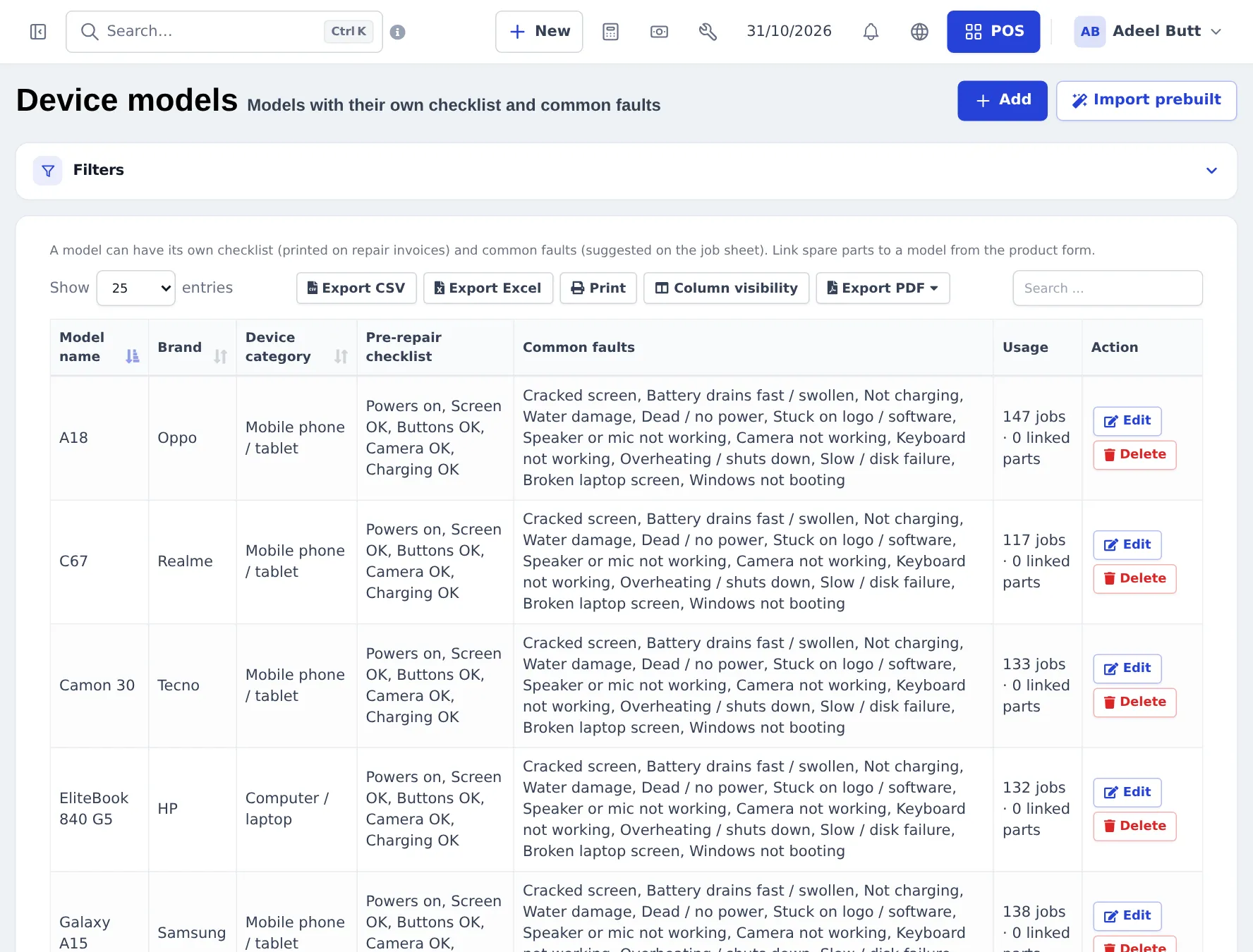
Section titled “Device models”Repair › Device models lists the models you fix with their brand, category, pre-repair checklist and common faults. Click Add or Import prebuilt. On the job sheet, picking a model suggests its faults and adds its checklist. You can also type a new model name on the job sheet to create it.
Parts, labour and service products
Section titled “Parts, labour and service products”- Parts (screens, batteries, charging ports) are normal products with stock. Link a part to its model from the product form.
- Labour (screen replacement, diagnostics fee) is a product with Manage Stock? unticked.
- In Service products, choose the product used for visit charges and the one used for priority surcharges.
Printing, status page and invoice
Section titled “Printing, status page and invoice”- Printing & labels: terms and conditions text, device label size, and whether secrets may print.
- Status page & security: turn the public repair status page on or off, show or hide the amount due, and set Delete secrets N days after delivery.
- Invoice layout: tick the repair details (status, warranty, serial, defects, model, checklist) in your invoice layout so repair invoices print them.
Next: step 7: run repair jobs.
Frequently asked questions
Which device categories should a phone and laptop lab add?
Add the Mobile phone / tablet and Computer / laptop presets. Each preset comes with fields such as IMEI 1 and IMEI 2, storage, screen lock type, operating system and charger received, and its own pre-repair checklist.
Can I add my own fields to the job sheet?
Yes. Open Repair › Settings › Categories & fields and use the Field builder. Field types include text, number, dropdown, checkbox, date, photo, signature, secret and pattern lock.
Are screen PINs and passwords safe?
They are stored encrypted, never shown in forms, and can only be revealed by users with that permission. Every reveal is logged with user and time, and you can delete secrets automatically some days after delivery.
Can I rename the repair statuses?
Yes. In Repair › Settings › Statuses you can rename, recolour, reorder and add statuses, mark which ones count as completed, and attach SMS or email templates.
How do I charge for labour?
Create labour as products without stock management, for example Screen replacement labour, and add them to the job's parts and services. Parts are normal stock products.
What does a device model add?
A model can have its own pre-repair checklist and common faults, which are suggested on the job sheet. You can also link spare parts to a model from the product form.