
Scan & Go - customers scan their own items
Scan & Go lets customers scan products with the SmartPOS Shopper app while they shop, then show one code at the counter. The cashier loads the whole cart into the POS in one scan and takes payment. Queues get shorter and customers see prices (and member prices) as they shop.
How it works
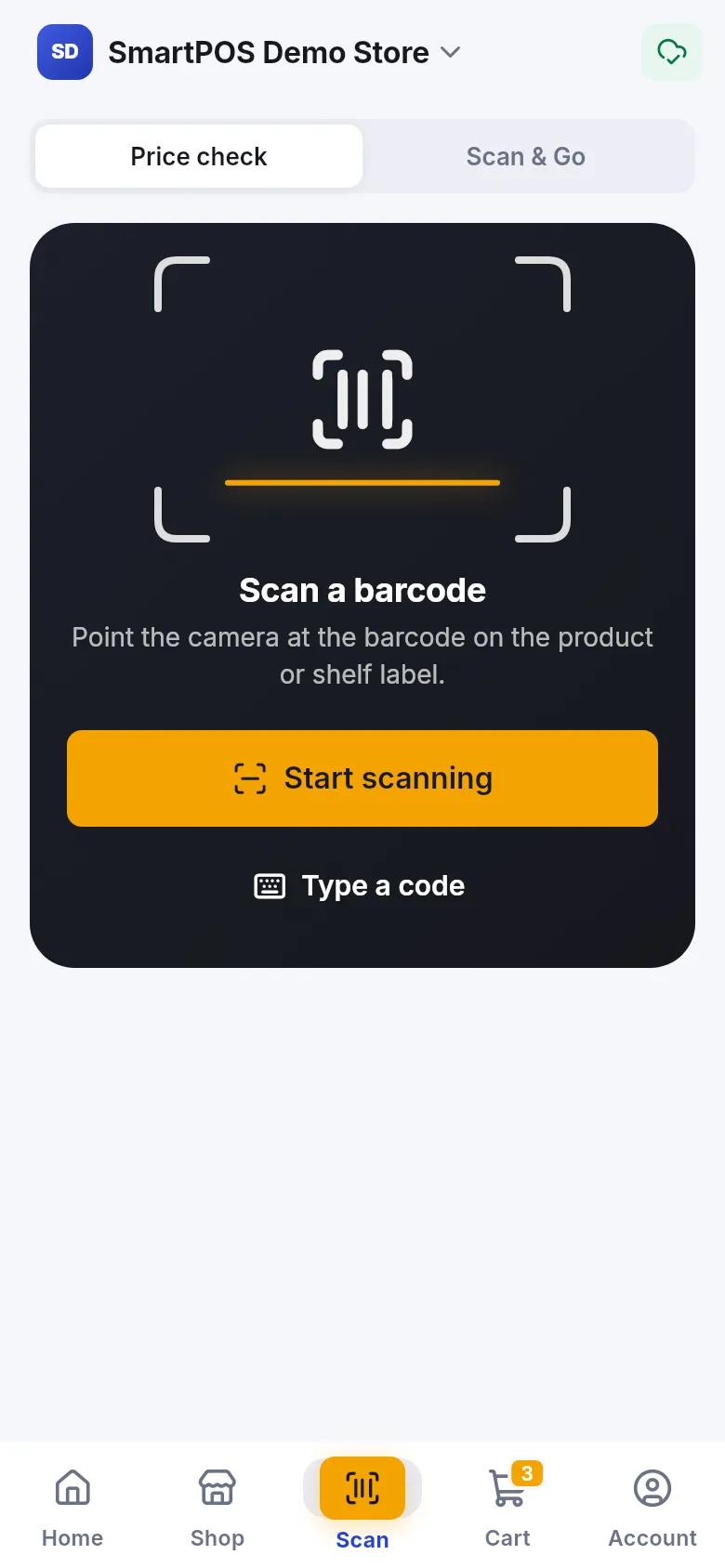
Section titled “How it works”- The customer opens your store in the Shopper app, goes to Scan, and chooses Price check or Scan & Go.
- They scan barcodes on products or shelf labels (or Type a code). Each scan shows the product, price and stock, with Add to cart.
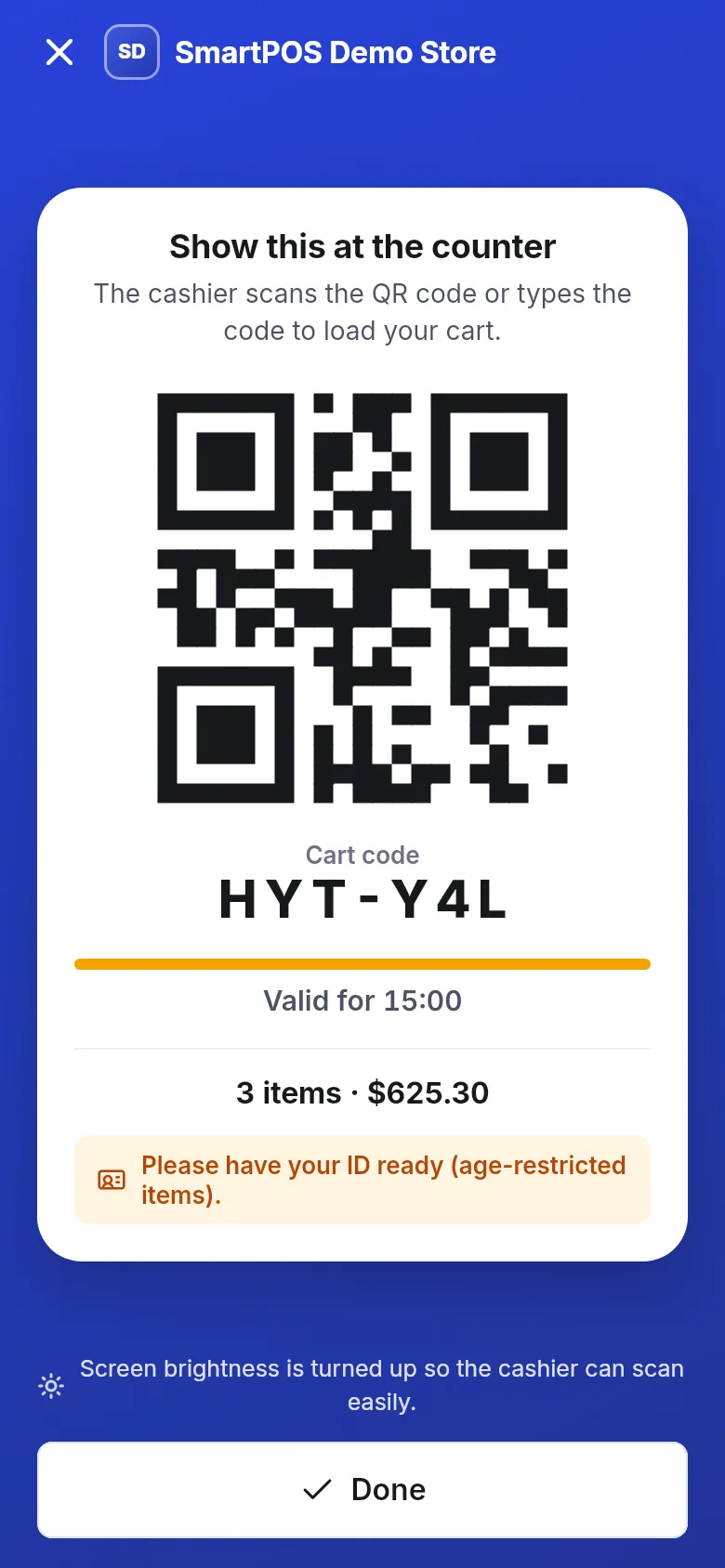
- At the counter they open the cart and show the QR code and Cart code (“Valid for 15:00”). Their screen brightness goes up so it scans easily.
- The cashier loads the cart, checks what the POS flags, and takes payment like any sale.
- The receipt appears in the customer’s app.
Load a Scan & Go cart at the counter
Section titled “Load a Scan & Go cart at the counter”- Web POS: on the POS screen press Shopper cart. The Load a shopper cart box opens.
- Scan the shopper’s QR code with your scanner, or type the code shown in their app, and press Load cart.
- You see “Shopper cart loaded. Check the items and take payment.” The customer is filled in and the items are priced by the POS.
- Watch for notes: Bag check, ID check (age-restricted items) or Weigh at counter.
- Take payment and finish the sale as usual.
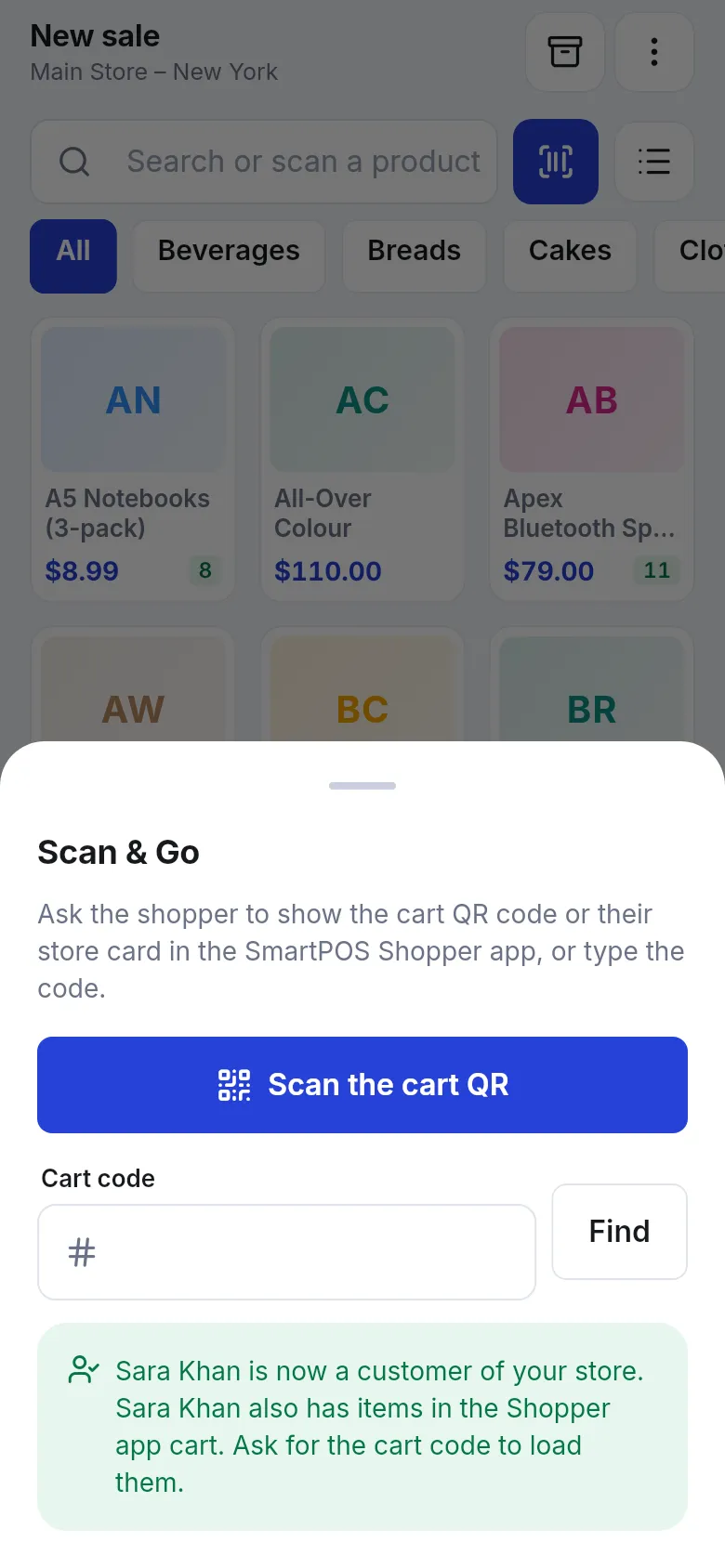
In the SmartPOS Business app, open a new sale and use the Scan & Go sheet: Scan the cart QR or type the Cart code and press Find.
Set counter checks
Section titled “Set counter checks”In Settings › Shopper app & Scan & Go › Checks at the counter:
- Always check the first visits - how many Scan & Go visits per member are always checked.
- Random checks (%) - after that, this share of hand-offs is picked at random.
- Always check carts over - an estimated total; 0 = off.
- Block rooted or modified phones for Scan & Go - when off, such phones still work and you only see a warning.
And in Products: ID check needed for these categories / products and Weigh at the counter.
Tips and mistakes to avoid
Section titled “Tips and mistakes to avoid”- Put the store QR poster at the entrance so customers join before they start shopping.
- Make sure products have barcodes; items without one can still be found with Type a code.
- If the POS says “This cart has no items that can be sold here”, the items are not sold at this location or are hidden from the app.
- A cart code works once and for 15 minutes. If it expired, ask the customer to show a new one.
Related pages
Section titled “Related pages”Frequently asked questions
Do customers pay in the app with Scan & Go?
No. Customers scan items into a cart on their phone and pay at the counter. The cashier loads the cart into the POS with the cart code and takes payment as usual.
How long is a cart code valid?
15 minutes, and it can be used once. The customer can make a new code from their cart.
What is the difference between the cart code and My store card?
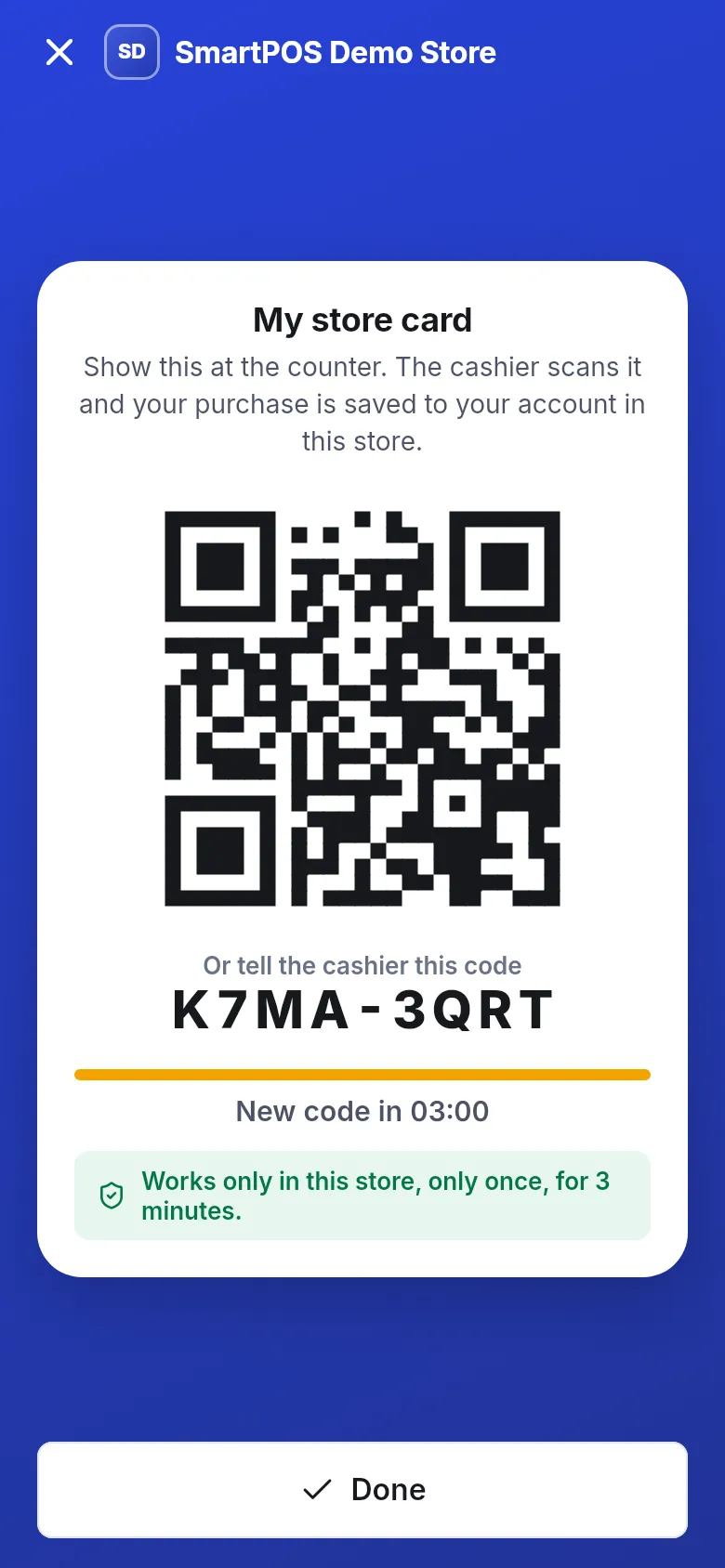
The cart code loads the items the customer scanned. My store card only tells the cashier who the customer is, so the sale goes on their account. Store cards are valid for 3 minutes and work once, only in your store.
How does the cashier load the cart on the web POS?
Press the Shopper cart button on the POS screen, scan the shopper's QR code or type the code, and press Load cart. The items are added and priced by the POS.
Can I check customers' bags?
Yes. Choose how many first visits are always checked, a random percentage after that, and a cart value above which every cart is checked. The cashier sees "Bag check" - the shopper is not told in advance.
What about age-restricted or weighed items?
Mark categories or products that need an ID check, and items to weigh at the counter. The cashier sees "ID check" or "Weigh at counter" when loading the cart.
Does Scan & Go work offline?
The customer's phone and the cashier need an internet connection to hand over and load the cart.