
Combo bundles and service products
Not every item is a simple box on a shelf. A combo (bundle) is sold as one item but made of other products, like a phone plus a case and charger, or a meal deal. A service is something you sell without counting stock, like a repair, a delivery charge or a consultation. This page shows how to set up both.
Combo products (bundles)
Section titled “Combo products (bundles)”Before you start
Section titled “Before you start”The products that go into the combo must already exist. Add them first with Add a product or the Product Library.
- Open Products › Add Product and fill in Basic info (name, unit, category).
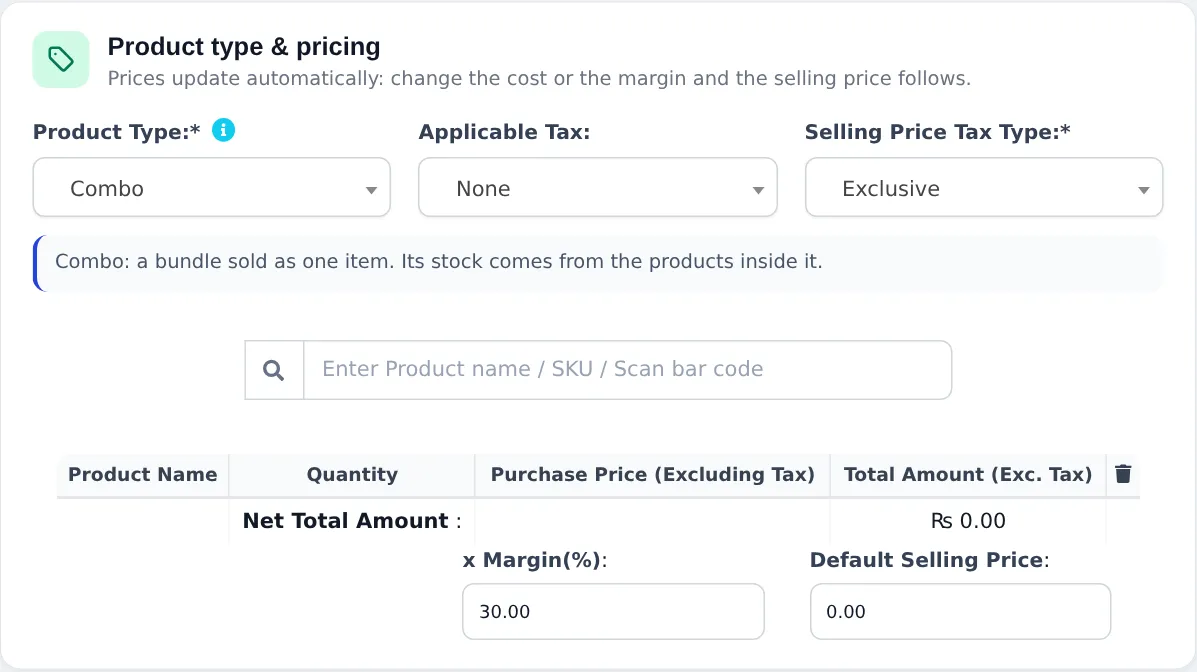
- In Pricing, set Product Type to Combo. The note reads: Combo: a bundle sold as one item. Its stock comes from the products inside it.
- In Enter Product name / SKU / Scan bar code, search or scan each item and pick it. It is added to the table with its Quantity and Purchase Price (Excluding Tax).
- Change the Quantity of each item if the bundle has more than one (for example 2 × batteries).
- Check the Net Total Amount, then set x Margin(%) or type the Default Selling Price.
- In Stock, choose the Business Locations that sell the combo, then click Save.
What happens when you sell a combo
Section titled “What happens when you sell a combo”- The receipt shows the combo name and price.
- Stock is taken from each item inside, so the shelf count of every part stays right.
- Check the stock of the parts before a promotion: a combo can only be handed over if its parts are on the shelf.
Combos in the Business app
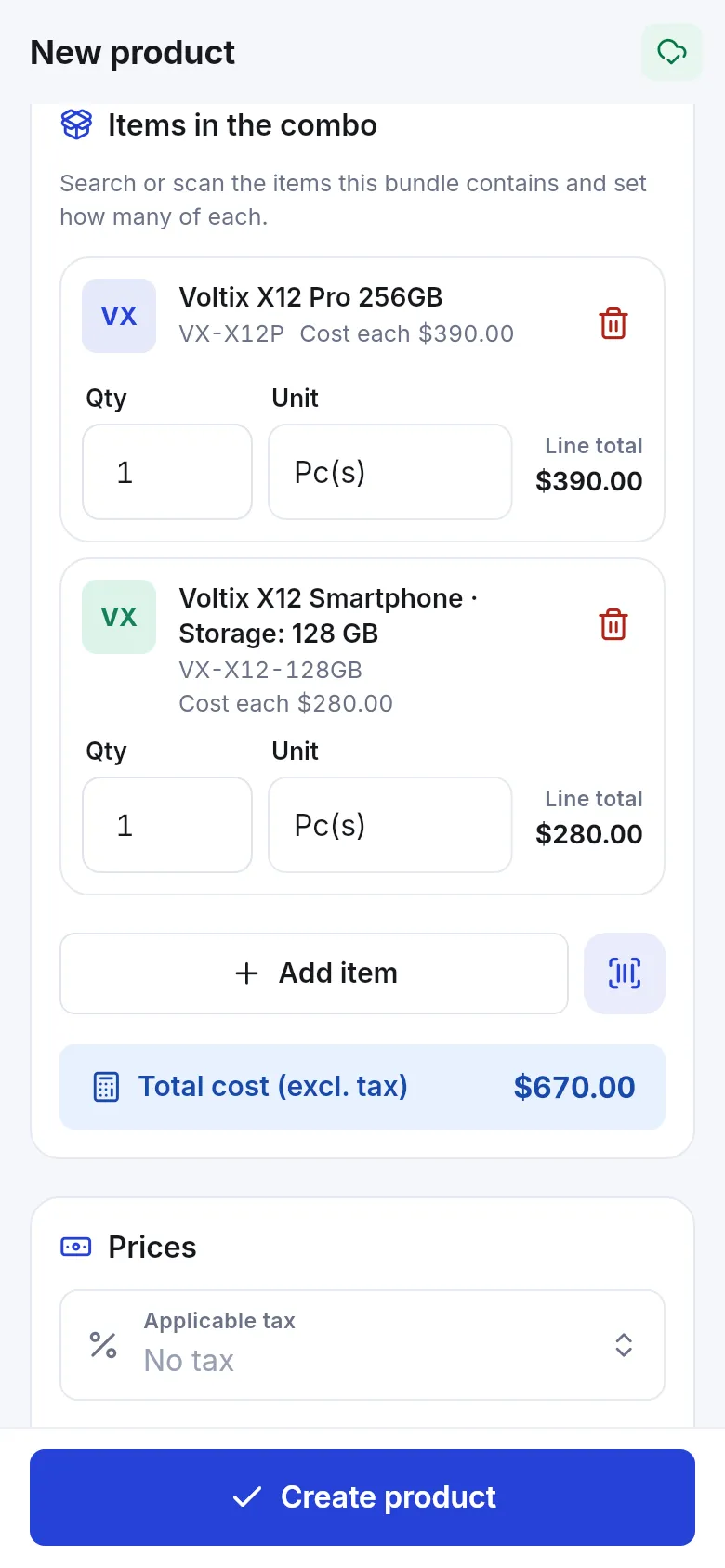
Section titled “Combos in the Business app”In the SmartPOS Business app choose Combo / bundle as the product type. Under Items in the combo, tap Add item or scan, set the Qty and Unit for each, and the app shows Total cost (excl. tax).
Service products (no stock)
Section titled “Service products (no stock)”Use a service product for anything you charge for but don’t count:
- Open Products › Add Product and type the name, for example “Screen replacement labour” or “Home delivery”.
- Choose a unit such as Pieces or a time unit (Hour) if you imported one.
- In Pricing, keep Single and set the selling price. The purchase price can be 0.
- In Stock, untick Manage Stock?. The product never shows as out of stock and needs no purchases.
- Click Save.
Digital products
Section titled “Digital products”Selling software keys, e-books or downloads? In the product form, the Digital product card has This is a digital product. Turn it on and add Files to deliver, Or a link, Licence keys / codes (one per line), Instructions for the buyer and Download limits. Nothing is shipped: after payment the buyer gets the file, link or key on screen and by e-mail.
Related pages
Section titled “Related pages”Frequently asked questions
Does a combo product have its own stock?
No. A combo's stock comes from the products inside it. When you sell one combo, each item in it is taken out of stock in the quantity you set.
How is the combo price worked out?
The form adds up the purchase prices of the items (Net Total Amount), applies the x Margin(%) and fills the Default Selling Price. You can type your own selling price instead.
How do I add a service like a repair or a haircut?
Add a single product and untick Manage Stock?, so it never runs out. If you use the Services module, add services under Services › Services, which also stores duration and staff.
Can a combo contain a variant?
Yes. Search or scan the exact variant, for example a phone in 128 GB, and it is added to the combo with its own cost.
Can I sell a digital product like a licence key?
Yes. Turn on This is a digital product in the Digital product card of the product form and add the files, a link or keys to deliver after payment.