
Restaurant in the app - tables, open tabs and kitchen
SmartPOS Business turns waiters’ and cooks’ phones into a restaurant system: a live floor plan of tables, open tabs where guests eat first and pay later, rounds sent to the kitchen, a kitchen display and an orders board for dine-in, takeaway and delivery. This page is for restaurant owners, waiters, cashiers and kitchen staff.
Before you start
Section titled “Before you start”- Tables and areas are set up on the web. See Restaurant setup and Open tabs.
- Menu items with options (size, crust, extras) are set up as modifiers. See Modifiers.
- Waiters and kitchen staff each have their own login with the right role.
Floor plan and tables
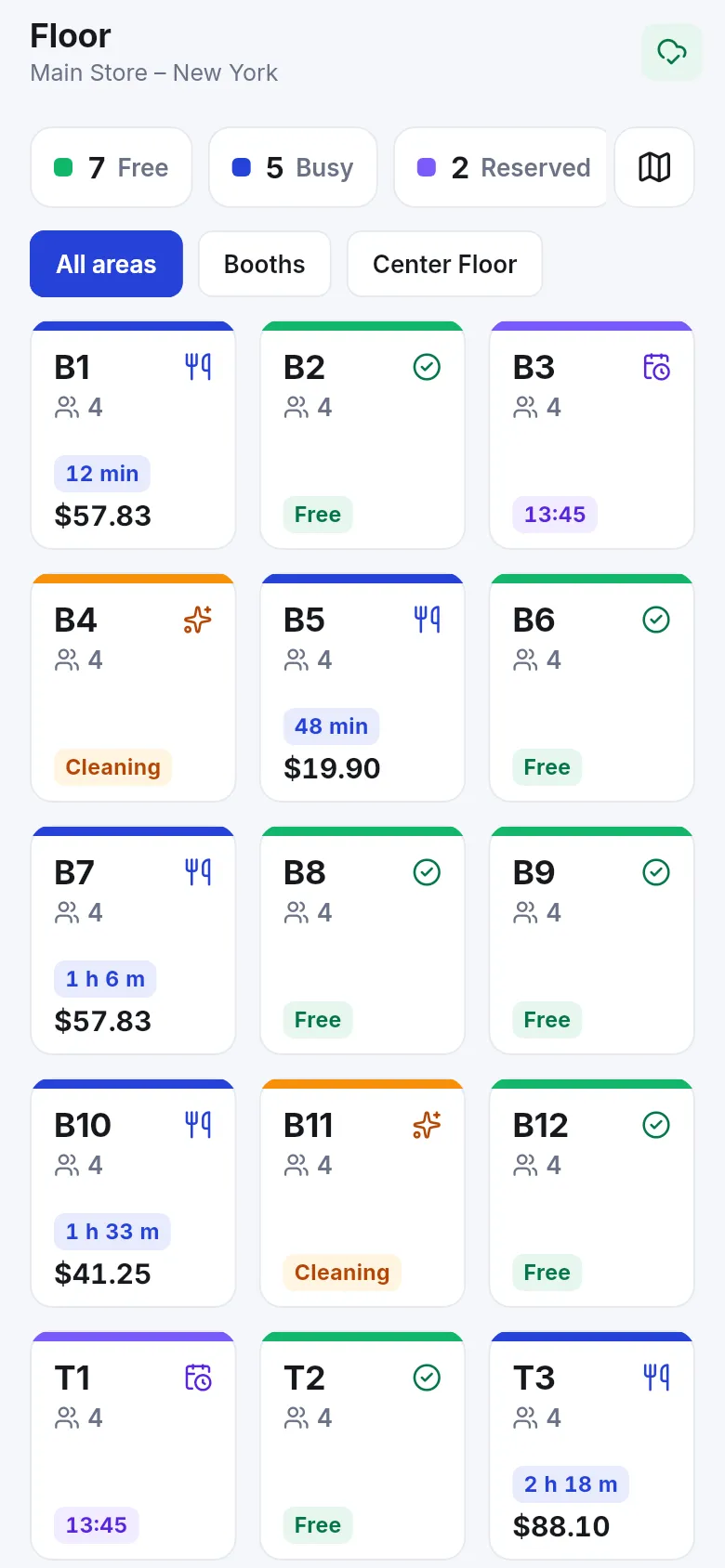
Section titled “Floor plan and tables”Restaurant (or Floor in More) shows every table with its state: Free, Busy (guests seated, with time and running total), Reserved (with the booking time) and Cleaning. Filter by area. The tabs at the top switch between Floor, Orders, Kitchen and Open tabs. Tap a free table to start an order there; tap a busy table to open its tab.
Open a tab: eat first, pay later
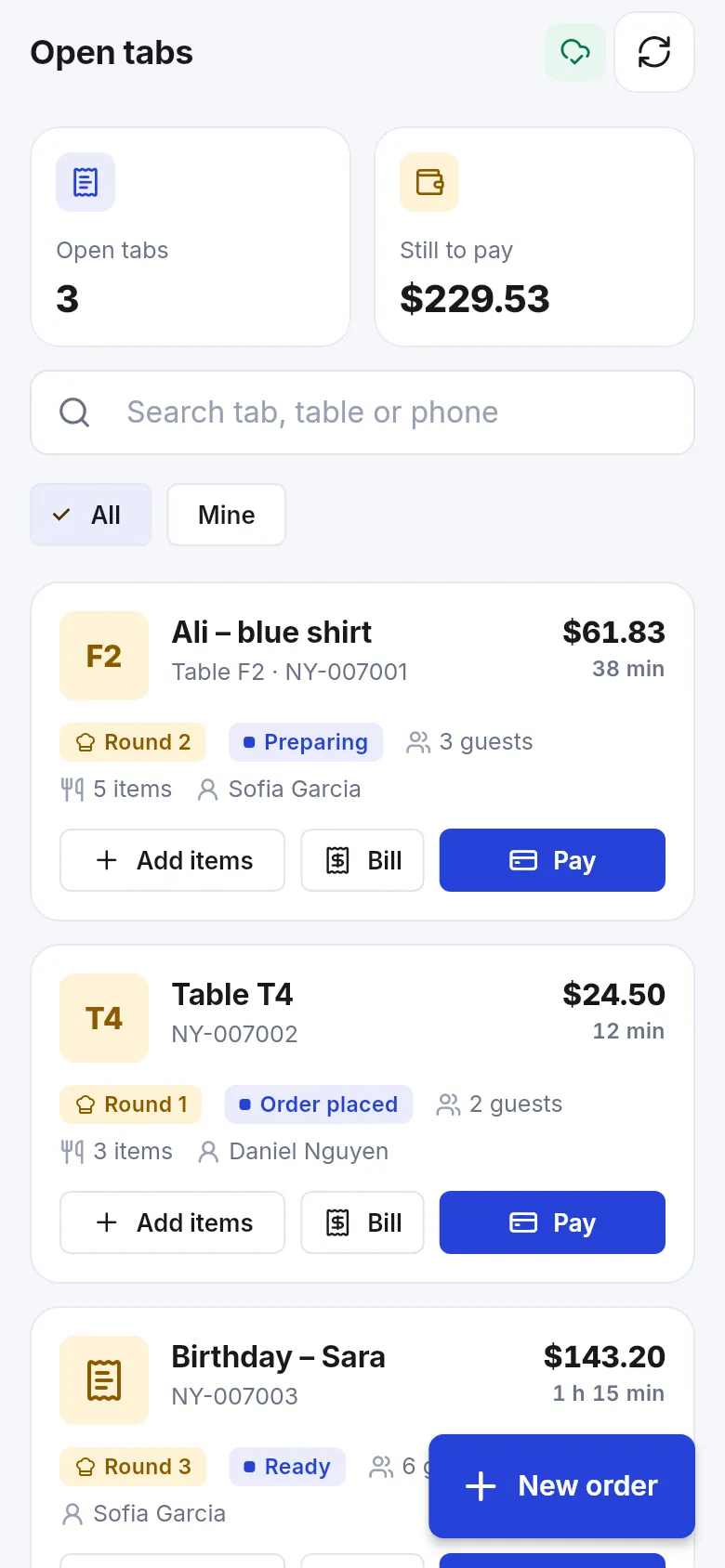
Section titled “Open a tab: eat first, pay later”- Tap New order on Open tabs (or tap a free table).
- Choose the table (or No table – then Name this tab, for example Ali – blue shirt), the number of Guests and an optional phone.
- Add dishes from the menu. Dishes with options open a sheet with photos or icons for each choice (for example size, crust, extras).
- Tap Send to kitchen. Round 1 sent to the kitchen. The tab stays open (Keep tab open – the guests pay later).
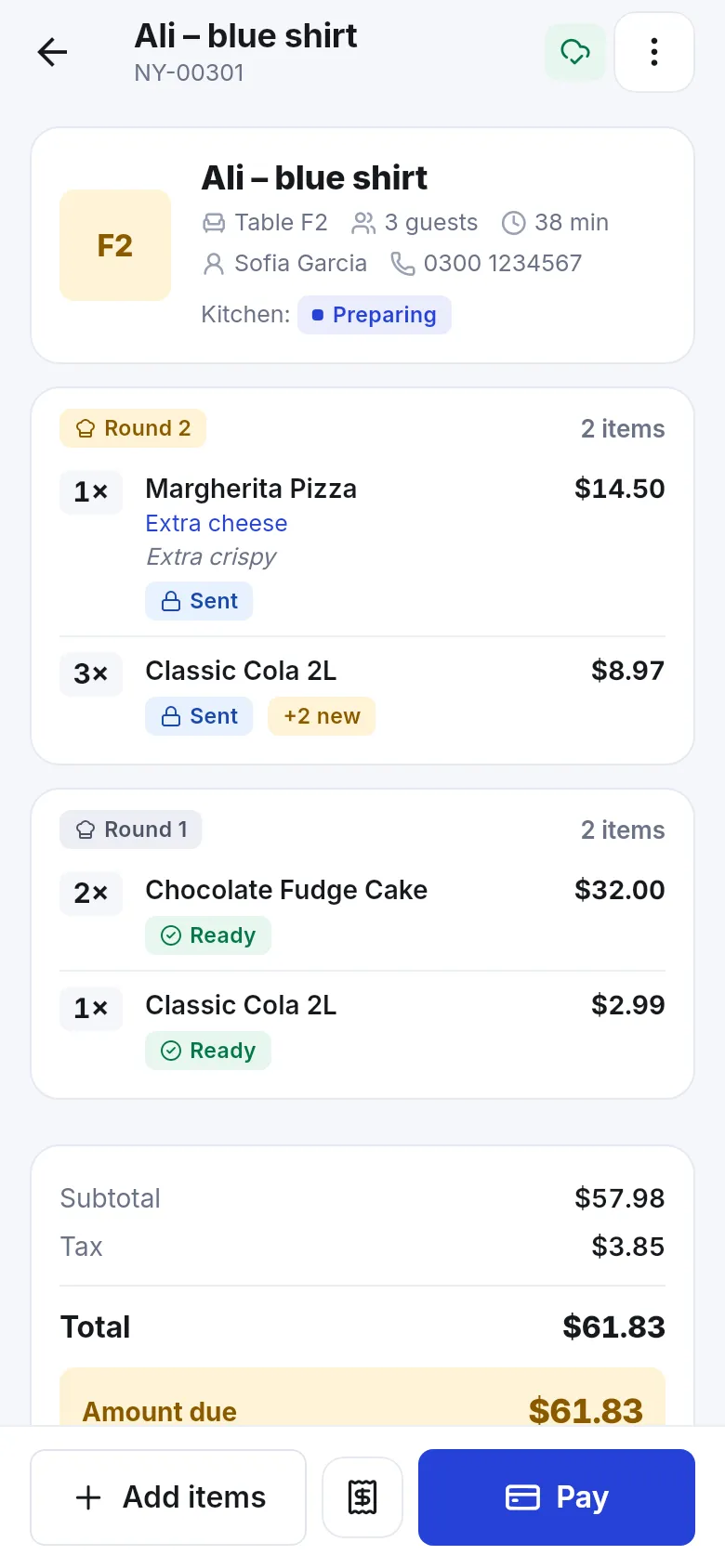
- Guests want more? Open the tab, tap Add items, add dishes (Adding to …, New items go to the kitchen as round 2) and tap Send new items.
Each round shows Sent, then Ready as the kitchen works. If someone else added items at the same time, the app reloads the tab and asks you to check and send again.
The kitchen display
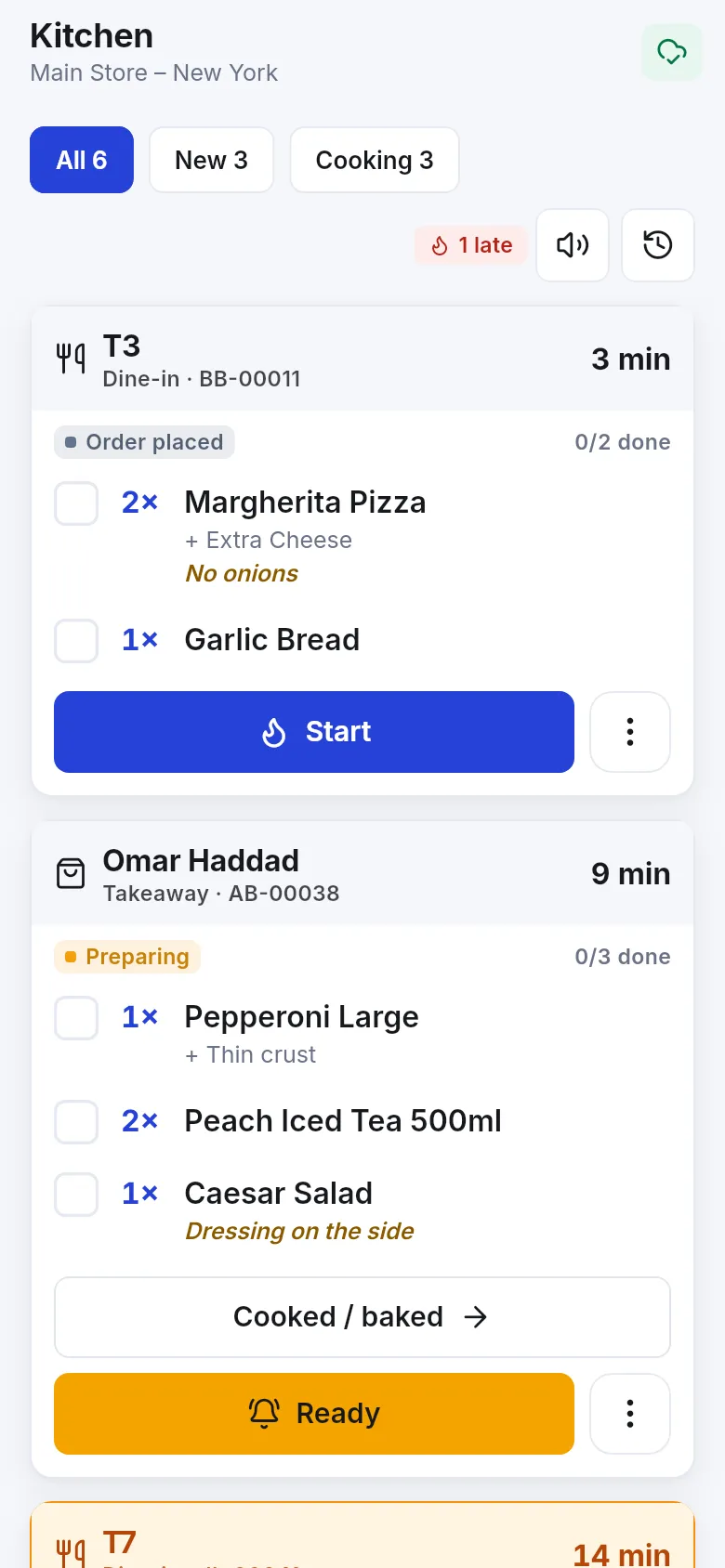
Section titled “The kitchen display”Kitchen staff open Kitchen. Each round is a ticket with the table or customer, order type, time waiting and items with their options and notes.
- Tap Start when cooking begins.
- Tick items as they are done, tap Cooked / baked and then Ready.
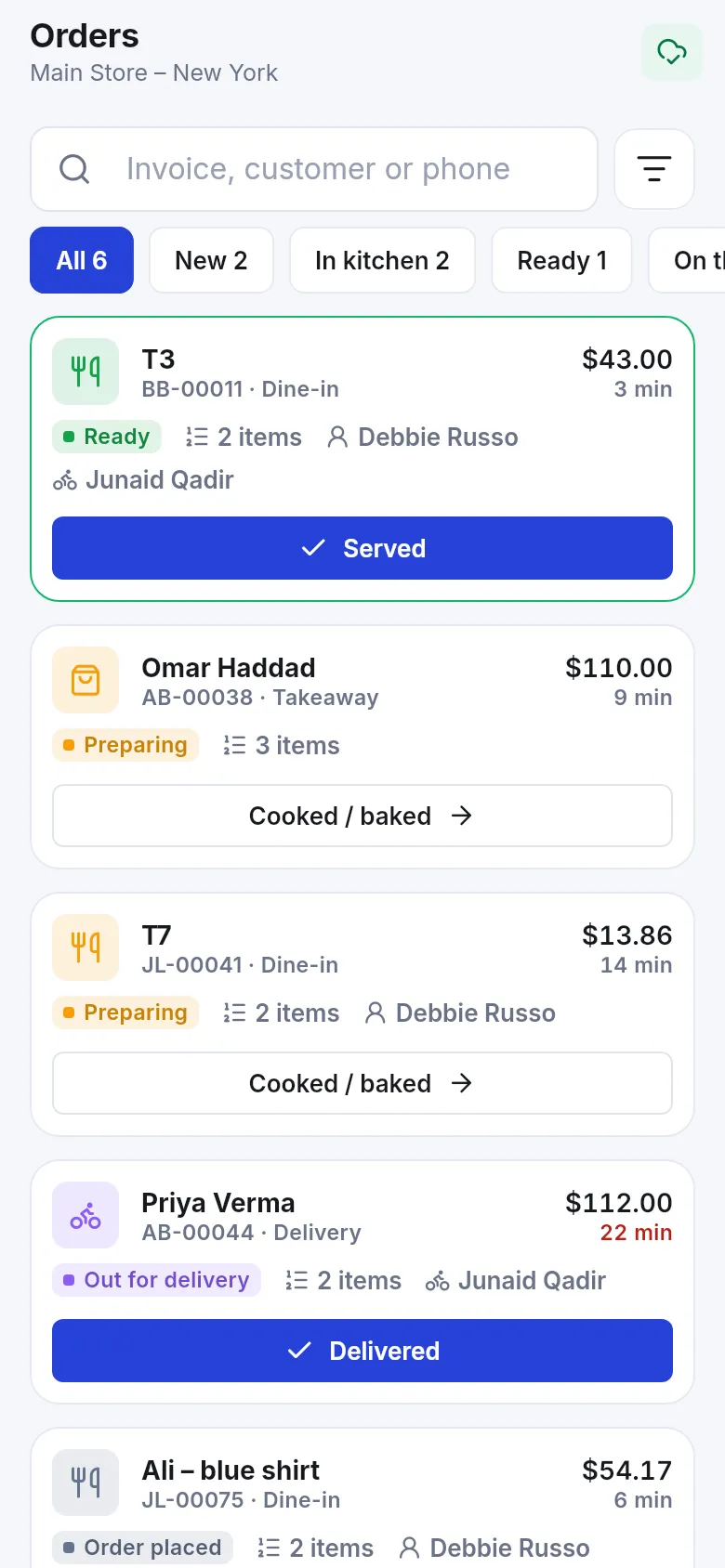
- The waiter gets a notification that the order is ready; on Orders it moves to Ready and then Served.
Filter by New or Cooking; late tickets are flagged. Use the recall button to bring back a ticket from the last hours. For a paper ticket, choose a Kitchen ticket printer (Off – kitchen screen only, Same as the receipt printer or Another Bluetooth printer).
Bill and pay
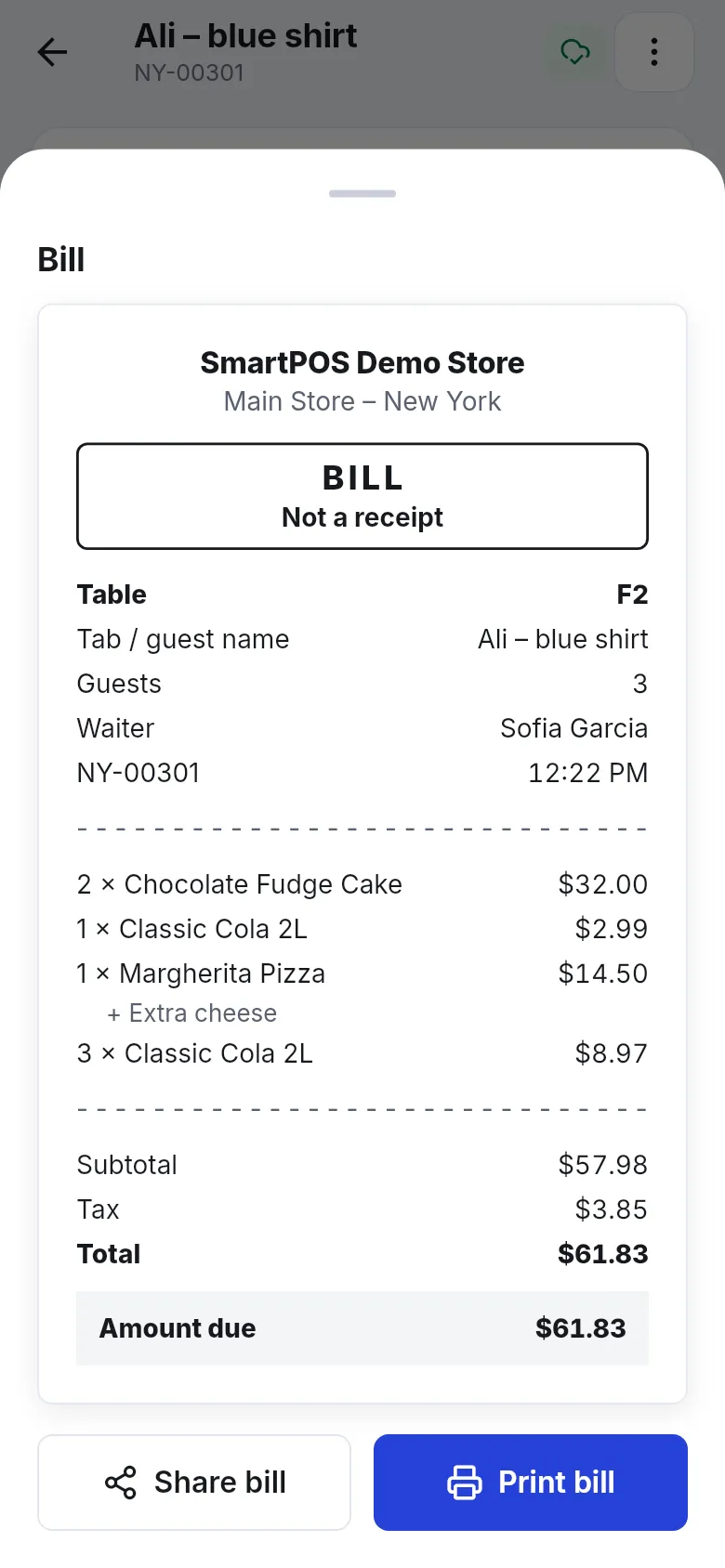
Section titled “Bill and pay”- Open the tab and tap Bill to show or print the pre-bill (Not a receipt) – Share bill or Print bill.
- When the guests pay, tap Pay. Choose the method, enter the cash received and tap Pay to complete the sale.
- A walk-in guest must pay in full. To leave a balance, choose the customer (a name and phone are enough) – the rest goes on their account.
- Use Move table or Edit details on the tab when guests move or the count changes. Cancel tab deletes the order and returns the items to stock.
- Only the waiter who opened a tab (or a manager) can change it.
- Delivery orders go to riders in Deliveries. See Deliveries and shipping.
Related pages
Section titled “Related pages”Frequently asked questions
Can guests order first and pay at the end?
Yes. Start a New order and send it to the kitchen; the tab stays open. Add more rounds with Add items and Send new items, print the Bill, then tap Pay when the guests are done.
How does the kitchen see orders?
Kitchen staff open Kitchen in the app (or the web kitchen screen). Each round appears as a ticket that they Start, mark Cooked / baked and Ready. You can also print kitchen tickets on a Bluetooth printer.
Can a tab have no table?
Yes. The app asks you to Name this tab, for example Ali – blue shirt, so everyone can find it later.
Can I move guests to another table?
Yes. Open the tab and use Move table.
Can I split or merge tabs?
Not yet. Splitting and merging tabs is not available in the app or on the web.
Does sending to the kitchen work offline?
No. It needs an internet connection. Your cart is kept on the phone until you are back online.
Does the waiter get told when food is ready?
Yes. When the kitchen marks an order Ready, the waiter gets a Kitchen ready notification, and guests or staff can use Call waiter.