
Restaurant step 9: open tabs, split and part payments
In a sit-down restaurant, guests order, eat, order again and pay at the end. Open tabs handle exactly that. This page also covers paying one bill with several methods, and the difference between an open tab and a real credit customer.
Open a tab and add rounds
Section titled “Open a tab and add rounds”- At the POS, pick the table (or type a Tab / guest name), enter Guests if you like, and add the first items.
- Tap Send to kitchen. The tab is saved and the kitchen gets the ticket with the table, tab name and guests.
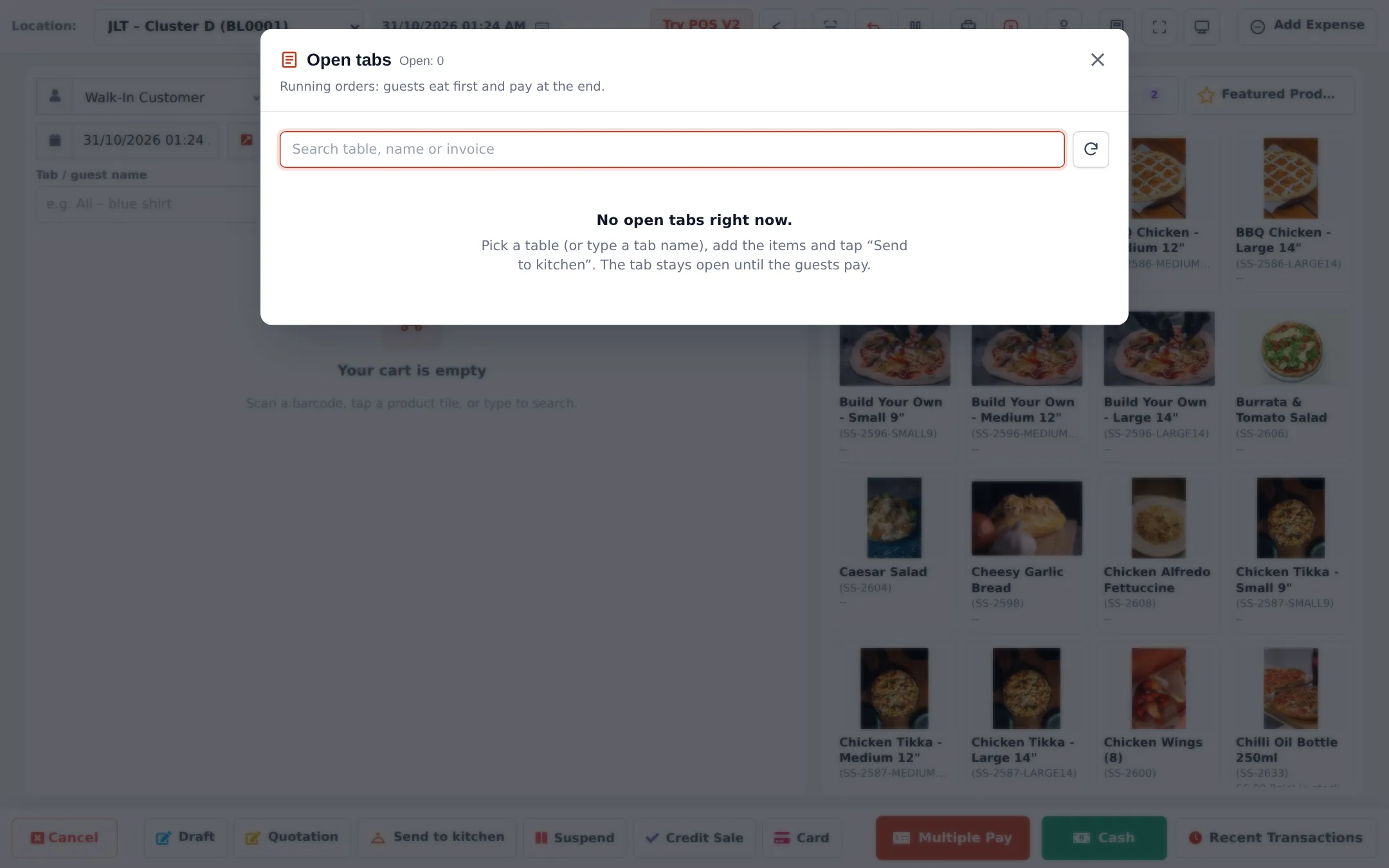
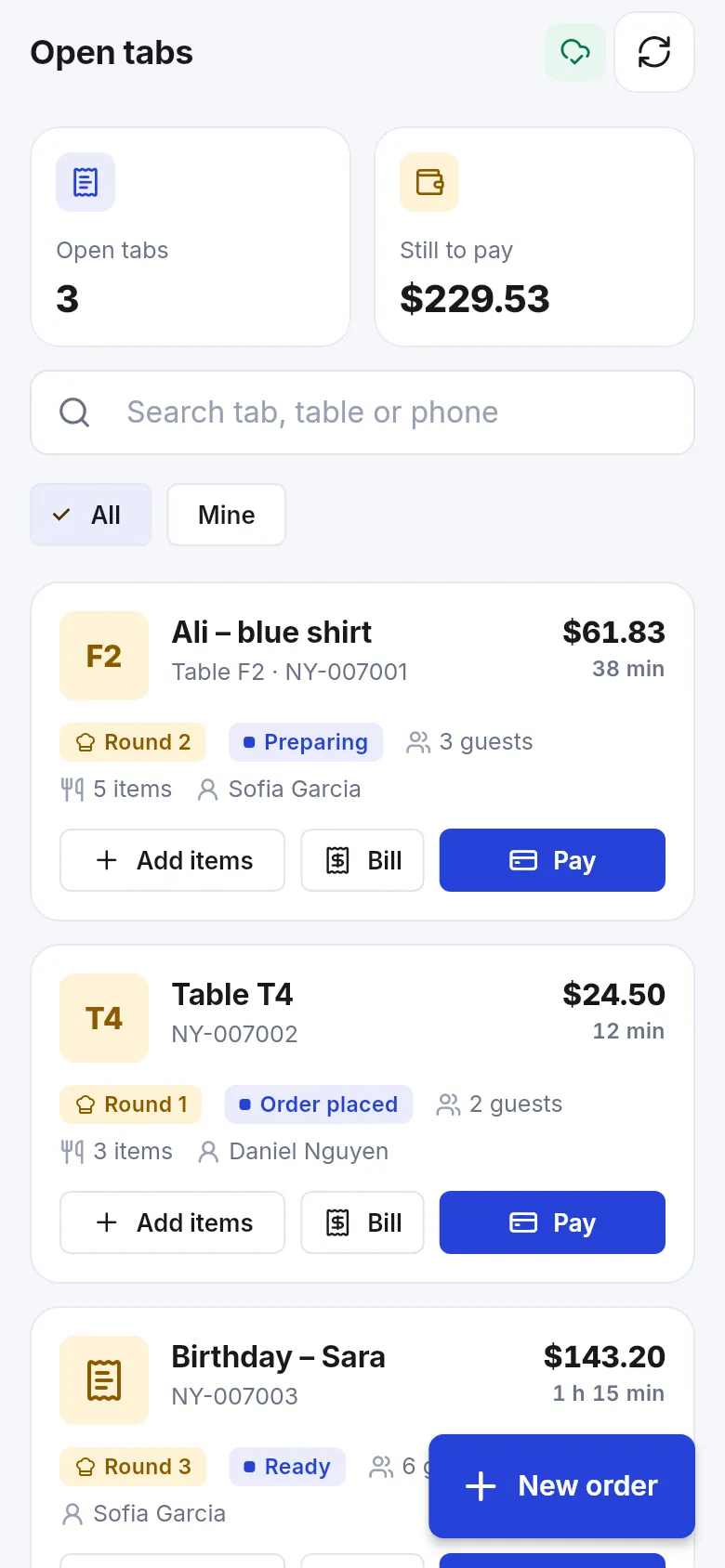
- When the guests order more, click Open tabs in the POS header and choose Add items on their tab. (Picking a table that already has a tab on a new sale also offers to open that tab.)
- Items already sent show Sent. Add the new items and tap Send new items. The kitchen ticket shows a Round 2 chip with the new items marked New, and the printed kitchen ticket lists only the new items.
Bill and pay the tab
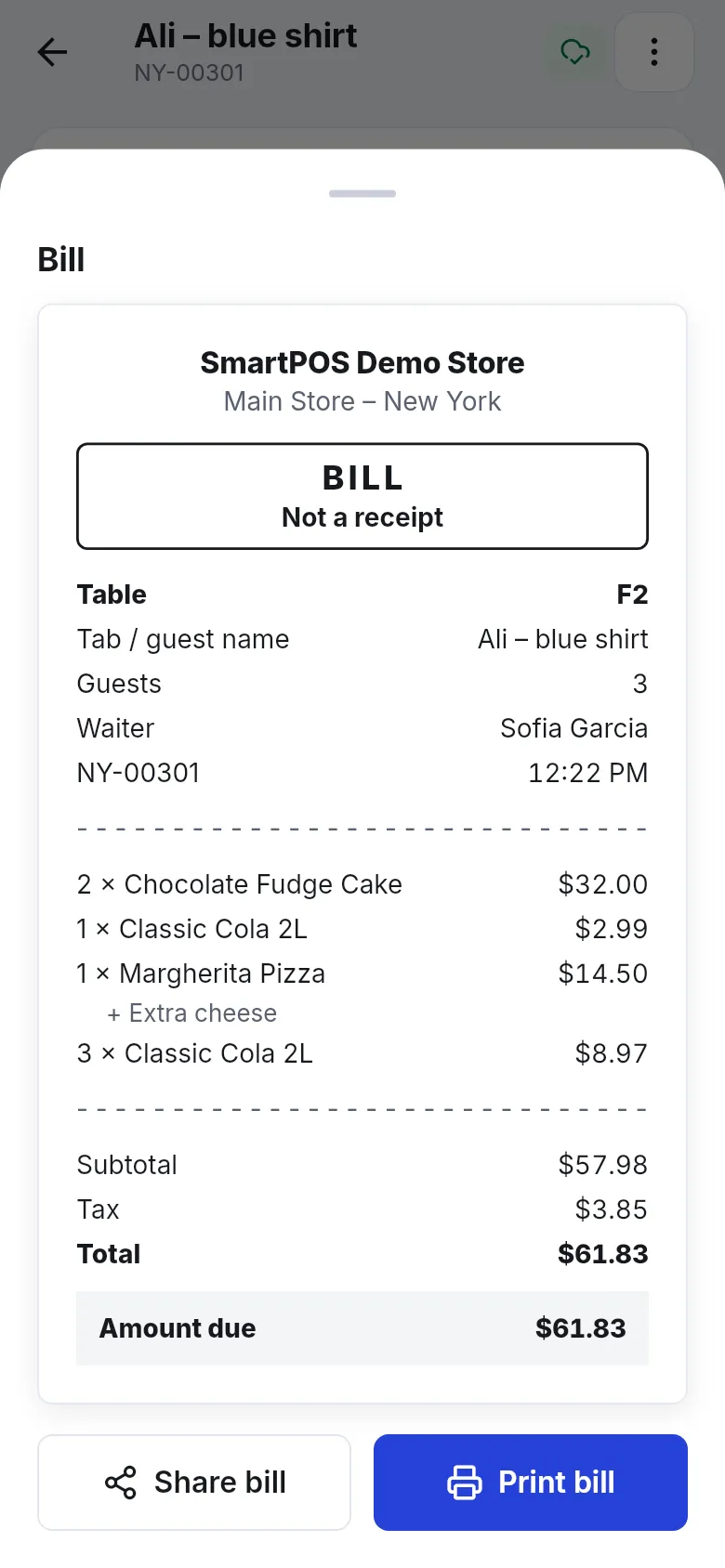
Section titled “Bill and pay the tab”- In Open tabs, click Bill to print the pre-bill (“Bill — not a receipt”).
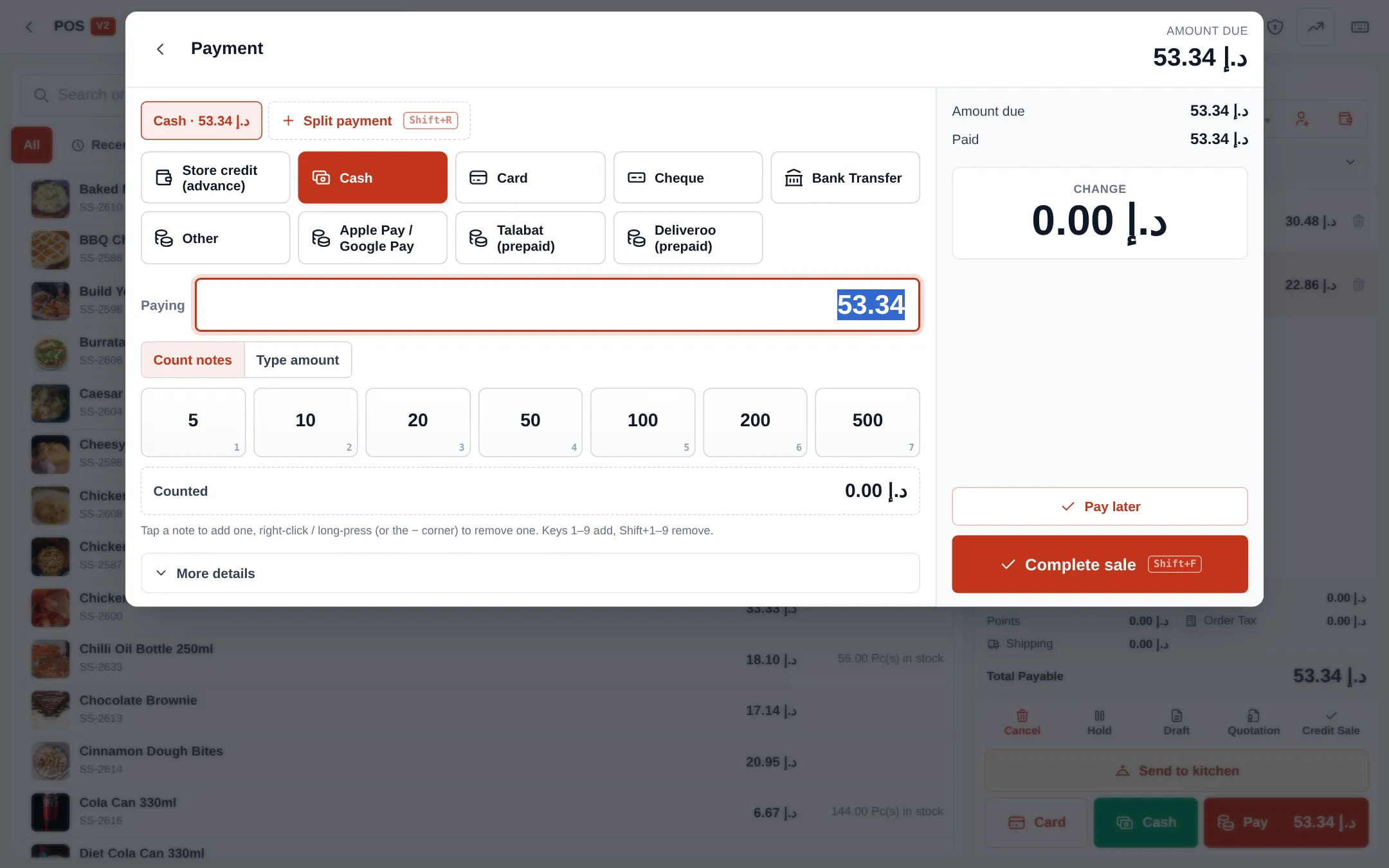
- Click Pay. The payment window opens with the amount due filled in.
- Take payment (below) and click Complete sale.
- The tab closes, the order moves to Completed, the table frees up, and the receipt shows the tab name instead of “Walk-In Customer”.
Split one bill across several payments
Section titled “Split one bill across several payments”- In the payment window, pick the first method (for example Card) and type the amount that guest pays.
- Click Split payment (or press the shortcut shown) to add another line.
- Pick the next method (for example Cash) and its amount. Repeat until Paid equals Amount due.
- Click Complete sale.
Open tab vs. credit customer
Section titled “Open tab vs. credit customer”| Situation | Use | What happens |
|---|---|---|
| Guests eat now and pay before leaving | Open tab (Send to kitchen, Pay at the end) | No customer needed, no credit limit |
| A walk-in taps Pay later on a dine-in order | Keep tab open | The tab stays open, no credit sale |
| A known customer pays another day or in parts | Credit sale or part payment | The balance goes on the customer’s ledger; credit limit applies |
| A walk-in asks to pay later | The POS asks for a name and phone first | A customer is created (or found by phone) and the credit sale continues |
Part payments, instalments and credit limits are explained in Credit and part payments and Customer credit limits and advances.
Next step
Section titled “Next step”Frequently asked questions
What is an open tab?
A running order for a table or a named guest. Items go to the kitchen as they are ordered, stock is taken, and the guests pay once at the end.
Why does Pay later say Keep tab open?
On a dine-in order, Pay later in the payment window keeps the tab open instead of creating a credit sale, so walk-in guests don't need a customer account.
Can a table split the bill by person?
You can split the payment by method and amount, for example one guest pays 40 by card and another 30 in cash. Splitting by items into separate checks is not available; divide the amount instead.
Can a waiter reopen another waiter's tab?
No. Waiters see and reopen only their own tabs. Managers and cashiers with full sales access see every tab.
A regular wants to pay at the end of the month. Is that an open tab?
No. That is a credit sale. Pick the customer, complete the sale with Credit Sale or a part payment, and collect the balance later. Credit limits apply.
Does an open tab keep the table busy overnight?
Yes. An unpaid open tab keeps its table occupied for up to 7 days, so you notice it. Pay or cancel old tabs at closing time.