
Barbershop step 3: walk-ins and appointments
Barbershops live on walk-ins, with booked regulars mixed in. This page shows how to keep both in one calendar so every cut is billed to the right barber. It is for whoever runs the front of the shop.
See who is free
Section titled “See who is free”- Services › Staff calendar shows one row per barber with today’s appointments as bars. Empty space is a free chair.
- Services › Overview shows Staff today with booked hours out of working hours for each barber.
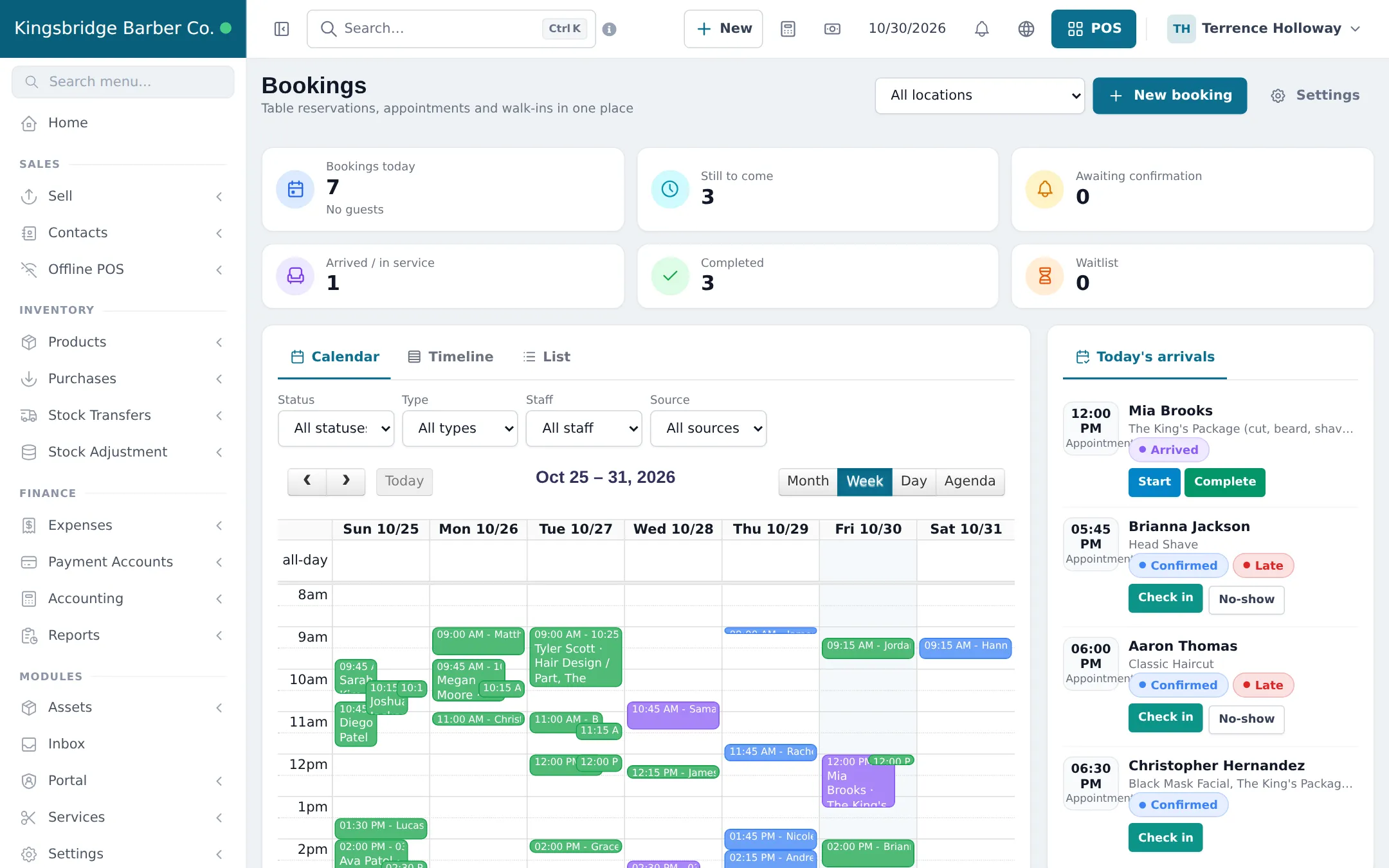
- Bookings shows the week, the day and Today’s arrivals with Check in, Start, Complete and No-show buttons. A red Late chip marks customers past their time.
Add a walk-in
Section titled “Add a walk-in”- Click New appointment (Services overview) or New booking (Bookings).
- Search the customer by name or phone, or type a new name and mobile number.
- Choose the service, for example Skin Fade. Pick the barber the customer wants, or Any available staff.
- Pick the current time, set Source to Walk-in and save.
- Click Check in, then Start when the cut begins.
Booked customers
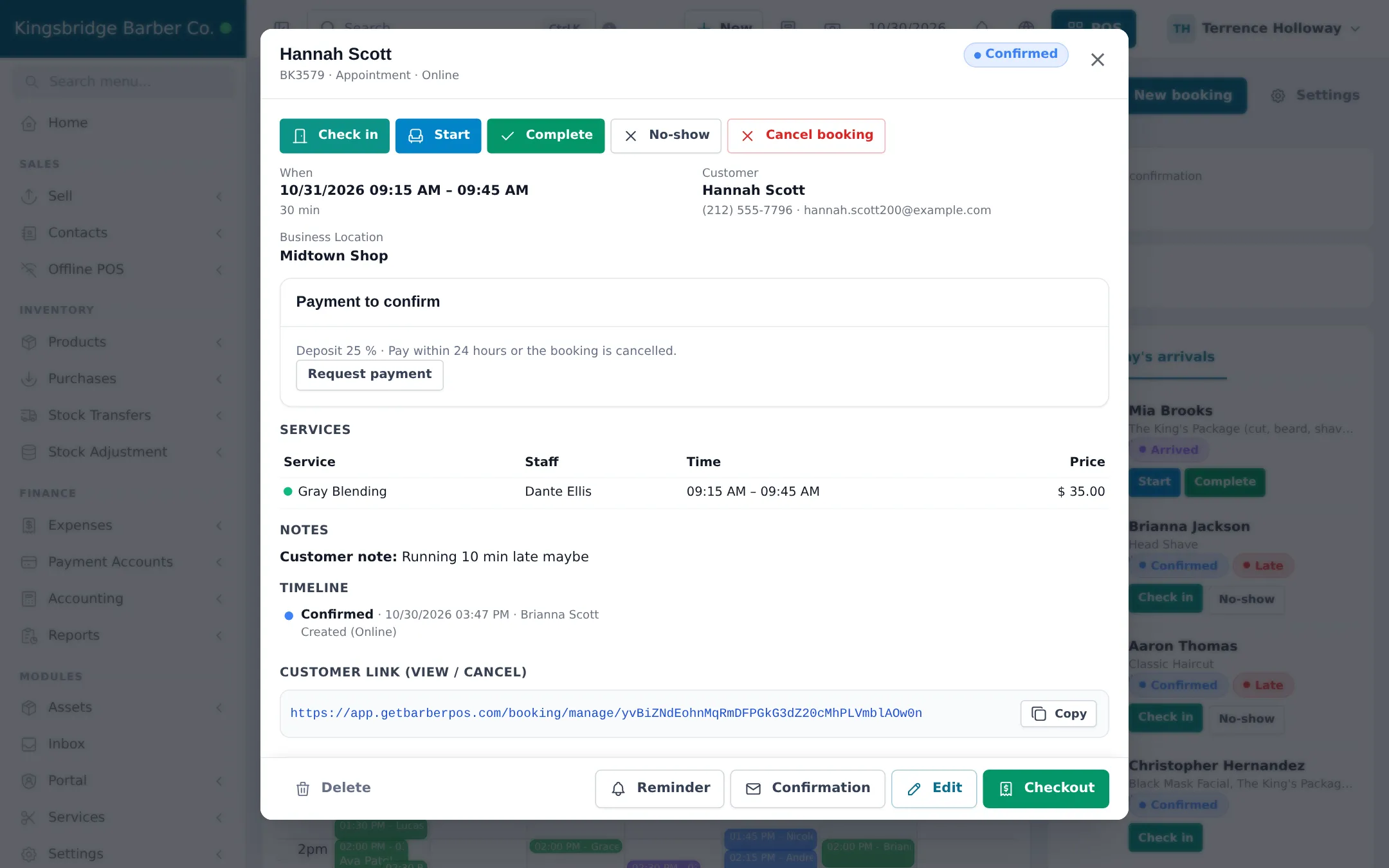
Section titled “Booked customers”Online and phone bookings appear in the same calendar. When the customer arrives, click Check in in Today’s arrivals, then Start. Use Edit to change the barber or time and Reminder to resend the reminder email.
No-shows and cancellations
Section titled “No-shows and cancellations”Click No-show for customers who never came, or Cancel booking for cancellations. No-shows count in Services › Reports and on the customer’s page. If a regular keeps missing, ask for a deposit next time (see step 4).
On a phone
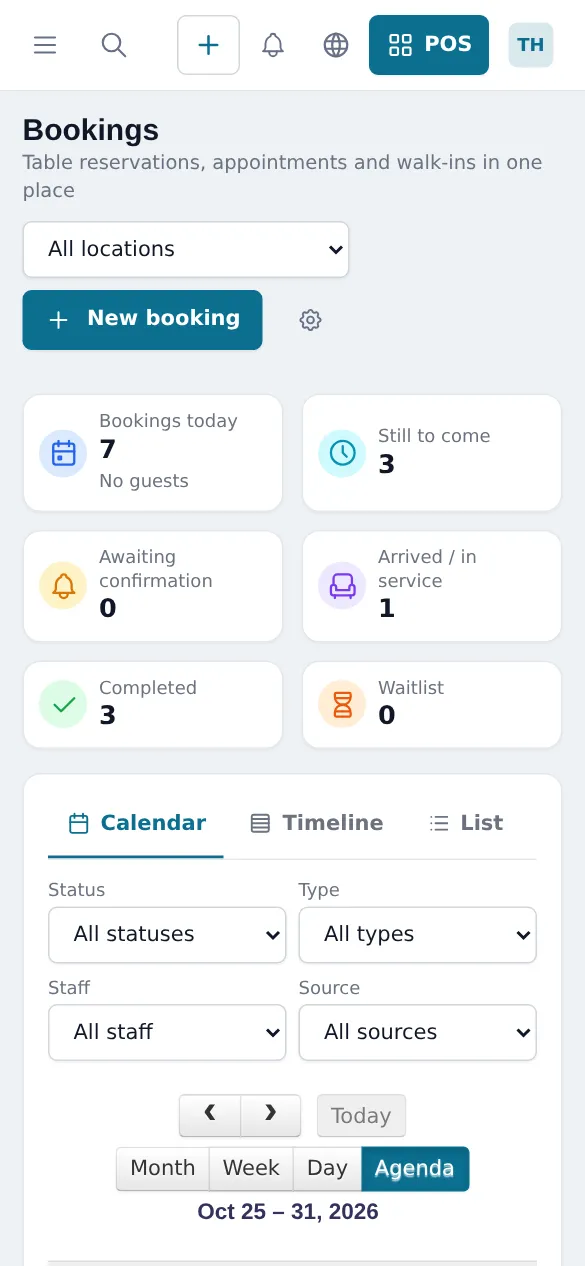
Section titled “On a phone”The Bookings page works in a phone browser, and barbers can use My day in the SmartPOS Business app to mark Client arrived and Finish.
Frequently asked questions
How do I add a walk-in for the next free barber?
Click New appointment, choose the service and Any available staff, pick the current time and set the source to Walk-in. SmartPOS Hub only lets you book a barber who is working and free at that time.
Is there a waiting list for walk-ins?
The Bookings waitlist is built for restaurant tables. In a barbershop, book each walk-in into the next free slot of a barber; the Staff calendar shows the gaps.
What does the red Late chip mean?
The customer's appointment time has passed and they have not been checked in yet. Check them in when they arrive, or mark No-show.
Can a barber see only their own customers?
Yes. With the permission Services: manage own appointments (staff), a barber sees only appointments where they are the staff member, in My appointments and in the SmartPOS Business app.
How do I move an appointment to another barber?
Open the appointment, click Edit and choose another staff member for the service. SmartPOS Hub checks that the new barber is free.