
Customer portal - let customers see invoices and balances
The customer portal is a private web page where your customers sign in to see their own invoices, payments and balance, download statements and accept quotations — so they stop calling to ask “how much do I owe?”. The same portal has views for suppliers and delivery riders.
Turn the portal on
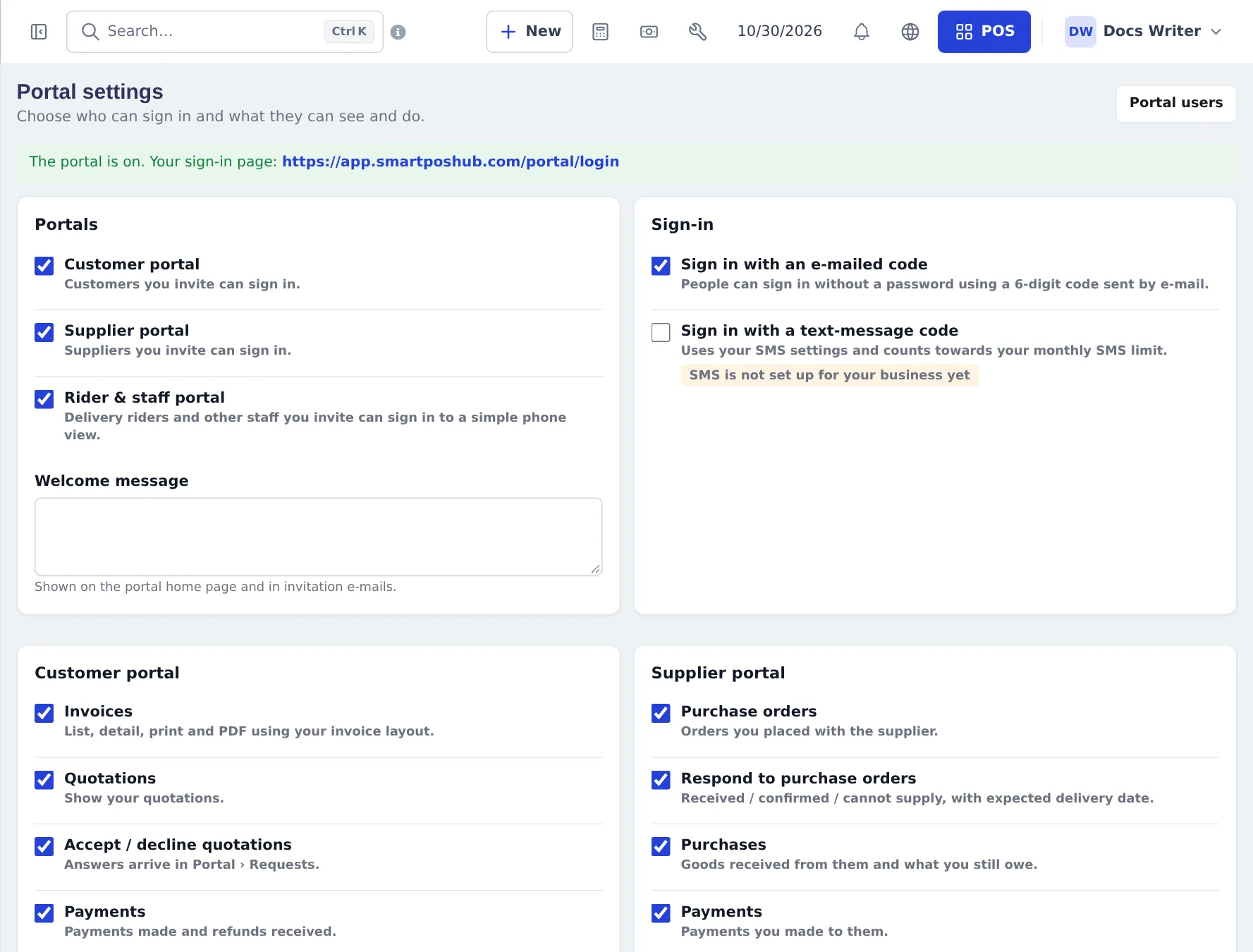
Section titled “Turn the portal on”- Open Portal › Portal settings in the sidebar. The top line shows your sign-in page address — share it with customers.
- Under Portals, tick Customer portal (and Supplier portal / Rider & staff portal if you need them).
- Under Sign-in, choose Sign in with an e-mailed code and/or Sign in with a text-message code (SMS must be set up).
- Write a Welcome message for the portal home page and invitation e-mails.
- Under Customer portal, tick what customers see: Invoices, Quotations, Accept / decline quotations, Payments, and more.
- Save.
Invite a customer
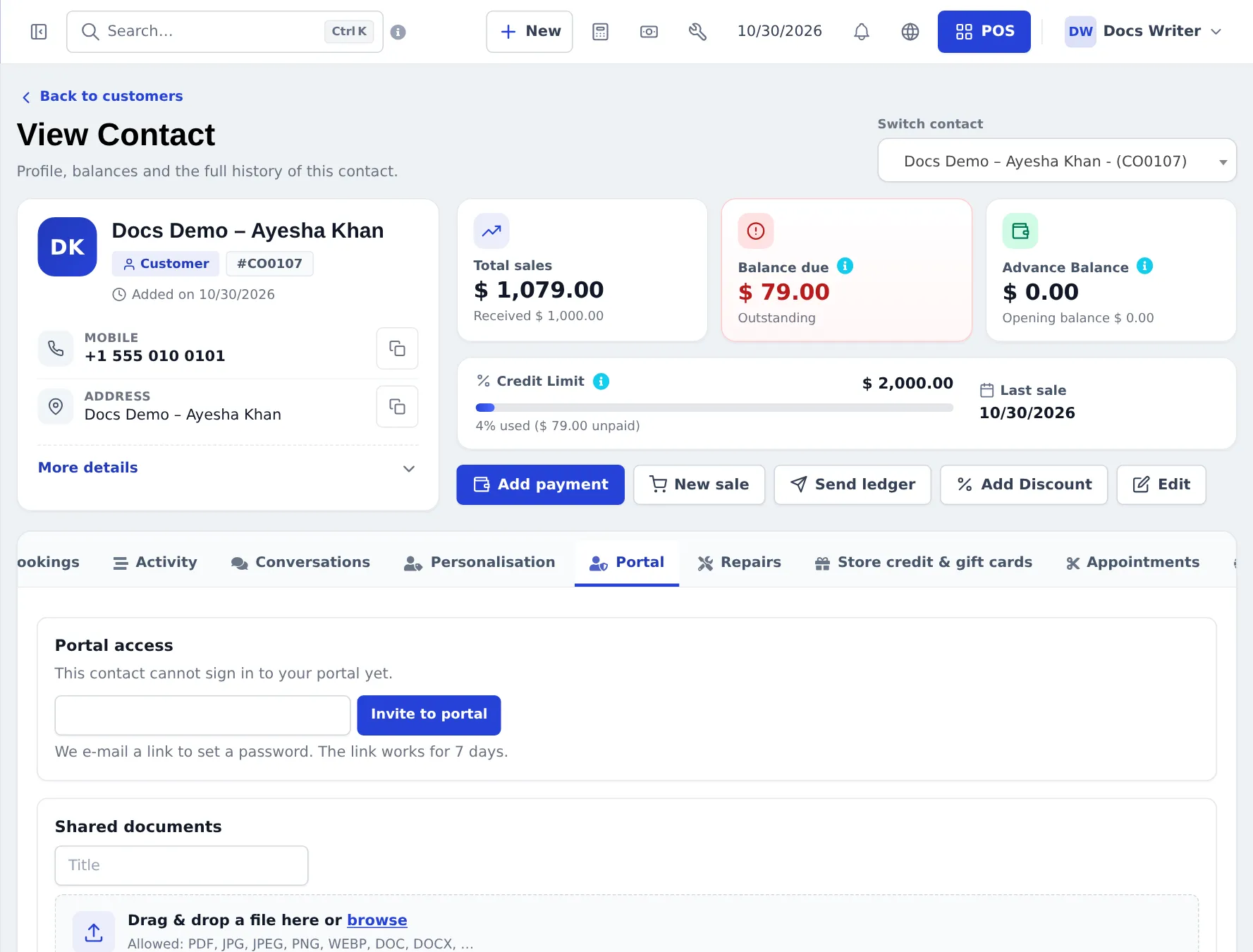
Section titled “Invite a customer”- Open the customer (Contacts › Customers › name) and go to the Portal tab.
- Under Portal access, enter or check the e-mail and press Invite to portal. The link in the e-mail is valid for 7 days.
- The customer sets a password and signs in. From the same tab you can resend, revoke access, View as, and share documents.
What customers see
Section titled “What customers see”- Dashboard — balance due, open quotations, deliveries on the way, repairs, points, recent invoices and bookings.
- Invoices — list and detail, print with your own invoice layout, PDF.
- Payments and Statement — the same numbers as your ledger, with PDF.
- Quotations — accept or decline; you get a request.
- Returns, Reward points, Deliveries, Bookings, Gym membership, Repairs, Documents, Messages, Profile.
Requests (profile changes, quotation answers) arrive in Portal › Requests for you to approve or decline.
Frequently asked questions
How does a customer sign in?
You invite them from their contact page. They get an e-mail link to set a password, and can also sign in with a 6-digit code sent by e-mail.
What can customers see?
Their balance due, invoices with print and PDF, payments, account statement, quotations to accept or decline, returns, deliveries, bookings, repairs, reward points and documents you share - only the parts you switch on.
Can customers change their details?
Address and phone numbers directly when you allow it. Name, e-mail, mobile and tax number changes arrive as requests for you to approve.
Is there a portal for suppliers and delivery riders too?
Yes. Supplier portal shows their purchase orders, purchases, payments and statement. Rider portal lets delivery staff update deliveries from their phone.
How do I see what a customer sees?
Use View as in Portal › Portal users or on the contact's Portal tab. It opens a read-only preview.
How do I remove a customer's access?
Open the contact's Portal tab or Portal › Portal users and remove access. They cannot sign in any more.