
Mart step 4: barcodes, weighed items and shelf labels
Fast grocery checkout depends on barcodes. This step covers the codes already on your products, adding codes at the till, weighed goods, and printing shelf and price labels for items without a barcode.
Before you start
Section titled “Before you start”- Products are imported or added (step 2). Library products already carry their real barcodes.
- A USB or Bluetooth barcode scanner, or a phone or tablet with a camera.
Barcodes on your products
Section titled “Barcodes on your products”- Every product variation has one main code, its SKU. When you add a product without one, SmartPOS Hub generates it.
- A product can also have additional barcodes: open the product’s view window from Products › List Products and use the Additional barcodes panel to add or remove codes.
- Library products marked “Generated” had no real barcode in the catalog; print labels for those.
Link unknown barcodes at the till
Section titled “Link unknown barcodes at the till”When a scanned code isn’t found, the POS opens No product found:
- Add new product with this barcode opens the quick-add form with the code as SKU. Enter the name and price, save, and the product is added to the cart.
- Link to an existing product: search for the product, or scan the product’s own barcode, pick it and confirm “From now on, barcode X will open this product”. The item is added to the cart.
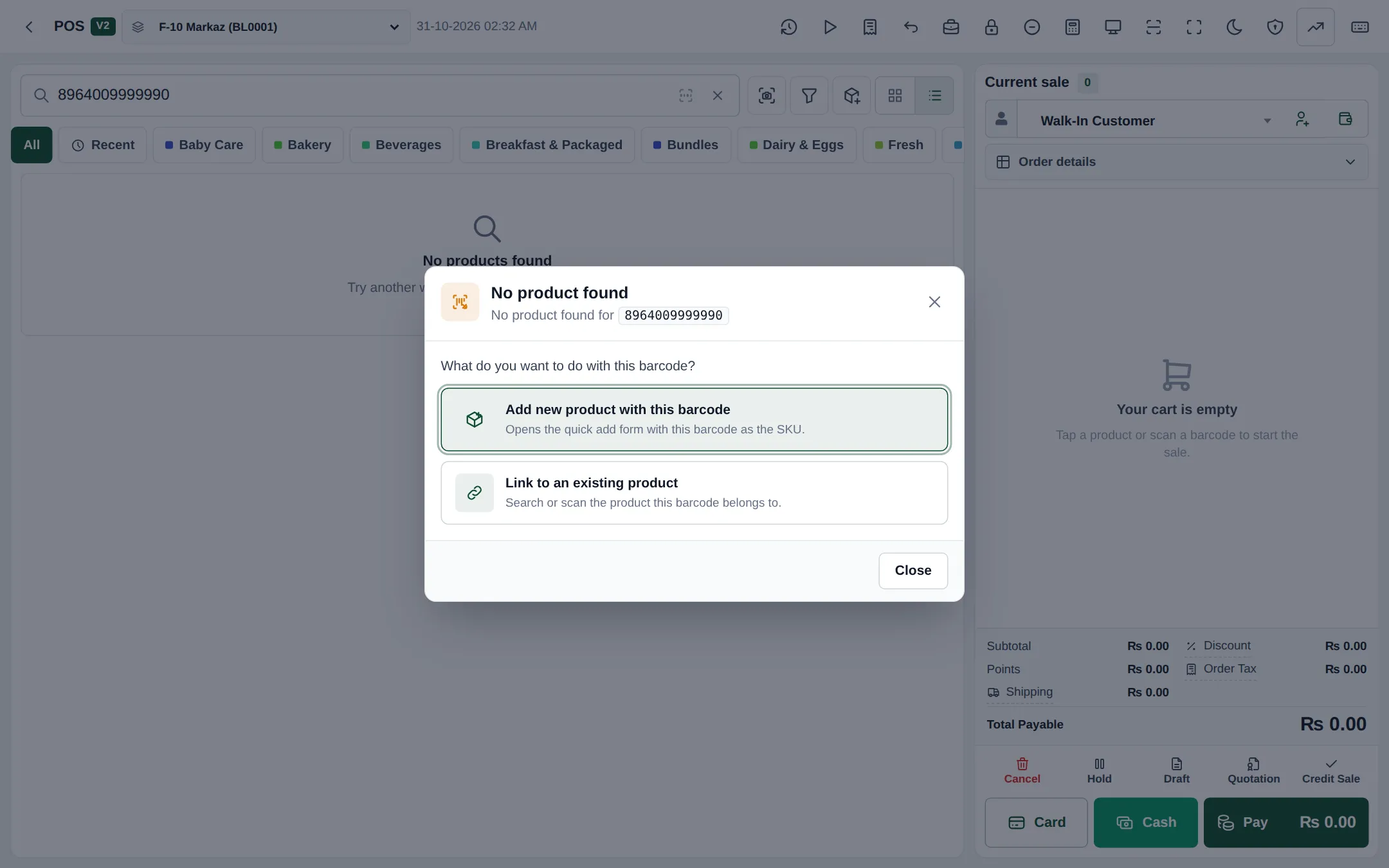
Adding needs the permission to add products; linking needs Link barcodes to products (User Management › Roles). Other cashiers see a simple “not found” message.
Loose goods sold by weight
Section titled “Loose goods sold by weight”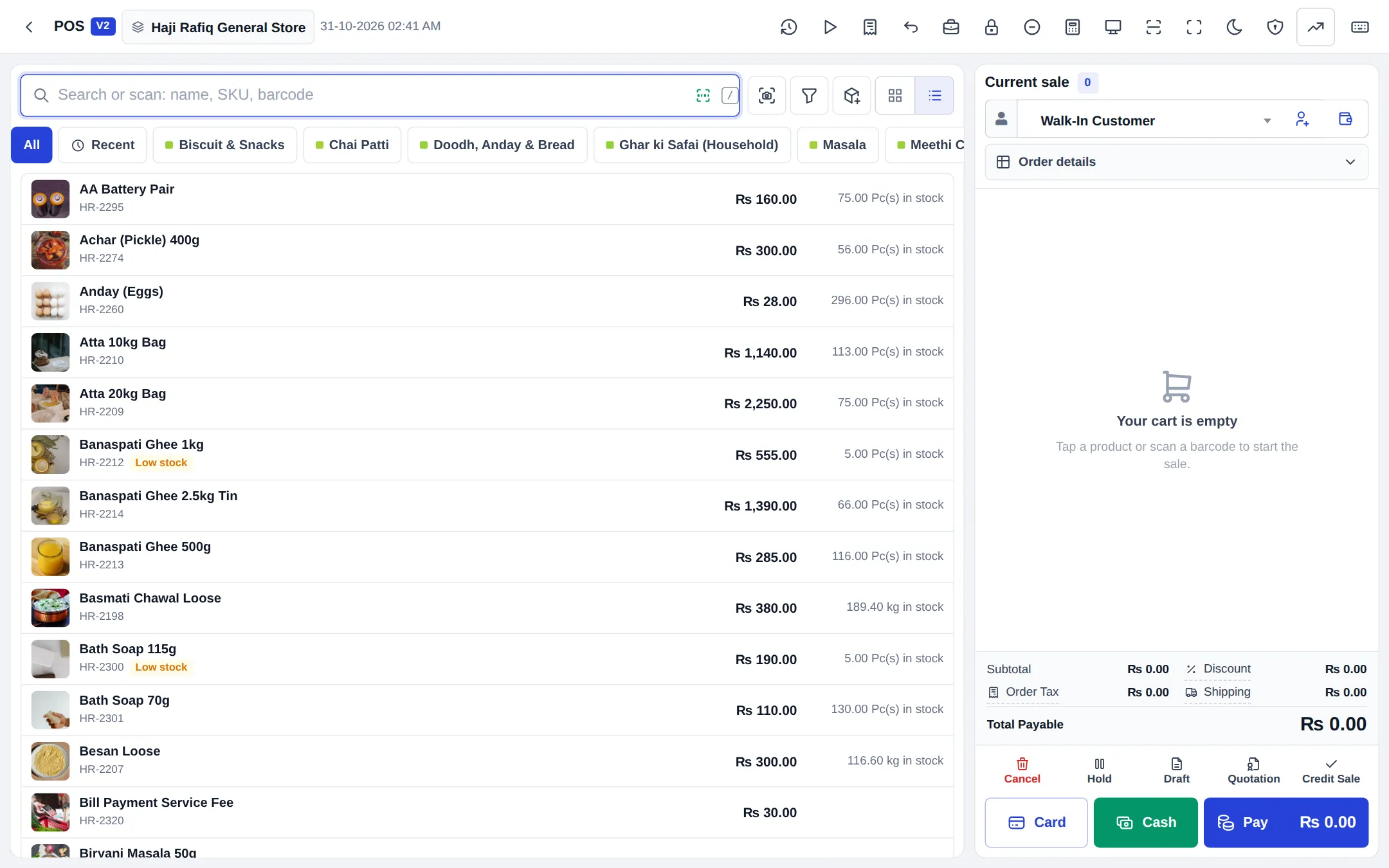
Option A, type the weight: give the product the Kilogram unit with decimals allowed. The cashier enters 1.25 as the quantity.
Option B, scale barcodes: if your scale prints a barcode with the item code and weight:
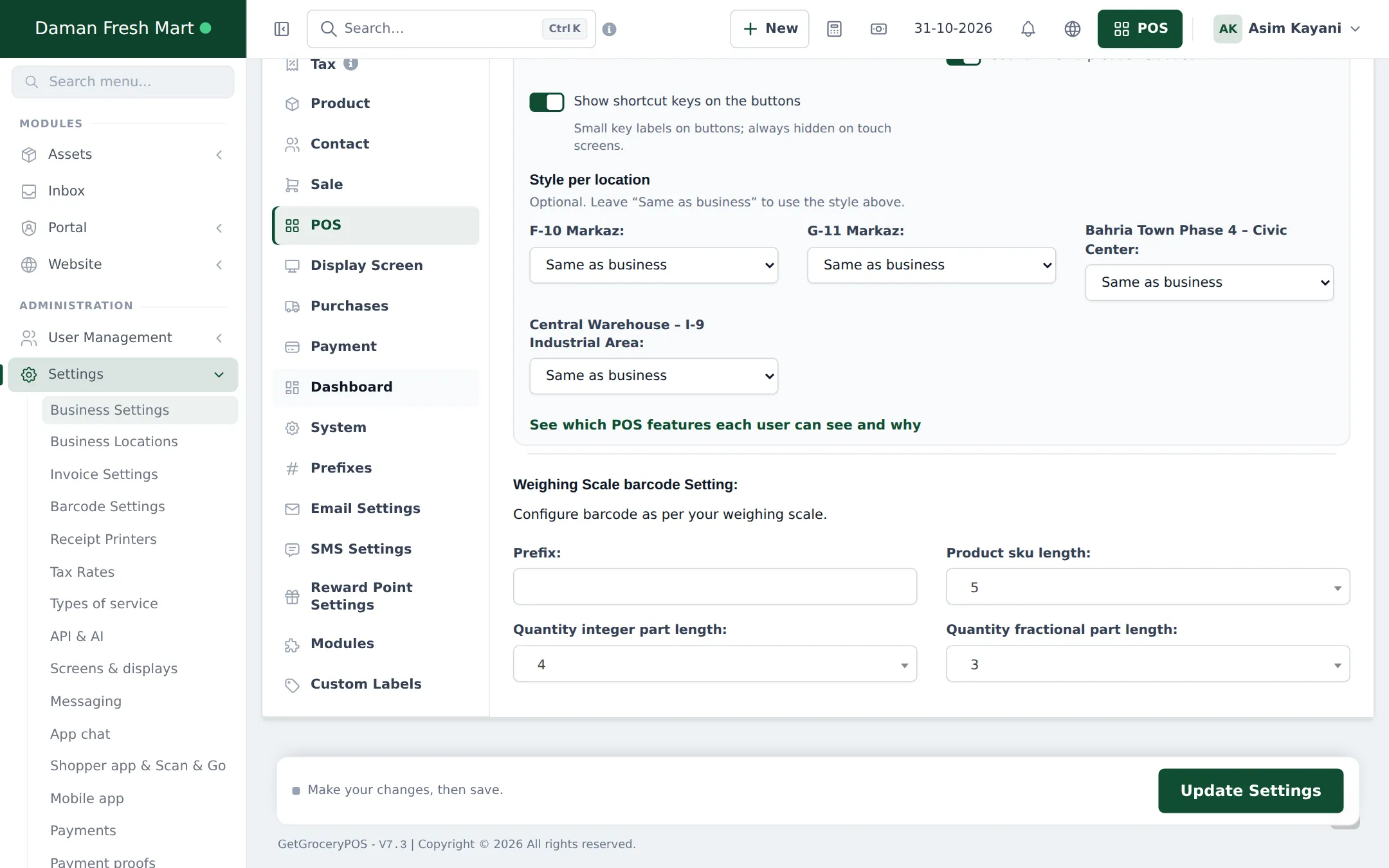
- Open Settings › Business Settings › POS and switch on Enable Weighing Scale.
- Under Weighing Scale barcode Setting, enter the Prefix your scale uses, the Product sku length, and the Quantity integer part length and Quantity fractional part length, as in your scale’s manual.
- Click Update Settings.
- Give each weighed product a SKU of the right length, and the same code in the scale.
- At the till, scanning the scale label adds the product with the weighed quantity.
Print price and shelf labels
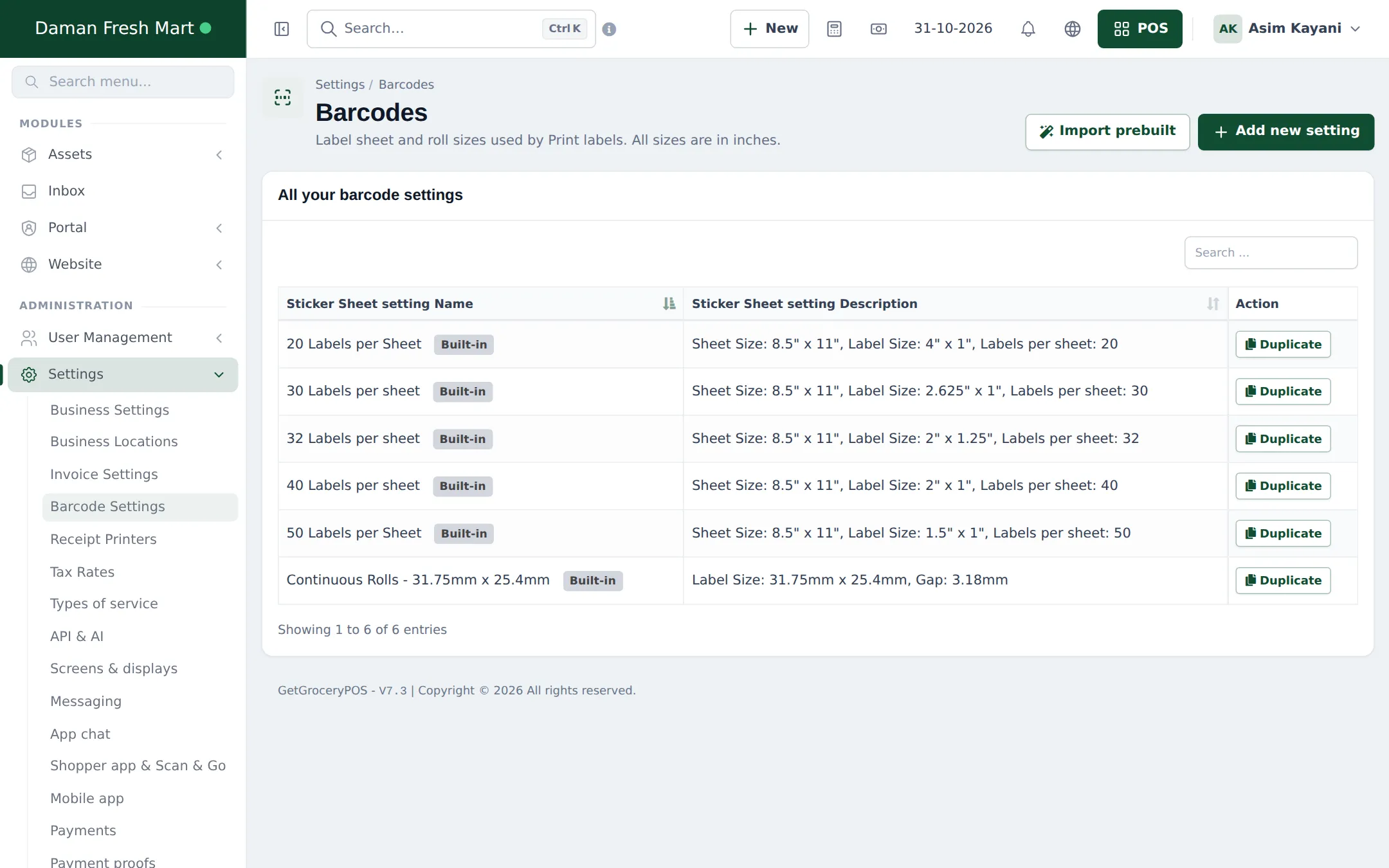
Section titled “Print price and shelf labels”- Choose your label paper in Settings › Barcode Settings (or Import prebuilt for more roll and sheet sizes).
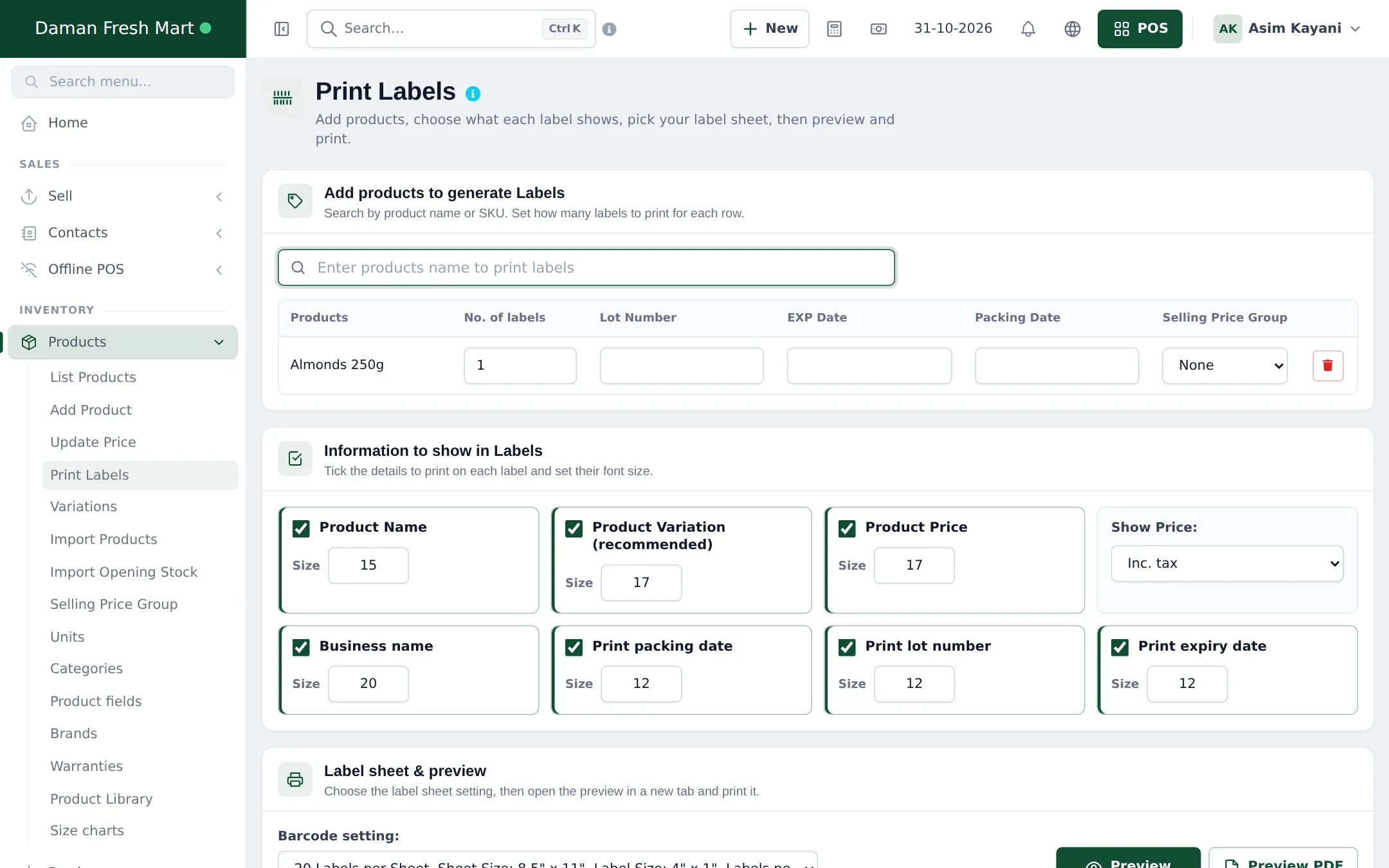
- Open Products › Print Labels.
- Search and add products; set No. of labels per product. You can also print labels straight from a purchase.
- Under Information to show in Labels, tick what to print (product name, variation, price, business name, packing date, lot number, expiry date) and the font size.
- Under Label sheet & preview, pick the barcode setting and click Preview, then print.
More: Barcodes and labels and Product barcodes module.
Frequently asked questions
Can one product have several barcodes?
Yes. Besides its main SKU, a product can have any number of extra barcodes, for example the old label, the supplier's code and the case barcode. All of them find the product at the POS.
What happens when a cashier scans an unknown barcode?
The No product found window opens. Staff allowed to add or link products can add a new product with that barcode, or link the code to an existing product, and the item goes straight into the cart.
How do I sell loose rice or sugar?
Give the product the Kilogram unit with decimals allowed and type or weigh the quantity, for example 2.5 kg. With a label-printing scale, turn on Weighing Scale barcodes so the scale label adds the weight automatically.
What label sizes are supported?
Barcode Settings has built-in sheets (20 to 50 labels per sheet) and continuous rolls. Import prebuilt adds more roll, shelf and Avery sizes, or you can add your own.
My scanner adds strange characters before the code. What do I do?
Some scanners send a symbology prefix such as ]E0. SmartPOS Hub removes these prefixes automatically. If codes still don't match, check the scanner is set to send Enter after the code.