
Boutique step 3: size charts for every category
Wrong sizes are the top reason for clothing returns. A size chart shows customers the measurements behind each size (bust, waist, hips, length, foot length) in their own size system, before they buy. You set charts up once per category and every product picks them up.
Before you start
Section titled “Before you start”Your categories exist (step 1) and size names on your products match the sizes in the chart (step 2).
Set up your charts
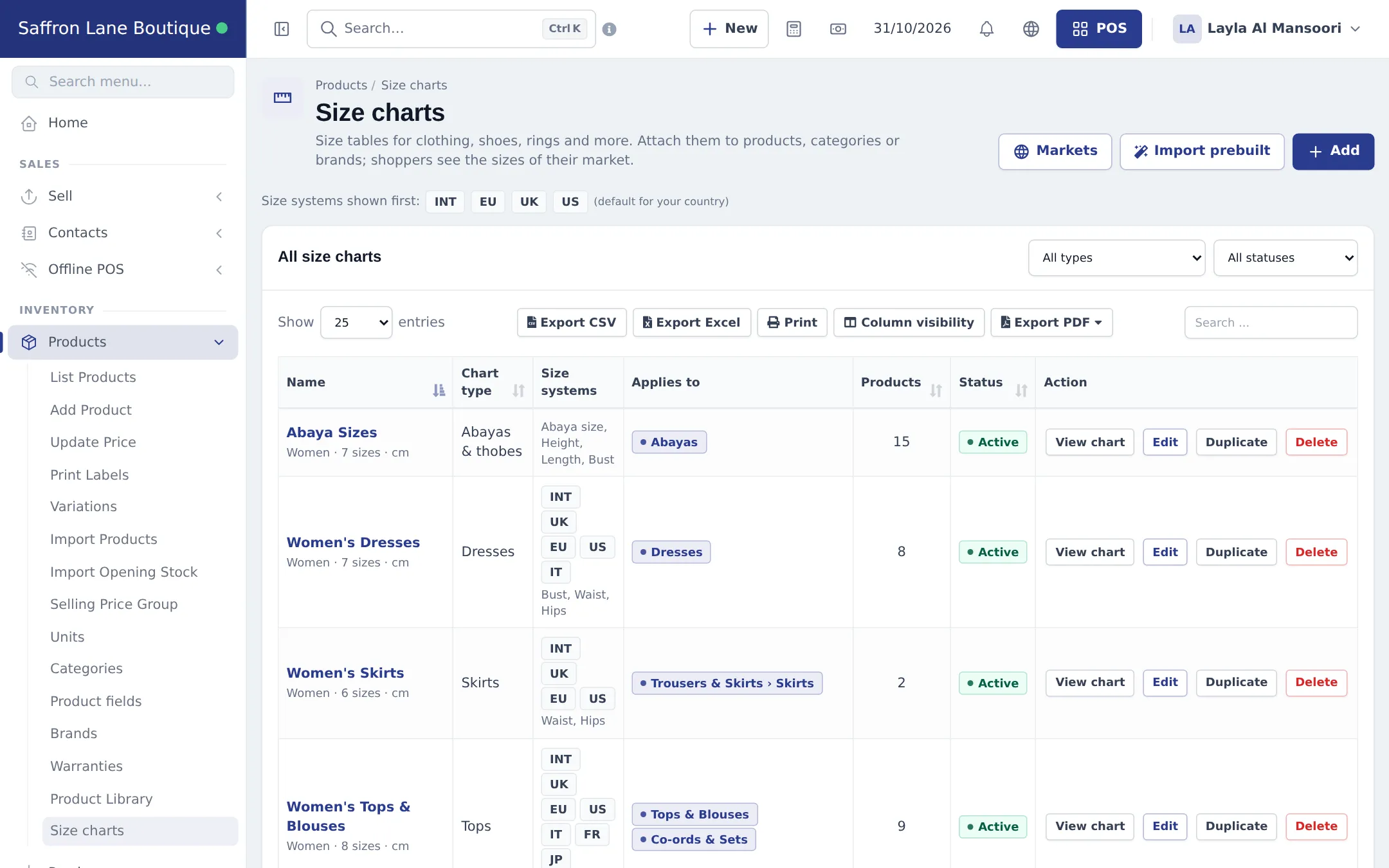
Section titled “Set up your charts”- Open Products › Size charts and click Import prebuilt. Tick the charts you need, for example Women’s Dresses, Women’s Tops & Blouses, Women’s Skirts, Women’s Trousers & Pants and Abaya Sizes, then import.
- Click Markets. The size systems for your country are ticked (for example INT, EU, UK, US). Tick Show all size systems if you sell abroad.
- Click Edit on each chart and set Applies to: pick the categories (and brands) it covers. Save. The list shows how many Products each chart now covers.
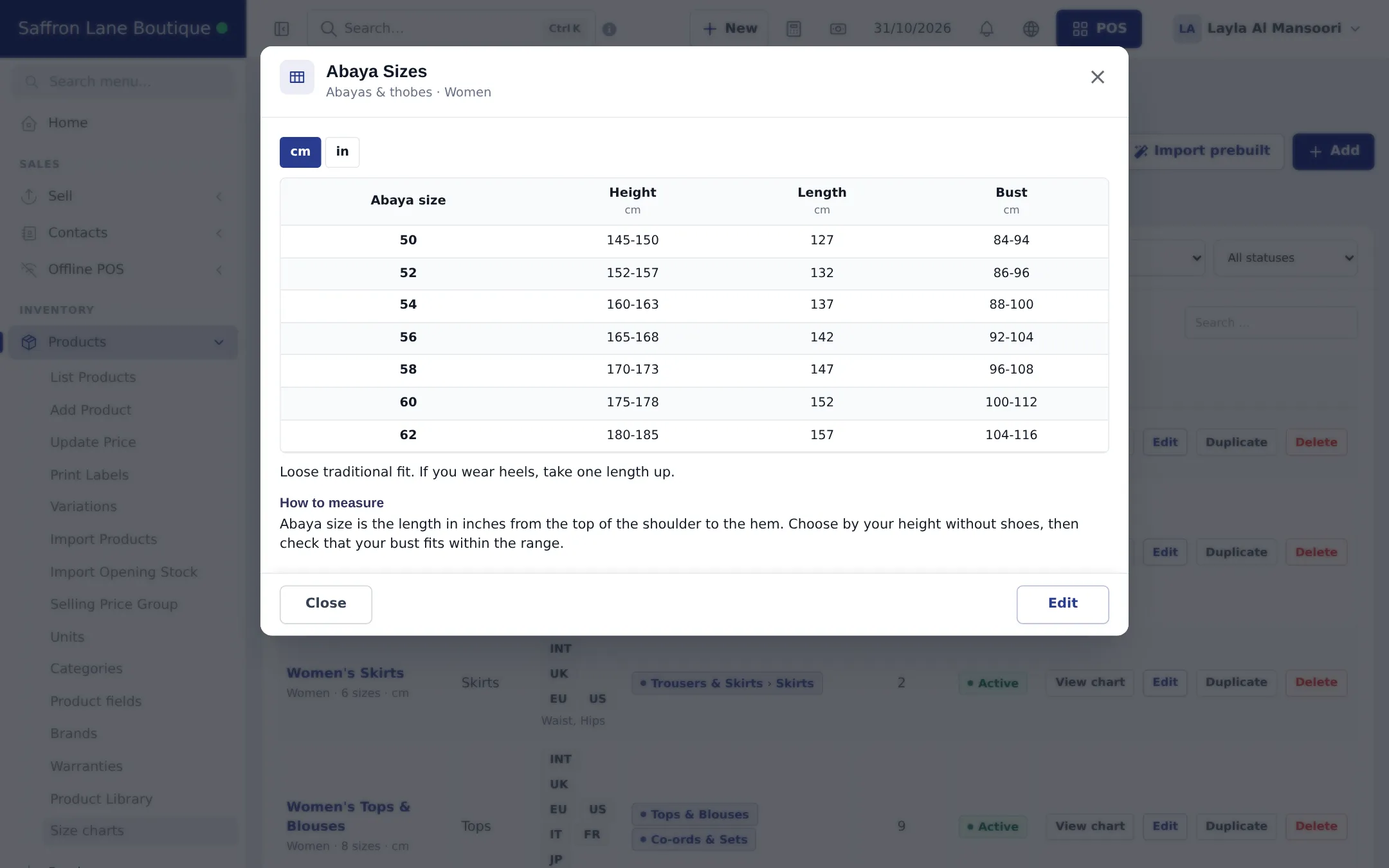
- Click View chart to check what customers will see.
Choose a chart on one product
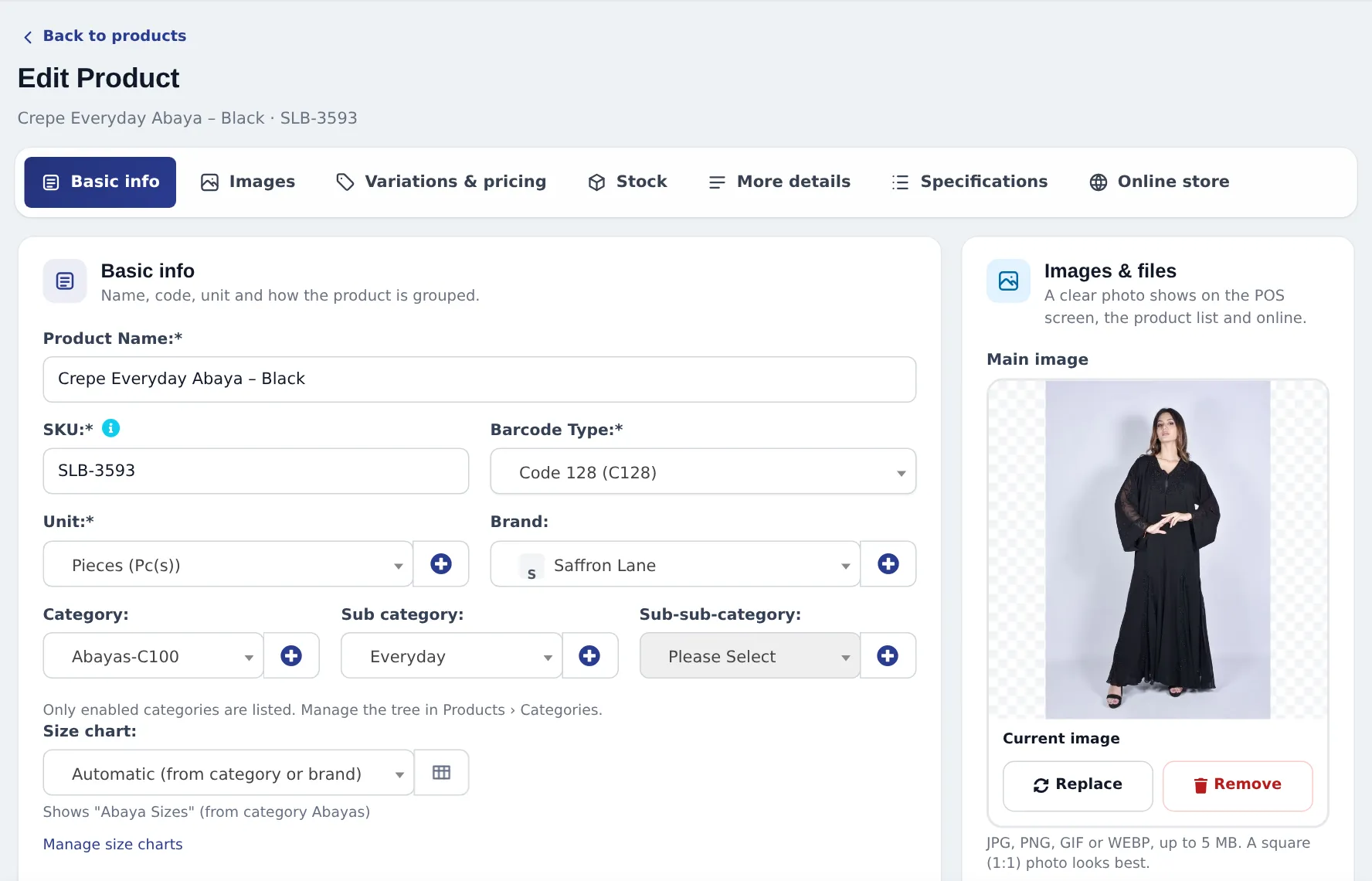
Section titled “Choose a chart on one product”On Add / Edit product, the Size chart field sits under the categories. Automatic (from category or brand) is the default, and the hint tells you which chart will show. Pick No size chart for items such as bags, or a chart name to override.
What shoppers see
Section titled “What shoppers see”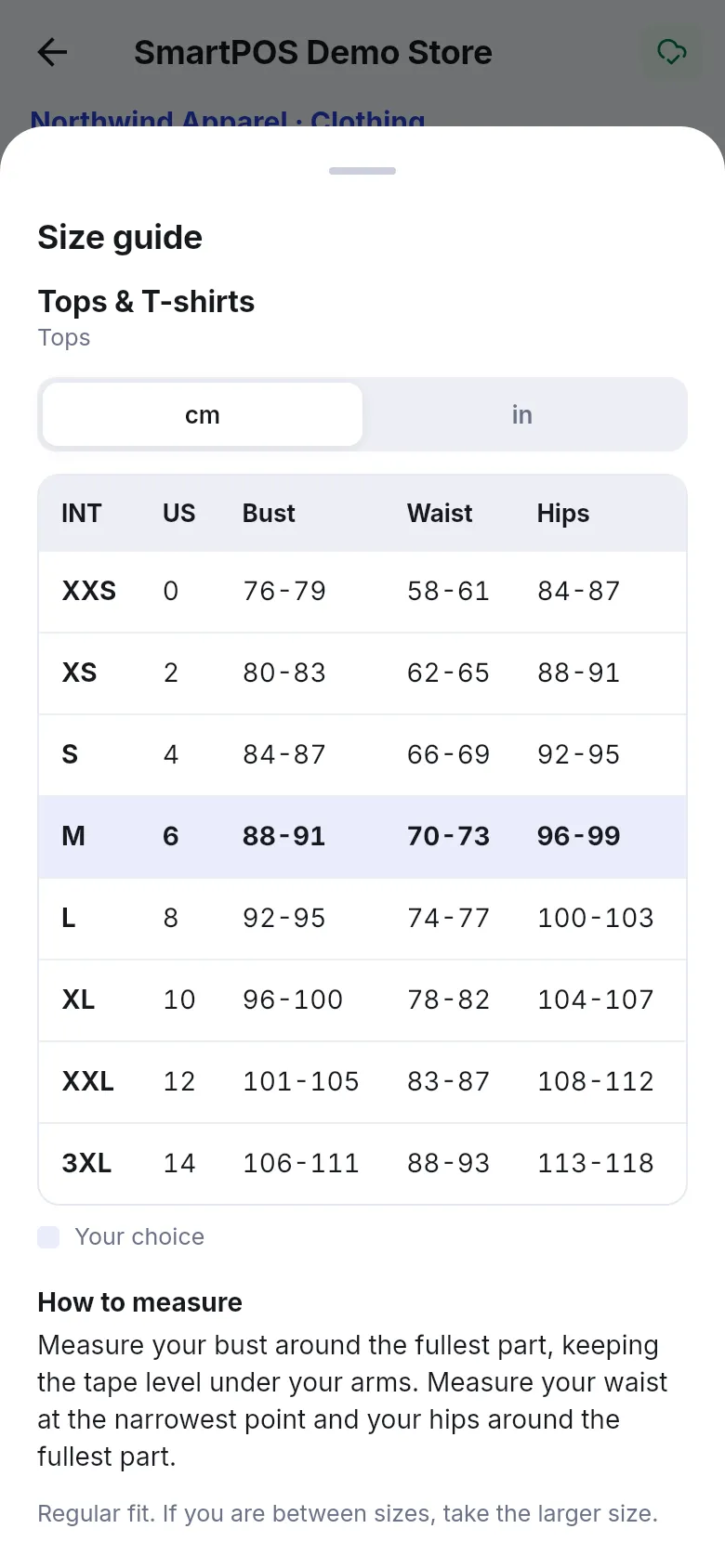
- Write a fit note: “Relaxed fit. If you are between sizes, take the smaller size.” It answers the most common question.
- Use Duplicate to make a petite or kids version quickly.
- Bags, scarves and fragrance don’t need a chart: set their categories to no chart, or leave them out of Applies to.
Full reference: Size charts module.
Next: step 4: barcodes and labels.
Frequently asked questions
Where do customers see the size chart?
As a Size guide on the product page of your online store, in shop widgets and in the SmartPOS Shopper app. Cashiers can open it in the POS from the cart line.
Do I attach a chart to every product?
No. Attach it to a category or brand once. Every product in it shows the chart automatically, including products you add later.
One brand runs small. What do I do?
Duplicate the chart, adjust the measurements and attach the copy to that brand and category. The most specific chart wins.
Can shoppers switch between cm and inches?
Yes, if you tick Let shoppers switch between cm and inches on the chart.
My customers are from many countries. Which sizes do they see?
Click Markets and choose the size systems shown first, or tick Show all size systems.