
Customer ledger, balance and account statements
The ledger is the customer’s account statement: every sale, payment, return and discount in date order, with what they owe at the end. Use it to answer “how much do I owe you?”, to send monthly statements and to check credit customers.
Open the ledger
Section titled “Open the ledger”- Go to Contacts › Customers and click the customer (or Actions › Ledger).
- The Ledger tab opens first. Set the Date Range, Ledger format (Format 1–Format 4) and Business Location.
- Read the Account Summary: Total invoice and Total paid for the chosen dates, and the Overall Summary with Balance due.
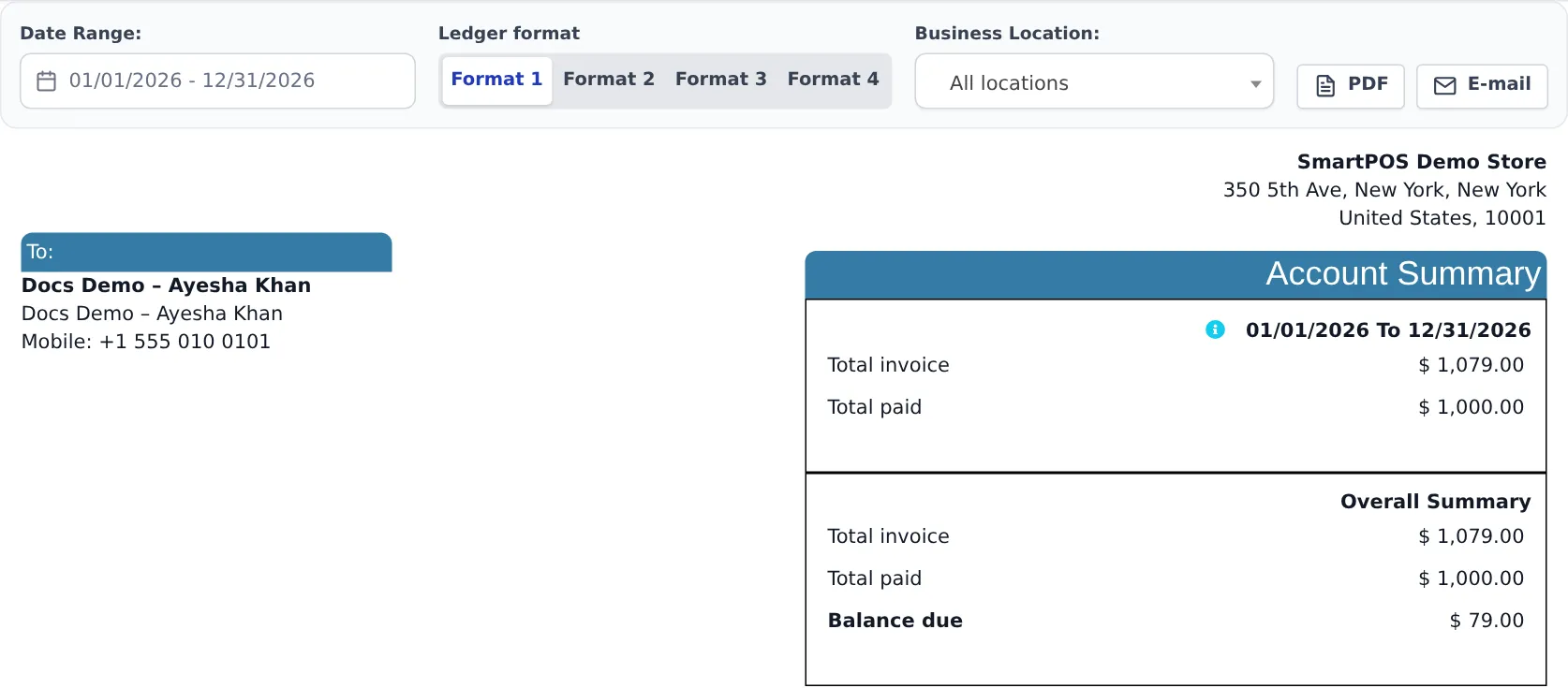
Below the summary, the table lists each line: Date, Reference No, Type (Sell, Payment, Sell Return…), Location, Payment Status, Debit (what they owe), Credit (what they paid), Payment Method and notes.
Balance due vs advance
Section titled “Balance due vs advance”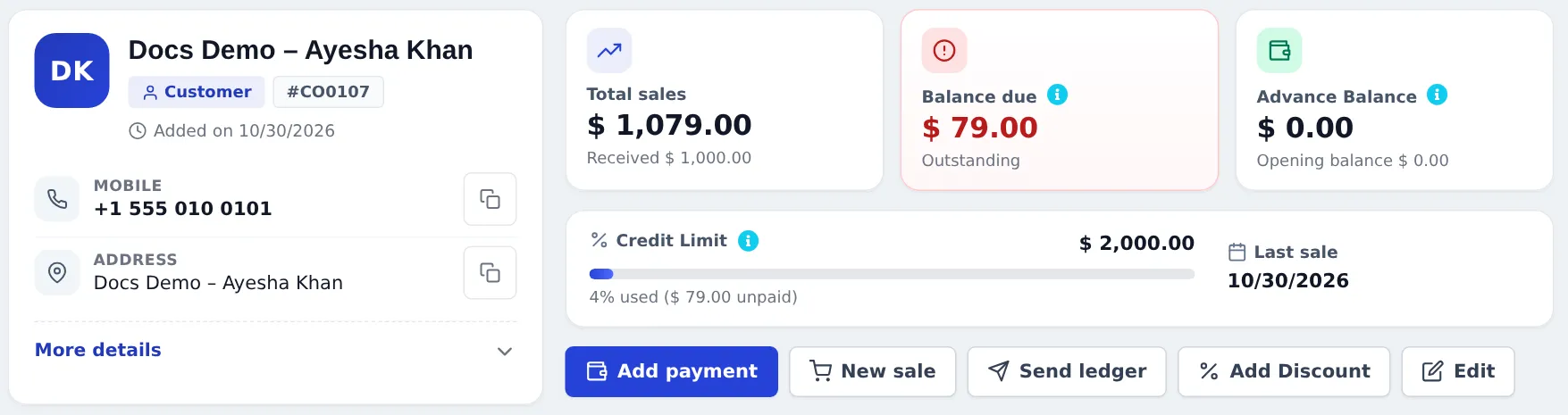
- Balance due positive → the customer owes you. Negative → you owe them.
- Advance Balance → money they left with you (deposits, store credit).
- The Credit Limit bar shows how much of their limit unpaid sales use.
Payments tab
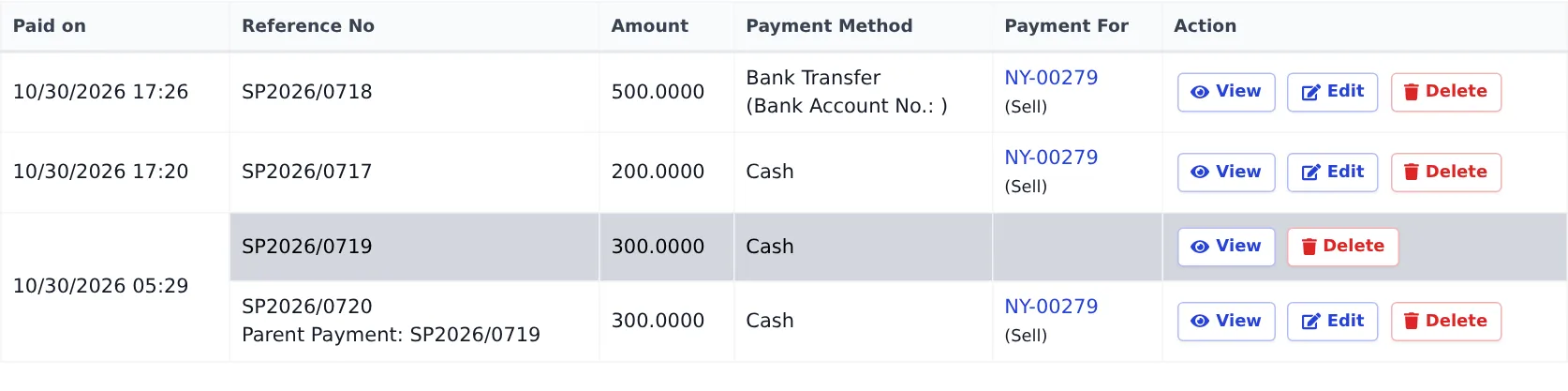
Section titled “Payments tab”The Payments tab lists every payment with date, reference, amount, method and the invoice it paid. A lump-sum payment from Add payment on the customer page shows as a parent payment with the share for each invoice underneath.
Send a statement
Section titled “Send a statement”- PDF downloads the ledger for the chosen dates; E-mail sends it to the customer’s e-mail (when e-mail is set up).
- Send ledger in the quick actions does the same from the top of the page.
- Customers in the customer portal can open their own statement at any time.
In the SmartPOS Business app
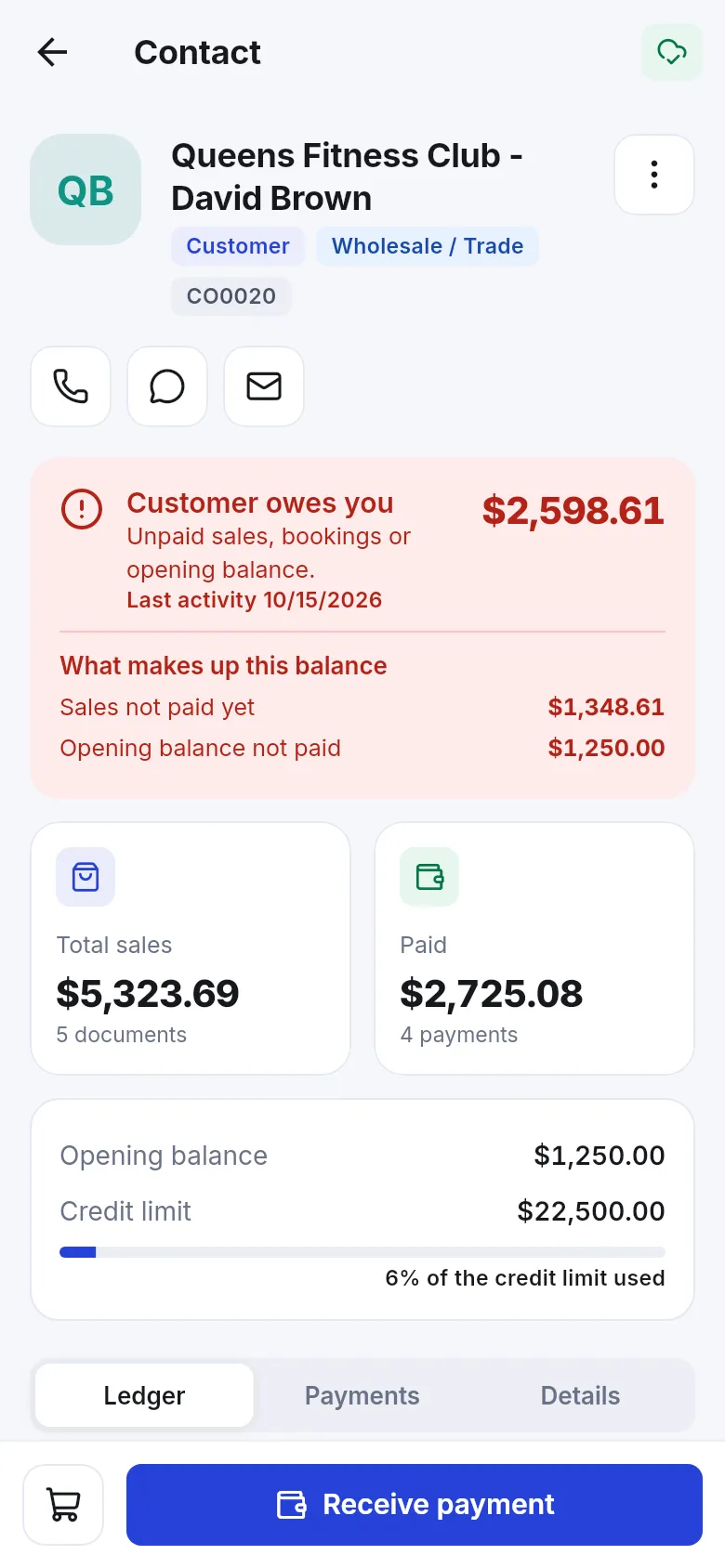
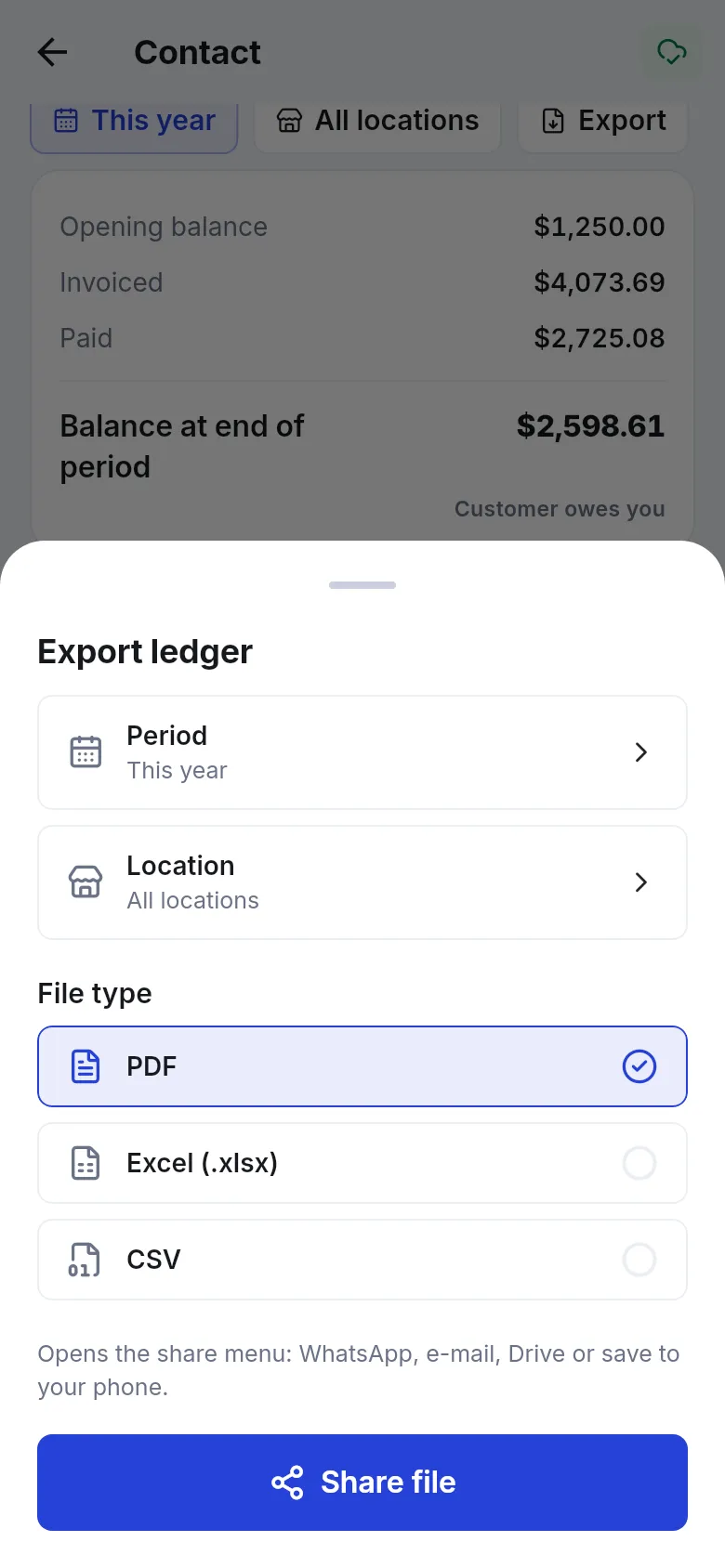
Section titled “In the SmartPOS Business app”Open the customer: the header says Customer owes you, You owe this customer or All settled, with What makes up this balance (sales not paid yet, bookings, opening balance, returns not refunded). On the Ledger tab pick a period (This year, last 7 days, this month, custom…) and location, then Export to PDF, Excel (.xlsx) or CSV and share it on WhatsApp, e-mail or Drive.
Frequently asked questions
What is the balance due on the ledger?
Everything the customer still owes - sales, bookings and memberships, the opening balance - minus returns, ledger discounts and payments. It is the same figure as the Balance due card on the customer page.
How do I send a statement to a customer?
On the customer's Ledger tab choose the dates, then press PDF to download or E-mail to send it. From the contact page you can also use Send ledger.
What are Format 1 to Format 4?
Four ledger layouts. They show the same numbers laid out differently. Try each and keep the one your customers find easiest to read.
Why is the balance negative?
You owe the customer, usually because a return was not refunded or they paid more than they bought. Refund it with Pay Sell Return Due or let them spend it.
Can I give a discount on the whole balance?
Yes. Use Add Discount on the contact page. It is recorded in the ledger and lowers the balance due.
Can I export the ledger to Excel from my phone?
Yes. In the SmartPOS Business app open the customer, Ledger, Export, and choose the period, location and PDF, Excel or CSV.