
Restaurant step 1: business settings and branches
Start your restaurant setup with the basics every screen depends on: your business details and one business location per branch. This page shows the restaurant-specific choices. For every field in detail, see Business settings and Locations.
Before you start
Section titled “Before you start”- You are signed in as the business owner or an admin (role with Business Settings access).
- You know your currency, time zone and the address of each branch.
Set your business details
Section titled “Set your business details”- Open Settings › Business Settings. The Business tab opens first.
- Check Business Name, Currency, Time zone and Financial year start month. The time zone matters for restaurants: kitchen timers, “late” tickets and the daily close all use it.
- Upload your logo with Upload Logo. It appears on receipts, the online menu and the Shopper app.
- Set Currency precision to 2 for most currencies, or 0 if you never use cents.
- Click Update Settings at the bottom of the page.
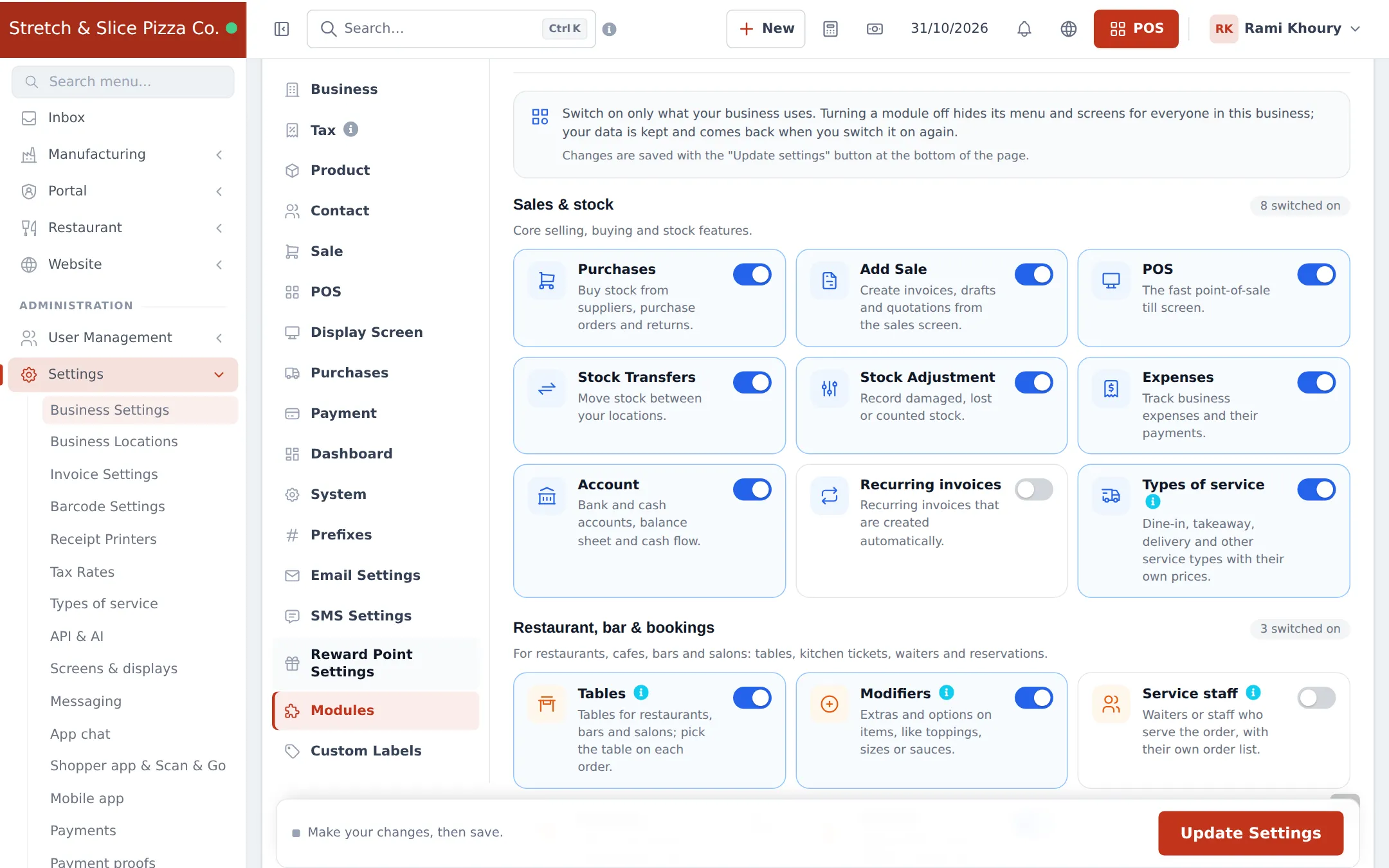
Add a location for each branch
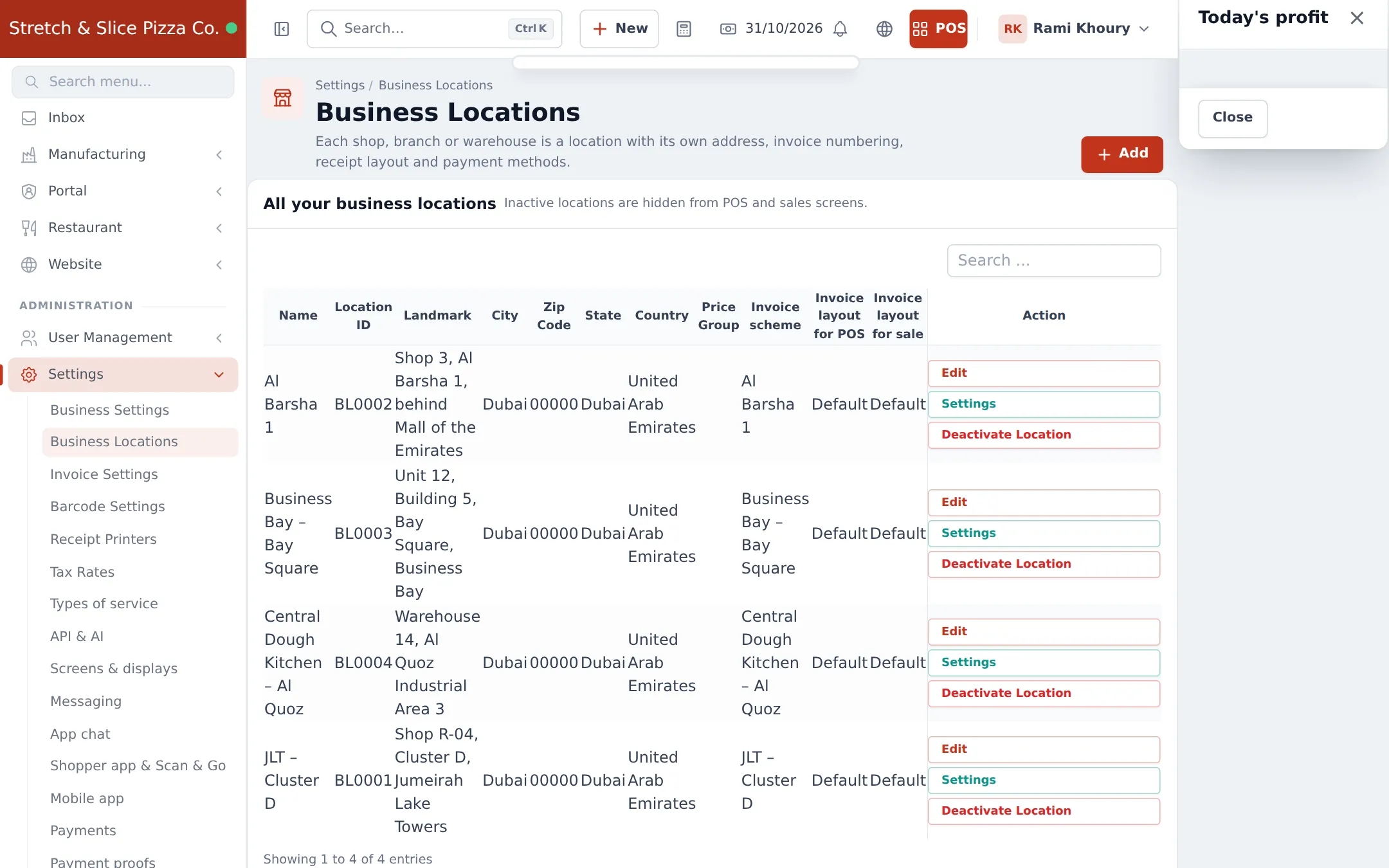
Section titled “Add a location for each branch”A business location is one branch, outlet, food truck or central kitchen. Tables, kitchen station screens, cash registers, stock and receipts all belong to a location.
- Open Settings › Business Locations.
- Click Add.
- Enter the branch Name, address and phone. The address prints on receipts and shows on the online menu.
- Pick the Invoice scheme (receipt numbering) and Invoice layout for POS for this branch.
- Optional: choose a Price Group if this branch sells at different prices.
- Save. Repeat for every branch.
Tips for restaurants
Section titled “Tips for restaurants”- Name branches the way staff say them (“JLT”, “Business Bay”). The name shows on kitchen tickets, the POS location picker and station screen links.
- Use a central kitchen location if one kitchen prepares dough, sauces or desserts for several branches. Send them with stock transfers.
- Food trucks and pop-ups can be their own location, so their sales and cash stay separate.
Next step
Section titled “Next step”Frequently asked questions
Should a central kitchen be its own location?
Yes, if it holds stock and sends food or ingredients to branches. Add it as a location and move stock with stock transfers. If it only cooks for one branch, it is part of that branch.
Can each branch have its own receipt and invoice numbers?
Yes. Each location has its own invoice scheme and invoice layout for POS and for sales, so branch receipts can carry their own address and numbering.
Can branches have different menu prices?
Yes. Give a location its own default selling price group, or map each type of service to a price group per location.
Can I change the currency later?
You can, but do it before you record sales. Changing the currency later does not convert old amounts.
What happens if I deactivate a location?
It disappears from the POS and sales screens, but its sales, stock and reports are kept. You can activate it again later.