
API & AI - connect your programs and AI assistants
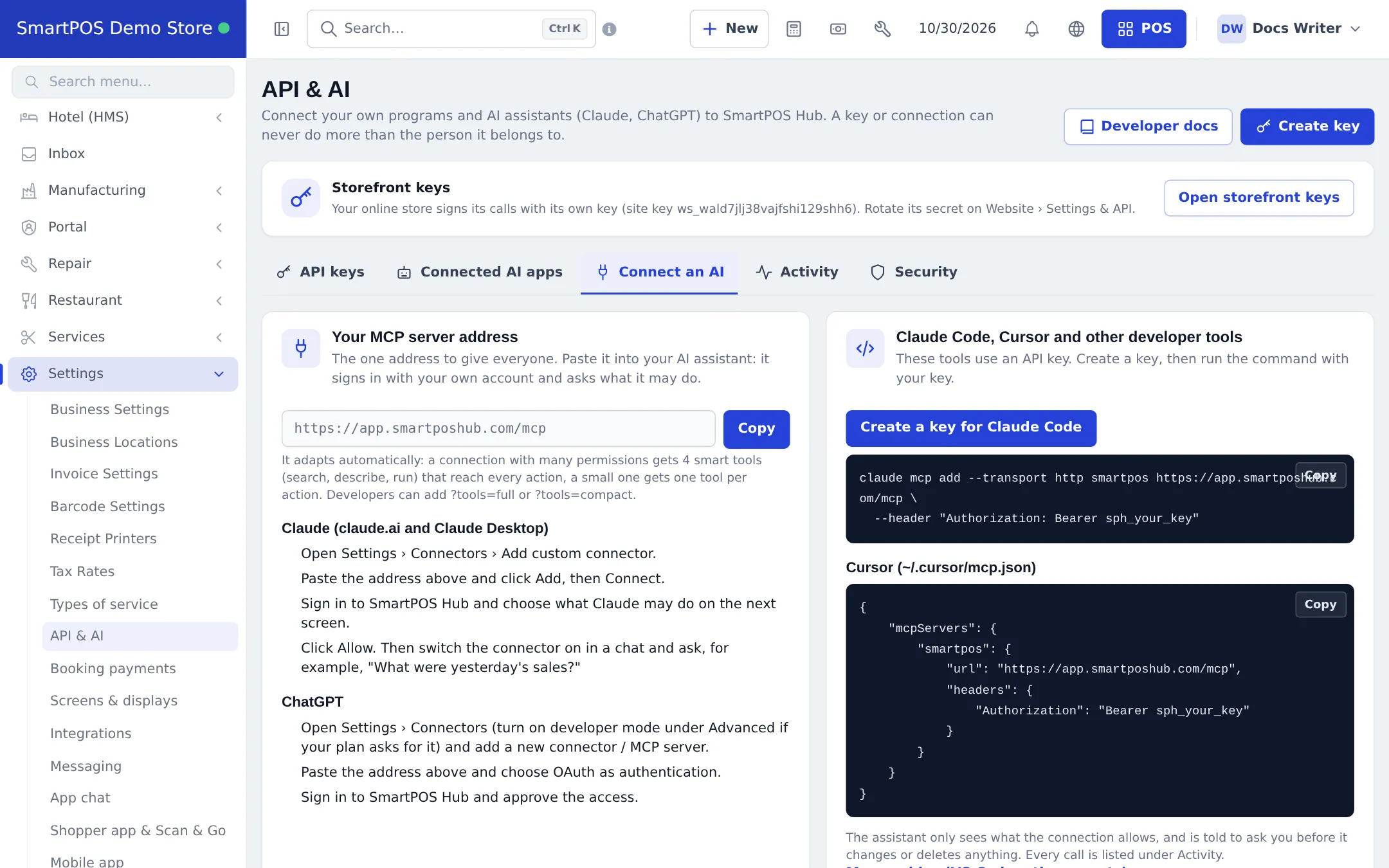
Settings › API & AI connects your own programs and AI assistants to SmartPOS Hub. Everything works at the user level: a key or AI connection always acts as the person it belongs to, with their permissions and locations.
| Tab | Purpose |
|---|---|
| API keys | Create, edit (narrow only), rotate and revoke keys: name, full or chosen permissions, read-only or read & write, locations, expiry |
| Connected AI apps | AI assistants you approved; disconnect any time |
| Connect an AI | Your MCP server address and steps for Claude, ChatGPT, Claude Code and Cursor |
| Activity | Every call made with your keys and connections |
| Security | Who may connect AI apps (everyone or key managers only), IP allow-list, revoke all |
The Storefront keys card at the top is for your online store’s own key - see Your online store.
Connect an AI assistant
Section titled “Connect an AI assistant”- Open Settings › API & AI › Connect an AI and press Copy next to Your MCP server address.
- In Claude (claude.ai or Claude Desktop): Settings › Connectors › Add custom connector, paste the address, Add, then Connect. In ChatGPT: add a connector / MCP server with OAuth.
- Sign in to SmartPOS Hub and choose what the assistant may do, then Allow.
- Ask, for example, “What were yesterday’s sales?” The assistant asks before it changes or deletes anything, and every call appears under Activity.
Developer portal
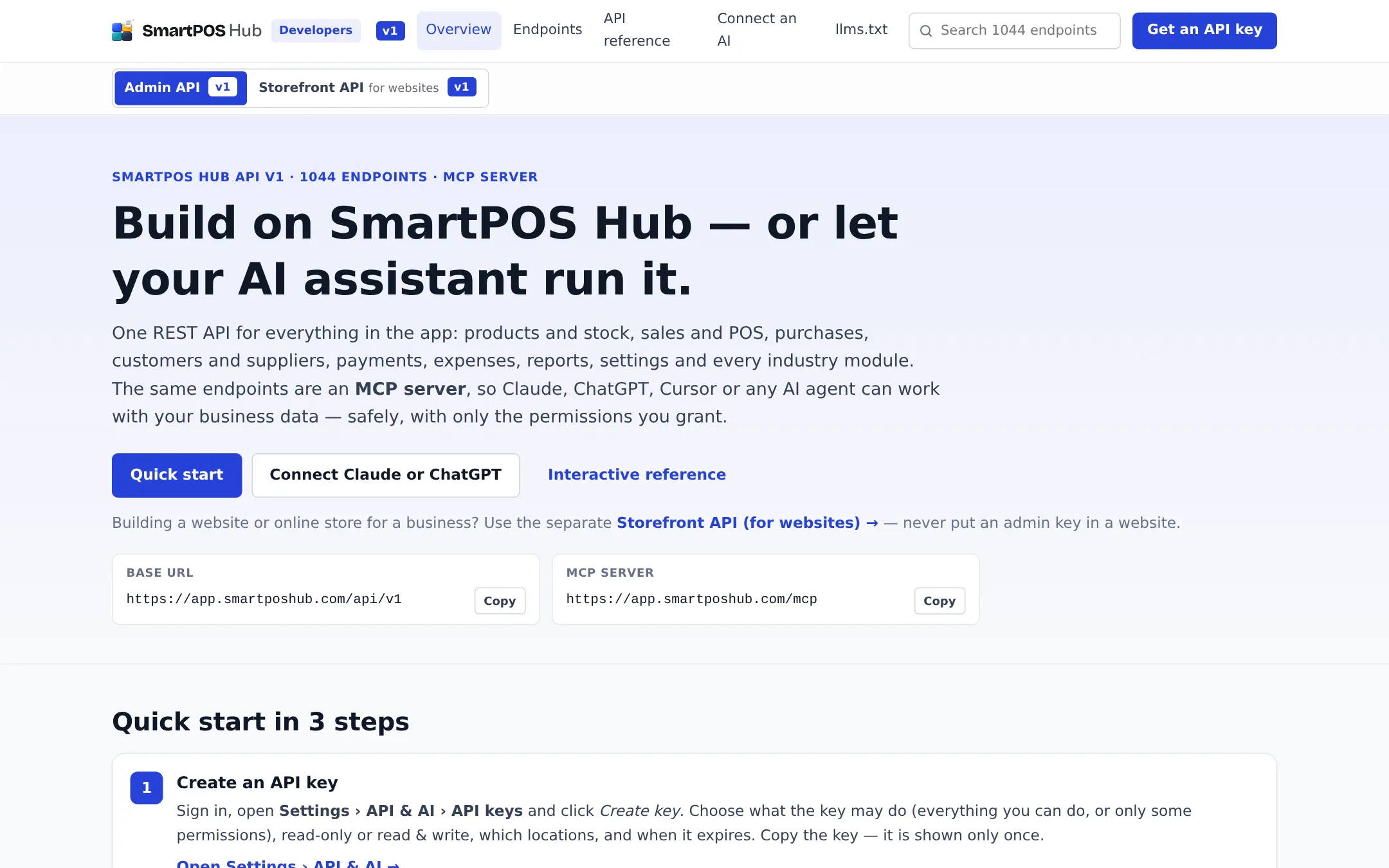
Section titled “Developer portal”Open Developer docs (or /developers on your app address) for the quick start, the endpoint list, the interactive API reference, Connect an AI and the llms.txt files that AI tools can read. A separate Storefront API section is for people building a website or online store.
Related pages
Section titled “Related pages”Frequently asked questions
What can I connect?
Your own programs (with an API key) and AI assistants such as Claude and ChatGPT (with the MCP server address and a sign-in). Everything goes through the same REST API.
Can a key do more than its owner?
No. A key or AI connection can never do more than the person it belongs to: their role permissions and locations apply, and you can narrow them further.
Where is the developer documentation?
On the developer portal at /developers on your app address, for example app.smartposhub.com/developers, with the endpoint list, an interactive reference, Connect an AI and llms.txt files for AI tools.
How do I connect Claude?
In Claude, open Settings › Connectors › Add custom connector, paste the MCP server address shown in Settings › API & AI › Connect an AI, then sign in to SmartPOS Hub and choose what Claude may do.
Who can create API keys?
Staff with permission to manage their own keys or all keys. Creating or rotating a key asks for your password. The key is shown only once.
Is this the key for my online store?
No. Your online store uses its own storefront key, shown in the Storefront keys card and managed on Website › Settings & API. Never put an admin API key in a website.