
Import prebuilt – ready-made setup lists
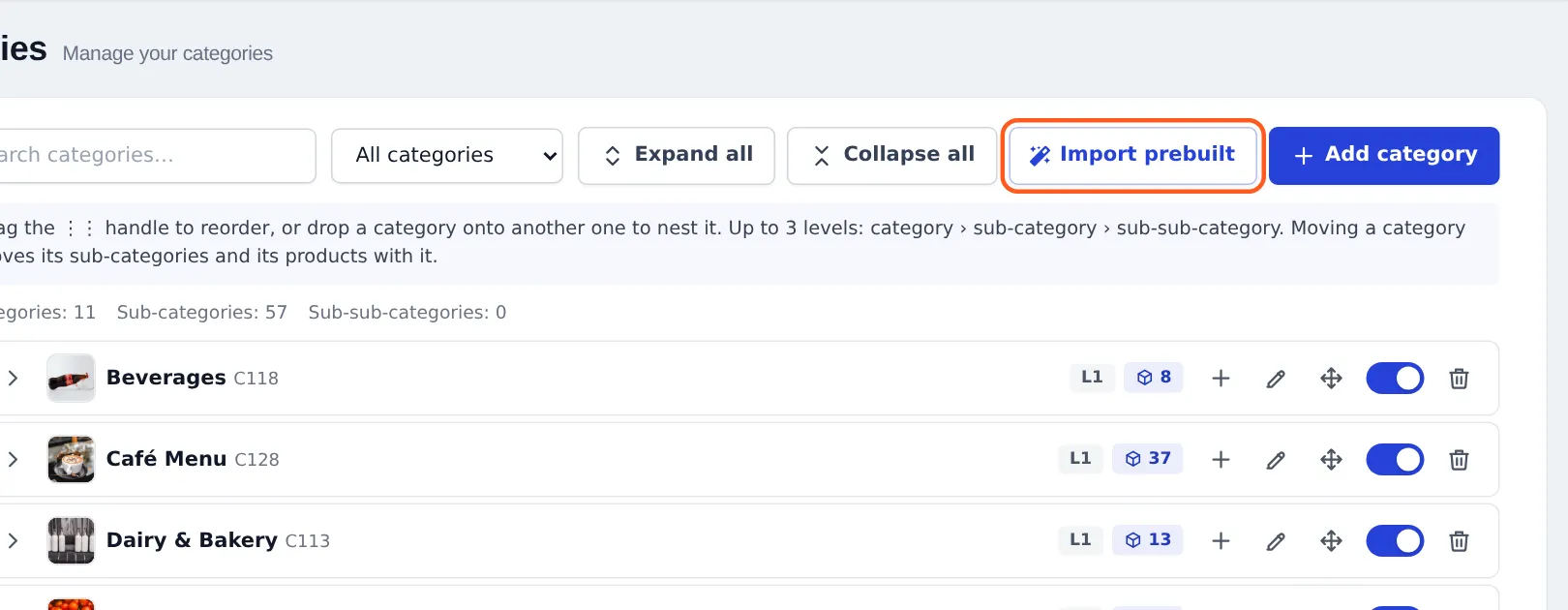
Import prebuilt saves you from typing your setup lists by hand. On many setup pages, next to Add, there is an Import prebuilt button. It opens a library organized by industry (grocery, pharmacy, restaurant, clothing, electronics and many more). You tick what you need and import it in one click. Every business type uses it on its first day.
Where you find the Import prebuilt button
Section titled “Where you find the Import prebuilt button”| Page | What it adds |
|---|---|
| Products › Categories | Categories with sub-categories, up to 3 levels, for 30+ industries |
| Products › Brands | Common brands per industry |
| Products › Units | Units and sub-units (for example Box of 12 Pieces) |
| Products › Variations | Variation templates such as Size, Color, Storage |
| Products › Selling Price Group | Price groups such as Wholesale or Retail |
| Products › Warranties | Warranty types and durations |
| Products › Product fields | Ready-made product field groups |
| Products › Size charts | Size charts for clothing, shoes, rings and more |
| Expenses › Expense Categories | Expense categories with sub-categories |
| Payment Accounts (Account types) | Account types and sub-types |
| Contacts › Customer Groups | Customer groups with a discount or markup percentage |
| Settings › Tax Rates | Tax rates and tax groups by country |
| Settings › Barcode Settings | Label sheet and roll sizes, with a drawing of the layout |
| Settings › Types of service | Dine-in, takeaway, delivery and similar |
| Settings › Receipt Printers | Printer presets (you add the IP address after import) |
| User Management › Roles | Roles such as Cashier or Store manager with their permissions |
| Restaurant (tables, kitchen stations, modifiers) | Tables by area, kitchen stations, modifier sets |
| Hotel, Gym, Repair, Services | Room types and amenities, membership packages and classes, device categories and models, a service menu |
First-time setup
Section titled “First-time setup”There is nothing to switch on. A good order on day one:
- Add your business locations first. Some lists (restaurant tables) are imported per location.
- Import Categories, Brands and Units for your industry.
- Import Tax Rates for your country and check them with your accountant.
- Import Roles, then create your staff users with those roles.
- Import Receipt Printers and Barcode Settings, then edit each printer to add its address.
Everyday use: import a list
Section titled “Everyday use: import a list”- Open the page you want to fill, for example Products › Categories.
- Click Import prebuilt.
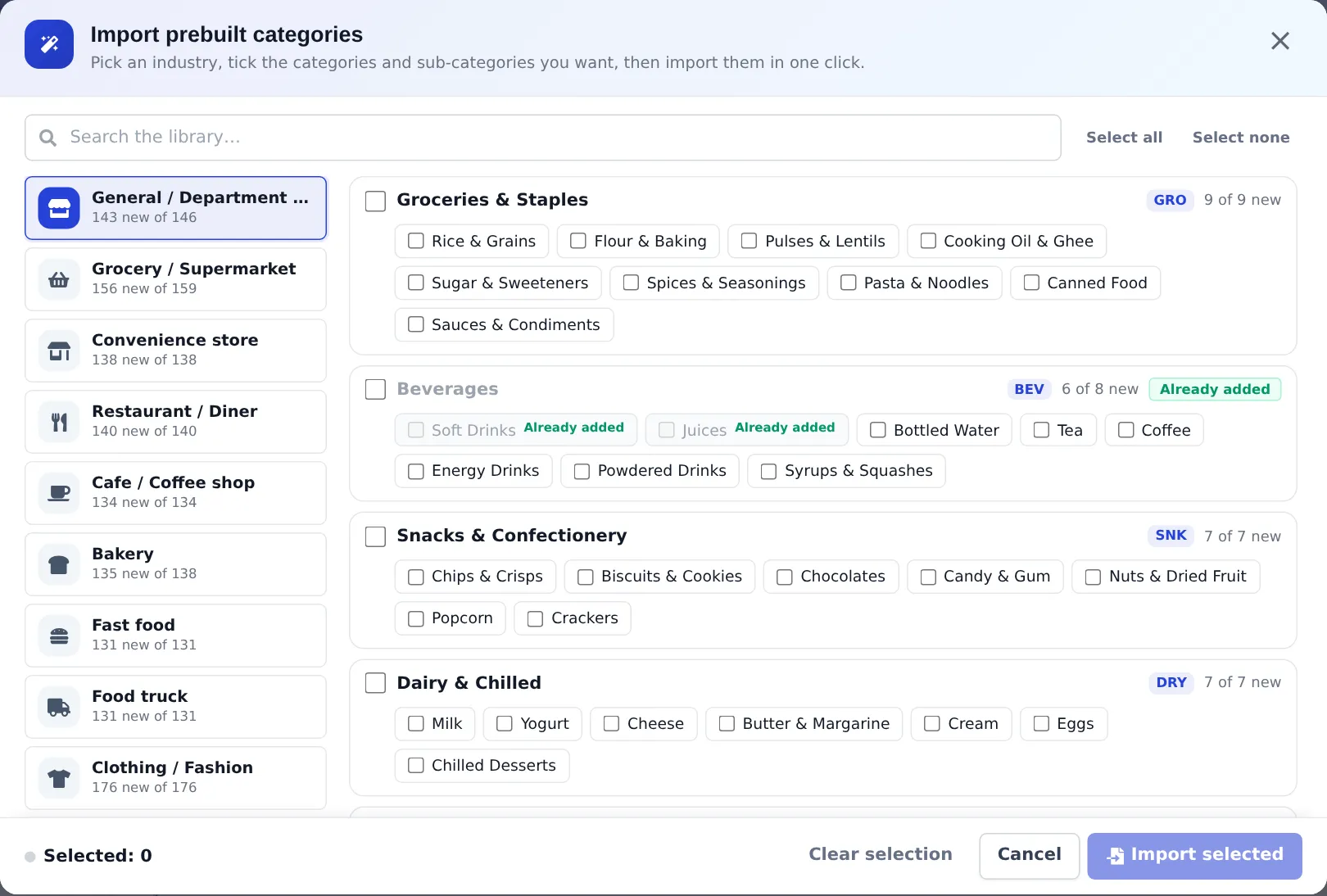
- On the left, pick an industry card. Each card shows how many items are new for you (“143 new of 146”).
- Tick the items you want. Ticking a parent ticks its children; you can also tick children one by one. Use the search box to search every industry at once, and Select all / Select none for what is visible.
- Click Details on an item to see more (a role’s permissions, a tax group’s parts, a drawing of a label sheet).
- Click Import selected. A confirmation lists exactly what will be created and what will be skipped.
- Confirm. The list refreshes with your new items.
For the step-by-step version focused on products, see Import prebuilt lists.
Good to know
Section titled “Good to know”- Prices and rates in presets are suggested defaults in USD. Edit them to match your business.
- Matching is by name and ignores capitals and small spelling differences, so “Dine In” and “Dine-in” count as the same.
- Only one import runs at a time per business. If you see “Another import is running”, wait a moment.
- The Services importer checks your plan’s product limit first, because services are created as products.
Permissions
Section titled “Permissions”There is no separate permission for Import prebuilt. You need the same permission as for adding one item by hand on that page, for example:
| List | Permission on the Roles page |
|---|---|
| Categories | Add category |
| Brands | Add brand |
| Units | Add unit |
| Variations, selling price groups, warranties, modifier sets | Add product |
| Customer groups | Add customer |
| Tax rates | Add tax rate |
| Roles | Add role |
| Barcode settings | Access barcode settings |
| Receipt printers | Access printers |
| Hotel, Gym, Repair, Services lists | The module’s own manage or settings permission |
Related pages
Section titled “Related pages”Frequently asked questions
Is Import prebuilt included in every plan?
Yes. The Import prebuilt buttons are available on every plan. You only need the add permission for the list you are filling, and for module lists (restaurant, hotel, gym, repair, services) that module must be on.
Will Import prebuilt change or delete what I already have?
No. It only adds. Items you already have are greyed out with an Already added badge and skipped, and existing tax rates or roles are never edited.
Why don't I see the Import prebuilt button?
The button is hidden when you lack the add permission for that list, or when the module the list belongs to is not in your plan or is switched off in Settings › Business Settings › Modules.
Are the imported tax rates correct for my country?
They are suggested presets checked against official sources, but tax rules change. Check them with your accountant before using them on invoices.
Does Import prebuilt add products?
Only for the Services list (a service menu). Physical products come from the Product Library module, which is a separate feature.
Can I edit imported items?
Yes. Imported categories, units, roles, printers and so on are normal records. Rename, change or delete them like anything you added by hand.