
Electronics store step 1: stores and modules
Set up your stores and switch on what an electronics retailer uses. This takes about 15 minutes.
Before you start
Section titled “Before you start”- You are the owner or an admin. Name, currency and time zone are set in Settings › Business Settings.
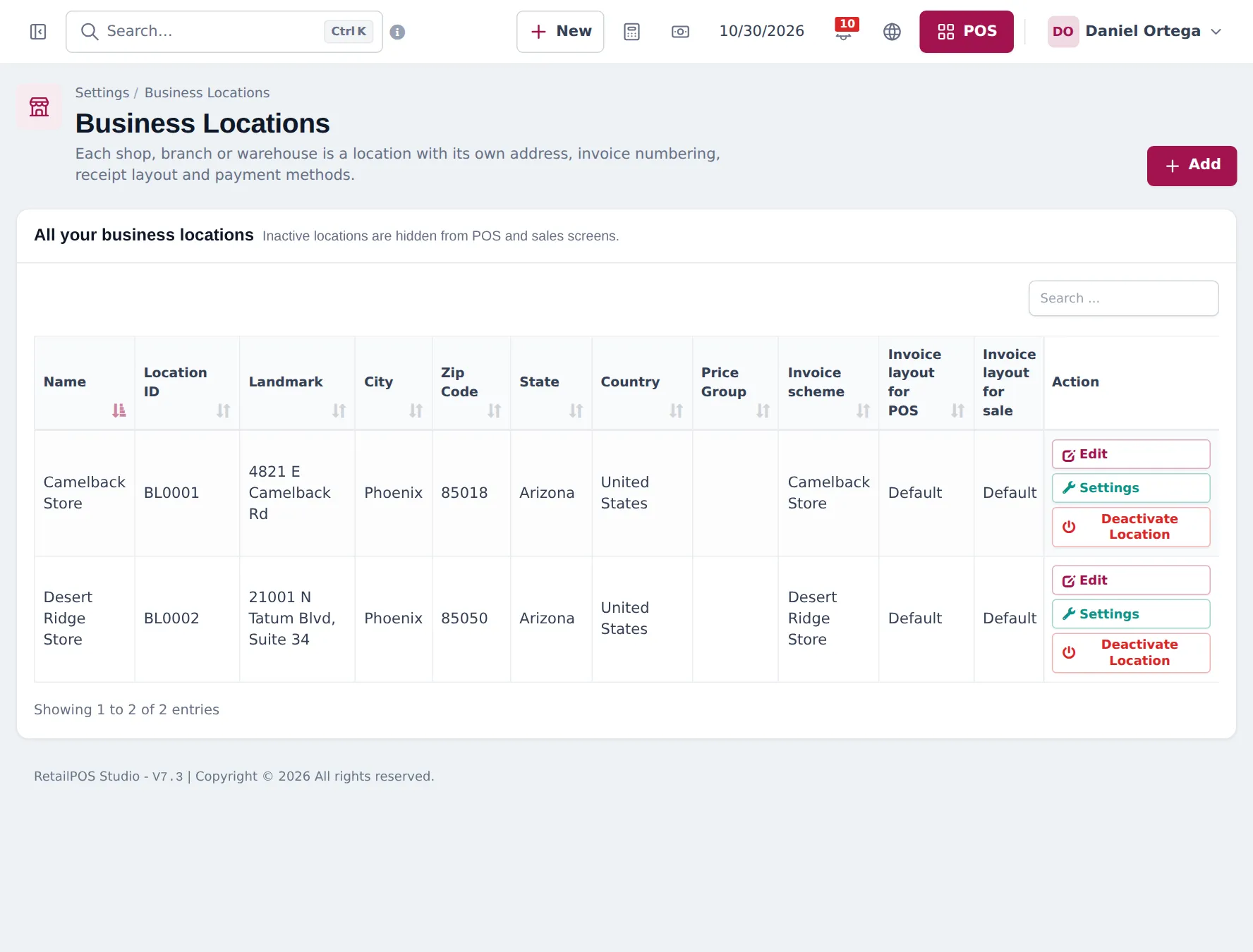
Add each store
Section titled “Add each store”- Settings › Business Locations › Add.
- Enter the store name and address; choose the Invoice scheme and invoice layouts.
- Optional: a Default Selling Price Group (see step 4).
- Save. Add a warehouse the same way if you have one.
Switch on the modules
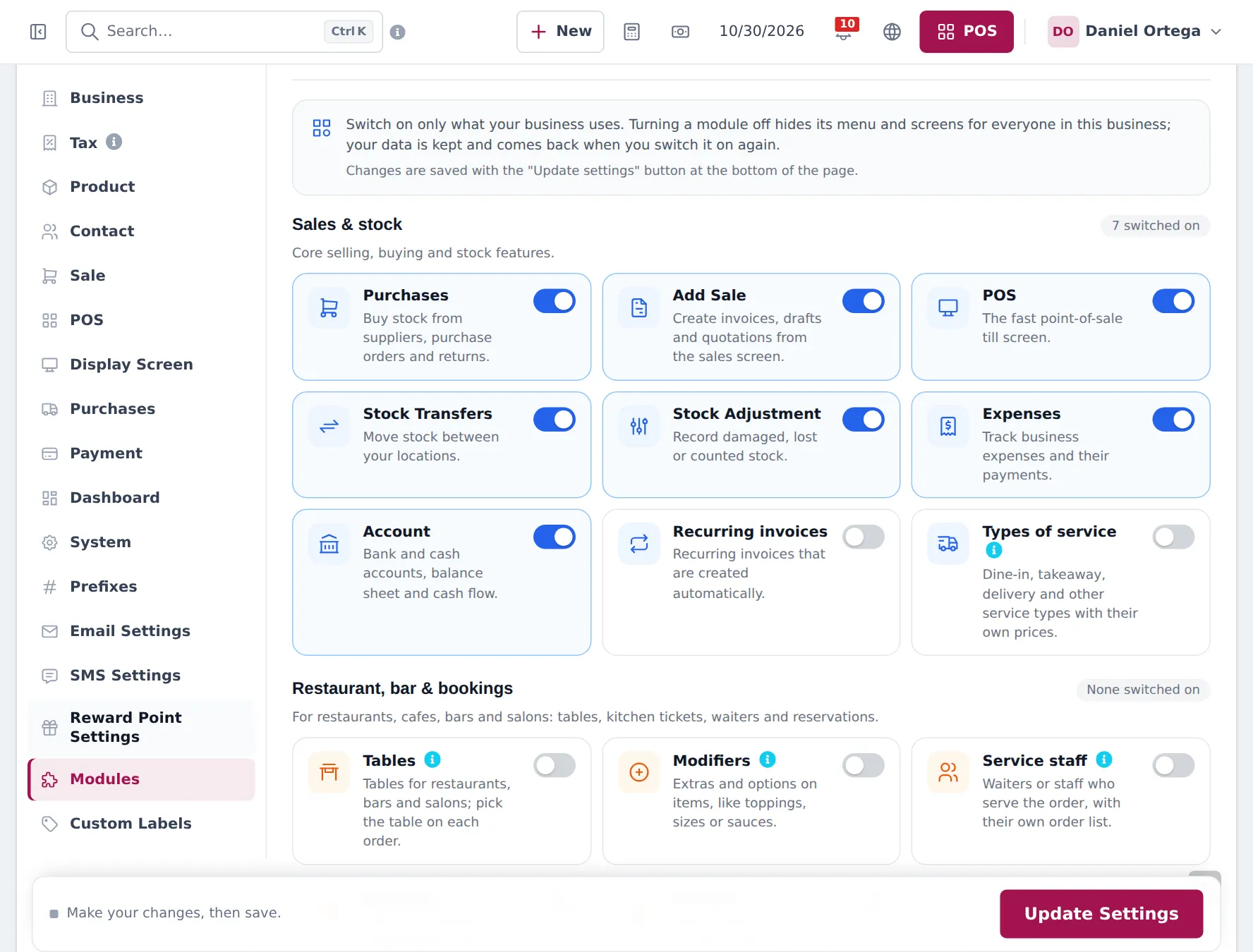
Section titled “Switch on the modules”| Module | For |
|---|---|
| Product Library | Import the Electronics catalog |
| Website & online store | Online store, widgets, online orders |
| Shopper app & Scan & Go | Customers shop your store in the SmartPOS Shopper app |
| Mobile app | Staff use the SmartPOS Business app |
| Stock Transfers | Move stock between stores |
| Order options & personalisation | Setup service, trade-in or warranty-claim forms on sale lines |
| Repair module | Only if you also repair devices |
Click Update Settings to save.
Frequently asked questions
Does my online store need its own location?
Not necessarily. In the website settings, "Stock and orders from" picks the location whose stock and discounts the website uses. Many stores choose their main shop or warehouse; pickup orders use the store the customer picks.
Can a location sell at wholesale prices by default?
Yes. Set a Default Selling Price Group on the location, for example a wholesale counter or a trade branch.
Why is a module greyed out?
It is not in your plan. Settings › Package Subscription shows your plan and upgrade options.