
Restaurant daily operations: open, serve, close
Once your restaurant is set up, every day follows the same rhythm. Use this page as a shift checklist for managers and cashiers.
Before opening
Section titled “Before opening”- Open the cash register at each till: the POS asks for the opening cash the first time you open it. See Cash register and closing.
- Turn on the kitchen screens: open each station link and check that Sound on is set.
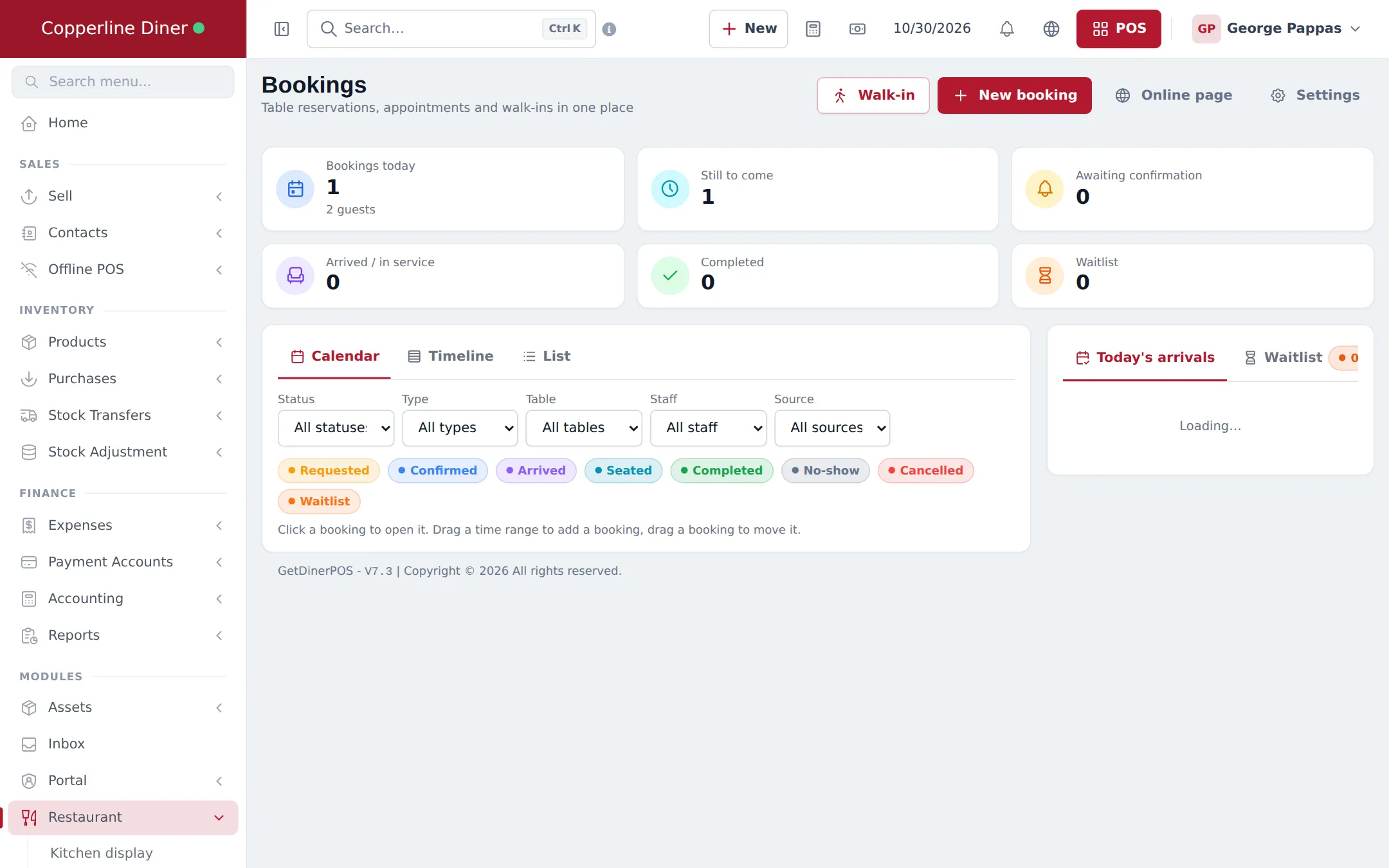
- Check today’s bookings in Bookings: the Today’s arrivals panel and the timeline show who is coming and which table to hold.
- Check the floor plan: tables still marked “needs cleaning” from yesterday can be marked clean.
- Handle sold-out items: for stock-tracked items the POS and online menu follow the stock count; for others, deactivate the product in Products › List Products until it is back.
During service
Section titled “During service”- Waiters take orders on the POS or in the SmartPOS Business app and send them to the kitchen (step 8).
- The kitchen works from the kitchen display: Start, tick items, Bump.
- The manager watches the Orders board for late orders (the red timers) and assigns delivery orders to riders.
- Hosts use the floor plan or host screen to seat walk-ins and move parties.
- Online and QR orders arrive on the kitchen display; check Website › Orders for anything that needs attention.
Closing time
Section titled “Closing time”- Close every open tab. Open Open tabs in the POS; the list should be empty. Take payment for any tab left, or cancel mistakes.
- Complete or cancel leftover orders on the Orders board (tick Show completed & cancelled to check).
- Close the cash register at each till: count the cash, enter it, and compare with the expected amount.
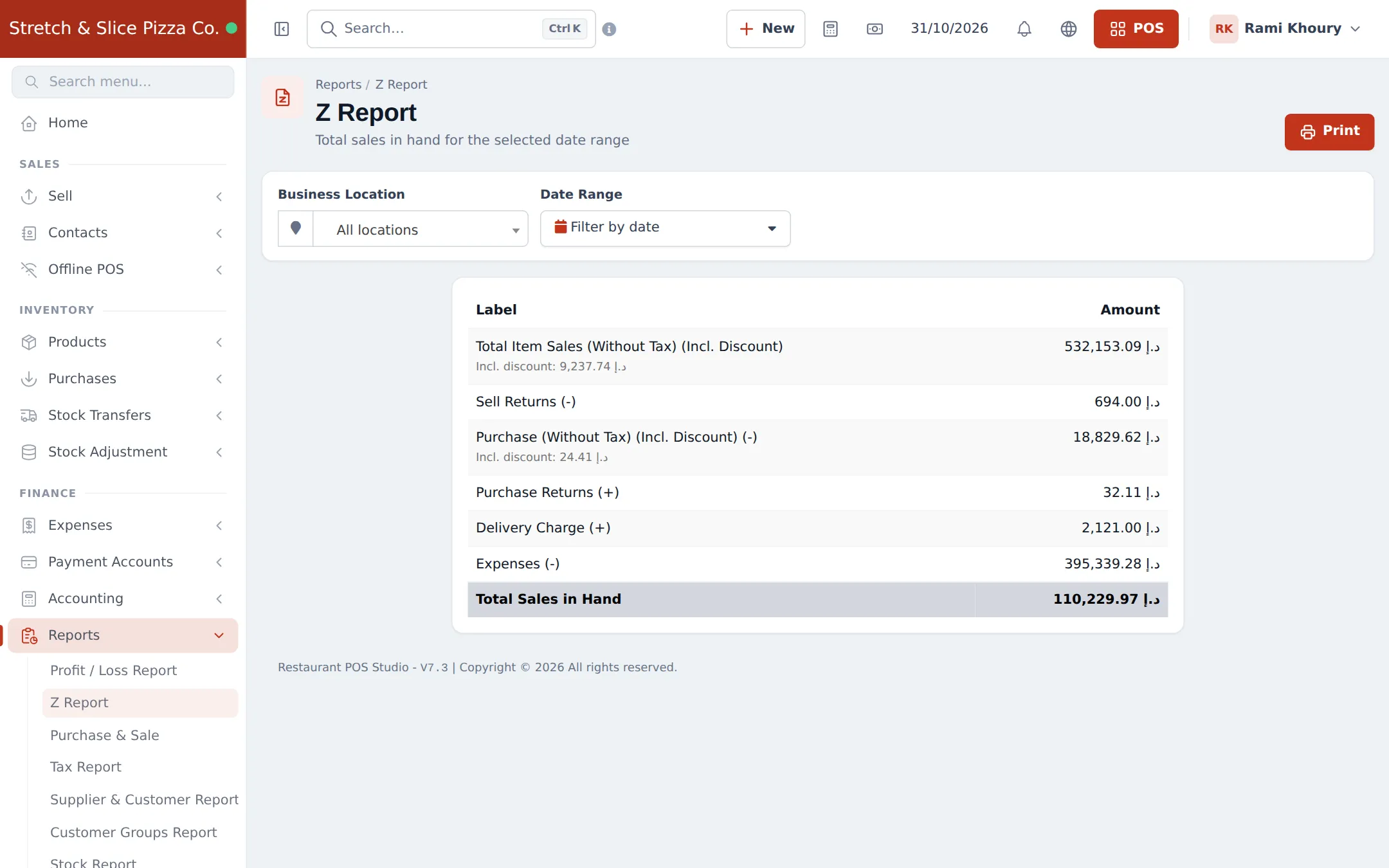
- Print the Z Report for the day and location.
- Record expenses paid from the till during the day under Expenses › Add Expense.
- Record wastage of stock-tracked items with a stock adjustment.
Read the restaurant reports
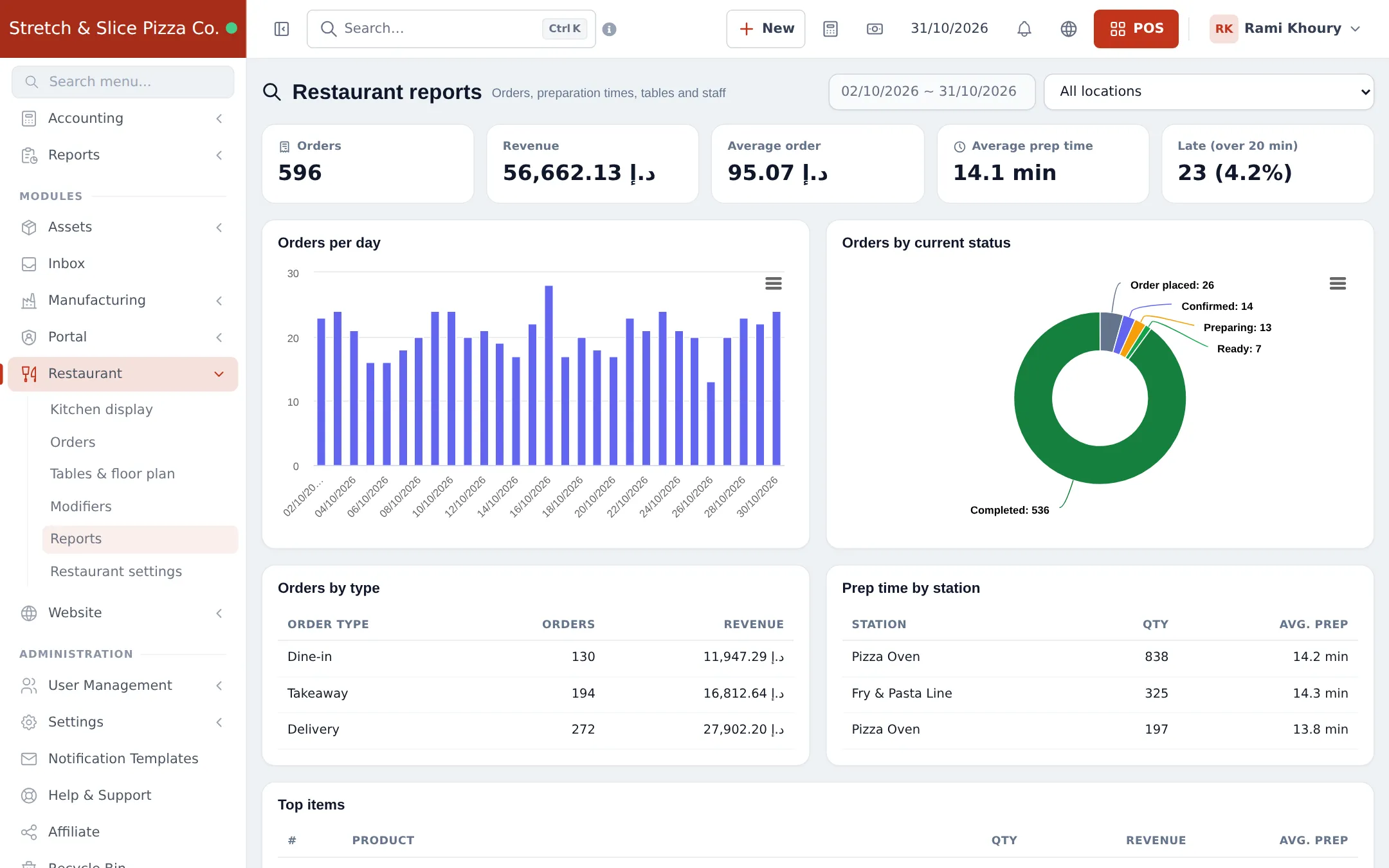
Section titled “Read the restaurant reports”Open Restaurant › Reports and pick the date range and location. You see orders, revenue, average order, average prep time and late orders, then orders per day, orders by status, orders by type, prep time by station and top items.
Other useful reports: Reports › Profit / Loss Report, Register Report, Product Sell Report and Sell Payment Report. See Reports overview.
Weekly
Section titled “Weekly”- Review menu prices and modifier prices; update with Products › Update Price.
- Check Website › Reviews and the late-order count in Restaurant reports.
- Restock drinks and packaged items with purchases.
Frequently asked questions
What should I do with open tabs at closing time?
Open Open tabs and make sure the list is empty. Take payment for any tab still open, or cancel tabs that were created by mistake. An unpaid tab keeps its table occupied.
Which report shows today's cash in hand?
The Z Report shows total sales, returns, purchases, expenses and the total sales in hand for a date range and location. The register's own close window shows the cash, card and other totals for that shift.
How do I see which dishes sell best?
Restaurant › Reports shows top items, orders by type and prep time by station. Reports › Trending Products and Product Sell Report give more detail.
How do I record food wastage?
Use a stock adjustment for stock-tracked items such as bottled drinks or packaged desserts, with a reason in the note. Track wastage costs as an expense if you don't track ingredients.
Can I see how long the kitchen takes?
Yes. Restaurant › Reports shows average prep time, late orders (over 20 minutes) and prep time per station.