
Devices, sessions and app security in SmartPOS Business
Phones get lost and staff change. This page shows owners and staff how to protect SmartPOS Business: lock the app with a PIN or fingerprint, block screenshots, see every signed-in phone, sign a phone out remotely and keep rooted or modified phones out.
Lock the app with a PIN or fingerprint
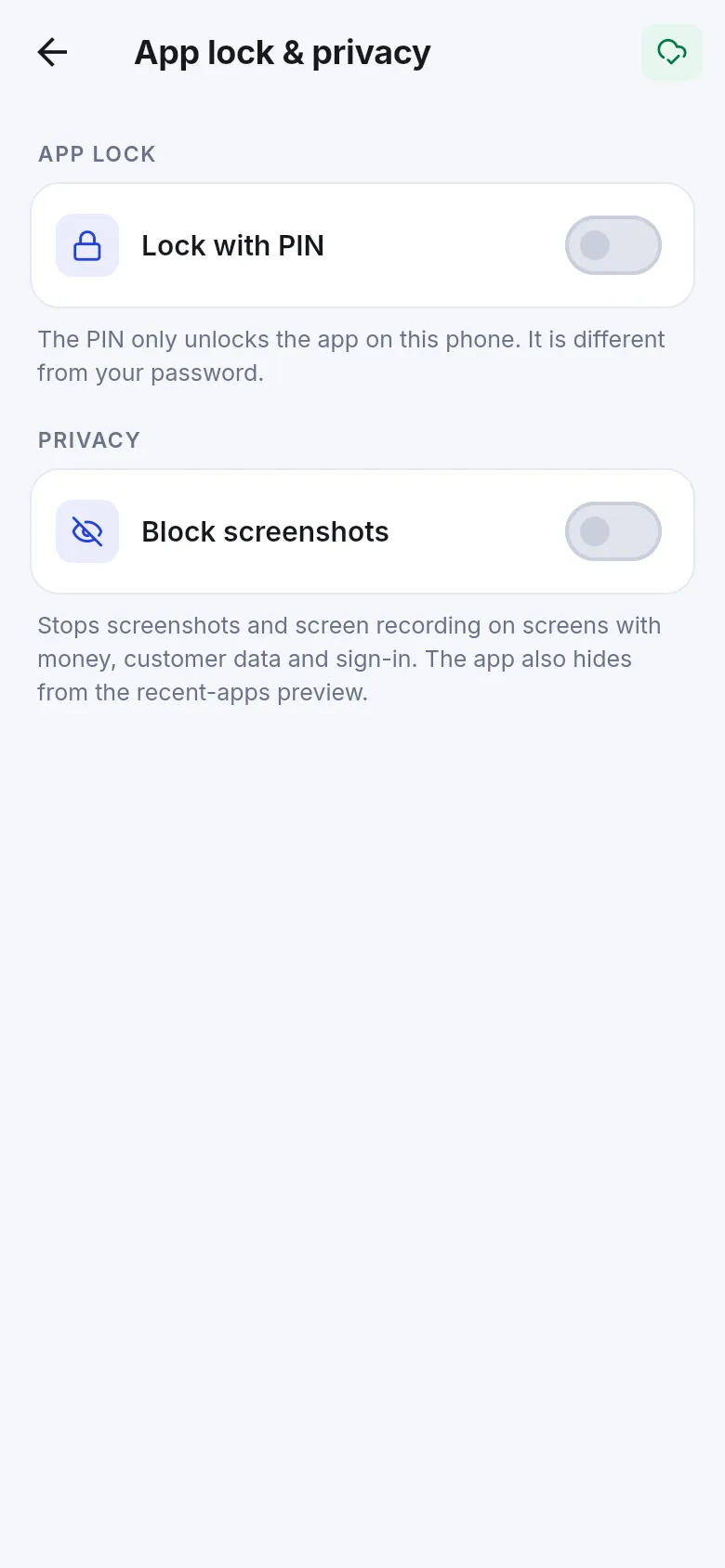
Section titled “Lock the app with a PIN or fingerprint”- Open Settings › App lock & privacy.
- Turn on Lock with PIN and choose a PIN. You can also unlock with fingerprint or face.
- Set Lock after: Immediately or after some seconds or minutes in the background.
- Use Change PIN later if needed.
The PIN only unlocks the app on this phone. It is different from your password.
Block screenshots
Section titled “Block screenshots”In the same screen, turn on Block screenshots. It stops screenshots and screen recording on screens with money, customer data and sign-in, and the app hides from the recent-apps preview.
See and sign out devices
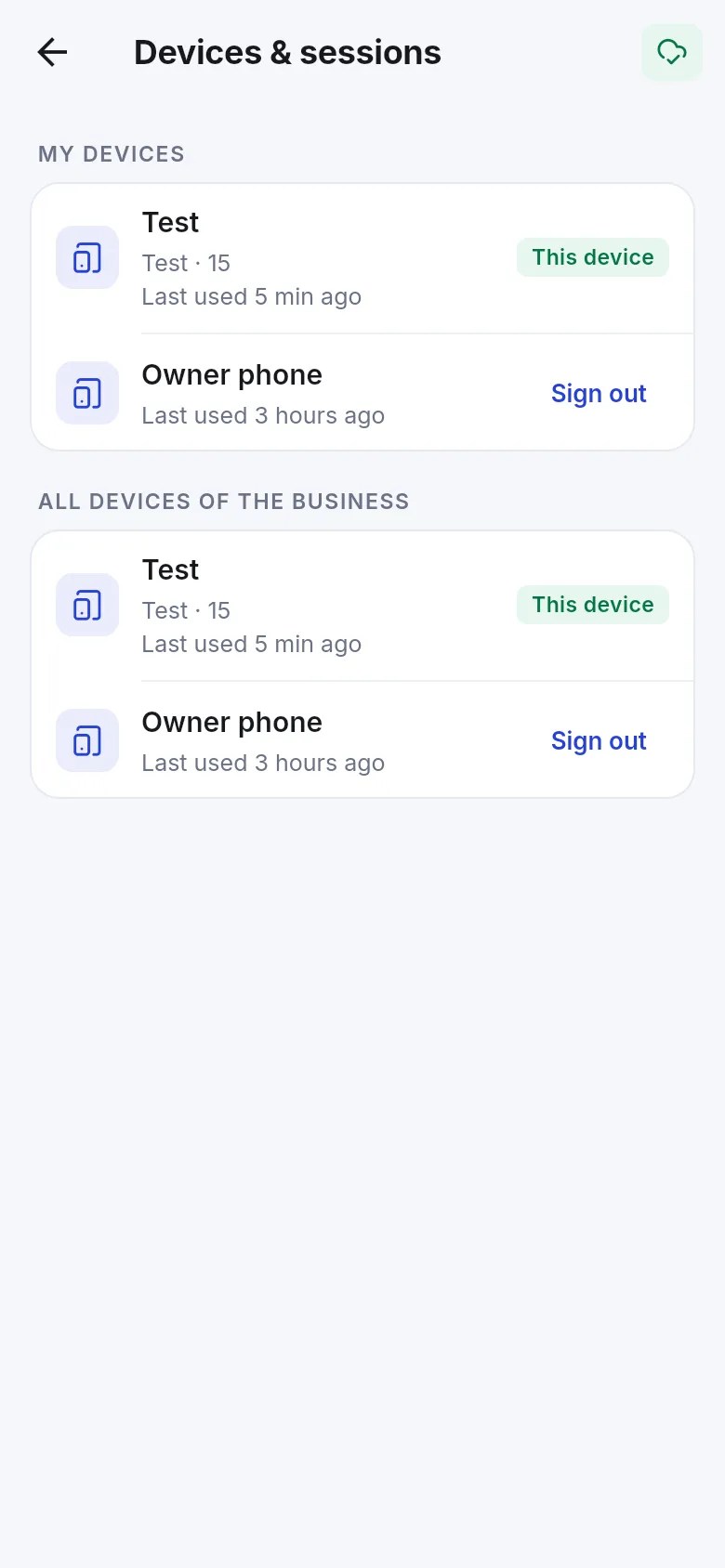
Section titled “See and sign out devices”In the app: open Settings › Devices & sessions.
- My devices – the phones where you are signed in, with This device marked and Last used.
- All devices of the business – for owners and people with Manage mobile app devices, with … of … devices in use when a limit is set.
- Tap Sign out next to a phone. The app on that device stops working right away. Changes it hasn’t synced yet will be lost.
On the web: open Settings › Mobile app › Signed-in devices to see each device, user, app, sign-in time, last seen, status and risk, and Sign out one device or Sign out all of this user.
Device limit and who may use the app
Section titled “Device limit and who may use the app”The owner controls access in Settings › Mobile app on the web: Who can use the app (everyone, or only roles with Use the SmartPOS Hub mobile app) and Maximum signed-in devices. See Install and sign in.
Rooted and modified phones, genuine-app check
Section titled “Rooted and modified phones, genuine-app check”- The app checks itself and the phone. A phone that looks rooted or modified gets a warning: This phone looks rooted or modified. Your business data could be at risk on this device.
- The owner can turn on Block rooted or modified devices in Settings › Mobile app. Then such phones cannot sign in.
- Every request from the app is checked to come from the genuine SmartPOS Business app. A copy from an unofficial source is refused: This copy of the app is not genuine. Please install the official app from the store.
Other security built in
Section titled “Other security built in”- Sign-in is encrypted and kept only on the phone; data saved for offline use is encrypted.
- Every permission is checked by the server, not just hidden in the app.
- Changing your password signs out your other phones.
- Five wrong passwords pause sign-in for that login for about 10 minutes.
- Two-step verification from the web works in the app.
Related pages
Section titled “Related pages”Frequently asked questions
A phone was lost. How do I stop it?
On the web open Settings › Mobile app, find the phone under Signed-in devices and click Sign out (or sign out all of that user's phones). Or, in the app, open Settings › Devices & sessions and tap Sign out next to the phone. It stops working at once.
Is the app PIN the same as my password?
No. The PIN only unlocks the app on this phone. Your password is still needed to sign in on a new phone.
Can I stop staff taking screenshots of customer data?
Yes. Turn on Block screenshots in Settings › App lock & privacy. It blocks screenshots and screen recording on screens with money, customer data and sign-in, and hides the app in the recent-apps preview.
What happens when I change my password in the app?
You stay signed in on this phone, and every other phone signed in to your account is signed out.
Can I block rooted phones?
Yes. The owner can turn on Block rooted or modified devices in Settings › Mobile app on the web. Such phones then can't sign in; when it is off you only see a warning in the device list.
How long does a phone stay signed in?
Until someone signs it out, the password is changed, or the session is very old. The app refreshes its access in the background.