
Pharmacy step 6: prescriptions for online orders
If your pharmacy sells online, prescription-only medicines need a valid prescription before you dispense them. SmartPOS Hub lets customers upload a prescription at checkout and holds the order until your pharmacist approves it.
Before you start
Section titled “Before you start”- Your online store is set up; see Online store overview.
- Prescription-only medicines have Prescription required = Yes (step 3).
Turn on prescriptions
Section titled “Turn on prescriptions”- Open Website › Settings & API.
- On the Catalog & prescriptions tab, switch on prescriptions and require approval before the order goes ahead.
- Save. A Prescriptions item appears under Website in the menu.
Review prescriptions
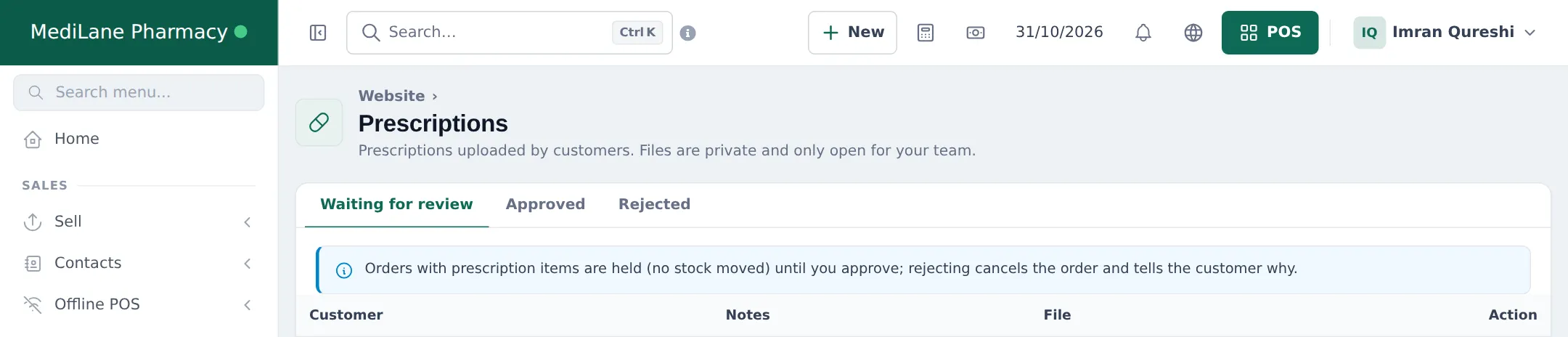
Section titled “Review prescriptions”- Open Website › Prescriptions. The Waiting for review tab lists new uploads with the customer, notes and whether they are linked to an order.
- Click Open to view the file.
- Write a Note to the customer if needed.
- Click Approve to release the order, or Reject to cancel it and tell the customer why.
- Approved and rejected prescriptions move to their own tabs for your records.
After approval
Section titled “After approval”The order continues like any online order in Website › Orders: prepare it, pick the batch, and hand it over for pickup or delivery. See Website orders.
In the shop
Section titled “In the shop”For walk-in patients, check the paper prescription at the counter, select the patient as customer and write the prescription reference or doctor’s name in the sale note. A pharmacy receipt layout can print it in a prescription box (step 5).
Frequently asked questions
Who can see uploaded prescriptions?
Only your signed-in team. Prescription files are private and open only for staff with access to the website back office; they are never public.
What happens to an order while the prescription waits for review?
The order is held. No stock moves and online card payment is not taken; the customer pays after approval or on collection.
What happens when I reject a prescription?
The order is cancelled and the customer is told why, using the note you write.
Which products need a prescription online?
Products whose Prescription required field is set to Yes, in the Pharmacy product fields.
Can customers see their prescriptions later?
Yes. Signed-in customers see their uploaded prescriptions and their status in their account on your online store.