
Mart step 5: fast checkout with scanner and camera
Grocery queues move fast when the checkout is set up well. This page shows the quickest way to ring up a basket in POS V2, with a hand scanner or a camera, and how to take cash with note counting, cards and wallets.
Before you start
Section titled “Before you start”- Products have barcodes (step 4) and prices.
- The cashier’s cash register is open (Cash register and closing).
- Cash denominations are set: Settings › Business Settings › Payment › Cash Denominations (for example 10, 20, 50, 100, 500, 1000, 5000), then Update Settings.
Ring up a basket
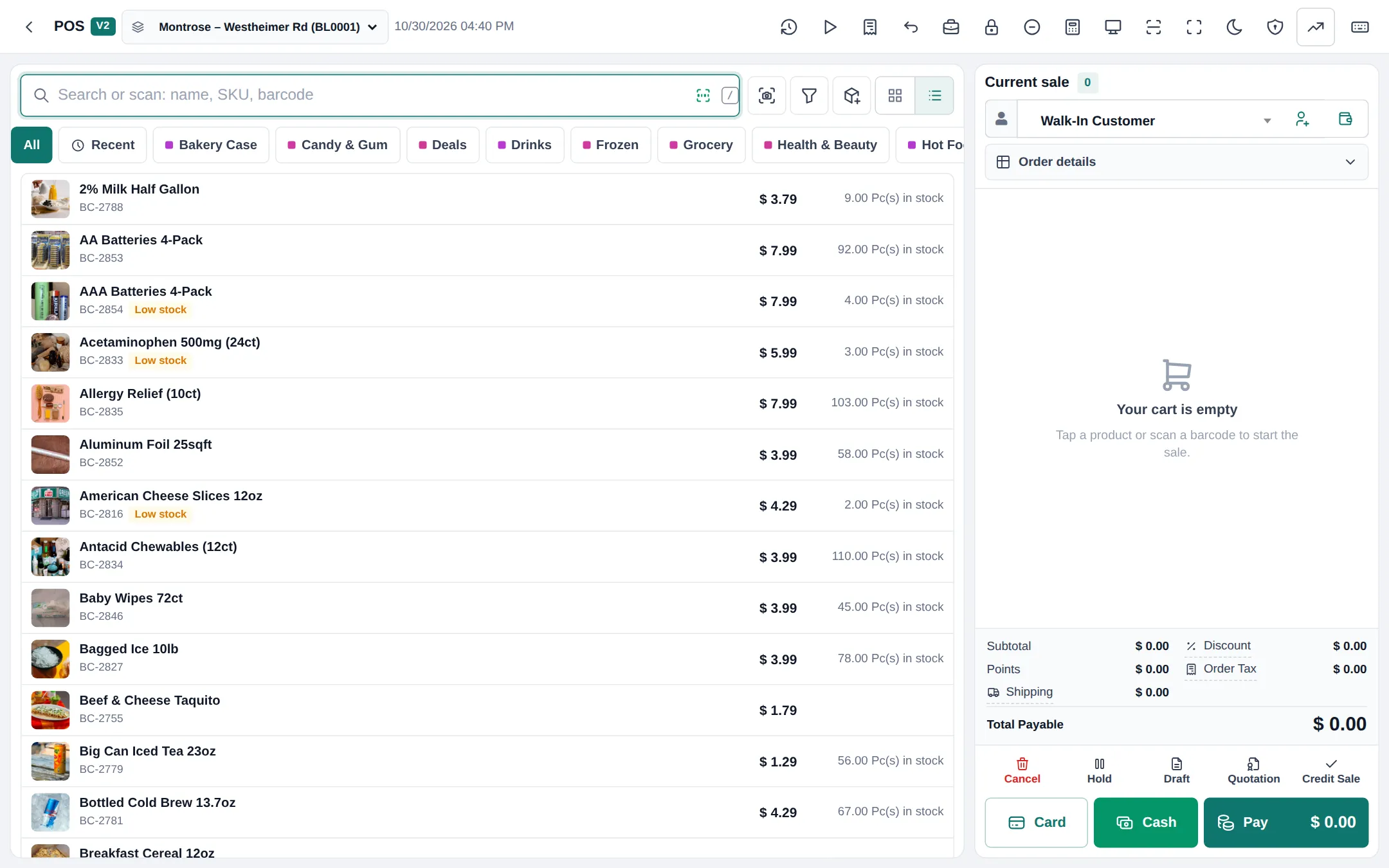
Section titled “Ring up a basket”- Open Sell › POS and check the location at the top.
- Scan each item. The search box is always focused, so a hand scanner works without clicking. Items without a barcode: type part of the name, or tap a category chip and tap the item.
- To scan with the camera, tap the camera button next to the search box. Switch on Continuous to scan item after item; the sheet beeps and shows “Added” for each one.
- Change quantity on the line, or pick a different unit (for example Carton of 24) when the product has sub-units.
- Optional: choose the customer (for points, credit or an invoice in their name). Leave Walk-In Customer for anonymous sales.
Take payment
Section titled “Take payment”| Button | Use it for |
|---|---|
| Cash | Exact cash in one tap (express checkout) |
| Card | Card payment in one tap |
| Pay | Opens the payment window: other methods, counting notes, change, split payments, pay later |
| Credit Sale | The whole amount goes on the customer’s account (step 6) |
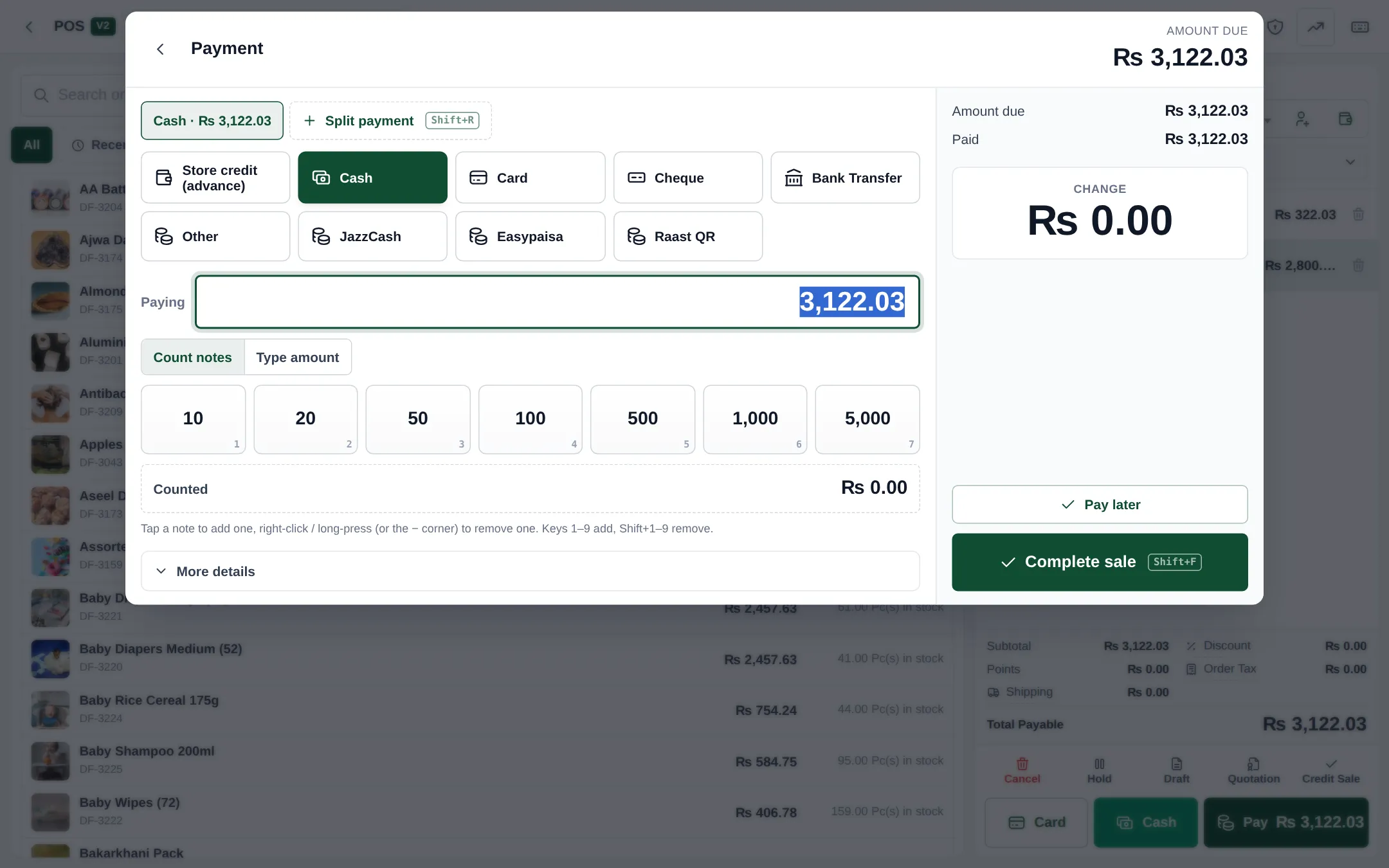
- Click Pay.
- Pick the method. Your methods appear as tiles (Cash, Card, Cheque, Bank Transfer, mobile wallets you’ve set up).
- For cash, use Count notes and tap each note handed over, or Type amount. The Change shows on the right.
- To pay with two methods, click Split payment and add the second line.
- Click Complete sale. The receipt prints.
Speed tips for busy tills
Section titled “Speed tips for busy tills”- Use Hold for a customer who forgot something; serve the next one and Resume later.
- Learn the shortcuts in Business Settings › POS › Keyboard shortcuts, such as express cash and quick cash amounts.
- Search is instant for stores with up to about 600 sellable items per location; larger stores search the server as you type.
- Returns are handled from the sale; see Returns and refunds.
- No internet? Switch to the Offline POS.
Frequently asked questions
Does scanning the same item twice add a new line?
That depends on Sales Item Addition Method in Business Settings › Sale. Most marts choose to increase the quantity of the existing line.
Can a phone be used as a till?
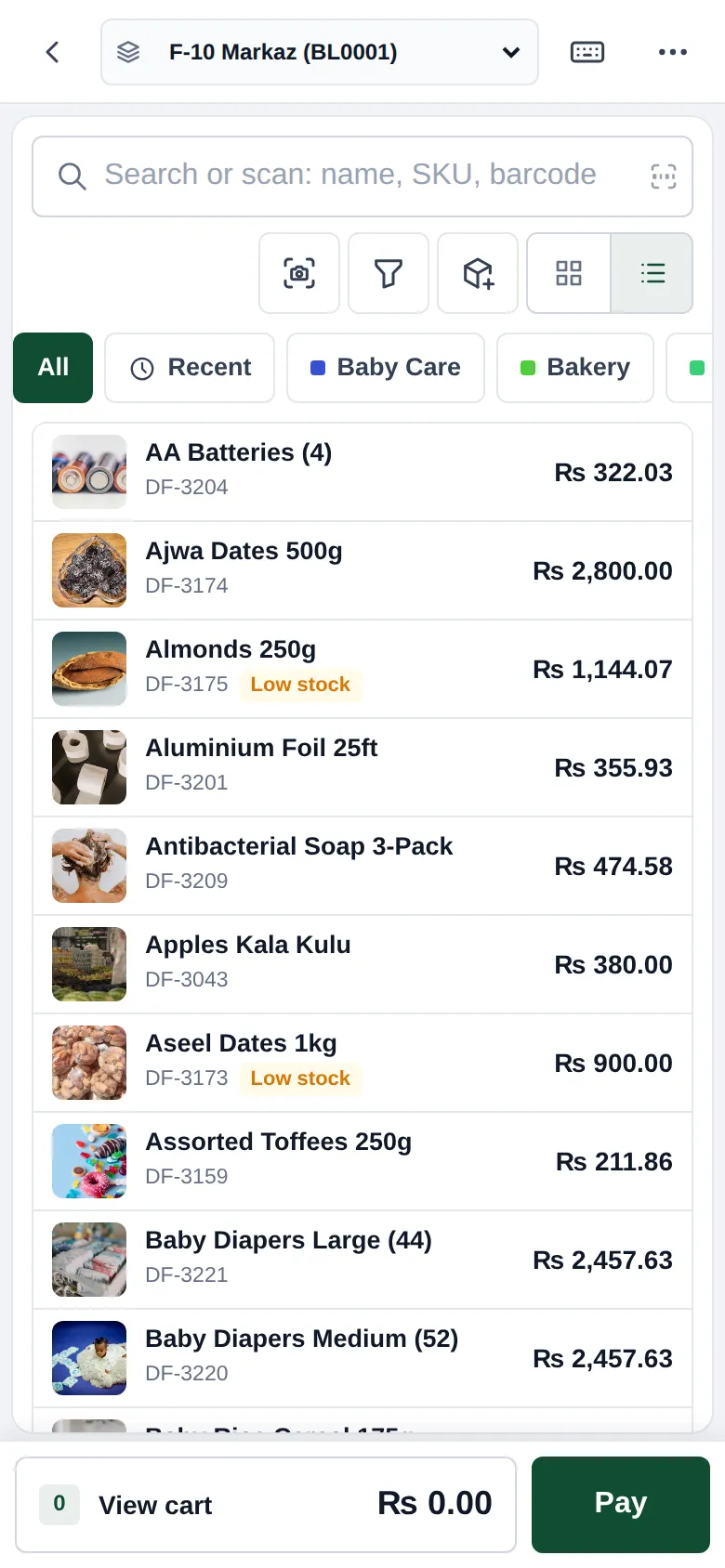
Yes. Open POS V2 in the phone's browser or use the SmartPOS Business app. Both can scan with the camera.
How does Count notes work?
In the payment window, tap the notes the customer hands over. The counted total and the change appear on the right. Set your currency's notes in Business Settings › Payment › Cash Denominations.
Which keyboard shortcuts help cashiers most?
Shortcuts for open payment, express cash and card checkout, quick cash amounts and hold are listed in Business Settings › POS › Keyboard shortcuts. In POS V2, press ? to see them all.
A customer wants to pay part now and the rest later. Is that possible?
Yes, for a customer selected on the sale. See Customer credit (khata) in the next step.
Why does the camera button not appear?
The camera scanner needs a secure page and a browser with camera access. Allow the camera when the browser asks; if you blocked it, allow it again in the browser's site settings.