
Appliance store step 5: sell on instalments
Many customers buy an AC or a fridge on instalments: a down payment today and monthly payments after that. SmartPOS Hub does this with part payments on one invoice. This page walks through a real example we recorded in a demo store: a 721.65 sale, a 200 down payment, then a 260 instalment, leaving 261.65 due.
How instalments work in SmartPOS Hub
Section titled “How instalments work in SmartPOS Hub”| Piece | What it does | Where |
|---|---|---|
| Pay term | When the unpaid balance is due (days or months) | Customer’s Balance & credit, or on the sale |
| Credit Limit | The most this customer may owe in total | Customer’s Balance & credit |
| Down payment | First payment entered at the sale | POS Multiple Pay, or Add Sale › Add payment |
| Instalments | Each later payment against the same invoice | Sell › All sales › Actions › Add payment or the customer’s Add payment |
| Payment status | Due (nothing paid), Partial, Paid | Sales lists and the customer’s Sales tab |
| Ledger | Every invoice and payment with the running balance | Customer page › Ledger |
Before you start
Section titled “Before you start”- The customer is saved as a named contact with a mobile number. Never put a credit sale on Walk-In Customer: you would not know who owes the money.
- You know the plan: total, down payment, number of months.
Step 1. Set the customer’s pay term and credit limit
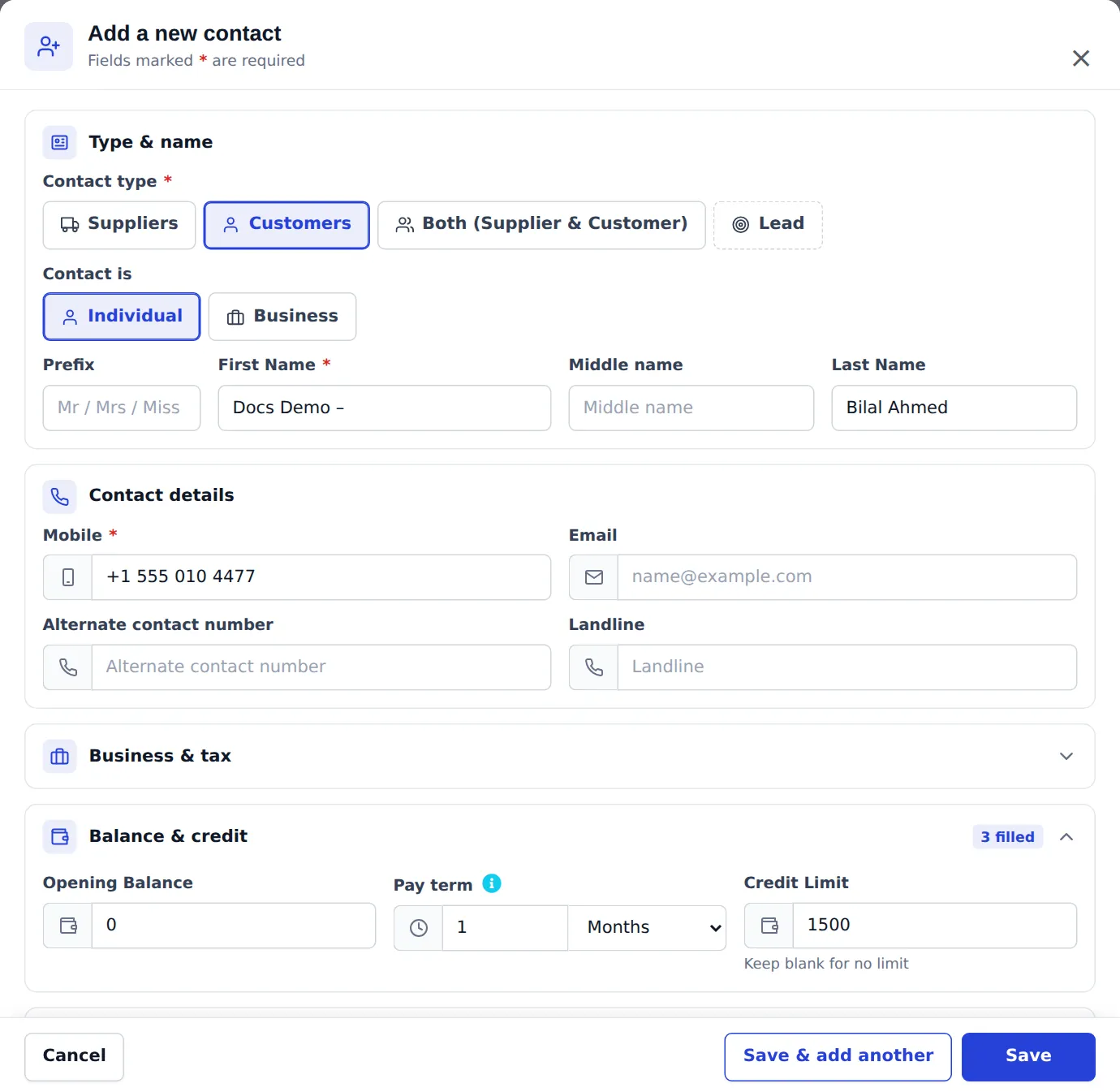
Section titled “Step 1. Set the customer’s pay term and credit limit”- Open Contacts › Customers and click Add (or edit an existing customer).
- Fill Type & name and the Mobile number.
- Open Balance & credit. Enter the Pay term (for example 1 Months) and a Credit Limit (leave blank for no limit).
- Save.
Step 2. Sell with a down payment
Section titled “Step 2. Sell with a down payment”- Open Sell › Add Sale (or the POS).
- Choose the customer. The pay term is filled in from the customer; change it on the sale if this plan is different.
- Add the appliance (type its serial number in the line’s box) and any installation or delivery service.
- Set Status to Final.
- In Add payment, enter only the down payment as the Amount (here 200 of 721.65) and the payment method. The Balance shows what is left (521.65).
- Write the plan in Sell note, for example “Down payment 200, then 2 monthly payments, due on the 30th”.
- Click Save.
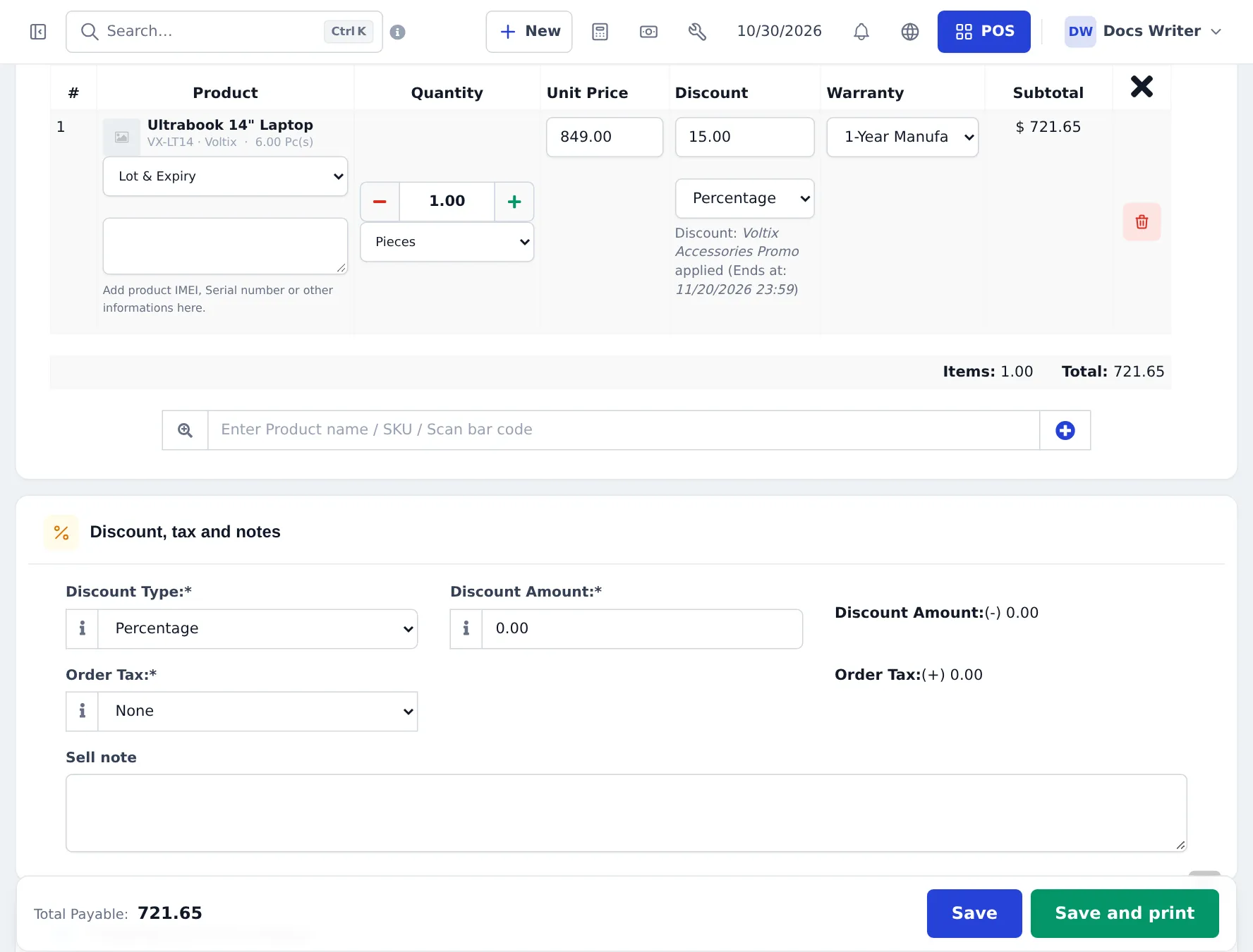
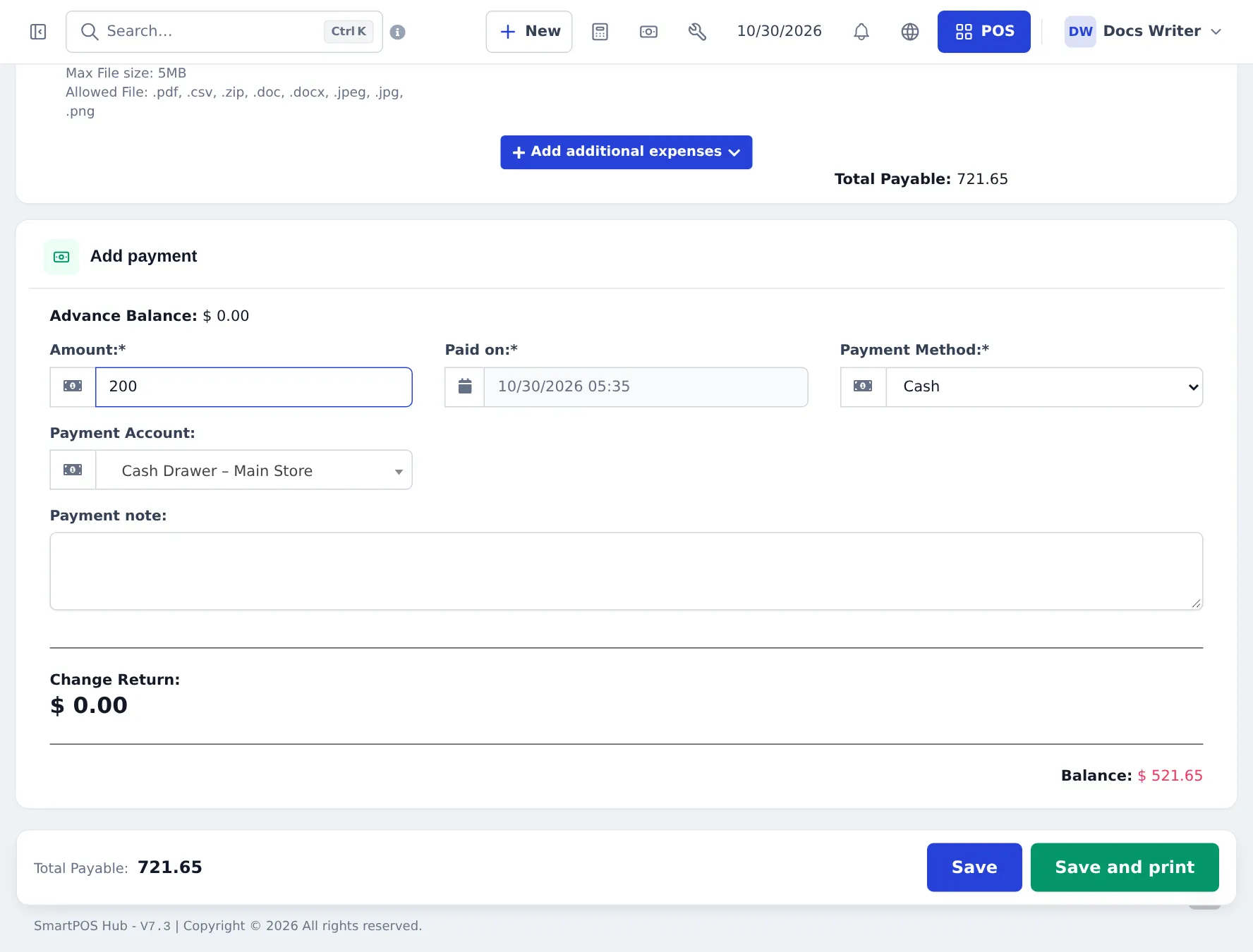
In the POS, do the same with Multiple Pay: enter the down payment as the amount and finalise. The POS keeps the rest due. Credit Sale finalises with nothing paid.
The sale is saved with payment status Partial.
Step 3. Record each monthly instalment
Section titled “Step 3. Record each monthly instalment”- When the customer pays, open Sell › All sales, find the invoice (filter by customer or payment status Partial) and choose Actions › Add payment. Or open the customer’s page and click Add payment.
- The window shows the customer, invoice number, total amount and the amount still due.
- Enter the instalment Amount, Payment Method, Paid on date and a Payment Note such as “Instalment 1 of 2”.
- Click Save. Print a payment receipt if the customer wants one.
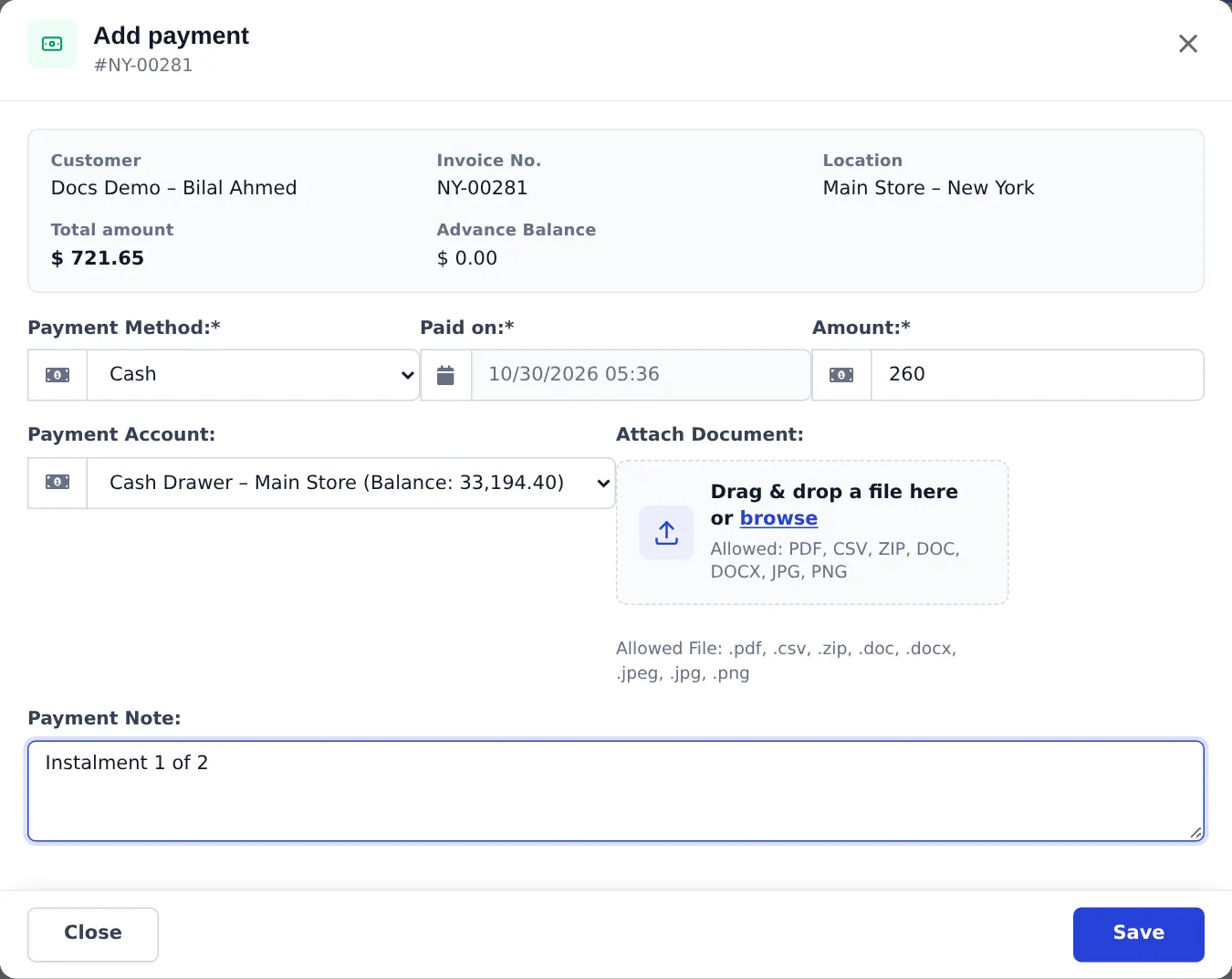
When the last instalment is entered, the invoice becomes Paid.
Step 4. See what the customer still owes
Section titled “Step 4. See what the customer still owes”Open the customer (Contacts › Customers, click the name). The top cards show Total sales, Balance due and how much of the Credit Limit is used.
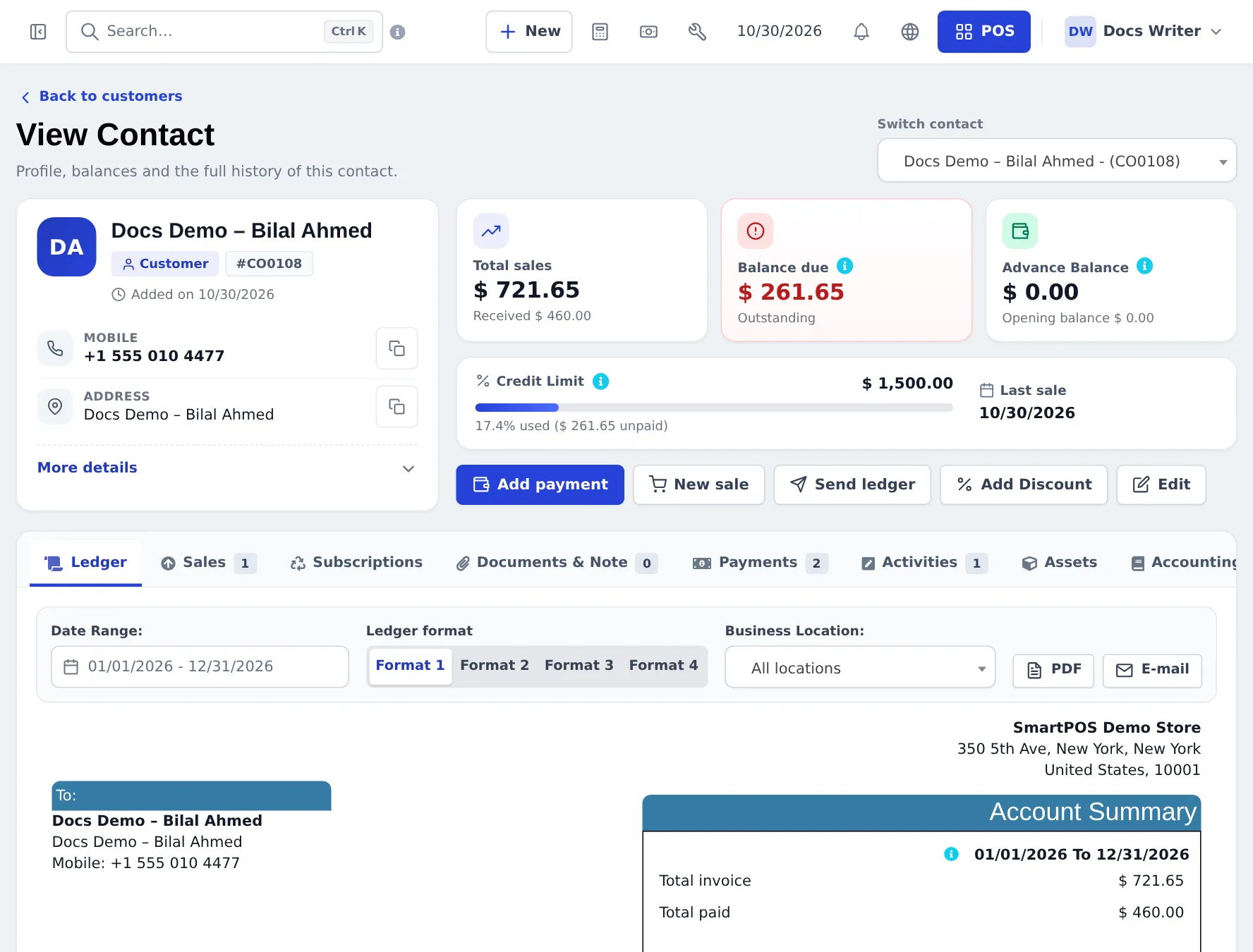
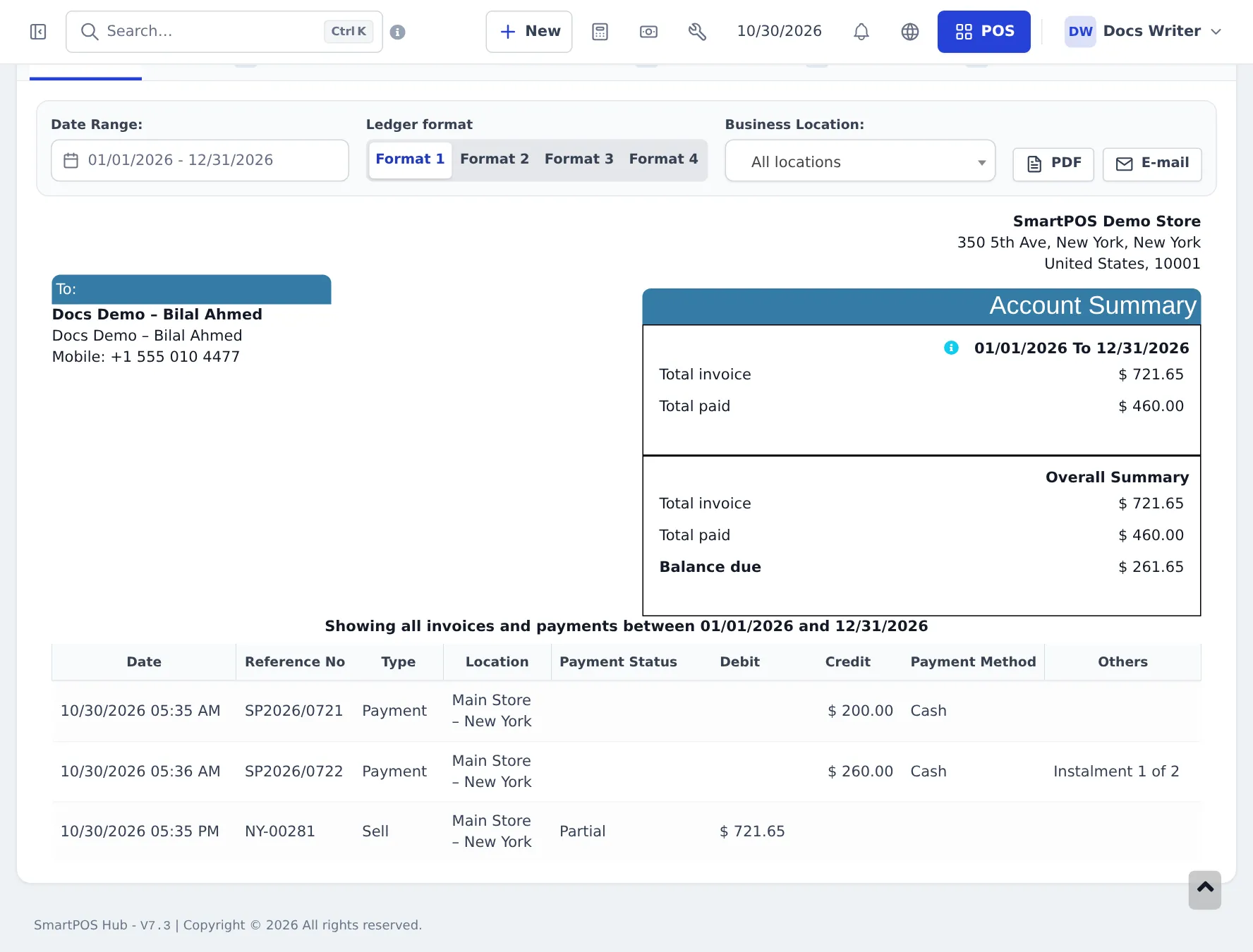
The Ledger tab lists the sale and every payment with the running balance. Download it as PDF or send it with E-mail / Send ledger.
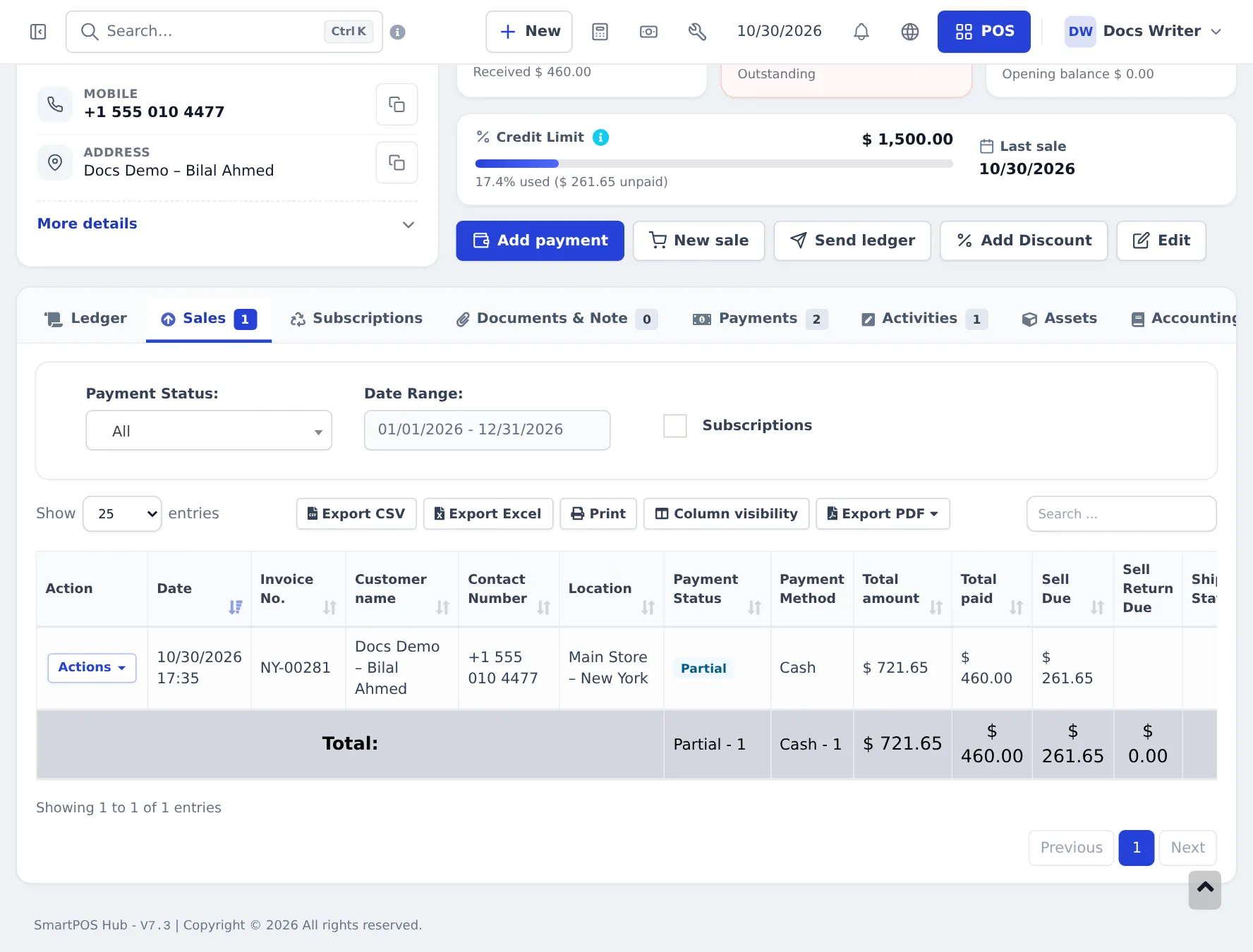
The Sales tab shows each invoice with its Payment Status, Total paid and Sell Due.
Follow up on late payments
Section titled “Follow up on late payments”- Reports › Payment by Age: unpaid invoices grouped by how many days they are overdue, based on the pay term.
- Reports › Supplier & Customer Report: total sales, payments and due per customer.
- Reports › Sell Payment Report: every payment received, by date and method, for checking the instalments collected each month.
Tips and mistakes to avoid
Section titled “Tips and mistakes to avoid”- Always add payments to the original invoice. Don’t make a new sale for an instalment; that would count the appliance twice.
- Agree and note the plan on the sale so every cashier gives the same answer.
- Keep the down payment large enough to cover your cost of delivery and installation.
- Use a Credit Limit for customers who buy on instalments often.
Next: step 6: after-sales service.
Frequently asked questions
Does SmartPOS Hub have an instalment plan module?
No. Instalments are done with part payments on one invoice. The down payment is the first payment on the sale, each monthly instalment is another payment on the same invoice, and the invoice moves from Partial to Paid when the last instalment arrives.
Can the system calculate the monthly amount for me?
No. Agree the plan with the customer (for example down payment 30 percent, then 3 equal monthly payments) and write it in the sale note. Each payment is entered by hand when it is received.
What does the pay term do?
It sets when the unpaid amount is due, for example 1 month or 30 days after the sale. Overdue invoices then show up in Reports › Payment by Age. It does not split the amount into instalments.
Can I sell with no down payment at all?
Yes. In the POS, use Credit Sale. The whole amount stays due. Always choose the named customer, never Walk-In Customer, so you know who owes the money.
What happens if the customer's credit limit is reached?
A new credit sale that would take the customer's unpaid balance over their Credit Limit is stopped with a Customer Credit Limit Exceeded message. Leave the limit blank for no limit.
Can I add a finance charge?
Not automatically. Add a service product such as Instalment service charge to the sale, or include it in the price.
Can the customer pay several invoices at once?
Yes. On the customer's page, Add payment (Pay Due Amount) takes one payment and spreads it over their unpaid invoices.
Can I send the customer a statement?
Yes. The customer's Ledger tab can be downloaded as PDF or sent by e-mail with Send ledger.