
Selling price groups – wholesale, staff and other price lists
Selling price groups let one product have several prices: a normal shelf price for walk-in customers, a lower wholesale price for shops that buy in bulk, a staff price, a corporate contract price, or a higher price for delivery apps. This page shows how to create groups, set the prices and make sure the right price is used at the till.
Create price groups
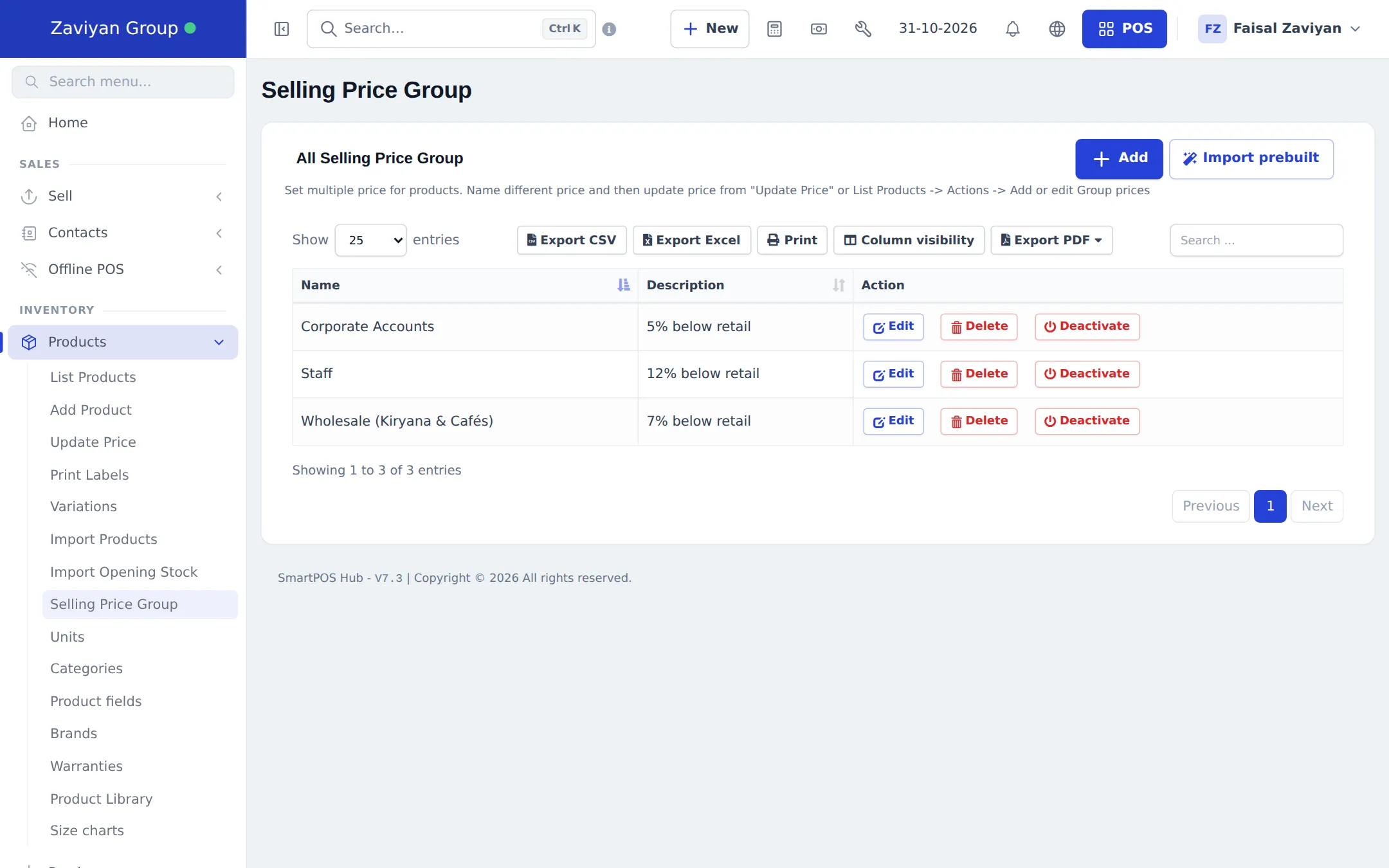
Section titled “Create price groups”- Open Products › Selling Price Group.
- Click Add, type a Name (for example Wholesale) and an optional Description (for example 7% below retail), and save.
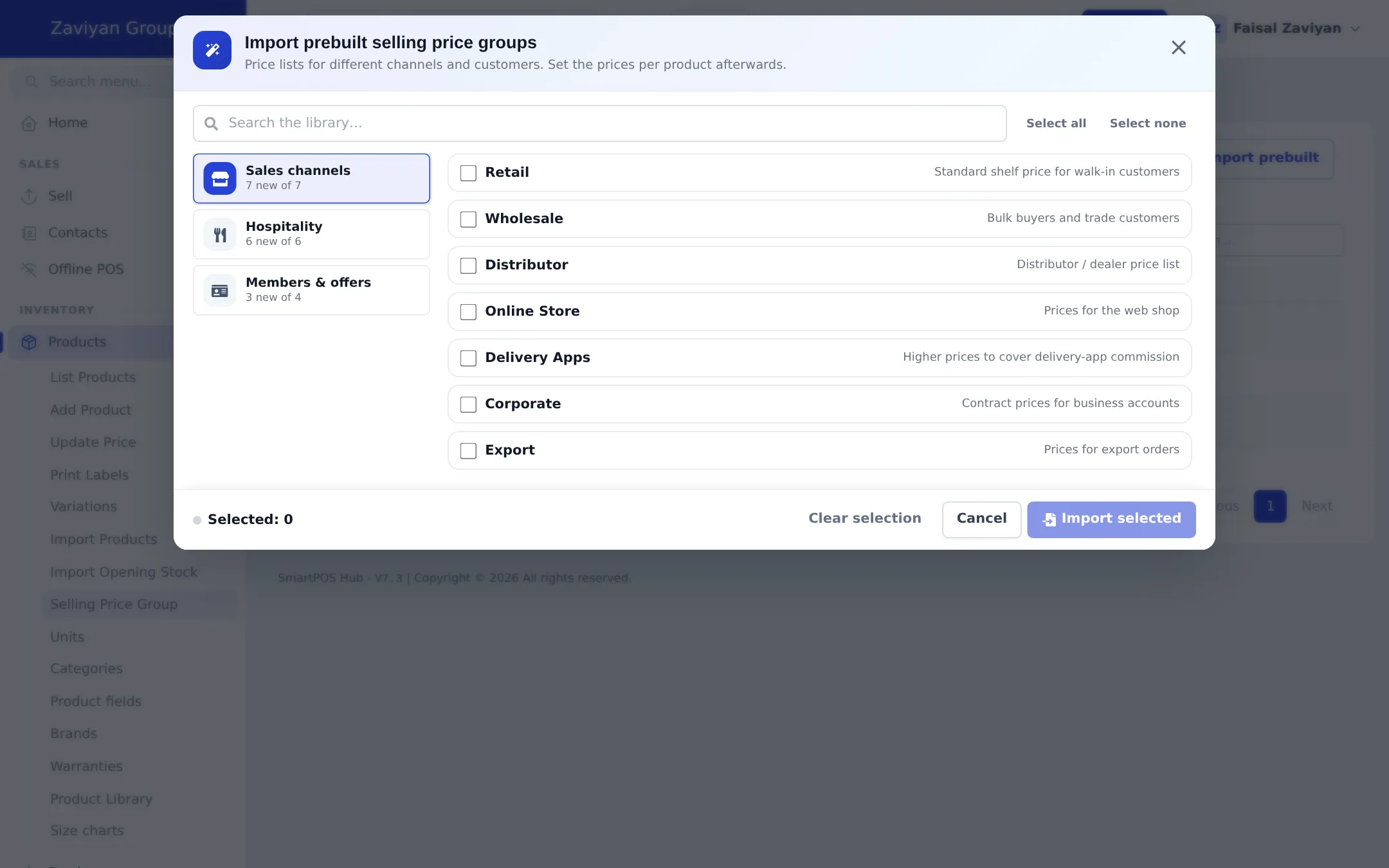
- Or click Import prebuilt and tick ready-made groups such as Retail, Wholesale, Distributor, Online Store, Delivery Apps, Corporate and Export.
Set a product’s group prices
Section titled “Set a product’s group prices”- Open Products › List Products and choose Actions › Add or edit Group Prices on the product. (After adding a new product you can also click Save & Add Selling-Price-Group Prices.)
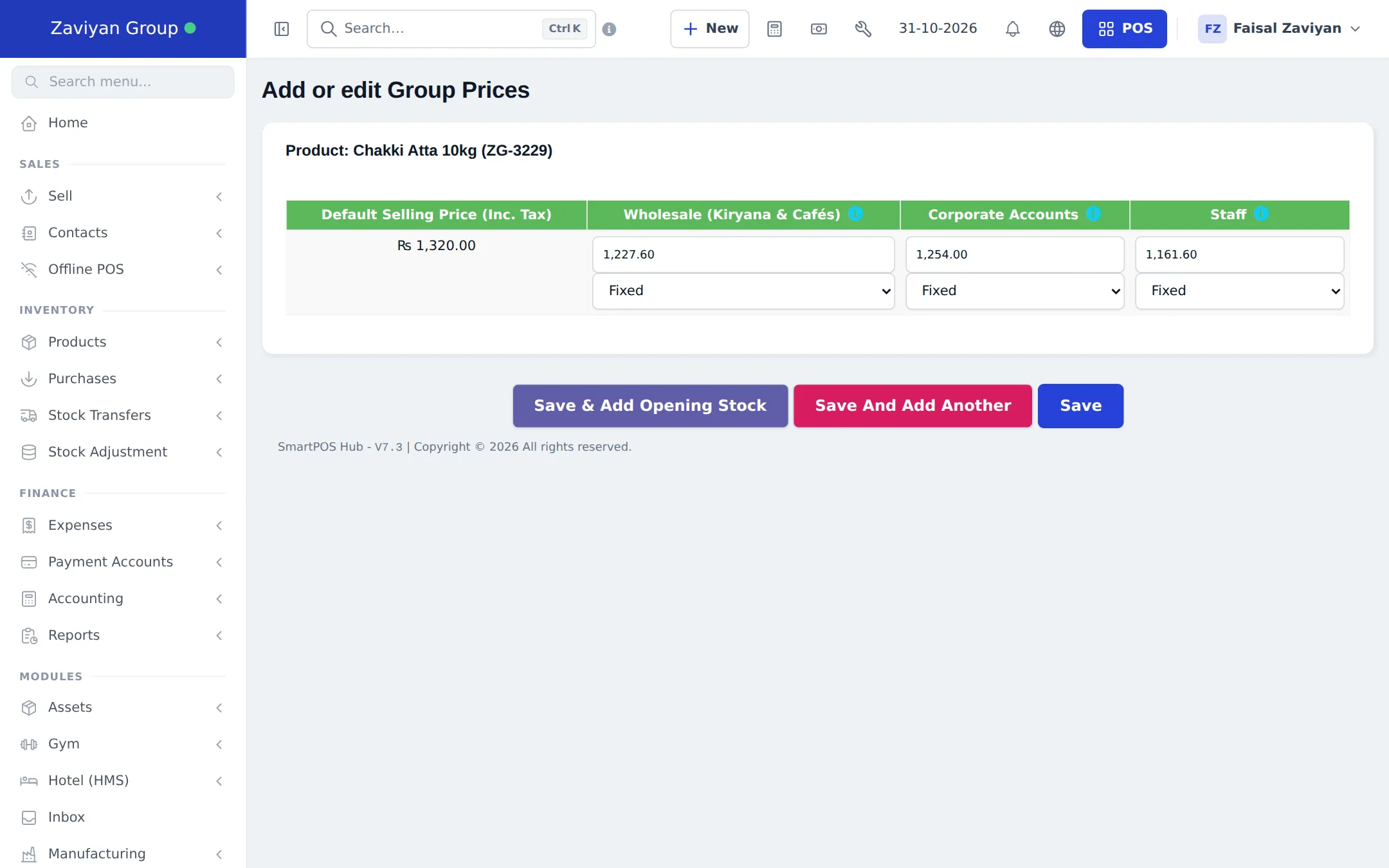
- Next to the Default Selling Price (Inc. Tax) you see one column per group.
- For each group, type the price and choose Fixed (the exact price) or Percentage (a percent of the default price).
- Click Save. Or Save & Add Opening Stock to go on to stock.
For many products at once, use Products › Update Price: the exported file has a column per active price group. See Prices and discounts.
How the group price is used in a sale
Section titled “How the group price is used in a sale”| Where | How to set it | When it applies |
|---|---|---|
| POS | Pick the group in the POS when your business has more than one price group | That sale |
| Location | Settings › Business Locations › Edit › Default Selling Price Group | Every sale in that location by default |
| Customer group | Contacts › Customer Groups, set Price calculation type to Selling Price Group and choose the group | Sales to customers in that group |
| Discount | Selling Price Group on a discount | The discount only applies with that group |
| Labels | Selling Price Group on a row in Print Labels | The price printed on the label |
Related pages
Section titled “Related pages”Frequently asked questions
What is a selling price group?
A named price list, such as Wholesale, Staff or Corporate Accounts. Each product can have its own price in each group, next to its default selling price.
Do I have to set a group price for every product?
No. Products without a group price sell at their default selling price, even when the group is chosen.
How does a sale use a price group?
Three ways - choose the group in the POS when more than one exists, set it as the Default Selling Price Group of a location, or link it to a customer group with Price calculation type set to Selling Price Group.
Can I set group prices for many products at once?
Yes. Products › Update Price exports a column per active price group; fill them in and import the file.
Can I stop using a price group without deleting it?
Yes. Click Deactivate on it in Products › Selling Price Group. Its prices are kept.
Can a label show the wholesale price?
Yes. In Print Labels each row has a Selling Price Group choice, so the label prints that group's price.