
Mart step 8: stock transfers, low stock and stock counts
Keeping shelves full without overstocking is the core of grocery retail. This step covers moving stock between locations, low-stock alerts, counting shelves and correcting stock.
Before you start
Section titled “Before you start”- Stock Transfers and Stock Adjustment are on in Settings › Business Settings › Modules.
- You have more than one location for transfers (step 1).
Move stock from the warehouse to a shop
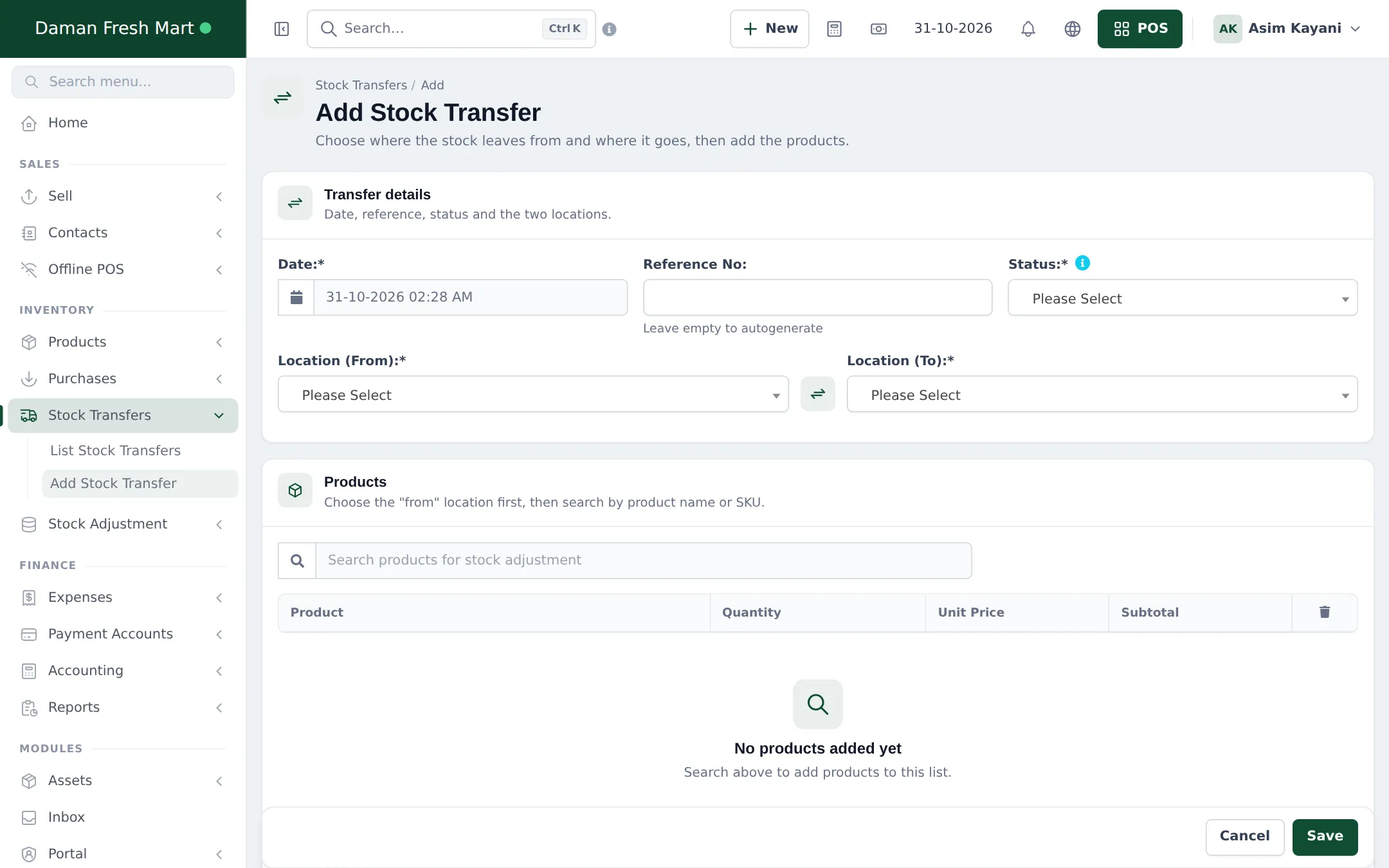
Section titled “Move stock from the warehouse to a shop”- Open Stock Transfers › Add Stock Transfer.
- Choose Location (From) (the warehouse) and Location (To) (the shop). Leave Reference No empty to number it automatically.
- Set Status: Completed when the goods arrive at once; Pending or In transit when they are on the way.
- Search or scan the products and enter quantities. Add shipping charges if any.
- Click Save.
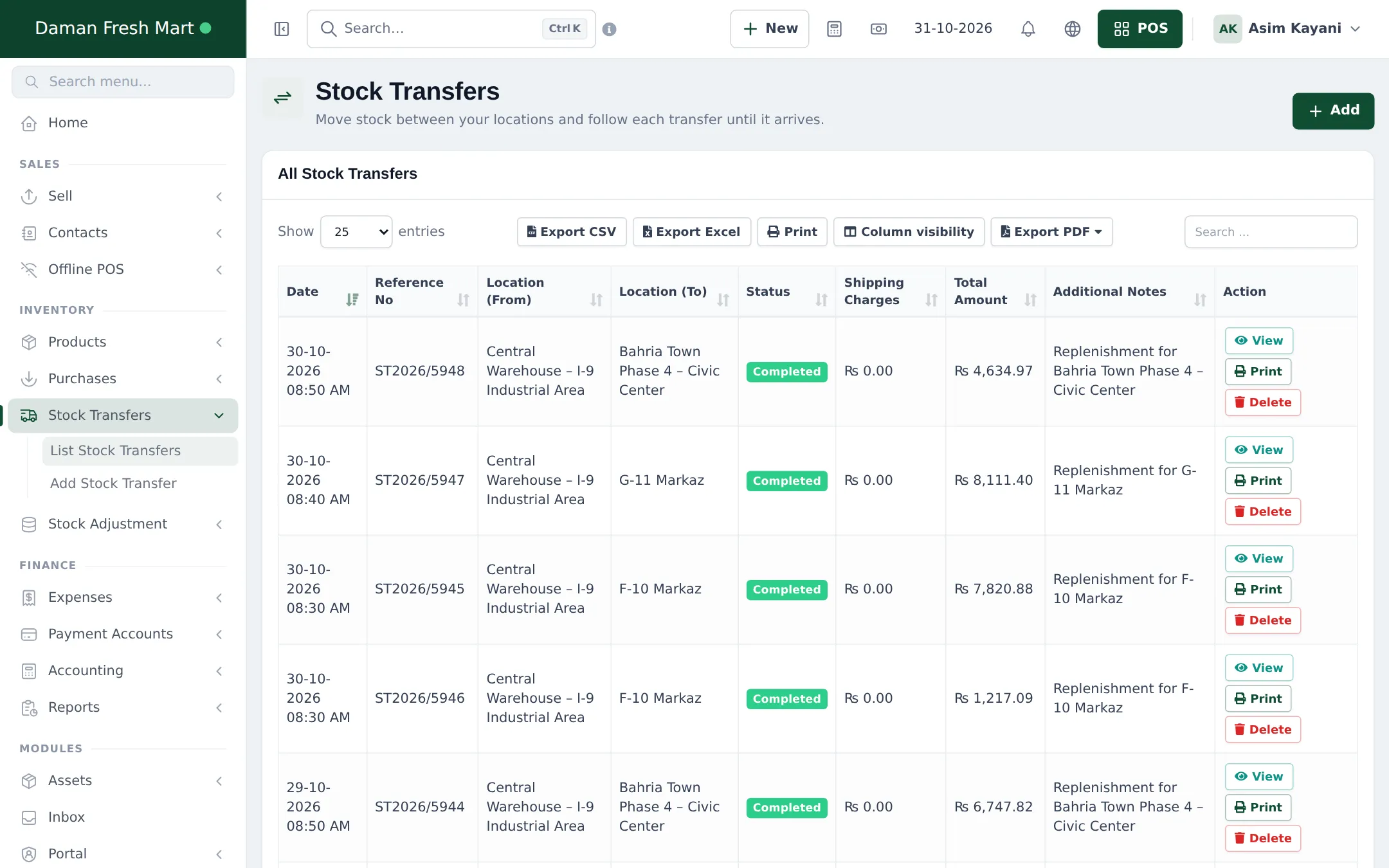
When an in-transit transfer arrives, edit it and change the status to Completed. See Stock transfers.
Low-stock alerts
Section titled “Low-stock alerts”- Edit a product (or set it in a bulk import) and enter an Alert quantity, for example 10.
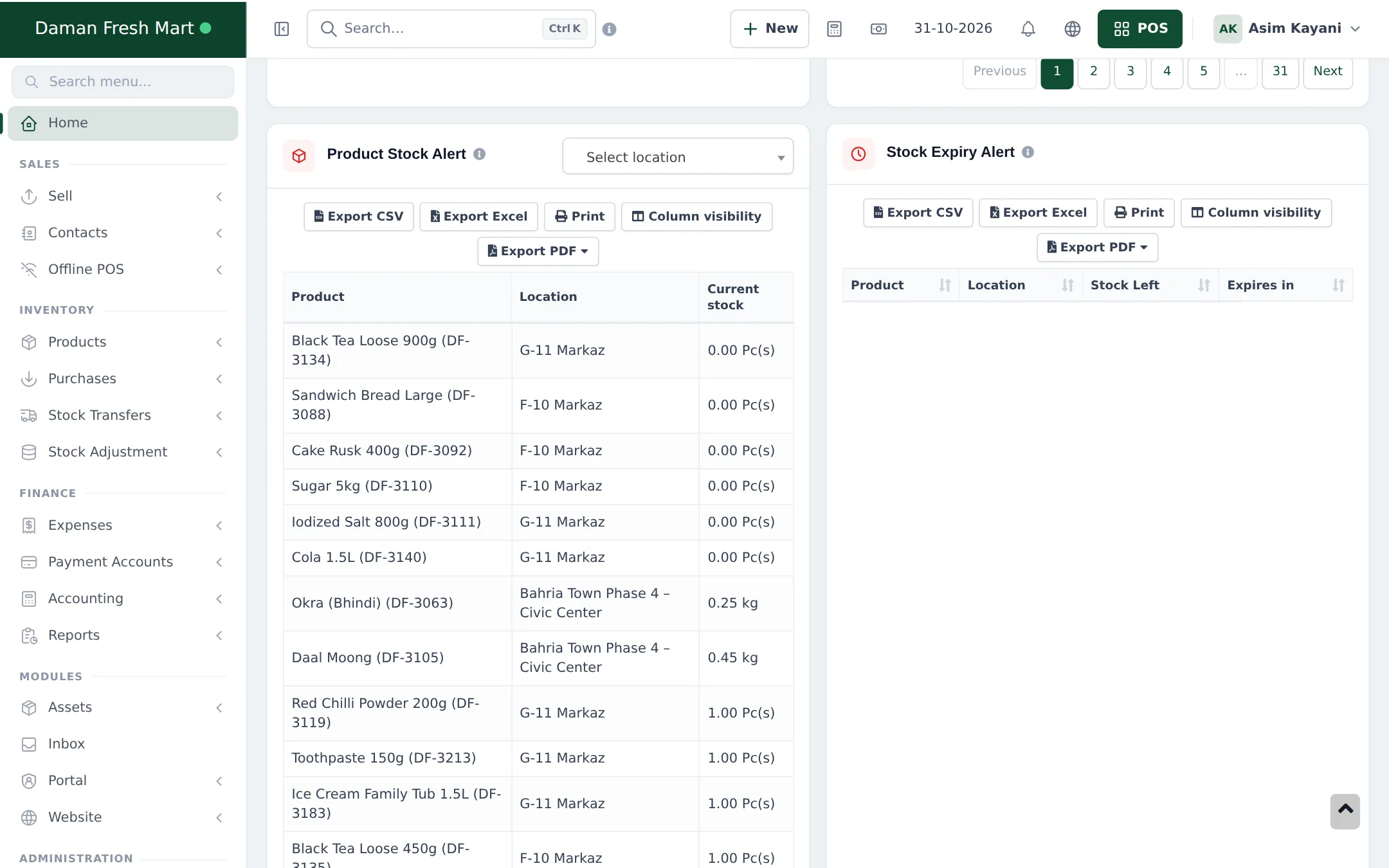
- When its stock at a location reaches 10 or less, it appears in Product Stock Alert on the dashboard (Home) and shows Low stock on the POS.
- Use the list to plan your next purchase.
Count stock
Section titled “Count stock”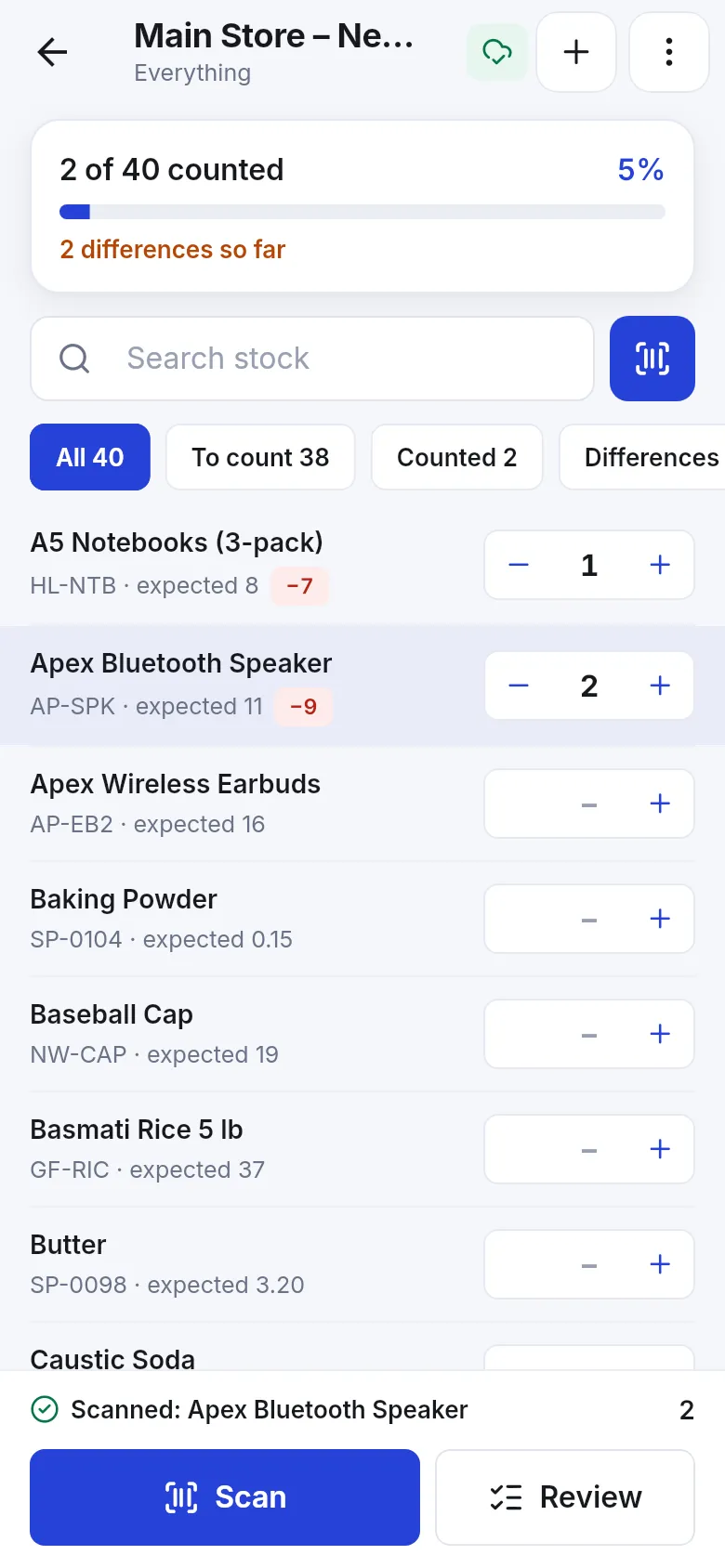
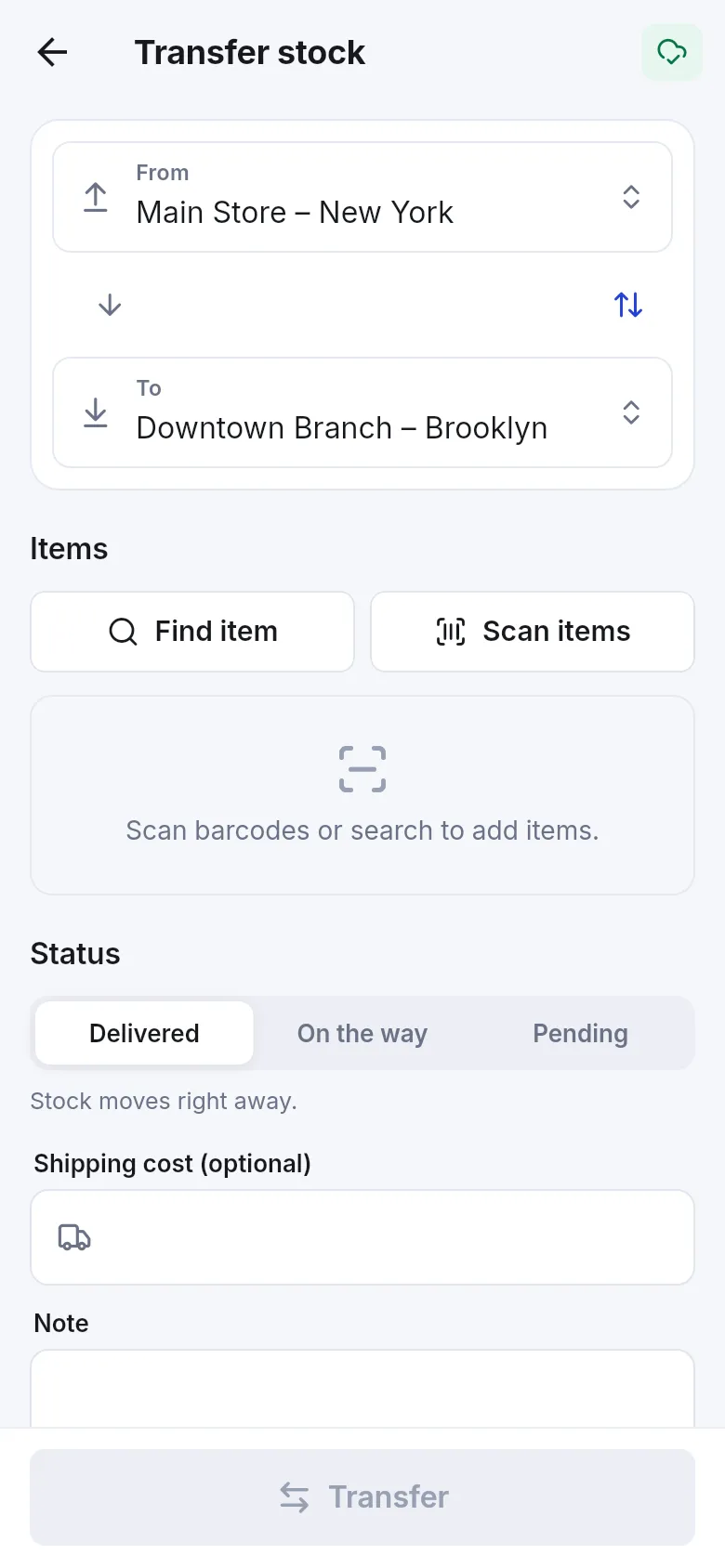
The SmartPOS Business app has a stock count: pick the location and products (or everything), scan or type what is on the shelf, and the app shows each difference against expected stock. On Review you confirm and missing stock is written off and extra stock is added as found stock. See Stock counts and Products and stock in the app.
On the web, open Stock Adjustment › Add Stock Adjustment, choose the location and adjustment type, add the products and the quantities that are missing, and write the reason (count, damage, expiry). A web adjustment only removes stock; add found stock with opening stock or a purchase. See Stock adjustments.
Check stock value
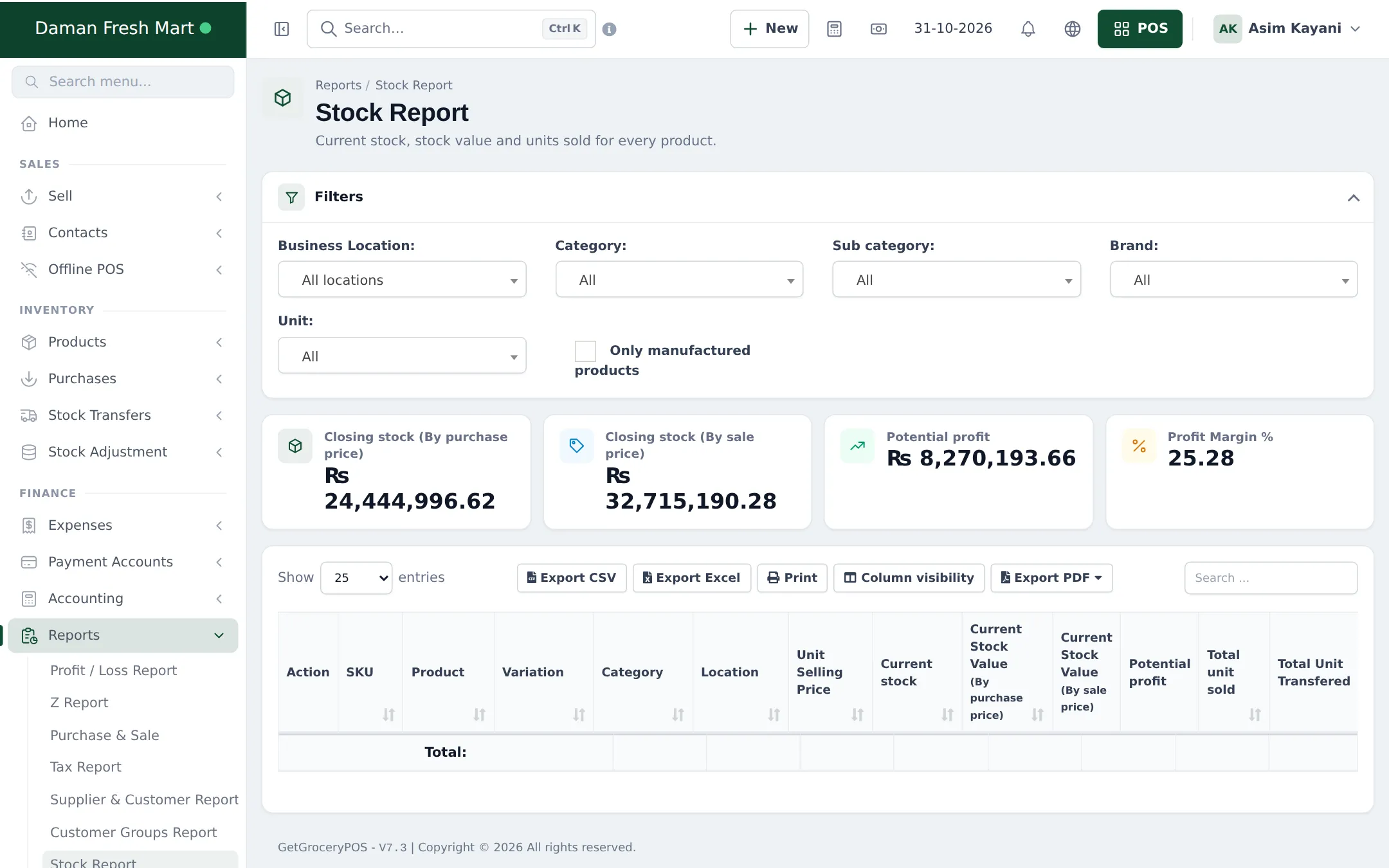
Section titled “Check stock value”Reports › Stock Report shows current stock per product and location, closing stock value by purchase price and by sale price, potential profit and profit margin.
Frequently asked questions
When does transferred stock reach the receiving shop?
When the transfer's status is Completed. Pending and In transit transfers take stock out of the sending location but don't add it to the receiver yet.
How do I get low-stock alerts?
Set an Alert quantity on each product. When stock reaches or falls below it, the product appears in the dashboard's Product Stock Alert list and gets a Low stock badge on the POS.
How do I count stock?
Use the stock count in the Stock section of the SmartPOS Business app to scan and count shelves; it shows differences against expected stock before you save. On the web, record the differences with a stock adjustment.
How do I record damaged or expired goods?
Create a stock adjustment for the location with the items and quantities, choose the adjustment type and add a reason.
Which report shows stock value?
Reports › Stock Report shows closing stock by purchase price and by sale price, potential profit and profit margin, per location and category.