
Quotations, drafts, suspended sales and sales orders
Not every sale is finished at once. SmartPOS Hub lets you quote a price, save a draft, suspend (park) a sale at the counter, or take a sales order for later delivery. None of these touch stock or the customer’s balance until you turn them into a final sale.
| Type | Use it when | Make it from | Find it in |
|---|---|---|---|
| Quotation | The customer wants a price before deciding | POS Quotation button, Sell › Add Quotation | Sell › List quotations |
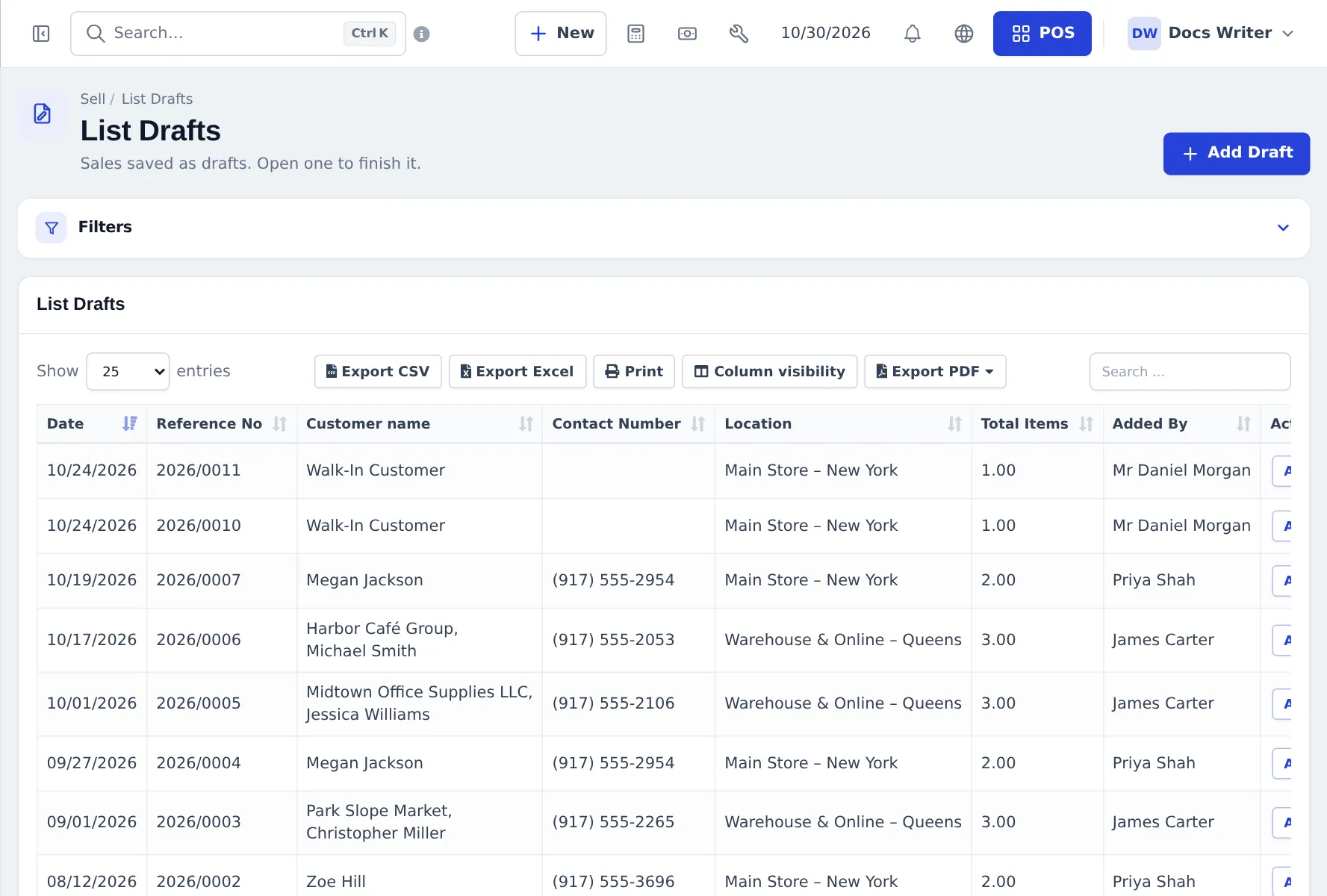
| Draft | You started a sale and will finish it later | POS Draft button, Sell › Add Draft | Sell › List Drafts |
| Suspended sale | You must serve someone else for a moment | POS Suspend (V2 Hold) | POS suspended sales icon (V2: F8 resume) |
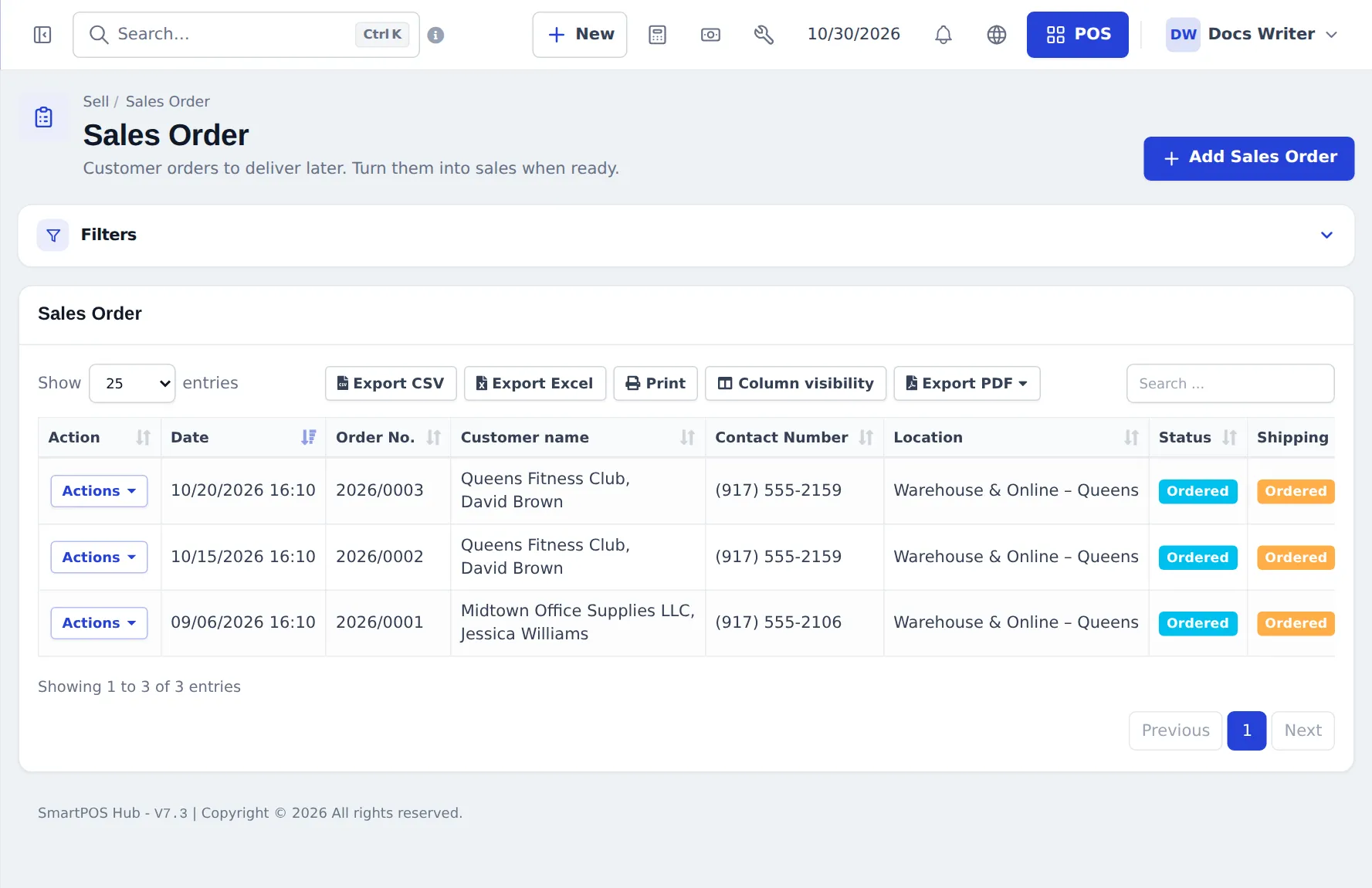
| Sales order | Goods are delivered later | Sell › Sales Order › Add Sales Order | Sell › Sales Order |
Make a quotation
Section titled “Make a quotation”- In the POS, choose the customer and add products, or go to Sell › Add Quotation.
- Press Quotation (POS) or Save (form).
- Print it or share its link (Actions › Invoice URL gives a quote link). The printout is titled as a quotation.
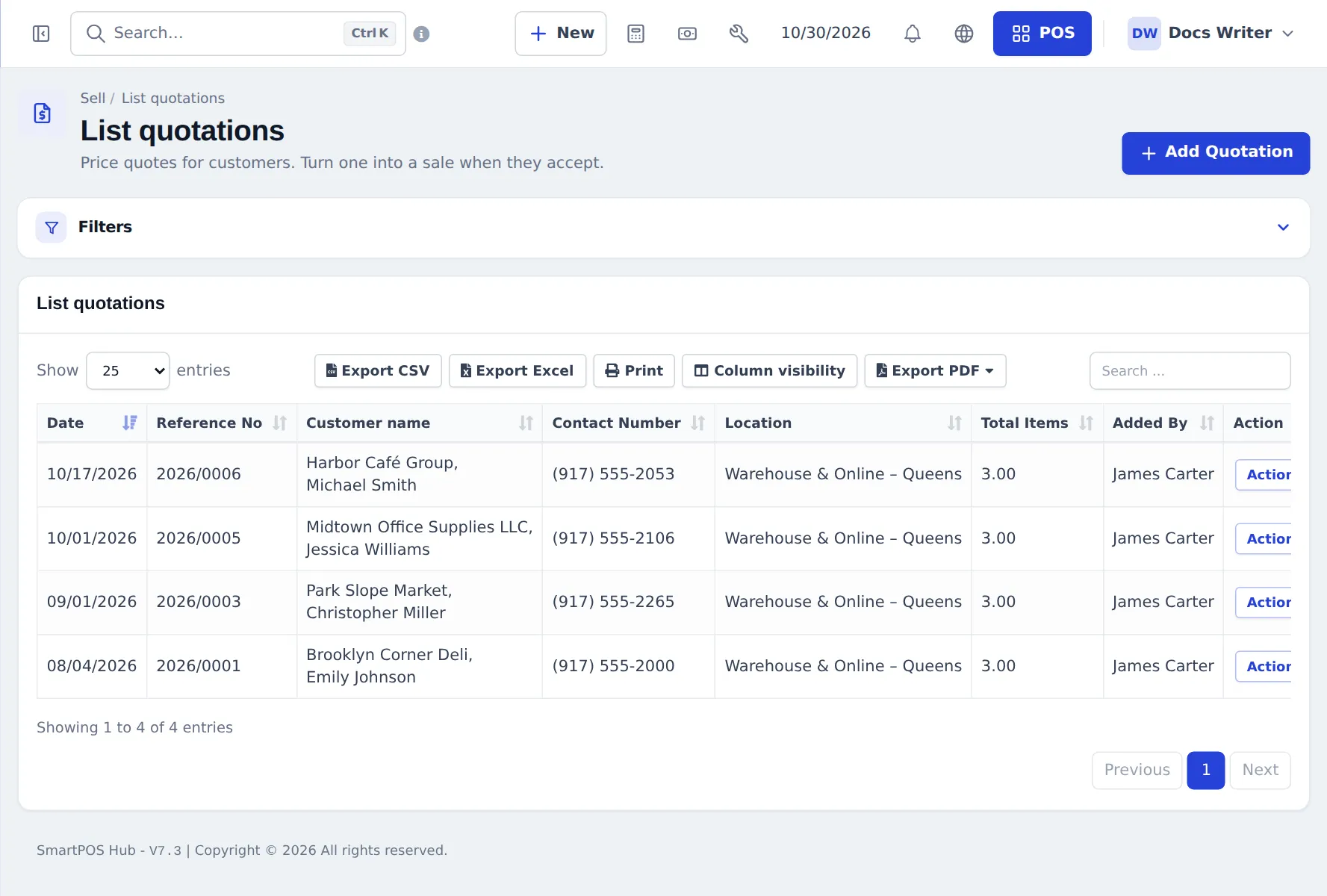
Turn it into a sale: open it (Actions › Edit, or Recent Transactions › Quotation in the POS), check prices and stock, then finish with a payment button. Customers using the customer portal can accept or decline quotations there.
Drafts
Section titled “Drafts”Drafts are sales kept for later — for example a large order you are still building. Open Sell › List Drafts, then Actions › Edit to continue. Admins can hide the Draft button in Settings › Business Settings › POS or for a role.
Suspend (park) a sale
Section titled “Suspend (park) a sale”- With items in the cart, press Suspend (V2: Hold) and type a short note (for example the customer’s name or table).
- Serve the next customer.
- Open the suspended sales list from the POS top bar, pick the sale and finish it.
Restaurants can also use open tabs and Send to kitchen — see Open tabs.
Sales orders
Section titled “Sales orders”- Go to Sell › Sales Order and press Add Sales Order. Fill in the customer, products and delivery details, and save.
- The order shows with status Ordered; change it from Actions as it progresses.
- When you deliver, create the sale (Sell › Add Sale) and pick the order in Sales Order. Its lines are copied into the sale.
Frequently asked questions
Do quotations or drafts reduce stock?
No. Quotations, drafts and suspended sales do not change stock or the customer's balance. Only the final sale does.
How do I turn a quotation into a sale?
Open Sell › List quotations, use Actions › Edit (or open it from Recent Transactions › Quotation in the POS), then finish it with a payment button.
What is the difference between Draft and Suspend?
Suspend parks a POS sale for a short time, for example while the customer fetches another item, and is resumed from the suspended list. A draft is saved to finish later and appears in List Drafts.
What is a sales order?
An order the customer places now for goods you deliver later. It has a status such as Ordered, and you pick it on a new sale when you deliver.
Can the customer accept a quotation online?
Yes, if the customer portal is on. Customers see their quotations there and can accept or decline them.
Are quotations checked against the credit limit?
No. Drafts, quotations and sales orders are not checked; the check runs when the final sale is saved.