
Tech store step 4: buy stock from suppliers
Before you sell, SmartPOS Hub needs to know how many phones, laptops and accessories you have in each branch and what they cost you. You do that once with opening stock, and from then on with a purchase for every delivery from a distributor.
Before you start
Section titled “Before you start”- Products and variants exist (steps 2 and 3).
- Your distributors are added as suppliers in Contacts › Suppliers (or add them from the purchase screen with the + button).
Enter opening stock once
Section titled “Enter opening stock once”- A few products: edit the product, open Stock, and type how many you have at each location and the Stock date.
- Many products: use Products › Import Opening Stock: download the template, fill in SKU, location, quantity and unit cost, and upload it.
Record a delivery from a distributor
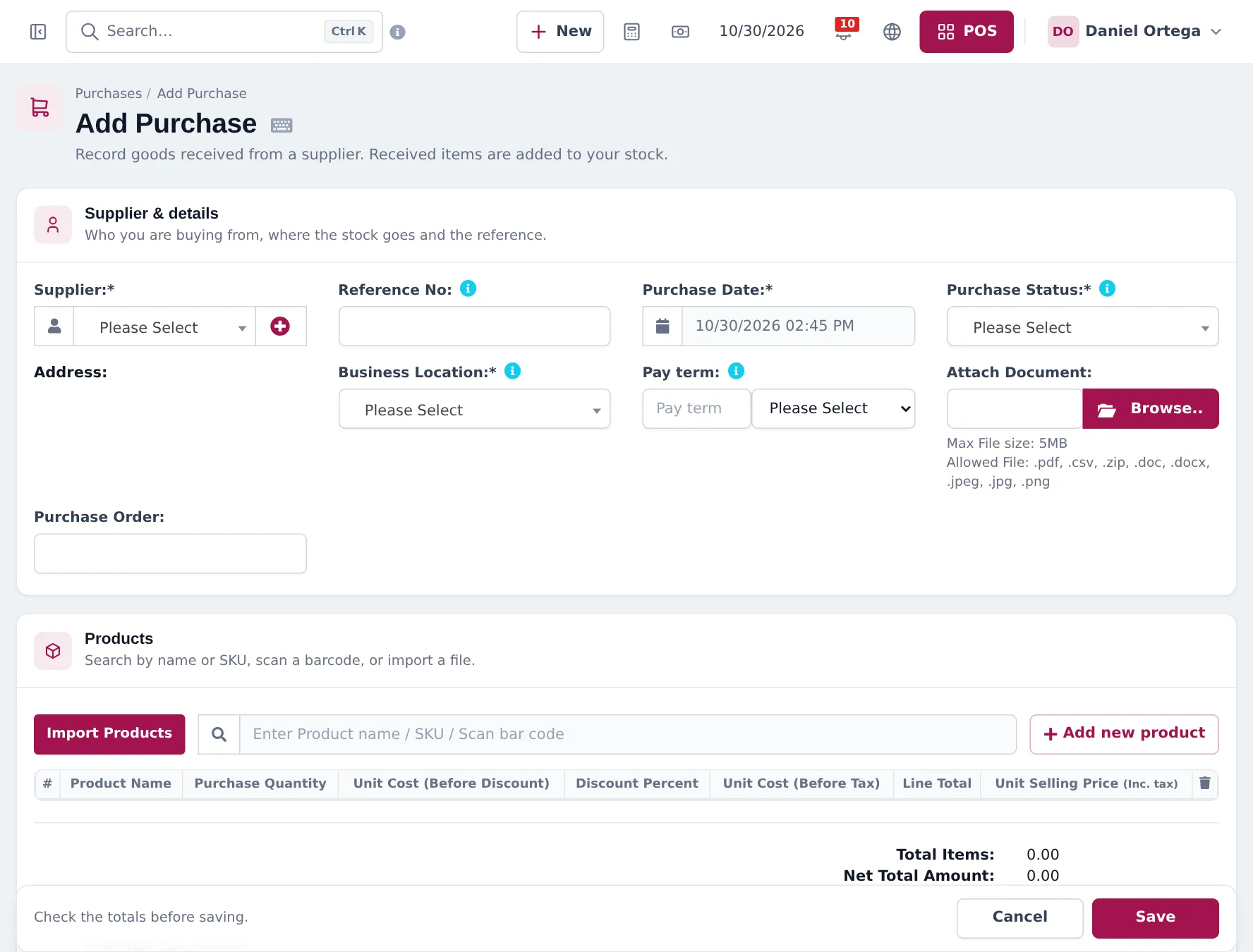
Section titled “Record a delivery from a distributor”- Open Purchases › Add Purchase.
- Choose the Supplier, enter the distributor’s invoice number in Reference No and the Purchase Date.
- Set Purchase Status to Received (stock is added now). Use Ordered or Pending if the goods have not arrived.
- Choose the Business Location that receives the stock.
- Optional: set a Pay term (for example 30 days) if you pay later.
- In Products, scan barcodes or search by name. For a variable phone, pick the exact variant (storage and colour). Enter Purchase Quantity and Unit Cost.
- Check Unit Selling Price per line and change it if needed.
- In Add payment, enter what you pay now: the full amount, a part, or 0.
- Click Save.
Lot numbers per shipment (optional)
Section titled “Lot numbers per shipment (optional)”Phones do not expire, but a lot number is still handy to trace a batch back to a distributor shipment.
- In Settings › Business Settings › Purchases, tick Enable Lot number.
- On each purchase line, type the lot number (for example the shipment or batch number).
Pay the distributor later
Section titled “Pay the distributor later”- The purchase shows Due or Partial in Purchases › List Purchases. Use Actions › Add payment when you pay.
- To pay several purchases at once, open the supplier in Contacts › Suppliers and use Pay Due Amount.
Tips and mistakes to avoid
Section titled “Tips and mistakes to avoid”- Receive stock into the branch where it physically arrives. Move it later with a stock transfer.
- Do not use Stock Adjustment to add new stock. Adjustments are for damaged, lost or counted stock; they do not record the cost from a supplier.
- Use Purchases › Purchase Order for big pre-orders (new phone launches) and convert them when the goods arrive.
Frequently asked questions
How do I enter the phones I already have on the shelf?
Use opening stock. Enter quantities per location on the product form, or upload them all at once with Products › Import Opening Stock.
Can I record IMEIs when I buy phones?
Not per unit. Purchases record quantity and cost per product or variant. You can tick Enable Lot number in Settings › Business Settings › Purchases and give each purchase line a lot number, for example the distributor's shipment number. The IMEI of each phone is recorded when you sell it.
Can I buy on credit from my distributor?
Yes. Set a pay term on the purchase and pay part or nothing now. The purchase stays due and you add payments later from Purchases › List Purchases.
What is the difference between a purchase order and a purchase?
A purchase order is what you asked the supplier for; it does not change stock. A purchase with status Received adds the stock. You can link a purchase to a purchase order.
Does the purchase update my selling price?
The purchase screen shows the unit selling price per line, and you can change it there. Purchase cost is used for profit reports.