
Track expiry dates and batches of your stock
Pharmacies, marts, bakeries and anyone selling food, cosmetics or medicine must know when each batch expires. SmartPOS Hub stores an expiry date for every batch you buy, warns you before it runs out, and can stop the POS from selling stock that is too close to expiry. This page shows how to set it up and use it every day.
Before you start
Section titled “Before you start”- You need the Business Settings permission to change settings (usually the owner or admin).
- Decide whether you enter the expiry date from the box (Add item expiry) or calculate it from a manufacturing date (Add manufacturing date & expiry period). Most shops use Add item expiry.
- Optional but recommended: switch on lot numbers too (see Serial, IMEI and lots).
1. Switch on product expiry
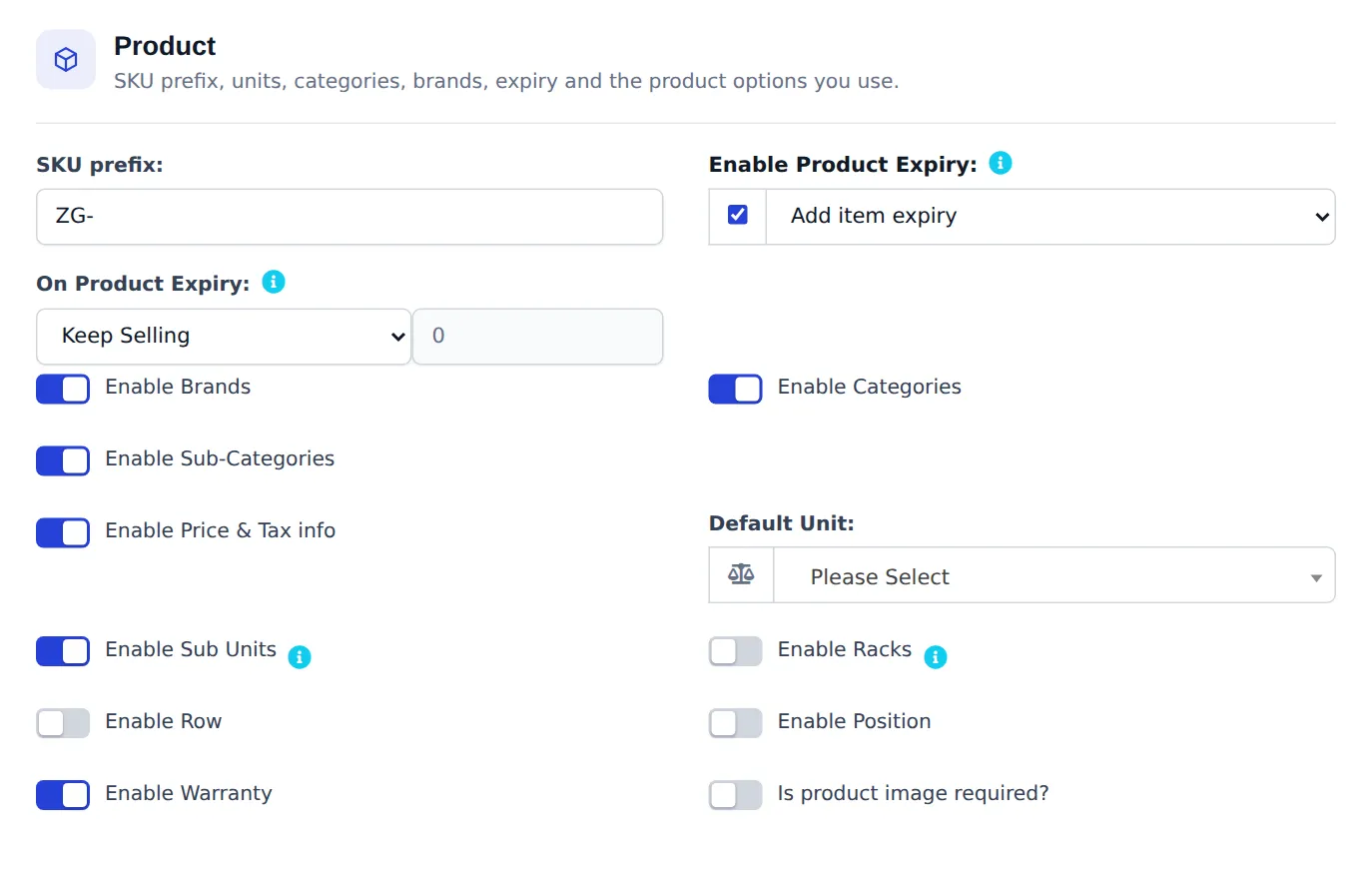
Section titled “1. Switch on product expiry”- Open Settings › Business Settings and choose the Product tab.
- Tick Enable Product Expiry and pick Add item expiry or Add manufacturing date & expiry period.
- Set On Product Expiry:
- Keep Selling: expired batches can still be sold (you only get warnings).
- Stop Selling n days before: enter the number of days. Batches that close to expiry are no longer offered for sale.
- Click save at the bottom of the page.
2. Enter expiry dates when stock arrives
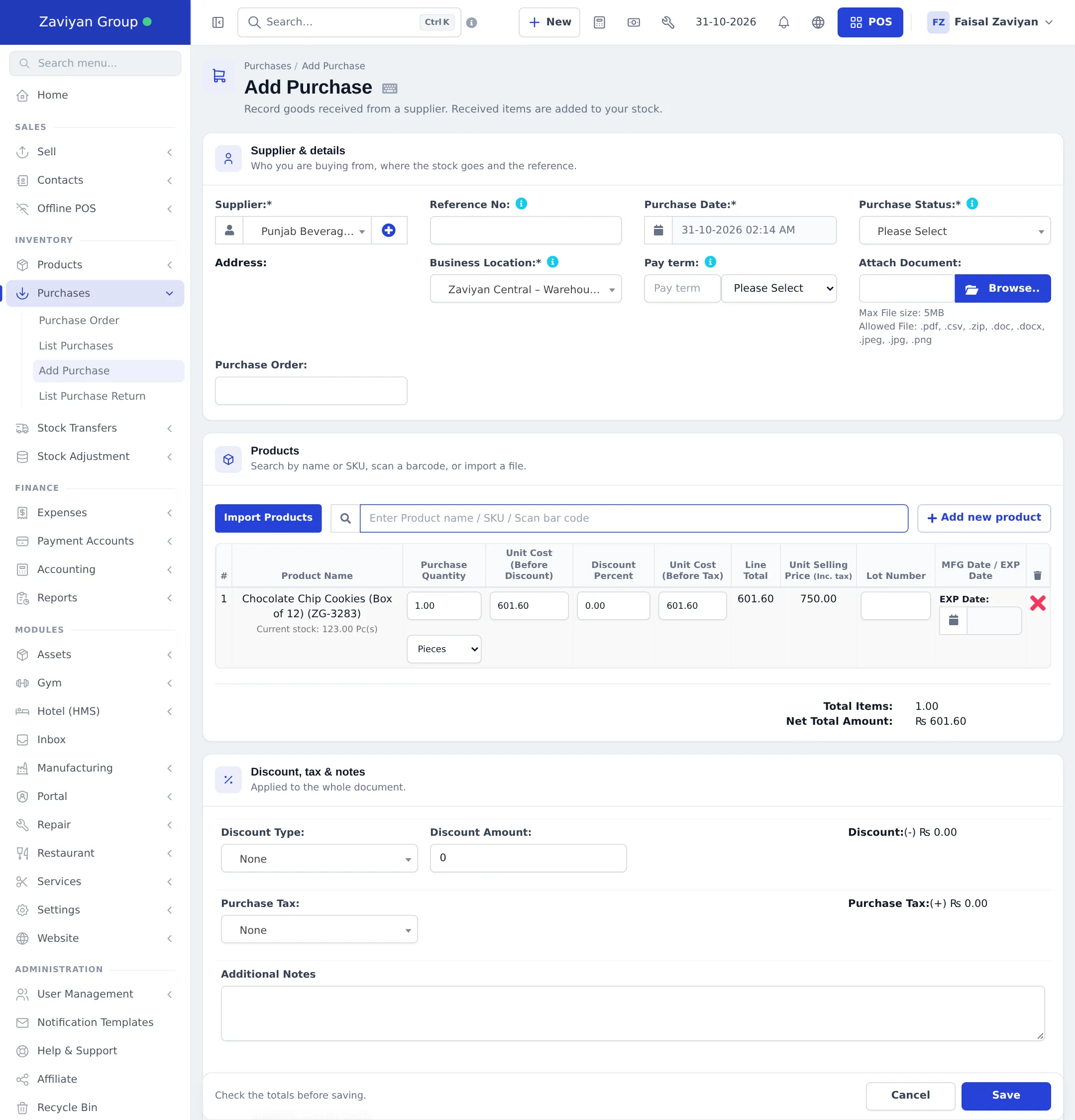
Section titled “2. Enter expiry dates when stock arrives”On Purchases › Add Purchase, every line has MFG Date / EXP Date (and Lot Number if lots are on). Enter the date printed on the supplier’s box. Each purchase line becomes its own batch with its own expiry.
For stock you already have, add the dates with opening stock.
3. Sell and move the right batch
Section titled “3. Sell and move the right batch”On sale lines, stock transfers and stock adjustments, products with batches show a Lot & Expiry list with each batch’s expiry date. Pick the batch you are handing over, usually the one that expires first.
4. Watch what expires soon
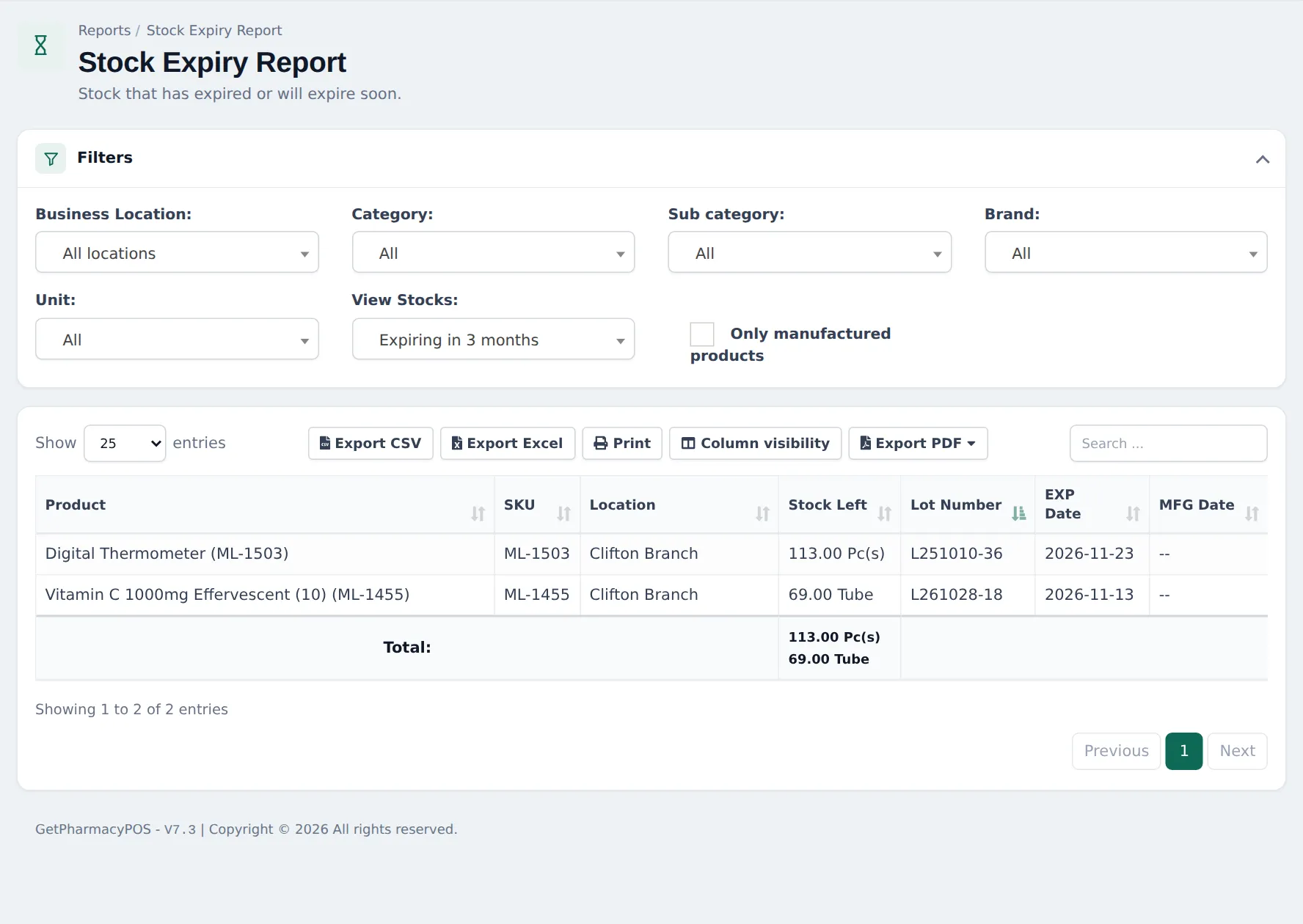
Section titled “4. Watch what expires soon”Reports › Stock Expiry Report lists stock with its Lot Number, EXP Date and Stock Left per location. Use View Stocks to show Expired, Expiring in a week, 15 days, a month or Expiring in 3 months.
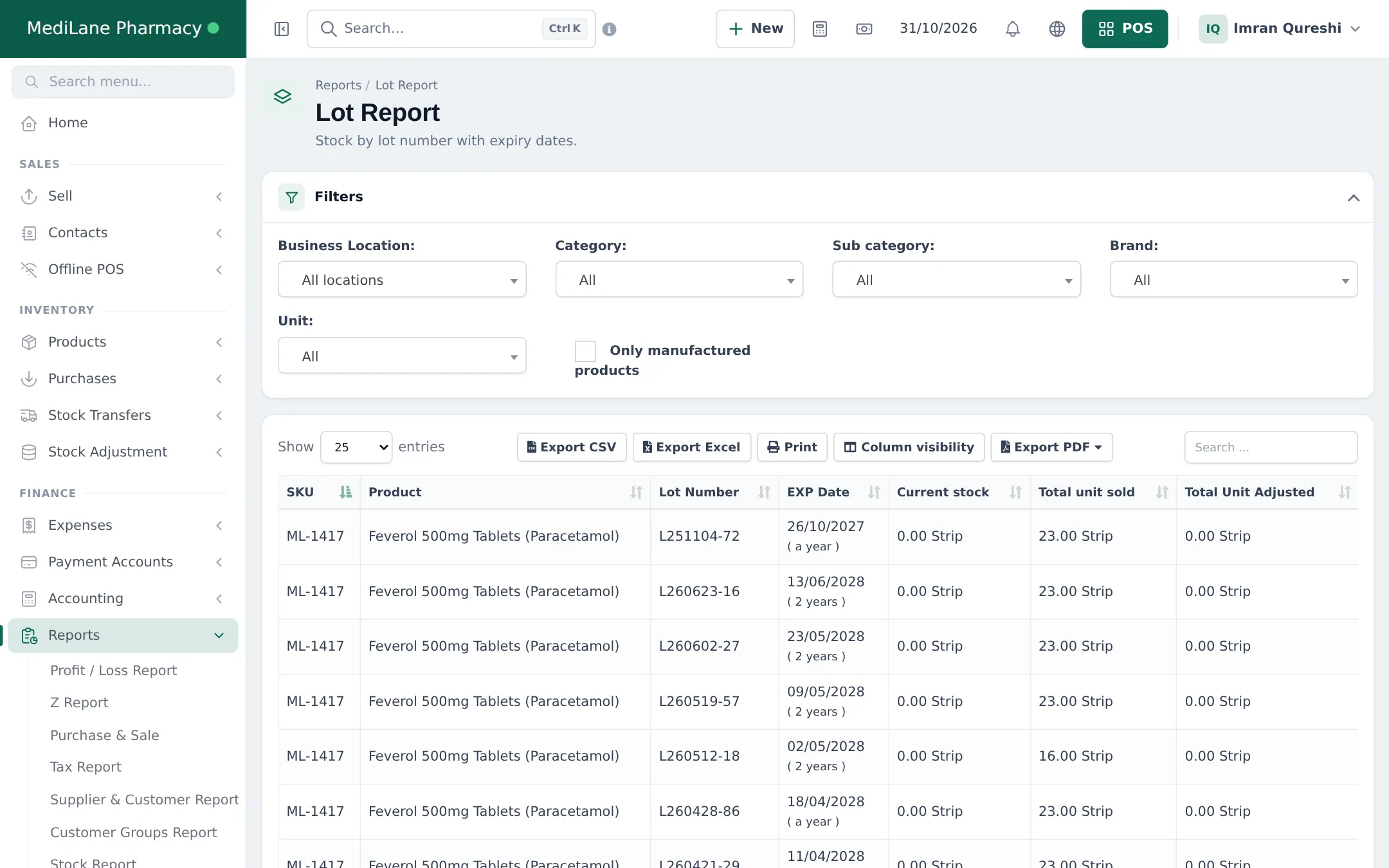
Reports › Lot Report shows every batch with Current stock, Total unit sold and Total Unit Adjusted, which helps you see how fast each batch sells.
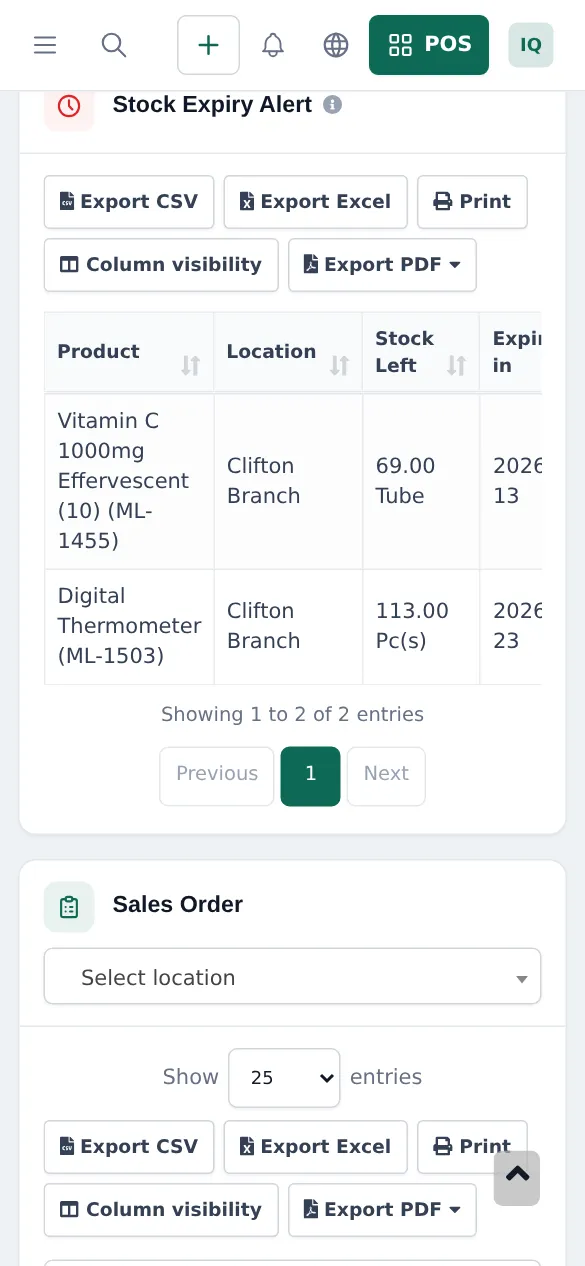
The Home dashboard has a Stock Expiry Alert list. Set how far ahead it looks in Settings › Business Settings › Dashboard with View Stock Expiry Alert For (days).
5. Remove expired stock
Section titled “5. Remove expired stock”- Open Stock Adjustment › Add Stock Adjustment and choose the location.
- Add the product, pick the expired batch in Lot & Expiry, and enter the quantity.
- Write a Reason such as “Expired” and save.
If the supplier takes expired goods back, use Purchase Return on the original purchase instead, so the supplier balance goes down too.
Tips and mistakes to avoid
Section titled “Tips and mistakes to avoid”- Switch on expiry before you load stock; batches entered earlier have no date.
- Don’t enter the same delivery as one line with mixed expiry dates. Split it into one line per date.
- For a pharmacy, combine Stop Selling n days before with a weekly look at the Stock Expiry Report.
Related pages
Section titled “Related pages”Frequently asked questions
Where do I switch on expiry dates?
In Settings › Business Settings › Product, tick Enable Product Expiry, choose how you enter expiry, and save. Purchase lines then get an expiry date field.
What is the difference between Add item expiry and Add manufacturing date & expiry period?
With Add item expiry you type the expiry date of each batch when you buy it. With Add manufacturing date & expiry period you set Expires in on the product (for example 12 months) and enter the manufacturing date; the expiry date is calculated.
Can SmartPOS Hub stop me selling expired stock?
Yes. Set On Product Expiry to Stop Selling n days before and enter the number of days. Batches that are that close to expiry, or past it, are no longer offered for sale.
How do I see what expires soon?
Use Reports › Stock Expiry Report with View Stocks set to Expired, Expiring in a week, 15 days, a month or 3 months. The Home dashboard also has a Stock Expiry Alert list.
How many days ahead does the dashboard warn me?
You choose. In Settings › Business Settings › Dashboard, set View Stock Expiry Alert For to the number of days you want.
What do I do with expired stock?
Remove it with a stock adjustment, picking the expired batch in Lot & Expiry and writing the reason, or return it to the supplier with a purchase return if they take it back.
Do I need lot numbers to use expiry dates?
No, but they work best together. Expiry dates are stored per purchase line, so each delivery is its own batch; lot numbers add the supplier's batch code to it.