
Gym step 6: check-in desk and attendance
The check-in desk is the screen at your front door: scan a card, see the member, let them in. It also catches expired plans and unpaid dues before the member reaches the floor. This page is for front-desk staff.
Before you start
Section titled “Before you start”- Members have cards with their code (step 4).
- The access rules are set in Gym › Settings › Attendance & access (step 1).
- Your role has Attendance: use the check-in desk.
Check a member in
Section titled “Check a member in”- Open Gym › Check-in desk (or Open check-in desk on the dashboard). The search box is ready for a scan.
- Scan the member card. If the member is allowed, they are checked in at once.
- Or type a name, member code or phone number and press Enter, then click Check in.
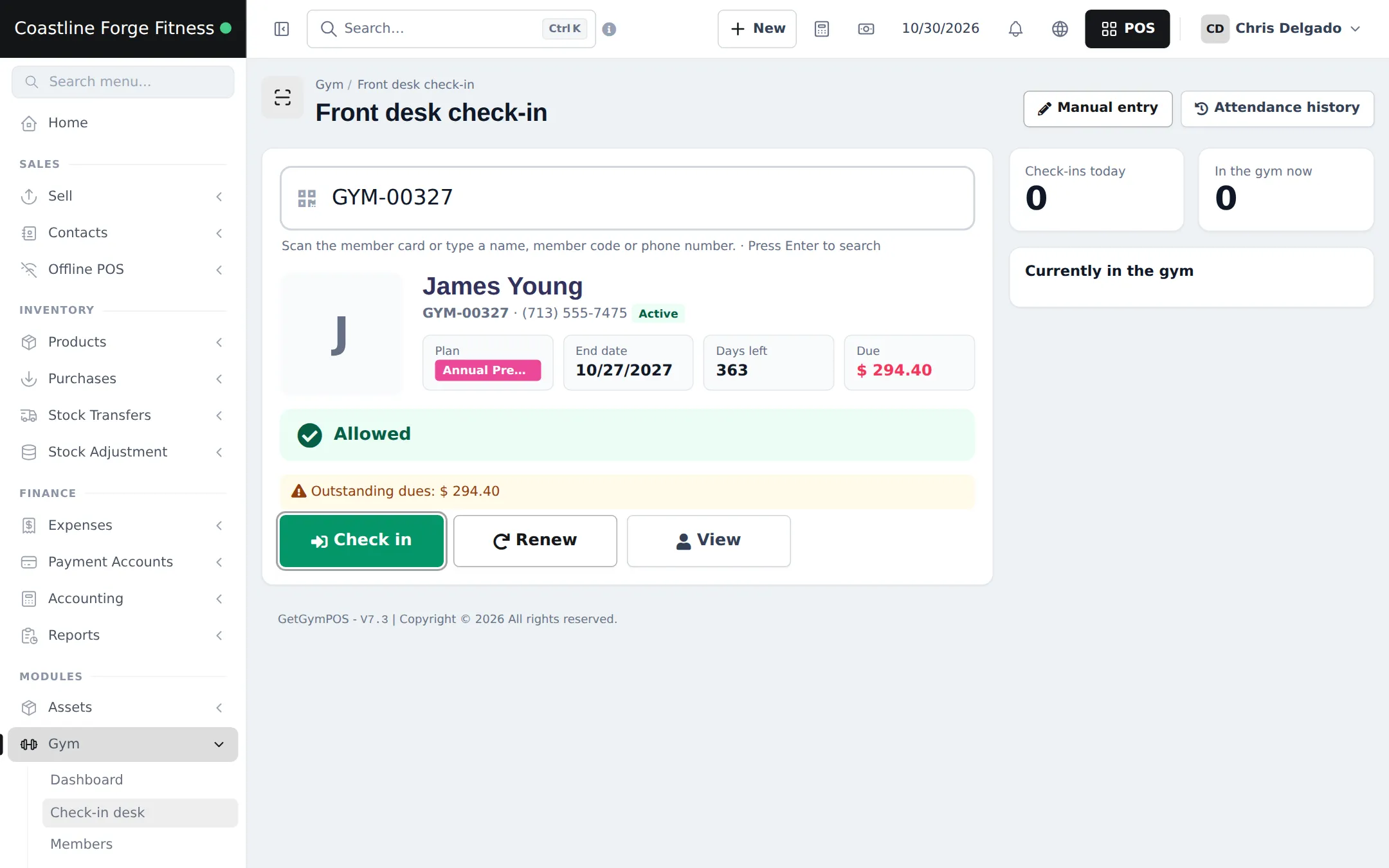
- The member card shows photo, plan, end date, days left, sessions, dues, any medical note and Allowed or the reasons for a block.
- If the plan expired, click Renew to sell the next period on the spot (step 5). View opens the member page.
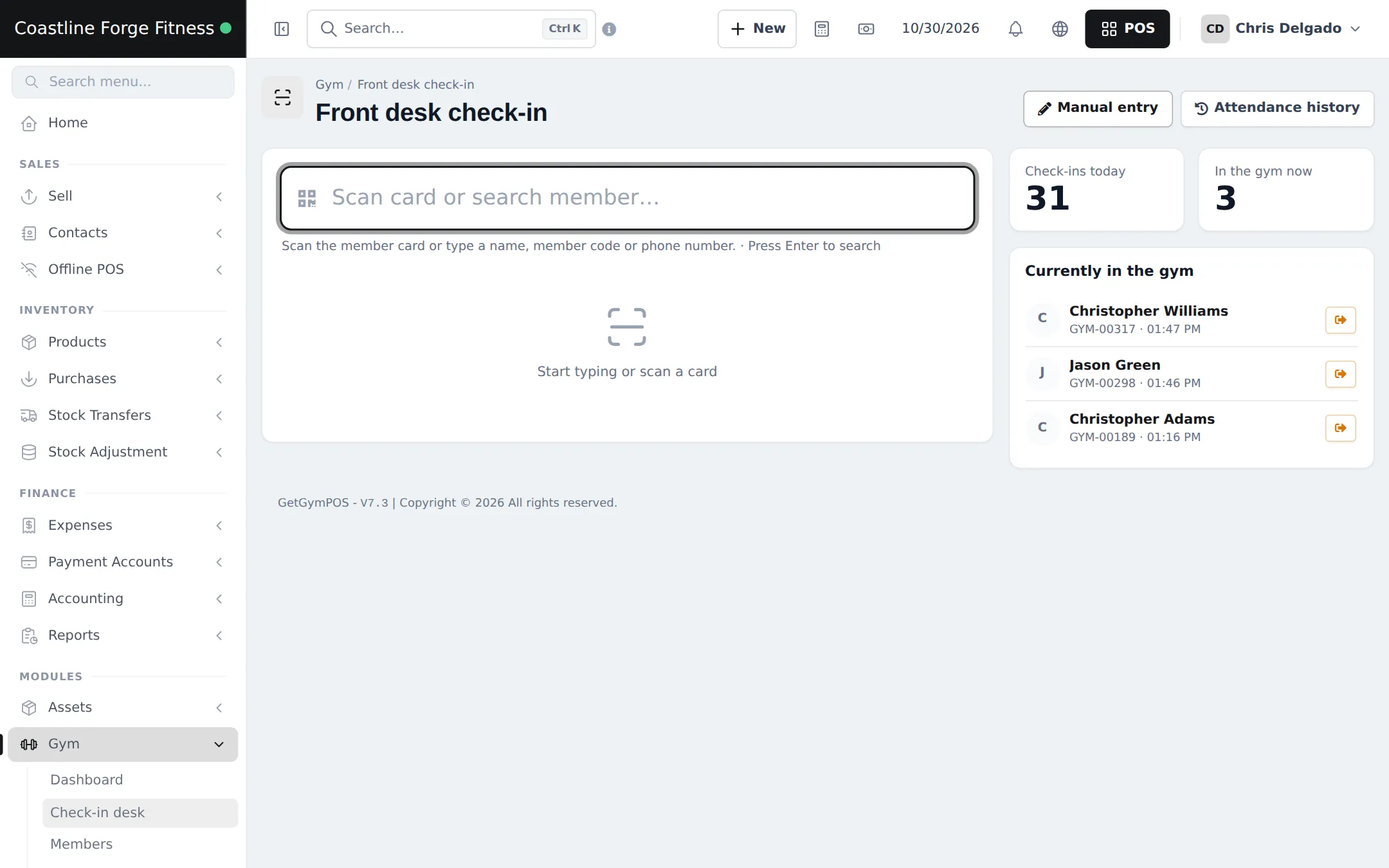
The right side shows Check-ins today, In the gym now and Currently in the gym with a check-out button for each person. Members who forget to check out are closed automatically after the Auto check-out after (hours) you set.
Attendance history
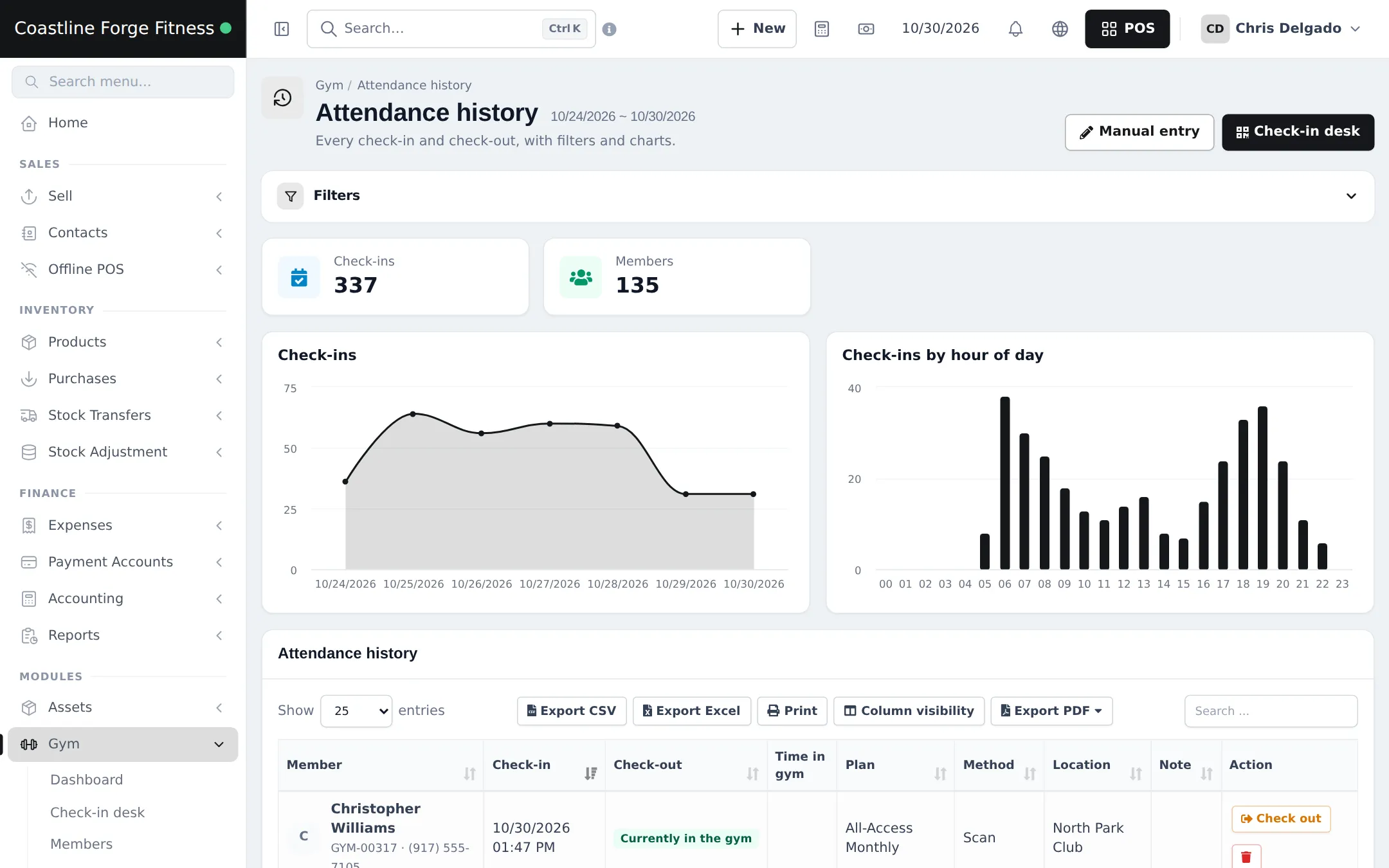
Section titled “Attendance history”Gym › Attendance history lists every check-in and check-out with member, plan, method (for example Scan), location and time in the gym, plus charts of check-ins per day and by hour. Use the Filters for a date range, member or branch, and Manual entry for a forgotten visit.
On a phone
Section titled “On a phone”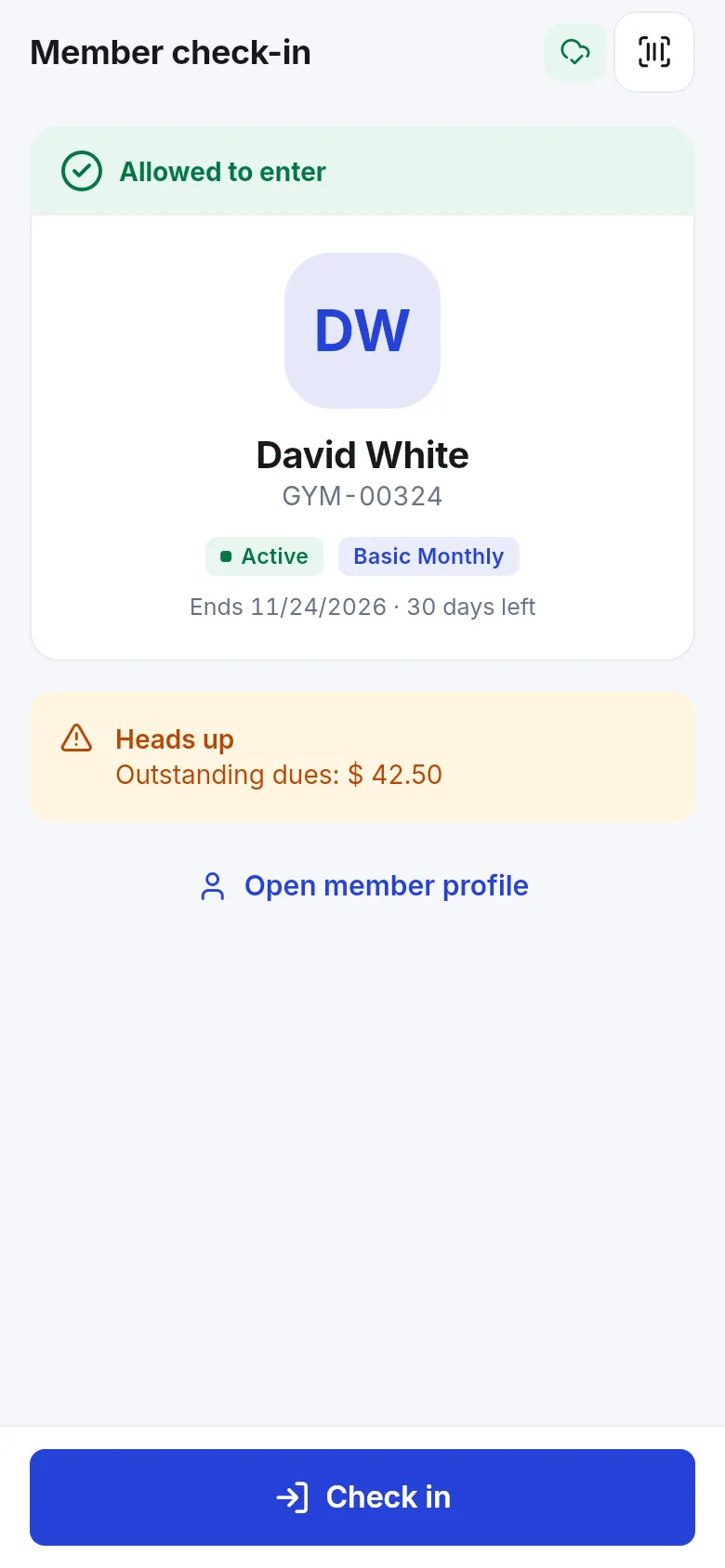
Frequently asked questions
Which scanner works with the check-in desk?
Any barcode or QR scanner that types like a keyboard and ends with Enter. A fast scan checks the member in straight away when they are allowed.
What if I type a name instead of scanning?
Type a name, member code or phone number and press Enter. The desk shows the member card, or a list to pick from, and you click Check in yourself.
Why was a member blocked?
The desk lists the reasons, for example an expired plan, outstanding dues, a used-up session limit or outside the package's access hours, depending on the rules ticked in Gym settings.
Can staff let a blocked member in anyway?
Yes. Staff can override a block from the desk and confirm it; the override is saved with the check-in.
How do I record a visit we forgot?
Click Manual entry on the check-in desk or Attendance history and enter the member, date and time.
Can members check in on a phone?
Staff can. The SmartPOS Business app scans the member card with the phone camera and shows Allowed to enter or the reason it is blocked.