
Bakery step 5: send fresh stock from bakehouse to shops
Once the morning’s batches are completed, the goods sit in the bakehouse’s stock. A stock transfer moves them to each shop so the shop POS can sell them. Most bakeries make one transfer per shop per morning (“Replenishment for Gulberg Branch”).
Before you start
Section titled “Before you start”- The day’s production orders are Completed (step 4).
- Your role has Add stock transfer, and the user has access to the bakehouse and the shops.
Transfer statuses
Section titled “Transfer statuses”| Status | Bakehouse stock | Shop stock | Can be edited |
|---|---|---|---|
| Pending | unchanged | unchanged | yes |
| In Transit | unchanged | unchanged | yes |
| Completed | goes down | goes up | no, locked |
Send the morning delivery
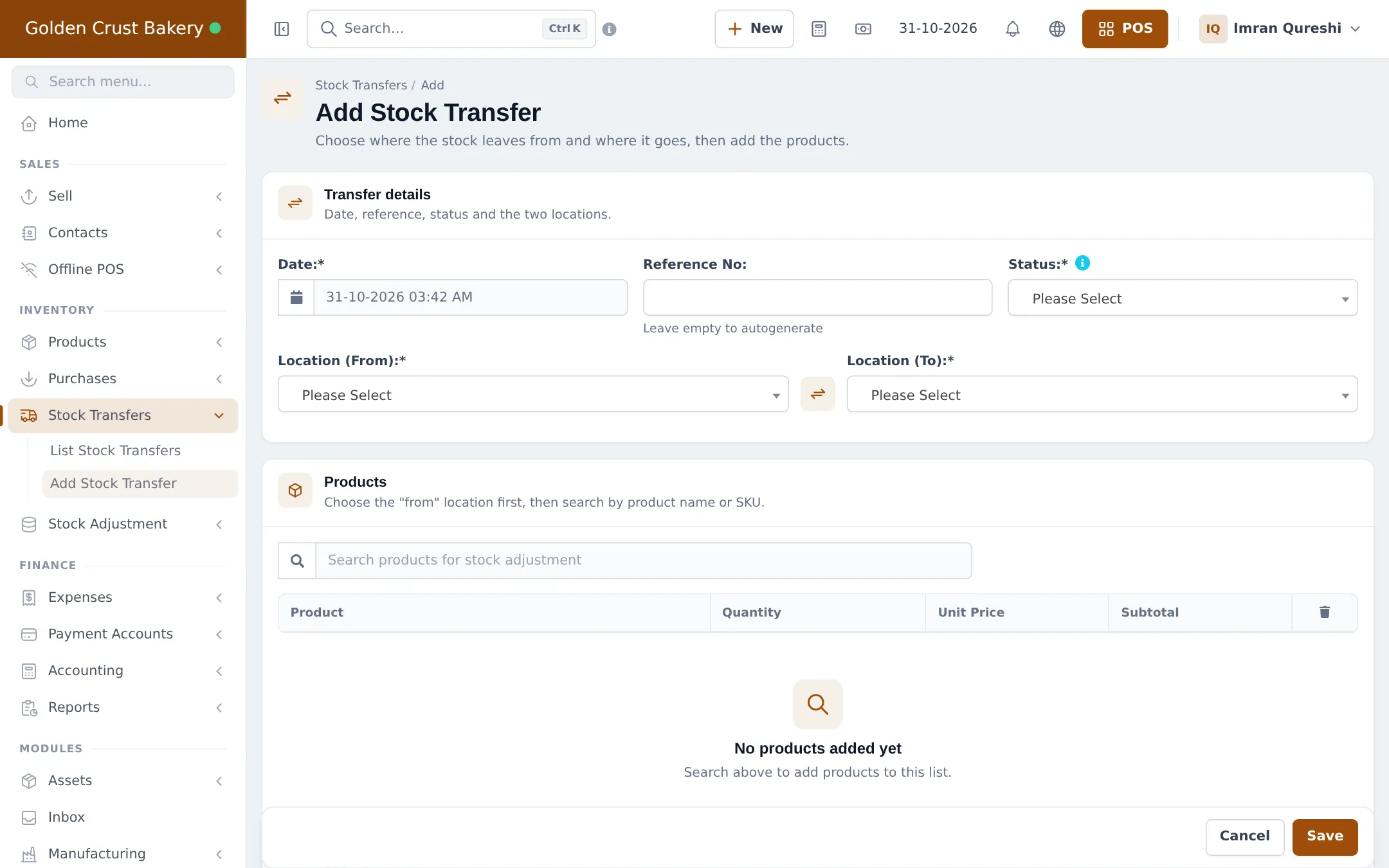
Section titled “Send the morning delivery”- Open Stock Transfers › Add Stock Transfer.
- Check the Date and leave Reference No empty for automatic numbering.
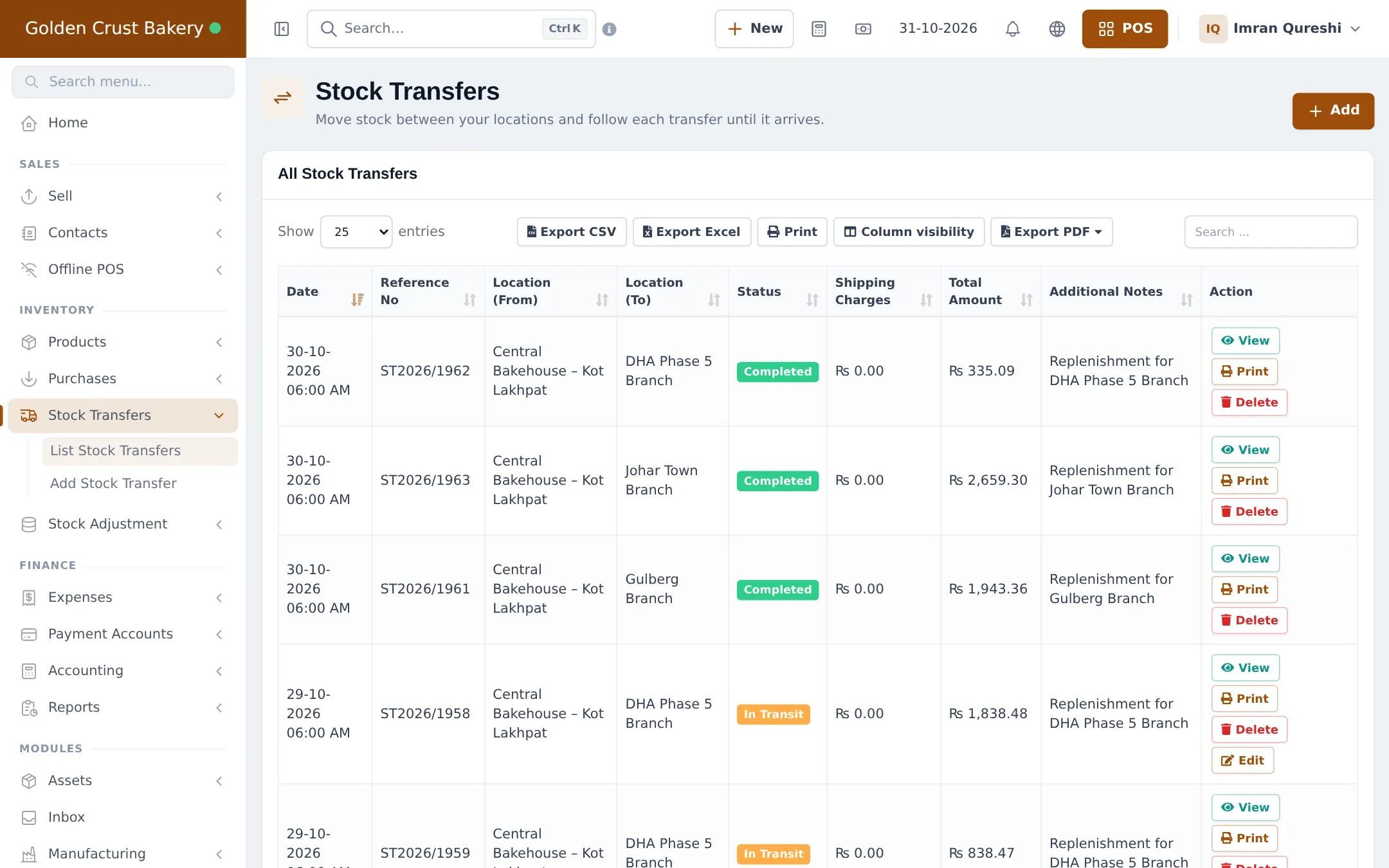
- Choose the Status: In Transit when the van leaves, or Completed if the shop receives it right away.
- Set Location (From) = the bakehouse and Location (To) = the shop.
- Under Products, search each item and enter the Quantity. If lots are on, pick the batch.
- Add a note such as “Morning delivery” and click Save.
- Click Print on the transfer for the delivery note.
Receive at the shop
Section titled “Receive at the shop”- The shop manager counts the delivery against the note.
- In Stock Transfers › List Stock Transfers, they find the In Transit transfer and change its status to Completed.
- The goods are now sellable at the shop.
Tips and mistakes to avoid
Section titled “Tips and mistakes to avoid”- Transfer whole numbers of what was really loaded, not what was planned.
- Don’t leave transfers In Transit overnight; the shop can’t sell those goods until they are Completed.
- Check the Stock Report per location to see what each shop has left at closing (Stock reports).
Next step
Section titled “Next step”Frequently asked questions
When does the shop's stock go up?
When the transfer is Completed. Pending and In Transit transfers don't move stock yet, so the shop can't sell the goods until someone marks them Completed.
Can the driver take a delivery note?
Yes. Print on the transfer gives a delivery note listing every product so the shop can check what arrived.
What if the shop received less than was sent?
Edit the transfer while it is still In Transit and correct the quantities before completing it. Once Completed it is locked; record the difference as a stock adjustment at the shop.
Can I transfer from the phone?
Yes. In the SmartPOS Business app, open Stock › Transfer, pick From and To, scan or find the items and choose Delivered, On the way or Pending.
Does a transfer change the cost of the goods?
No. The goods keep their production cost and lot, so the profit on each sale at the shop stays right. Any Shipping Charges you enter are recorded on the transfer.