
Gym step 3: trainers, classes and timetable
Group classes and personal trainers are what make members stay. This page adds your trainers, your classes and the weekly timetable, and shows how members are booked into a class. It is for the owner or the head coach.
Before you start
Section titled “Before you start”- Each trainer has a user login in User Management › Users, with a role such as Gym Trainer.
- You know your classes, their length and how many people fit.
Add trainers
Section titled “Add trainers”- Open Gym › Trainers and click Add trainer.
- Pick the Staff user, enter the Specialization (for example “Strength & conditioning” or “Yoga & mobility”), an optional Commission %, a Bio and a photo.
- Save. The trainer page shows assigned members, weekly classes and class attendance.
Create classes
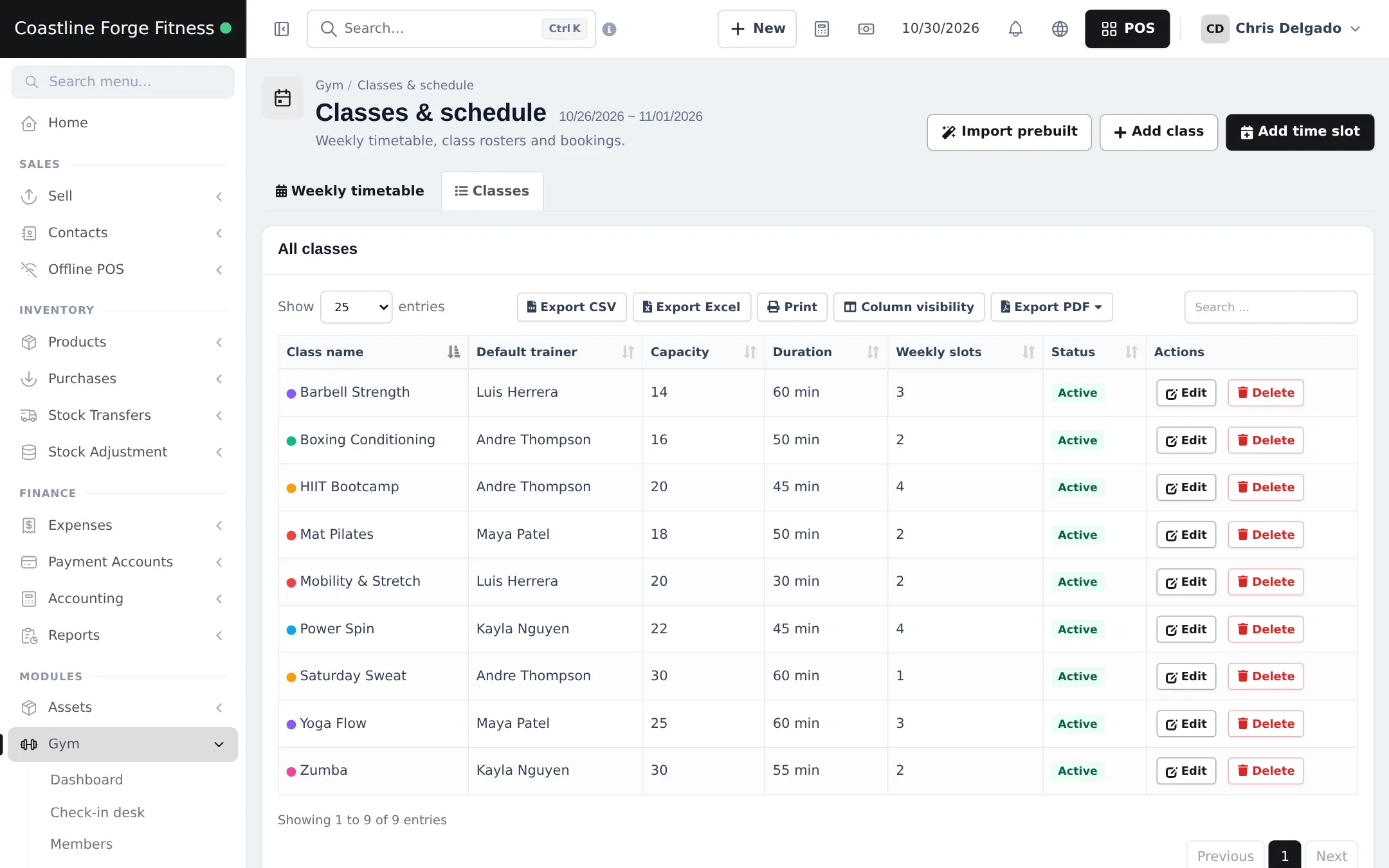
Section titled “Create classes”- Open Gym › Classes & schedule and click Add class (or Import prebuilt).
- Enter the Class name, Capacity, Duration (minutes), Default trainer and a colour.
- Save. The Classes tab lists every class with its trainer, capacity, duration and weekly slots.
Build the weekly timetable
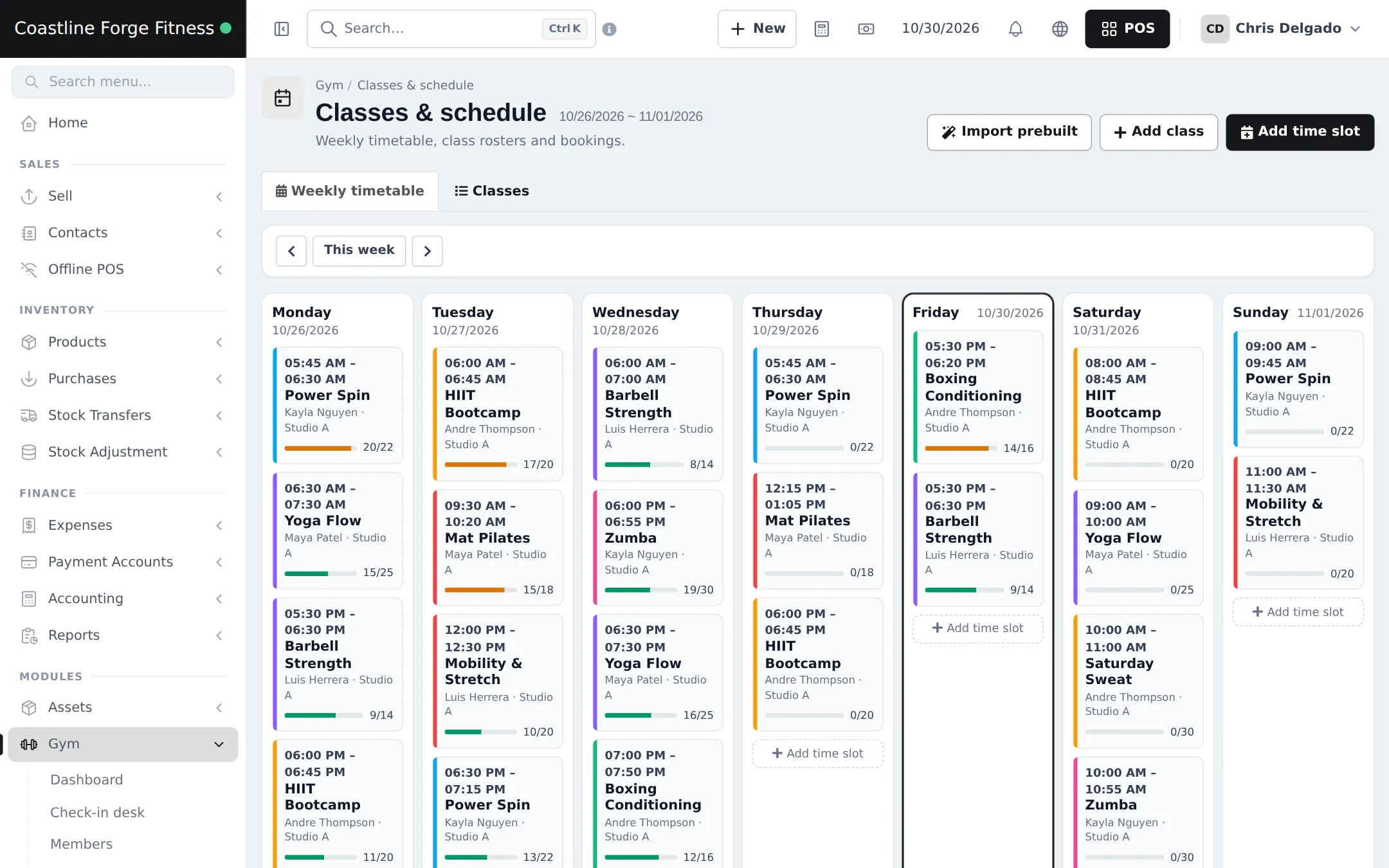
Section titled “Build the weekly timetable”- On Weekly timetable, click Add time slot.
- Choose the class, the weekday, Start time (and End time, or leave it for the class duration), the Room / studio and the location.
- Optional: another trainer or a smaller capacity for this slot.
- Save. Repeat for every weekly slot.
Book members into a class
Section titled “Book members into a class”Click a time slot to open its roster for that date. Search a member and click Book. During or after the class, mark each member Attended, No-show or Cancelled. Members who are not allowed get a clear message, for example “This class is full.” or “This class is not included in the member’s package”.
Workout and diet plans (optional)
Section titled “Workout and diet plans (optional)”Gym › Workout & diet plans holds day-by-day templates (exercises with sets, reps and rest, or meals with calories). Use Import prebuilt for ready-made programmes, then assign a plan to a member with start and end dates and print it.
Frequently asked questions
Does a trainer need a login?
Yes. Trainers are linked to a user from User Management, so create the user first, then add them under Gym › Trainers with Add trainer.
How does trainer commission work?
Commission % on the trainer is a share of membership sales to the members assigned to them. It is used for the commission estimate on the trainer page and in the Trainers report.
Can a class have a different trainer on Saturdays?
Yes. Each weekly time slot can name its own trainer and capacity. Leave them empty to use the class's default trainer and capacity.
How do members get booked into a class?
Open the time slot's roster for the date, search the member and click Book. SmartPOS Hub checks capacity, duplicates, the weekday and whether the member's package includes that class.
Can I import ready-made classes?
Yes. Gym › Classes & schedule has Import prebuilt with common classes such as yoga, HIIT, spin and pilates. Workout and diet plan templates can be imported in Gym › Workout & diet plans.