
Pet store step 2: catalog from Library and prebuilt
A pet store carries hundreds of SKUs from a few dozen brands. Start with ready-made categories, brands and fields, pull in what the Product Library has, then add the rest from your suppliers’ lists.
Before you start
Section titled “Before you start”- Settings from step 1 are done (sub-units, expiry).
- Your plan’s product limit is shown on the Product Library page.
1. Categories from Import prebuilt
Section titled “1. Categories from Import prebuilt”- Open Products › Categories and click Import prebuilt.
- Pick Pet supplies. Tick whole groups (Dog Food, Cat Food, Treats & Chews, Cat Litter & Hygiene, Bird Supplies, Fish & Aquatics…) or single sub-categories.
- Click Import selected. Categories you already have are marked Already added and skipped.
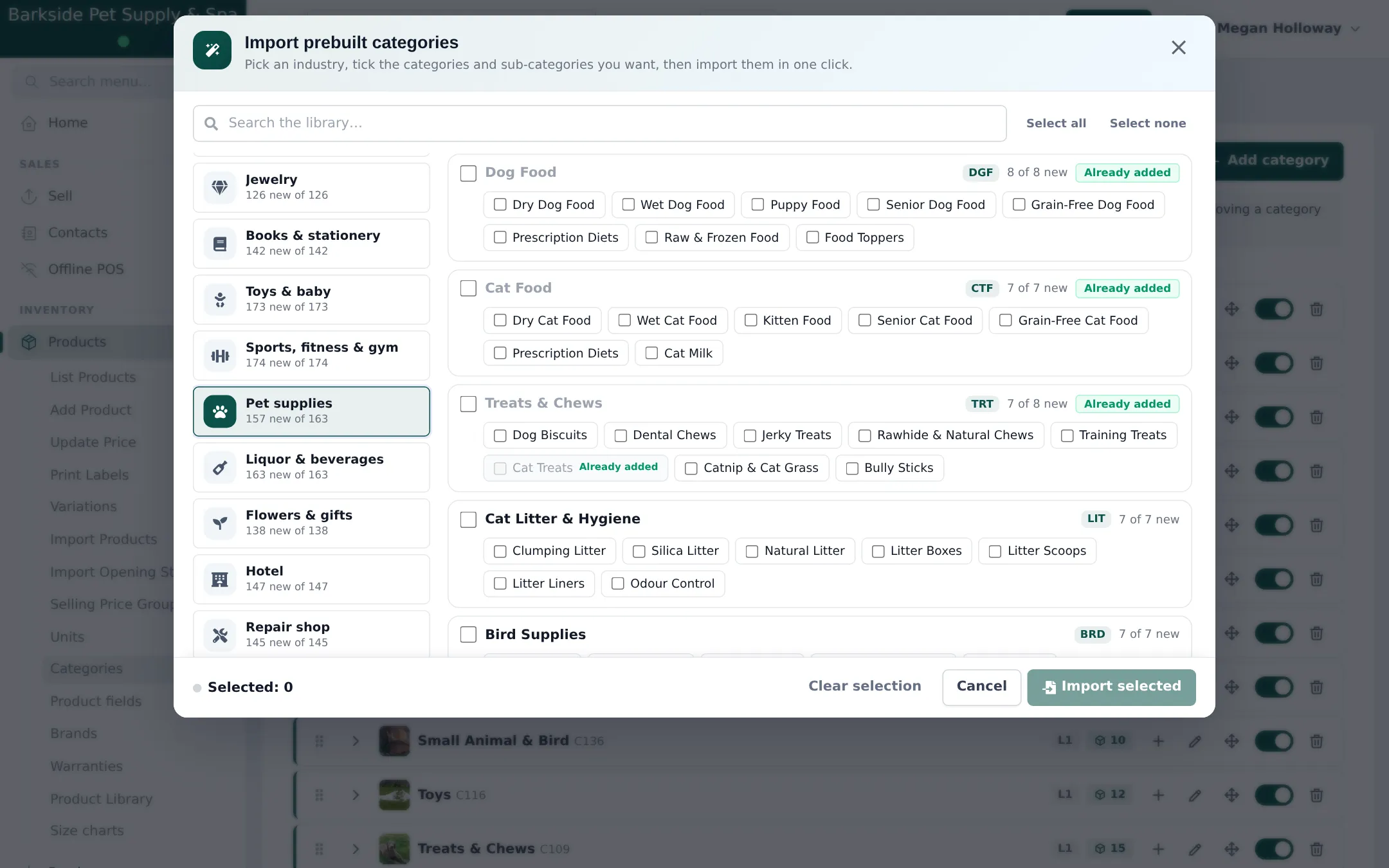
Do the same for Products › Brands (pet brands), Products › Variations (for example Pet Size: Extra Small to Extra Large) and Products › Units. More: Import prebuilt.
2. Product fields for pet food
Section titled “2. Product fields for pet food”Products › Product fields › Import prebuilt has a Pet food group (pet type, life stage, breed size, food form, flavor, net weight, grain free, protein content, ingredients, feeding guide) and Pet accessories. Attach them to your food and accessory categories; the fields show on the product’s Specifications tab and on your website.
3. Products from the Product Library
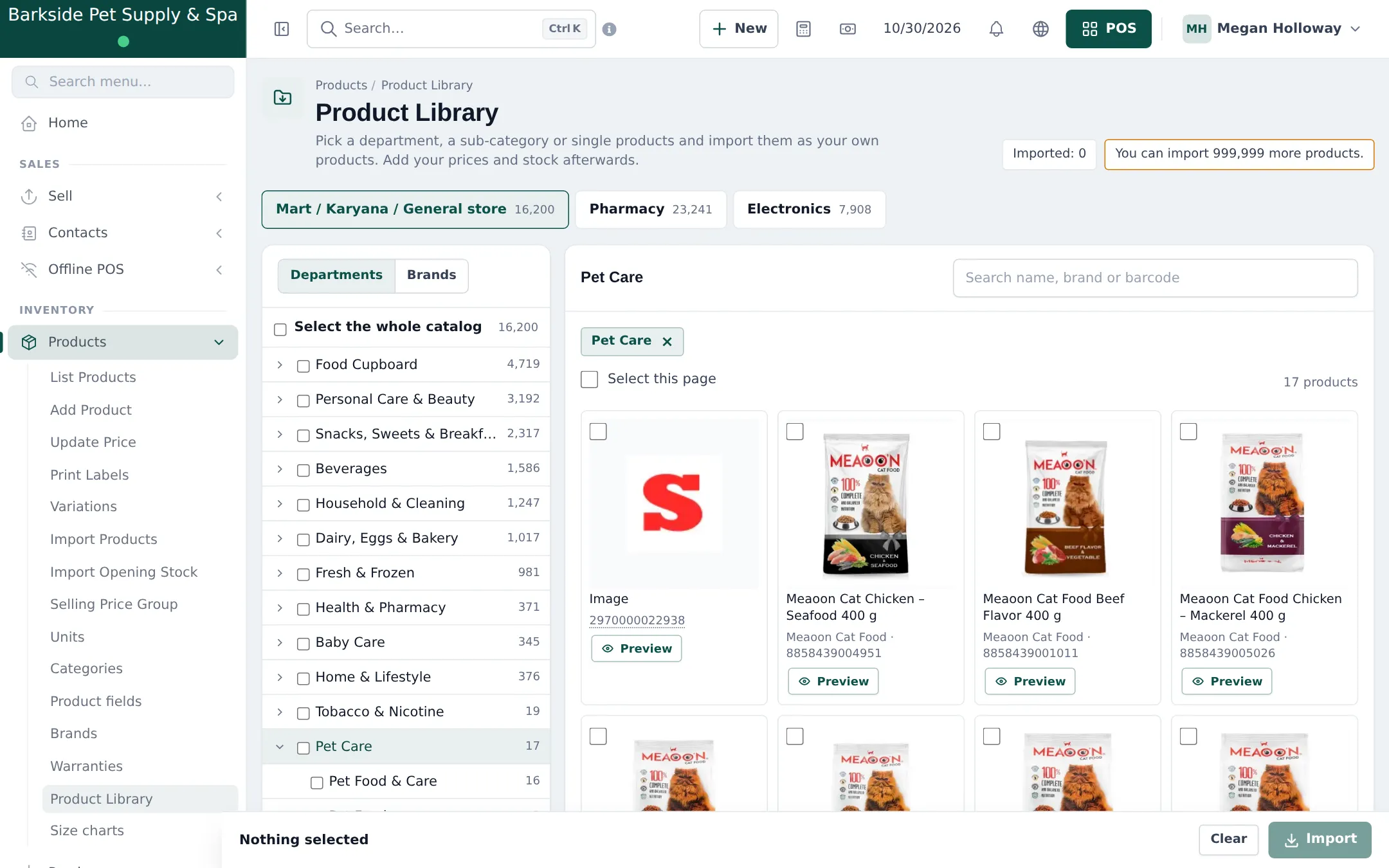
Section titled “3. Products from the Product Library”- Open Products › Product Library and the Mart / Karyana / General store tab.
- Tick the Pet Care department, or search by brand or barcode for the products you stock.
- Click Preview on a card to check it, then Import. Choose the locations, tax and whether to manage stock.
- Review Will create, Will reuse and Will skip, then Import now.
4. The rest of your range
Section titled “4. The rest of your range”- From Excel: Products › Import Products for your suppliers’ lists (Import from Excel).
- By hand: Products › Add Product for single items (Add products).
- Prices: library and imported products start at 0. Set them with Products › Update Price.
- Stock: a purchase, or Products › Import Opening Stock.
Frequently asked questions
Is there a full pet catalog in the Product Library?
Not a separate one. The Mart / Karyana / General store catalog has a small Pet Care department (about 17 products at the time of writing, mainly cat food). Search it by brand or barcode; add the rest of your range yourself or from Excel.
What does the prebuilt Pet supplies category list contain?
Dog Food, Cat Food, Treats & Chews, Cat Litter & Hygiene, Bird Supplies, Fish & Aquatics, Small Animals and more, each with sub-categories such as Dry Dog Food, Puppy Food or Clumping Litter.
Are there ready-made pet brands?
Yes. Products › Brands › Import prebuilt has a pet brand list. Tick the brands you stock.
Can I import my supplier's price list?
Yes. Products › Import Products takes an Excel file with names, SKUs or barcodes, units, prices, categories and brands.
Which product fields fit a pet store?
The Pet food group (pet type, life stage, breed size, food form, flavor, net weight, grain free, protein, ingredients, feeding guide) and Pet accessories (pet type, size, material, dimensions, washable, color).
Do imported products have prices?
No. Library products start at price 0. Set prices with Products › Update Price before you sell.