
Car wash step 2: wash packages and add-ons
Your wash menu has three layers: packages (Express Basic to Ultimate, Full Service Classic to Premium), add-ons (tire shine, bug prep, interior protectant) and detailing services that take hours. Retail items such as air fresheners and drinks sit next to them on the same POS.
Before you start
Section titled “Before you start”- Services and Bookings are on (step 1).
- Create categories that become POS tabs: Express Tunnel, Full Service, Add-ons, Detailing, Wash Club, Retail.
Express packages: products without stock
Section titled “Express packages: products without stock”- Open Products › Add Product.
- Name it as on your menu board, for example “Express Wash – Shine”. Category Express Tunnel.
- Untick Manage Stock?. Enter the price and tax. Save.
- Repeat for each package and each add-on (category Add-ons).
Full service: one price per vehicle size
Section titled “Full service: one price per vehicle size”- Open Products › Add Product and choose Product Type Variable.
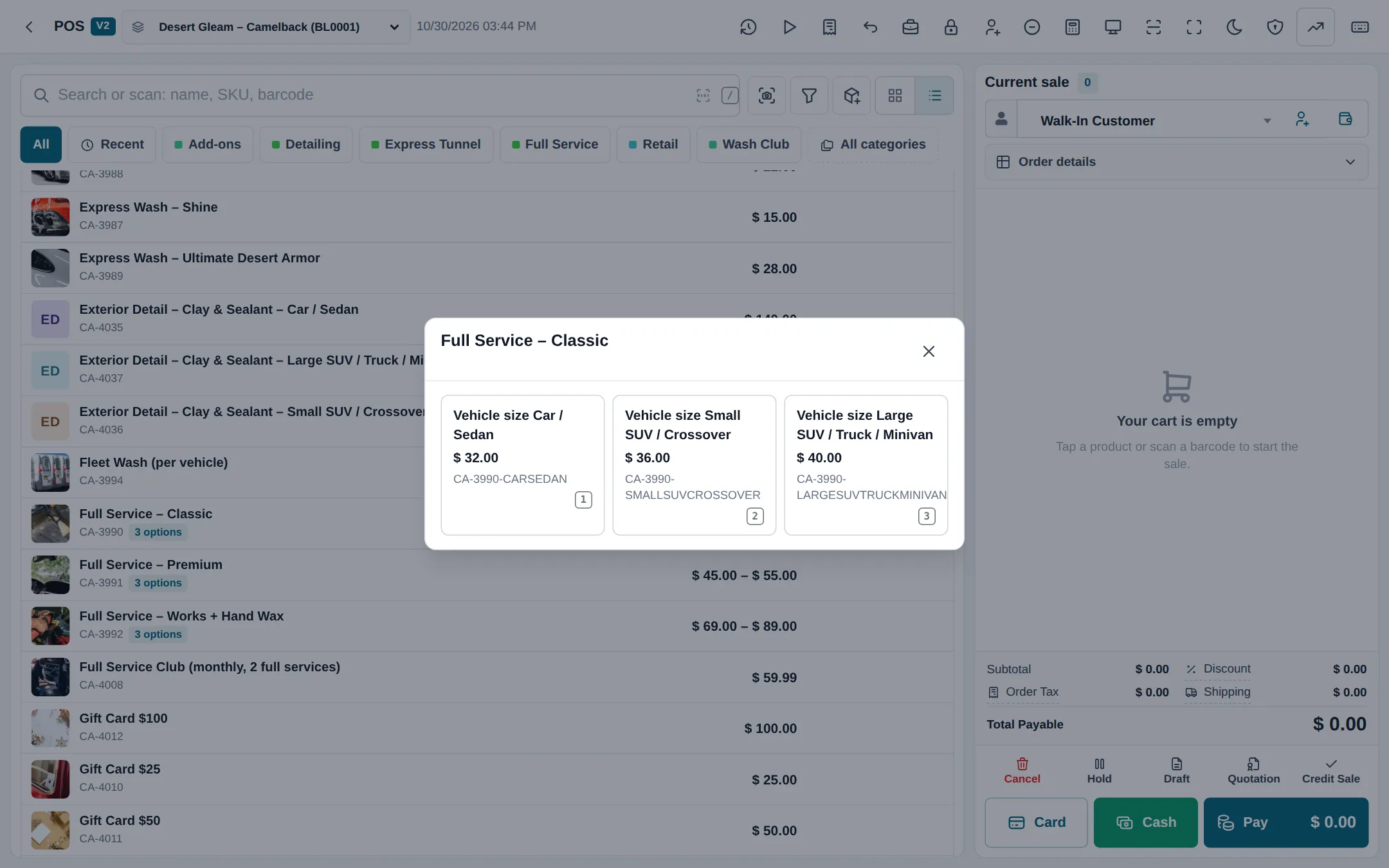
- Add a variation Vehicle size with values Car / Sedan, Small SUV / Crossover and Large SUV / Truck / Minivan (create it once in Products › Variations to reuse it).
- Enter a price for each size. Untick Manage Stock?. Save.
At the till, tapping the package opens a small window with the three sizes and their prices.
Detailing: services with a duration
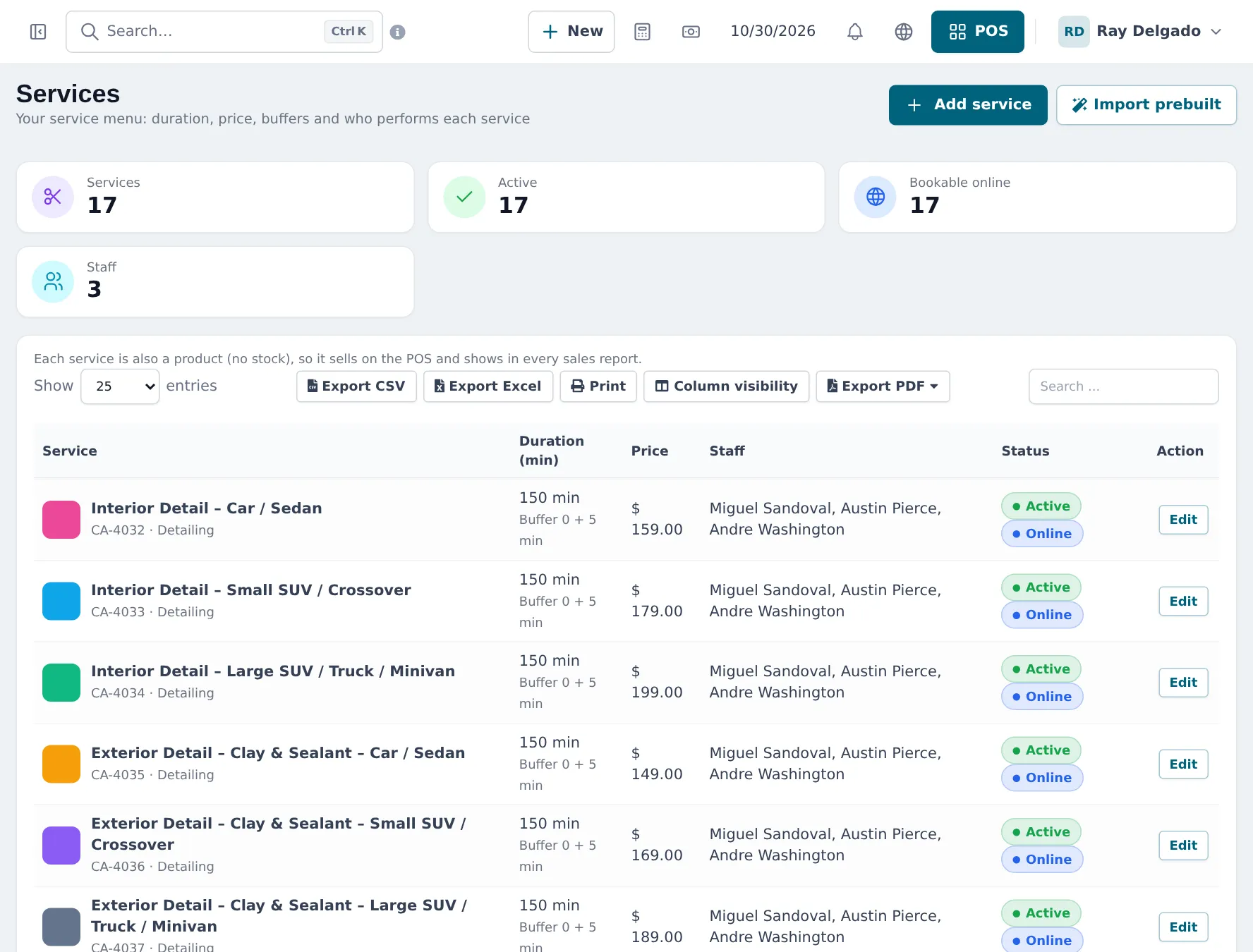
Section titled “Detailing: services with a duration”- Open Services › Services and click Add service (or Import prebuilt).
- Enter the Service name (for example Interior Detail – Small SUV / Crossover), Price, Duration (min) (150) and Clean-up after (min).
- Tick the crew members who perform it (you can also do this per staff member in step 3).
- Tick Bookable online if customers may book it on your booking page, and set an online deposit if you want one. Save.
Retail items
Section titled “Retail items”Air fresheners, towels, glass cleaner and drinks are ordinary products with stock. Receive them with Purchases › Add Purchase so the POS shows how many are left.
Tips and mistakes to avoid
Section titled “Tips and mistakes to avoid”- Keep the POS tabs in the same order as your menu board; cashiers find packages faster.
- Use clear size names; they print on the receipt.
- Don’t add express washes as services unless you book them; they would clutter the booking page.
Frequently asked questions
Should a tunnel wash be a service or a product?
A product with Manage Stock? unticked is enough for quick washes that are never booked. Use a service in Services › Services for anything with a duration that you book or assign to a crew member, such as detailing.
How do I price by vehicle size?
Create the package as a variable product with a variation such as Vehicle size and values Car / Sedan, Small SUV / Crossover and Large SUV / Truck / Minivan, each with its own price. The POS asks which one.
Can a service be booked online?
Yes. Each service in Services › Services has Bookable online. The online booking page shows only bookable services.
How do add-ons work?
Make each add-on (tire shine, bug prep, air freshener treatment) a product without stock in an Add-ons category. The cashier adds it next to the wash.
Can I start from a ready-made service menu?
Yes. Services › Services › Import prebuilt offers ready-made menus for different trades; edit names, times and prices afterwards.