
Bakery step 6: custom cake orders with order options
Birthday, wedding and party cakes need details the till normally doesn’t ask for. Order options adds a form to chosen products, so the cashier (or the online customer) fills in the flavour, filling, message, colour and dietary needs, and the bakehouse gets a clear work ticket.
Before you start
Section titled “Before you start”- Your cake products exist, ideally as variable products with one variation per size (step 2).
1. Set up the cake form
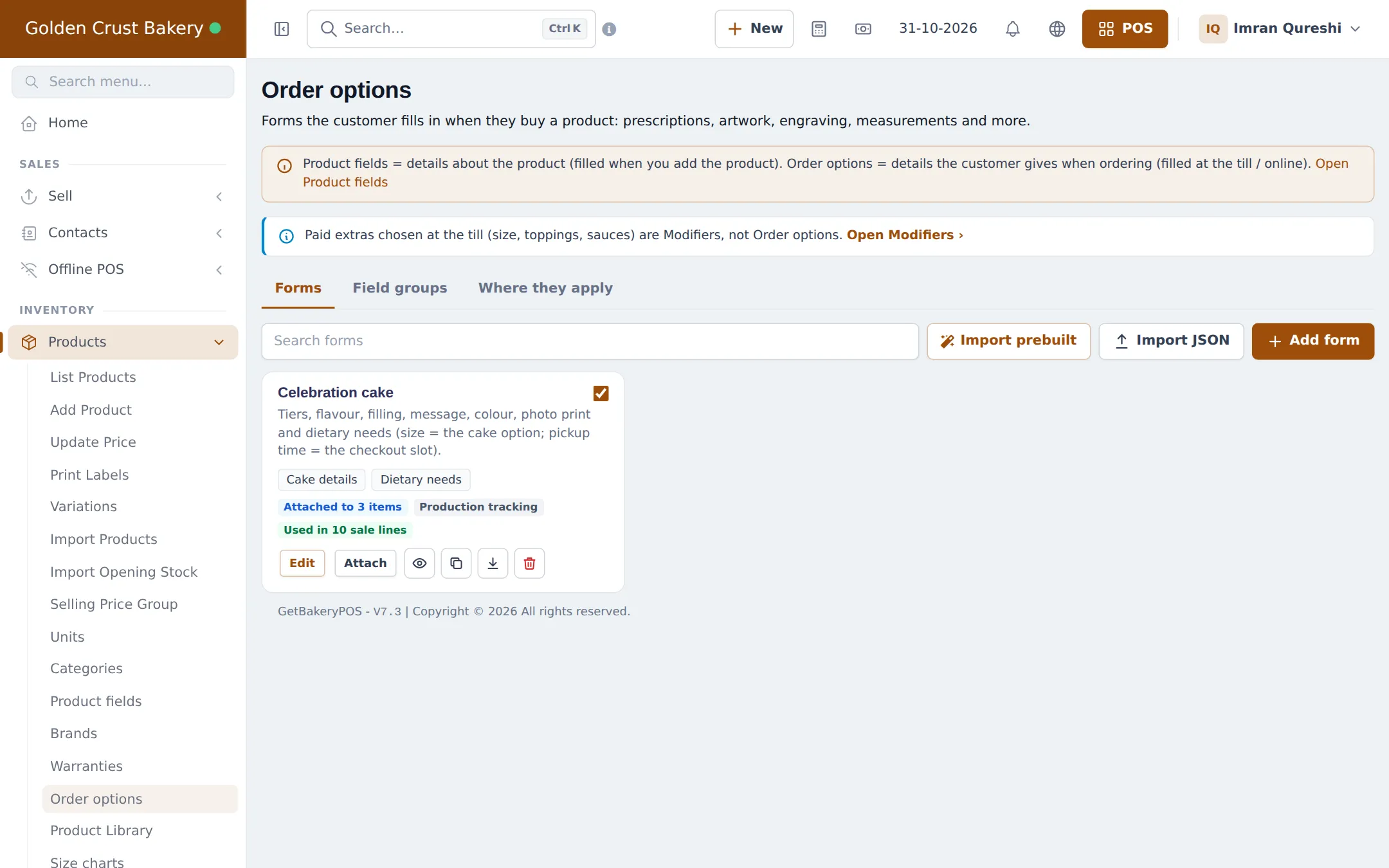
Section titled “1. Set up the cake form”- Open Products › Order options.
- Click Import prebuilt, open the Bakery trade and tick the cake form (click Details to see every field), then Import selected.
- Open the form from the Forms tab to adjust it: make the message and flavour Required, set a price on extras like a photo print, choose what prints on the invoice and work ticket, and set the statuses and due-date field.
- On Where they apply, click Attach to products and choose the Cakes category or the cake products.
2. Take a cake order at the till
Section titled “2. Take a cake order at the till”- Pick the customer on the POS (needed for deposits and pickup reminders).
- Add the cake. The order options window opens by itself.
- Fill in the details; required fields are checked and the price add-on updates live. Click Save details.
- Take the deposit as a part payment, or save as a sales order or draft if the customer pays at pickup (Quotations, drafts and orders).
Part payments and the balance at pickup work like any credit sale: see Credit and part payments.
3. Track every cake
Section titled “3. Track every cake”Open Sell › Personalised orders. The cards count Open, Overdue, Due today, Ready and Details missing lines. Filter by Status, Business Location, Form and Due. Change the status of one line or tick several and use Set status… › Apply to selected. The cake form’s statuses are Waiting, In production, Ready, Collected and Cancelled.
Tips and mistakes to avoid
Section titled “Tips and mistakes to avoid”- Keep paid extras (candles, gift box) as modifiers and the customer’s details as order options.
- Check Due today every morning and print the work tickets for the bakehouse.
- If a cake is baked at the bakehouse, also create a production order for it, or record its ingredients as a stock adjustment, so stock stays right.
Next step
Section titled “Next step”Frequently asked questions
What is the difference between order options and modifiers?
Modifiers are paid choices picked from a list at the till, such as extra candles. Order options are details the customer gives, such as the name on the cake, the flavour, a photo print or allergies. Cake details belong in order options.
Can I charge more for a photo print or an extra tier?
Yes. A field can have a price when filled, as a fixed amount or a percentage, per item or once per line. The add-on is added to the cart line.
Can the customer pay a deposit now and the rest at pickup?
Yes. Save the sale with a part payment; the rest stays due on the customer. Or save it as a sales order or draft and finish the sale at pickup.
How do bakers see what to make?
Sell › Personalised orders lists every cake line with its details, due date and status. Print the work ticket for the bakehouse.
The customer will send the photo later. What do I do?
Click Finish later and save the sale as a draft, quotation, held sale or sales order. The line shows Details missing until someone fills it in.
Do online cake orders ask the same questions?
Yes. The same form appears in your online store and the SmartPOS Shopper app when the customer orders the cake.