
Barbershop step 6: commission and reports
At the end of the week a barbershop owner needs two answers: what does each barber get paid, and is the shop busy at the right times. This page shows where both live, plus each customer’s history. It is for the owner or manager.
Pay out commission
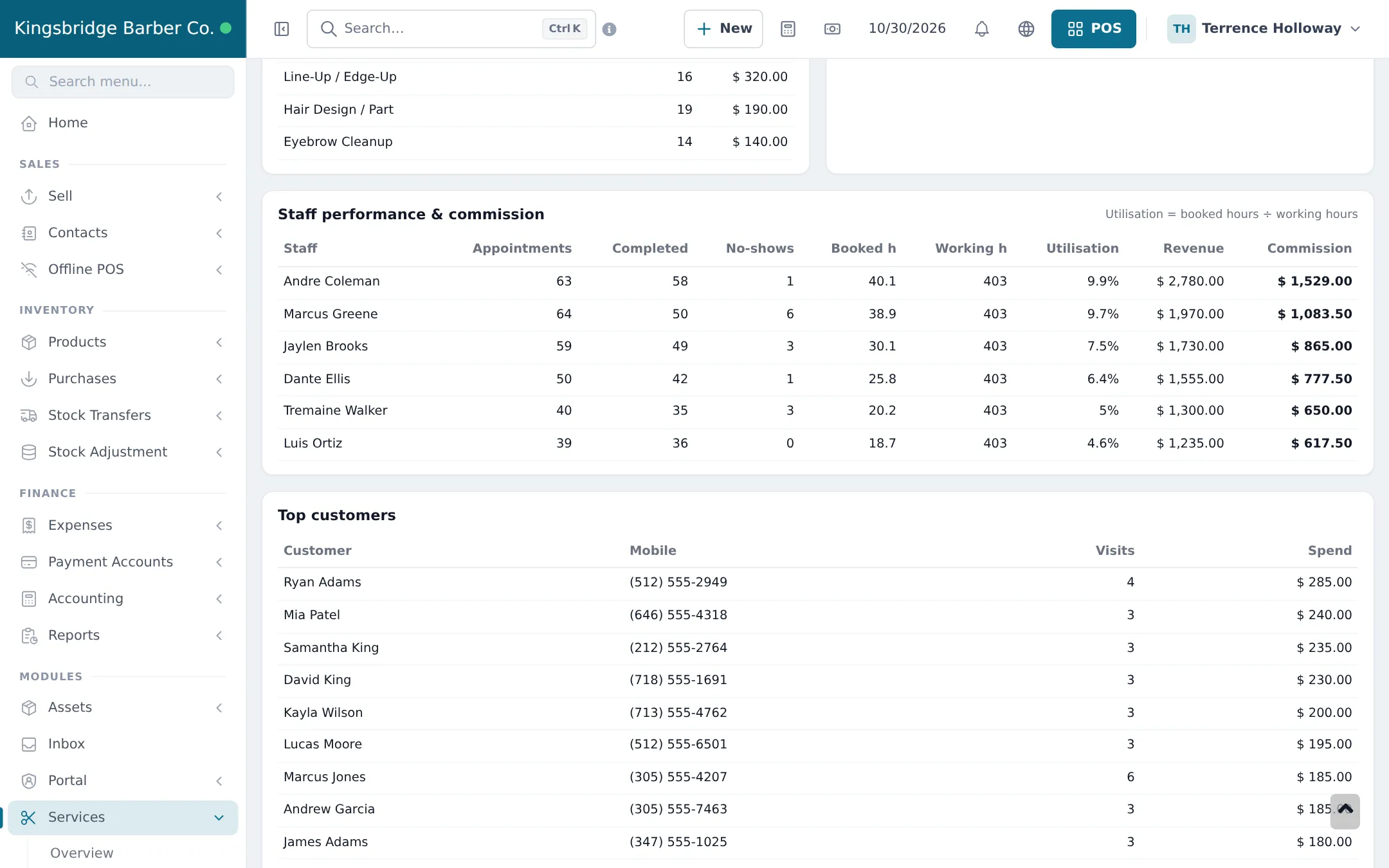
Section titled “Pay out commission”- Open Services › Reports. Pick the shop and the date range of the pay period.
- Scroll to Staff performance & commission.
- Pay each barber the amount in Commission. Record the payout as an expense if you track it in SmartPOS Hub (Expenses).
Read the shop’s numbers
Section titled “Read the shop’s numbers”The same report page shows Appointments, Revenue, Average per visit, No-show rate, Where bookings come from (online, phone, walk-in), Revenue by service and Busiest hours. Use busiest hours to plan who works when, and revenue by service to set prices.
For money: Reports › Register Report per cashier and day, Reports › Profit / Loss Report per month, and Reports › Service Staff Report for POS sales that named a barber.
Customer history
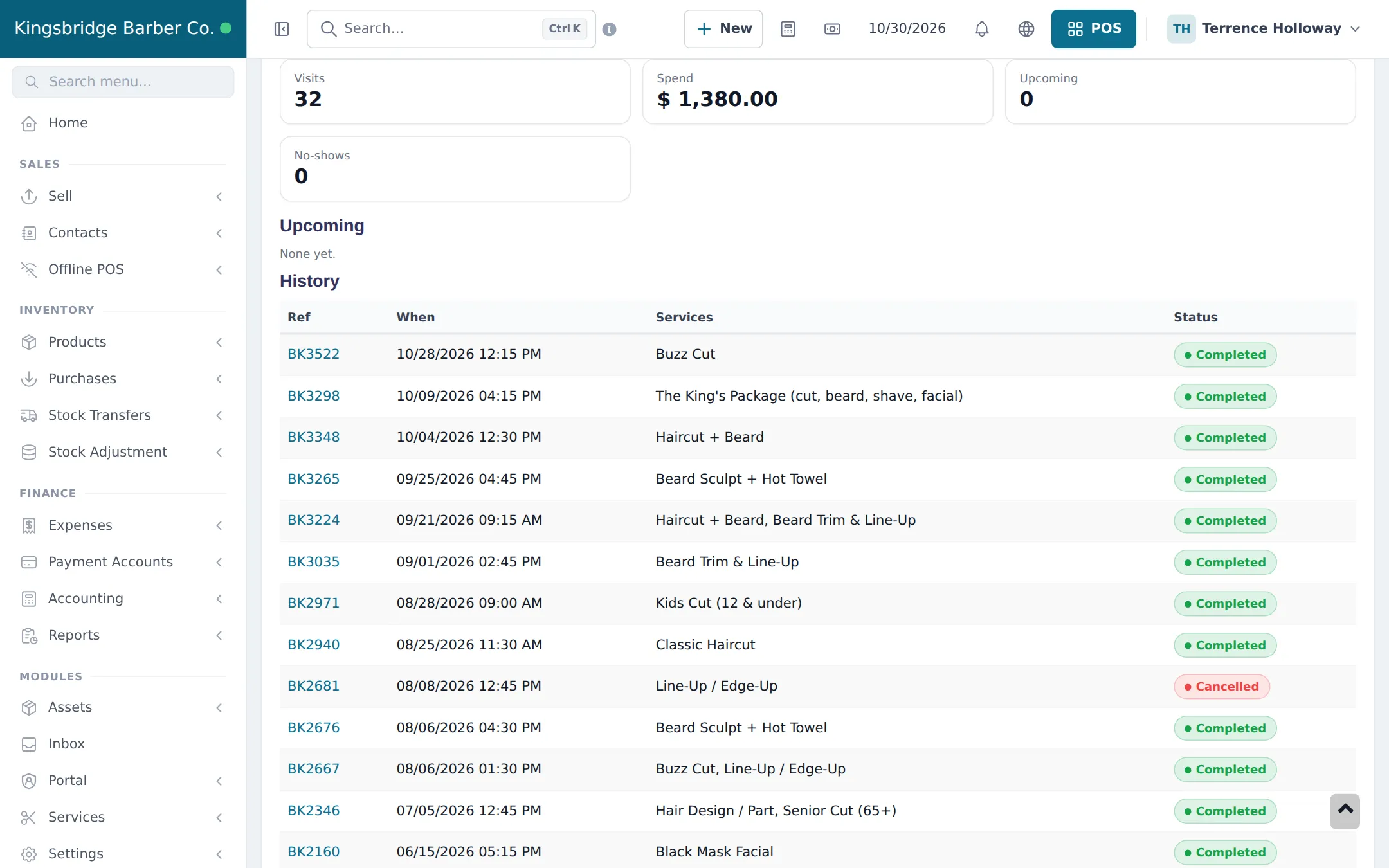
Section titled “Customer history”Open the customer in Contacts and click Appointments: Visits, Spend, Upcoming, No-shows and every past appointment with services and status.
Frequently asked questions
Where do I see what each barber earned?
Services › Reports, section Staff performance & commission. Pick the dates and the shop; each barber shows appointments, completed, no-shows, hours, utilisation, revenue and commission.
Does commission include products the barber sold?
No. Services commission is on services checked out from appointments. Product sales with a service staff member show in Reports › Service Staff Report.
What does utilisation mean?
Booked hours divided by working hours. A barber with low utilisation has free time for walk-ins or could work fewer hours.
How do I find a customer's last cut?
Open the customer in Contacts and click the Appointments tab. The History table lists every visit with its services and status.