
Hotel step 6: check-in, check-out and booking payments
This is the front desk’s busiest moment. A booking moves Pending → Confirmed → Checked in → Checked out, or ends as Cancelled or No-show. Money is taken on the booking at any time, so a guest can pay a deposit, a part at check-in and the rest at check-out.
Before you start
Section titled “Before you start”- The booking exists and is Confirmed (step 5).
- Your role has Hotel: check guests in, Hotel: check guests out and Hotel: add booking payments.
- A cash register is open at the front desk if you take cash (Cash register and closing).
Check a guest in
Section titled “Check a guest in”- Open Hotel (HMS) › Dashboard. Today’s arrivals are listed with a Check in button (or open the booking and click Check in).
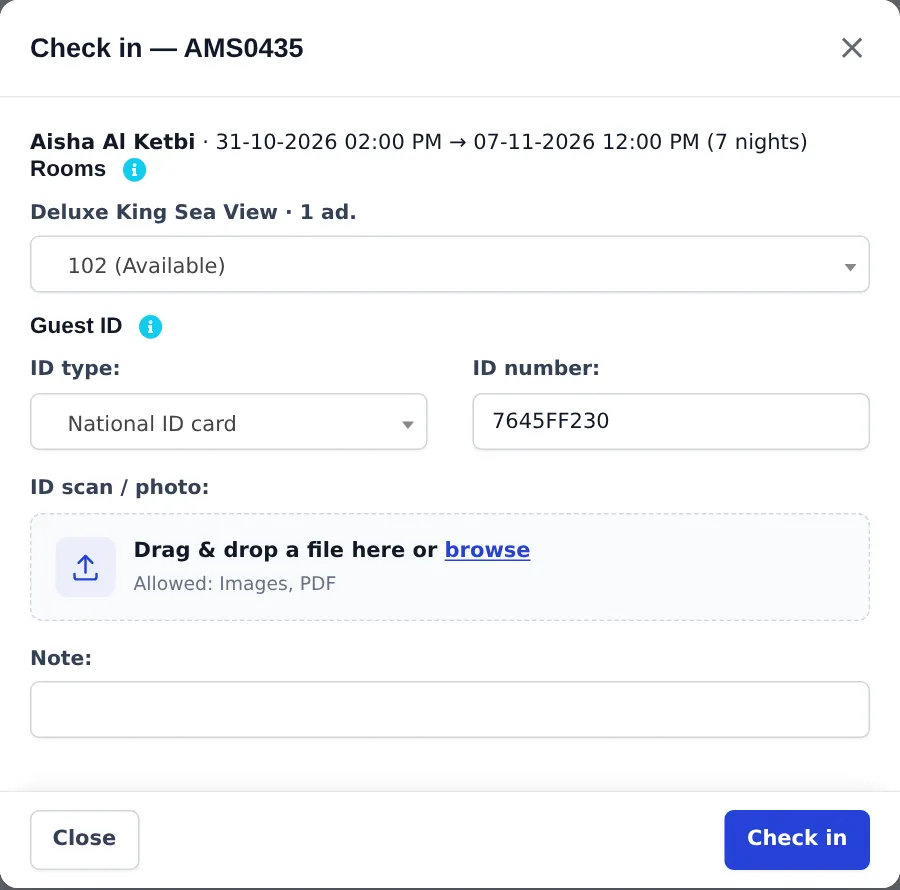
- In the window, check the room. To give another room of the same type, pick it from the list of free rooms.
- Check or enter the Guest ID: ID type, ID number and an ID scan / photo.
- Add a Note if needed and click Check in. The room becomes Occupied.
Take a payment or deposit
Section titled “Take a payment or deposit”- Open the booking (click the booking number anywhere).
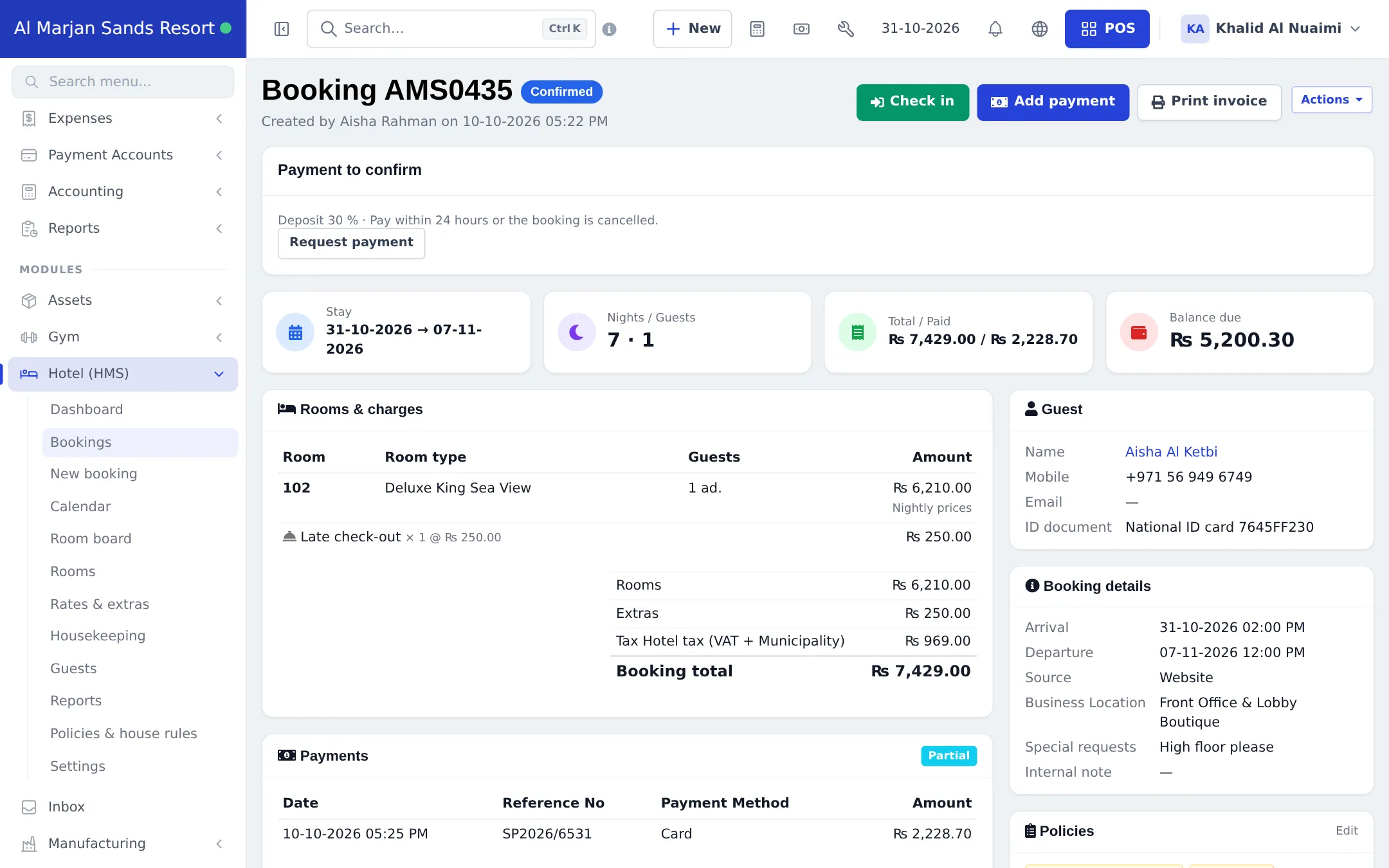
- Click Add payment, enter the amount, payment method and date, and save.
- The cards at the top update: Total / Paid and Balance due. The payment status shows Paid, Partial or Due.
Customers who pay later in several parts work like any credit customer. See Credit and part payments.
Check a guest out
Section titled “Check a guest out”- On the dashboard, click Check out next to today’s departure (or use the booking’s Actions menu).
- If a balance is due, the window warns you and offers Add payment. Take the payment first.
- Confirm the check-out. The room becomes Dirty for housekeeping.
- Click Print invoice if the guest wants a copy.
On a phone
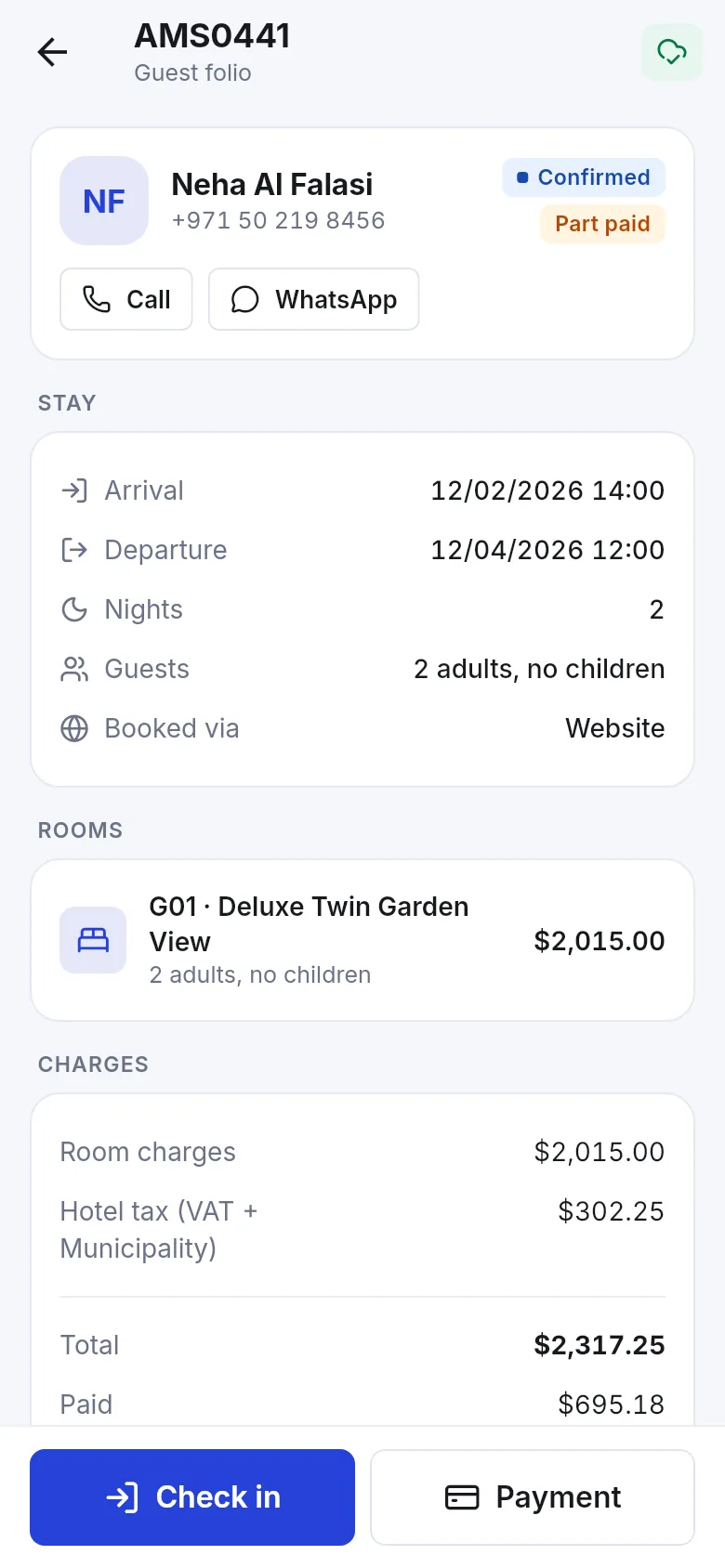
Section titled “On a phone”In the SmartPOS Business app, the Hotel screen opens each booking as a guest folio with the stay, rooms, charges and paid amount, and Check in and Payment buttons.
Tips and mistakes to avoid
Section titled “Tips and mistakes to avoid”- Take the ID at check-in even for repeat guests; it is stored with that booking.
- Use No-show (not Cancel) for guests who never arrive, so your no-show rate in reports is right.
- Overdue departures are flagged on the dashboard. Check them out or extend the booking before night audit.
Next step
Section titled “Next step”Frequently asked questions
Can I move a guest to another room at check-in?
Yes. The check-in window lists free rooms of the same type, so you can give the guest a different room before you click Check in.
Can a guest check out with money still due?
The check-out window warns you about any balance and offers Add payment. If you still check the guest out, the balance stays due on the booking and in the guest's ledger.
How do I take a part payment?
Click Add payment on the booking, enter the amount and method and save. The booking shows Partial until the balance is paid.
Where do booking payments go?
Into the payment account of the method you chose, like any sale payment. They show on the guest's ledger and in the Sell Payment Report.
What happens to the room after check-out?
It becomes Dirty so housekeeping knows to clean it, unless you switched that off in Hotel settings › Housekeeping, in which case it becomes Available.
Can I print a confirmation and an invoice?
Yes. Print invoice on the booking page prints the invoice or confirmation with your logo, the payments, the cancellation policy and your terms.