
Auto shop step 4: run job cards
A job card (called a job sheet in the app) follows a car from the moment the customer hands over the keys until they drive away. This page covers the intake, the estimate and approval, deposits and the work itself.
Before you start
Section titled “Before you start”- Repair is set up with the Car category (step 3).
- The customer exists, or you add them from the job card with +.
Book the car in
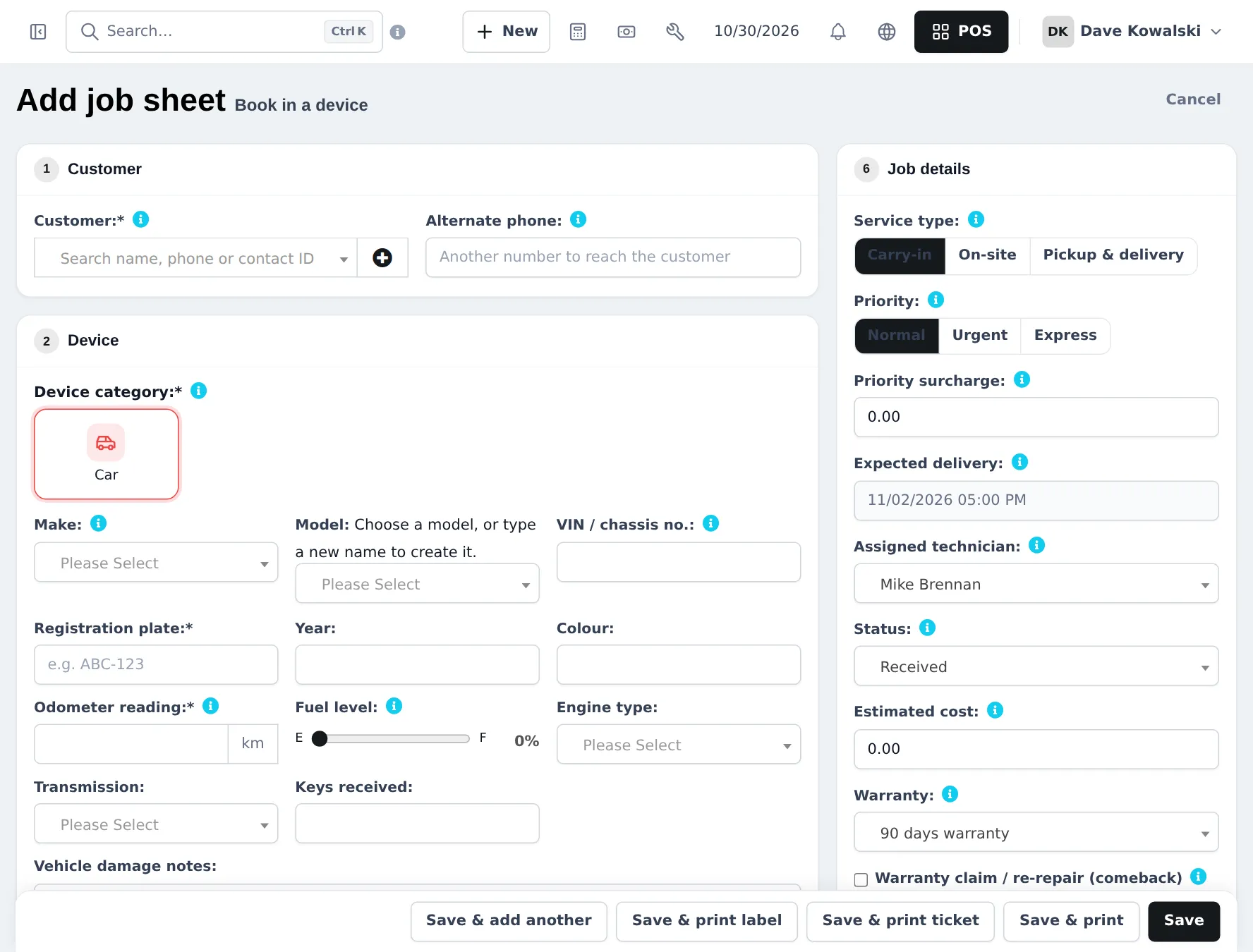
Section titled “Book the car in”- Open Repair › Add job sheet.
- Customer: search by name, phone or contact ID, or add a new one. Add an Alternate phone if someone else will collect the car.
- Device: click the Car tile. Pick the Make and Model, enter VIN / chassis no., Registration plate, Year, Colour, Odometer reading and Fuel level, Engine type, Transmission and Keys received.
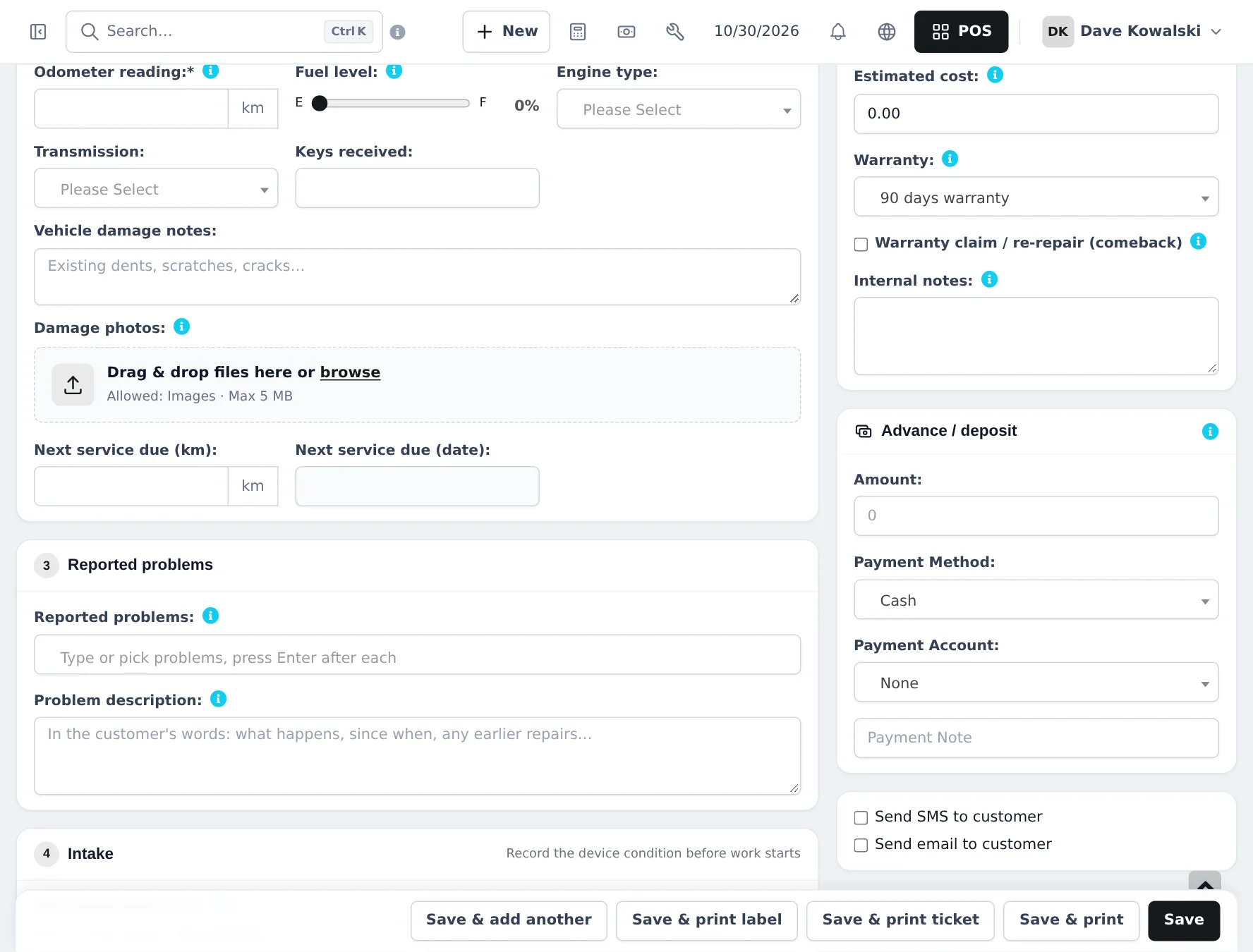
- Note existing damage in Vehicle damage notes and upload Damage photos.
- Reported problems: type or pick the faults (Oil change, Brake noise / wear, Engine check light…) and add the customer’s own words in Problem description.
- Intake: tick the pre-repair checklist (lights, wipers, AC…) with the customer.
- Job details: Service type, Priority, Expected delivery, Assigned technician, Status, Estimated cost and Warranty. Tick Warranty claim / re-repair (comeback) if the car is back for the same fault.
- Advance / deposit: enter any deposit with its Payment Method.
- Click Save & print ticket (claim ticket for the customer) or Save & print label (key tag).
Estimate and approval
Section titled “Estimate and approval”- After diagnosis, open the job and add the parts and labour with Add parts or services.
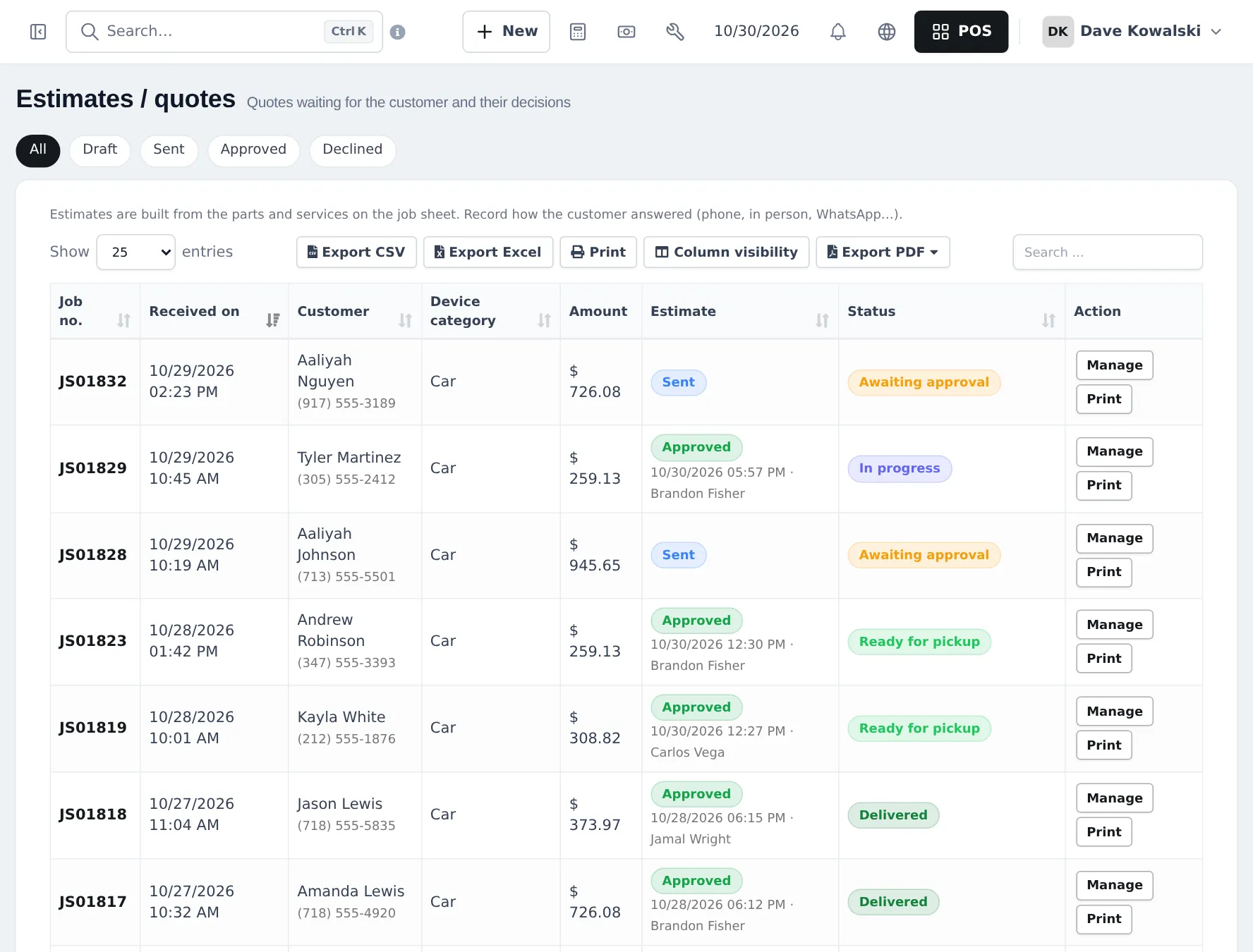
- Create an estimate from the job and Mark as sent when you have told the customer.
- Record the answer: approved or declined, and how (phone, in person, SMS, WhatsApp or e-mail). Approved work can start; the job leaves Awaiting approval.
During the work
Section titled “During the work”- Technicians Change status (Diagnosing, Waiting for parts, In progress) and add comments. Tick Visible to customer for comments the customer may see on the status page.
- Record extra money later with Actions › Record deposit.
- If parts must be ordered, set Waiting for parts and raise a purchase order.
- When the car is done, set Ready for pickup. With messaging set up, the customer can be notified automatically.
Tips and mistakes to avoid
Section titled “Tips and mistakes to avoid”- Fill in the odometer reading and fuel level every time, even for an oil change.
- Use the comeback tick honestly. The repair reports show a re-repair rate per technician.
- Don’t sell the parts on a separate POS sale while the job is open; they belong on the job and are billed when you convert it.
Frequently asked questions
What is the difference between a job card and an estimate?
The job card (job sheet) is the car's record in the shop from drop-off to pickup. An estimate is the price you send the customer for approval; it is built from the parts and labour on the job.
How do I add parts and labour to a job?
Open the job and use Add parts or services in the Parts and services section. Stock is not taken yet; that happens when the job is converted to an invoice.
How do I take a deposit?
In the Advance / deposit box on the job card, enter the amount, payment method and account. You can also record a deposit later with Actions › Record deposit.
What does Awaiting approval mean?
The job is waiting for the customer to approve the estimate. The Awaiting approval tile on the job list counts these jobs.
How do I mark an urgent job?
Choose Urgent or Express in Priority. The job shows an Urgent label in the list and the surcharge set in Repair settings is added.
Can I print a key tag?
Yes. Save & print label prints a label for the keys; Save & print ticket prints the customer's claim ticket with a QR code.