
Hotel step 7: room board, front-desk screen and housekeeping
Two screens keep rooms moving: the Room board for the front desk and Housekeeping for cleaners. Both show the same live statuses, so the desk knows the moment a room is ready to sell again.
Before you start
Section titled “Before you start”- Rooms have floors (step 2).
- In Hotel (HMS) › Settings › Housekeeping, choose whether rooms become dirty automatically after check-out.
- Housekeepers have their own logins with Hotel: housekeeping (change room status).
The room board
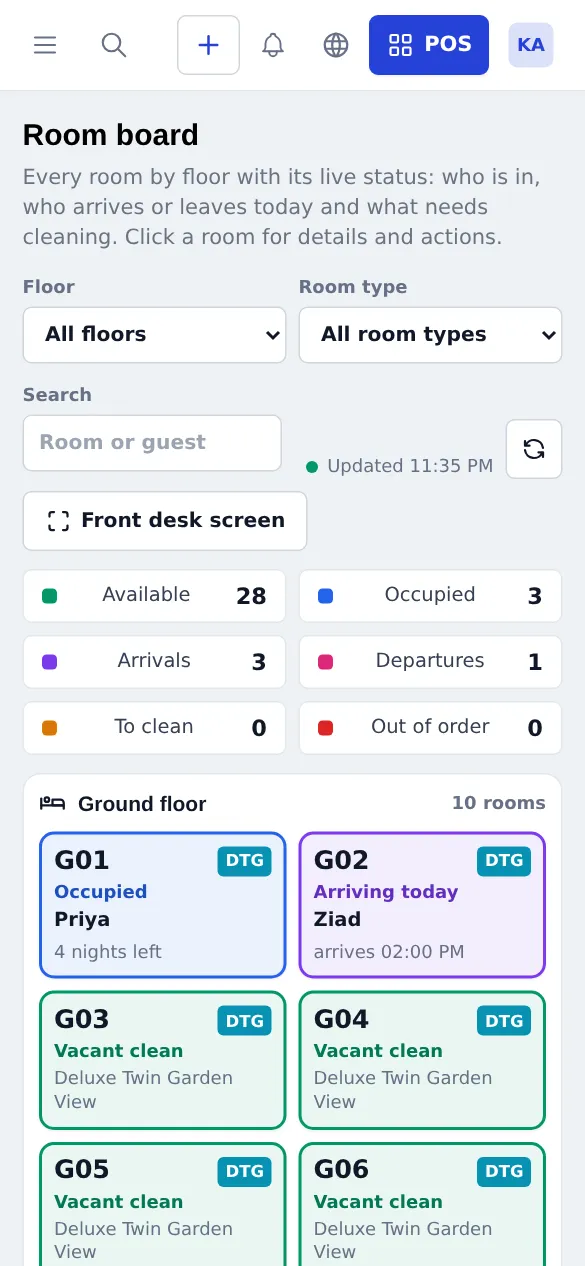
Section titled “The room board”Hotel (HMS) › Room board shows every room by floor. Filter by Floor, Room type or search a room or guest. The counters (Available, Occupied, Arrivals, Departures, To clean, Out of order) filter the board when clicked. Click a room for its details and actions, such as marking it out of order with a reason and an Out of order until date.
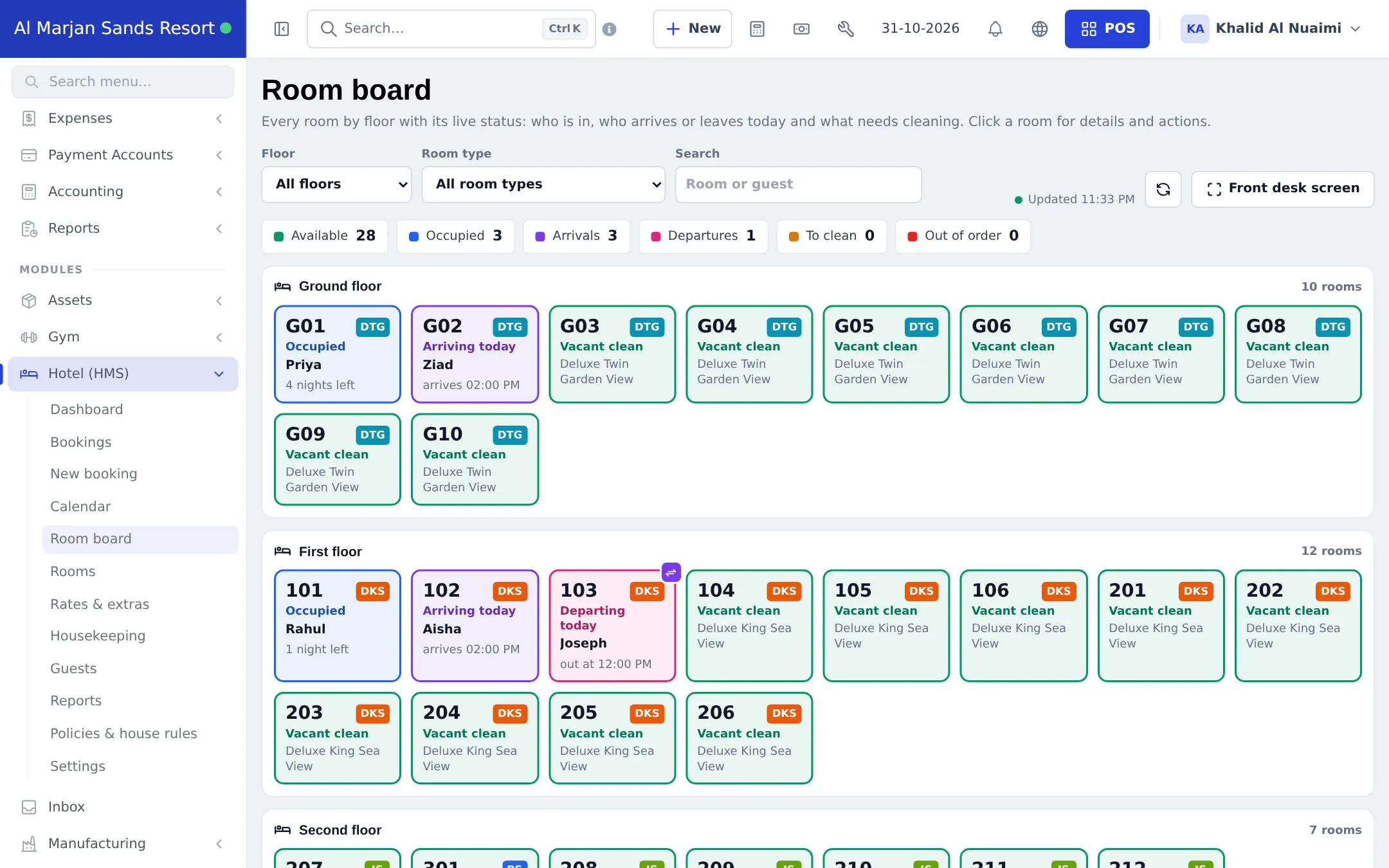
Click Front desk screen for a full-screen version for one location and floor on a wall screen or tablet. It refreshes by itself. See Screens & displays.
The housekeeping routine
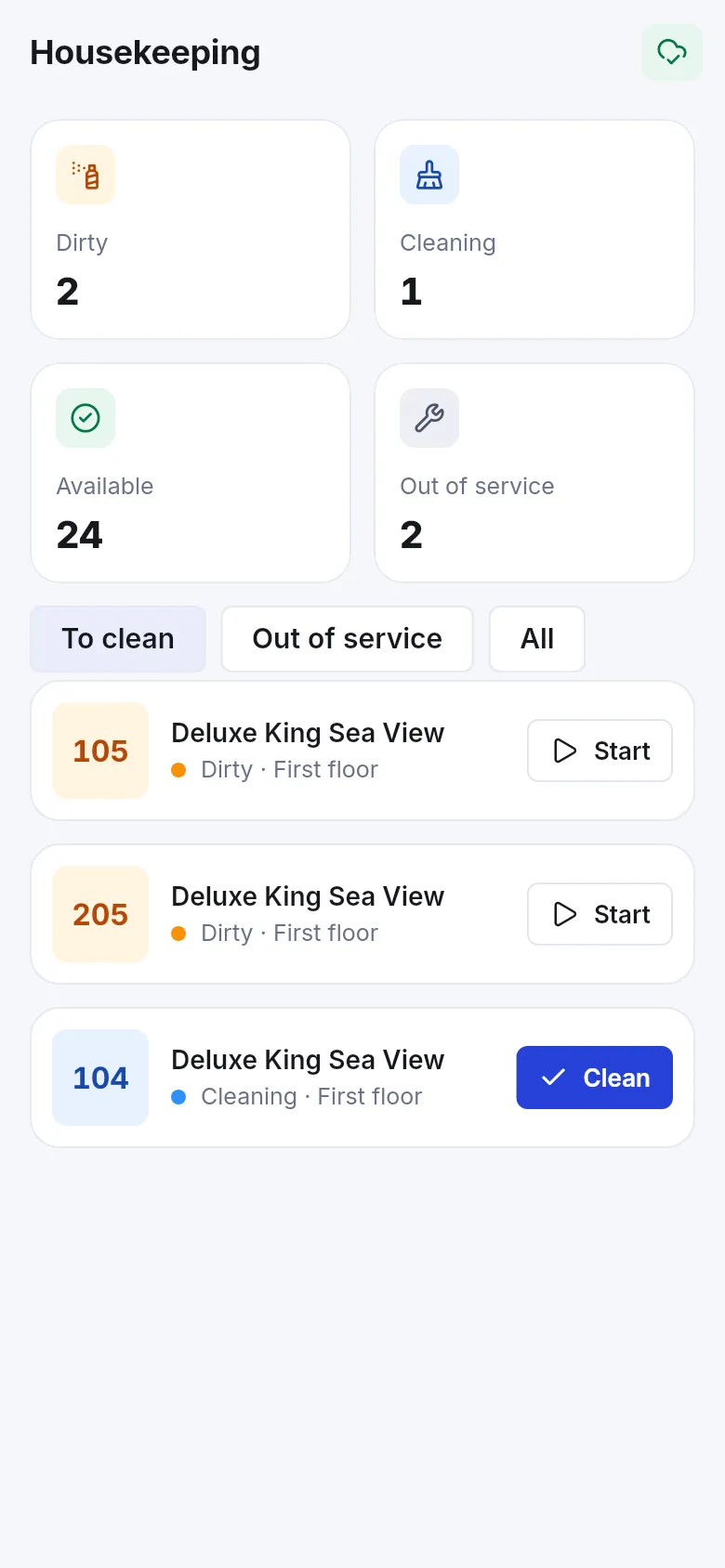
Section titled “The housekeeping routine”- Housekeepers open Hotel (HMS) › Housekeeping (or Hotel › Housekeeping in the SmartPOS Business app).
- Filter to Dirty to see the rooms to clean.
- Tap ⋮ on a room and choose Cleaning when starting.
- When finished, set it to Available, or to Inspected if a supervisor checks rooms first.
- Rooms needing repairs go to Maintenance or Out of order.
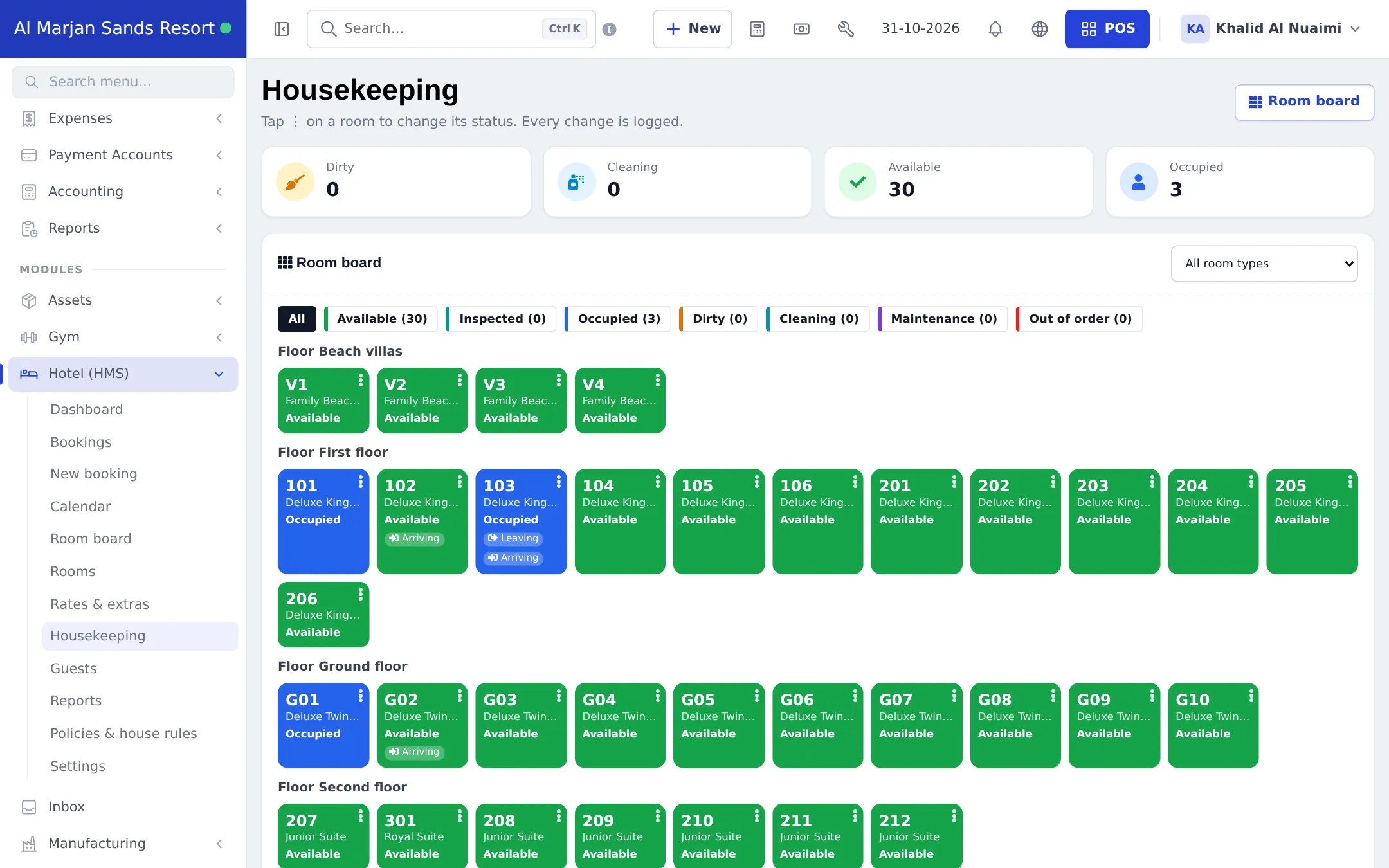
Below the board, the Status log records every change with who made it.
Tips and mistakes to avoid
Section titled “Tips and mistakes to avoid”- Clean arriving-today rooms first; the board marks them.
- Give each housekeeper their own login so the status log shows who cleaned which room.
- Use Out of order until for repairs so the room comes back automatically.
Next step
Section titled “Next step”Frequently asked questions
What do the room colours mean?
The board shows vacant clean, inspected, vacant dirty, being cleaned, occupied with nights left, arriving today, departing today, reserved and out of order. The counters at the top double as filters.
Can housekeepers change a room that has a guest in it?
No. Rooms with a guest in house are protected, so a cleaner can't mark an occupied room as available by mistake.
Is every status change recorded?
Yes. The Status log on the Housekeeping page lists each change with the date, room, from and to status, note and who changed it.
How do I show the room board on a big screen?
Click Front desk screen on the Room board. It opens a full-screen board for one location and floor that refreshes by itself. Settings › Screens & displays also lists a link per floor.
Which permission does a housekeeper need?
Only Hotel: housekeeping (change room status). Give housekeepers a role with just that permission.