
Hotel step 2: floors, room types and rooms
Rooms are set up in three layers: floors (how the room board is grouped), room types (what you sell and its price) and rooms (the physical doors). Everything lives under Hotel (HMS) › Rooms, which has tabs for Rooms, Room types, Floors and Amenities.
Before you start
Section titled “Before you start”- Hotel Management (HMS) is on and the hotel location is set (step 1).
- Your role has Hotel: manage rooms, room types & amenities.
- Have a list of room types with prices, maximum guests and room numbers per floor.
1. Add your floors
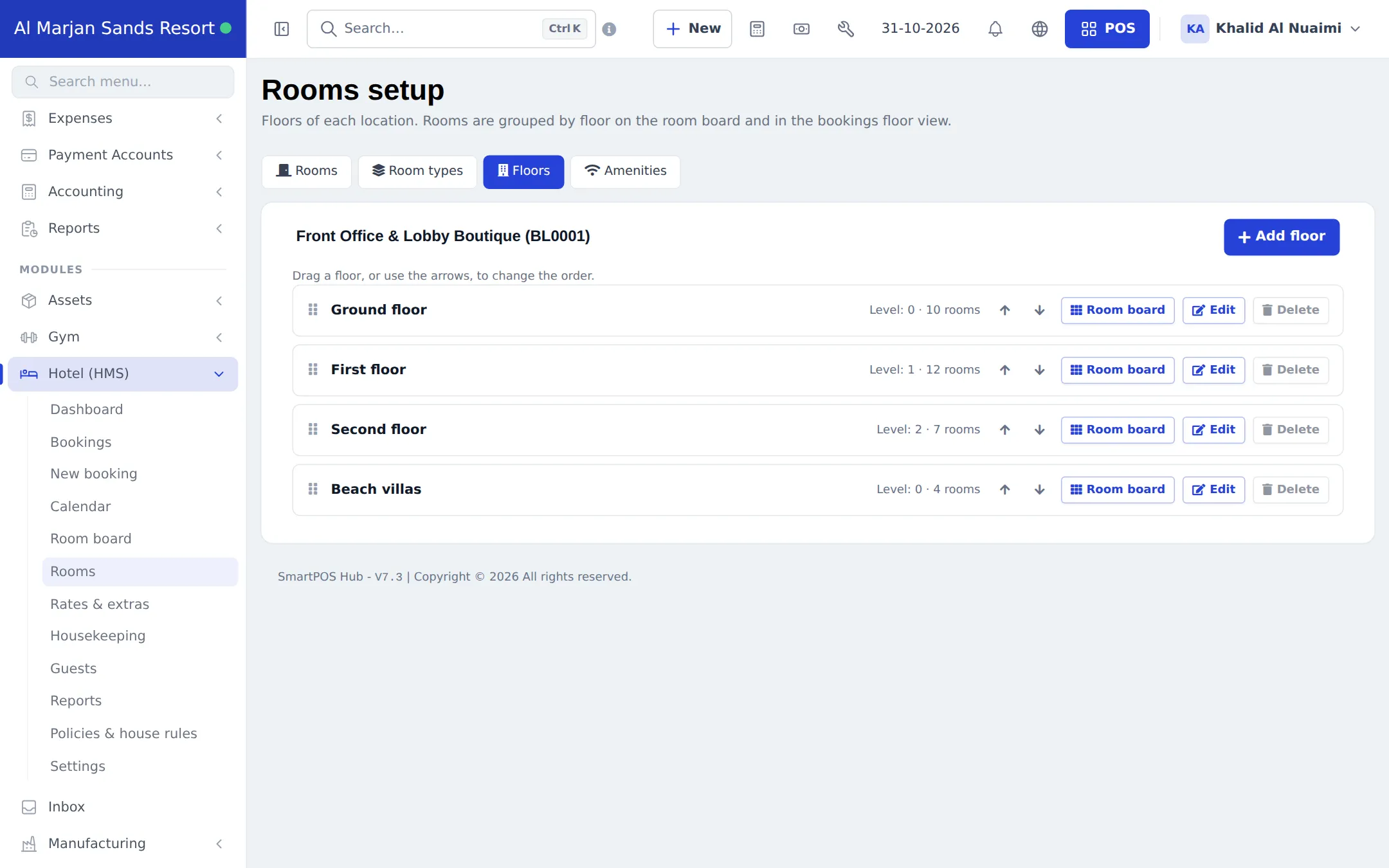
Section titled “1. Add your floors”- Open Hotel (HMS) › Rooms and click the Floors tab.
- Click Add floor, enter the name (Ground floor, First floor, Beach villas) and its level, and save.
- Drag a floor, or use the arrows, to change the order. The room board shows floors in this order.
2. Create room types
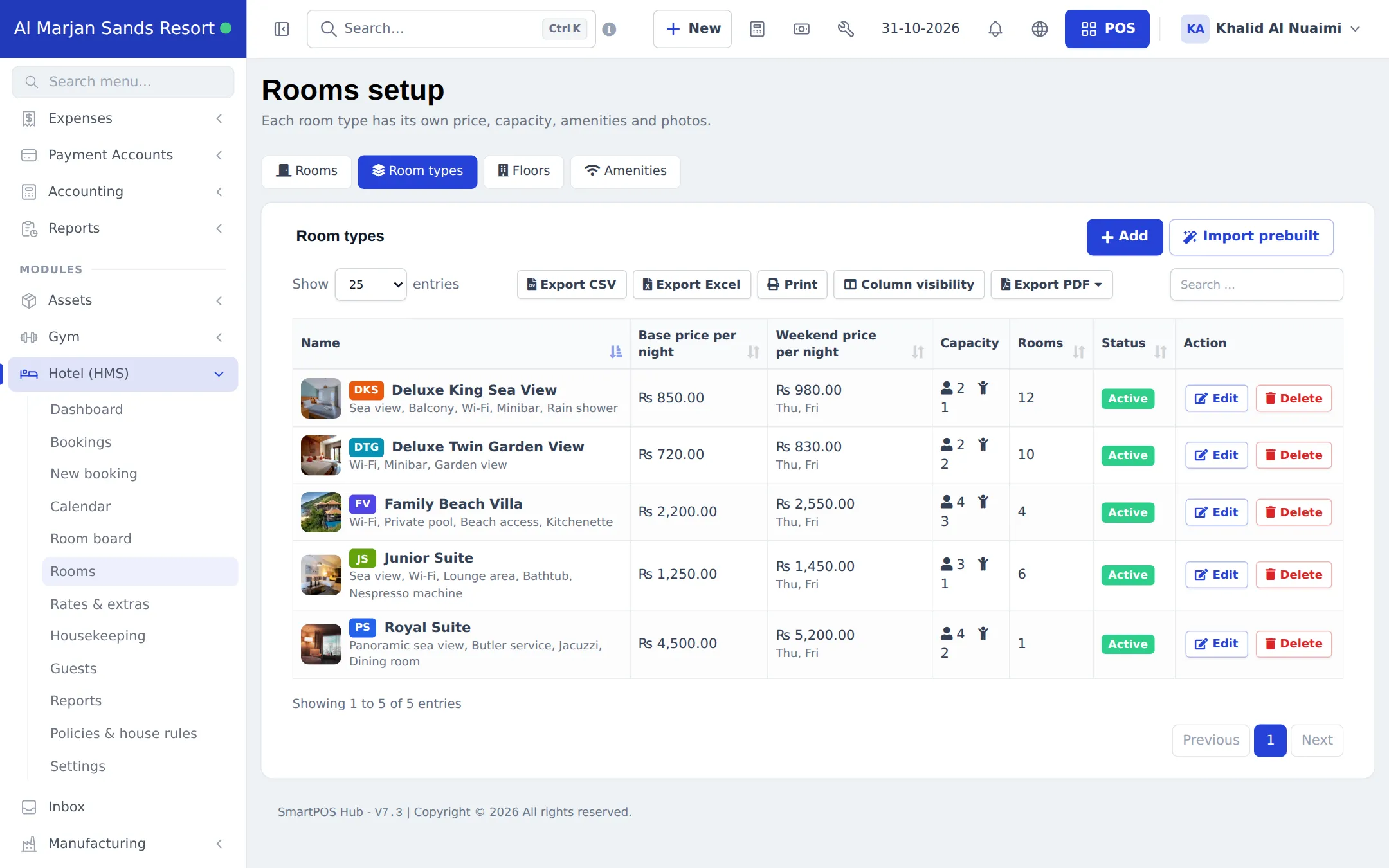
Section titled “2. Create room types”- Click the Room types tab, then Add (or Import prebuilt to start from examples).
- Enter the name and a Short code (DKS, JS). The code shows on room tiles.
- Set the Base price per night, Weekend price per night and Weekend days.
- Set Max adults, Max children, the Extra bed price / night and how many extra beds are allowed.
- Tick the Amenities (sea view, balcony, minibar). Add your own on the Amenities tab.
- Drop photos onto the uploader, drag them into order and pick a cover. Save.
3. Add the rooms
Section titled “3. Add the rooms”For one room, click Add on the Rooms tab and enter the room number, type, floor and location. For a run of rooms, use bulk add:
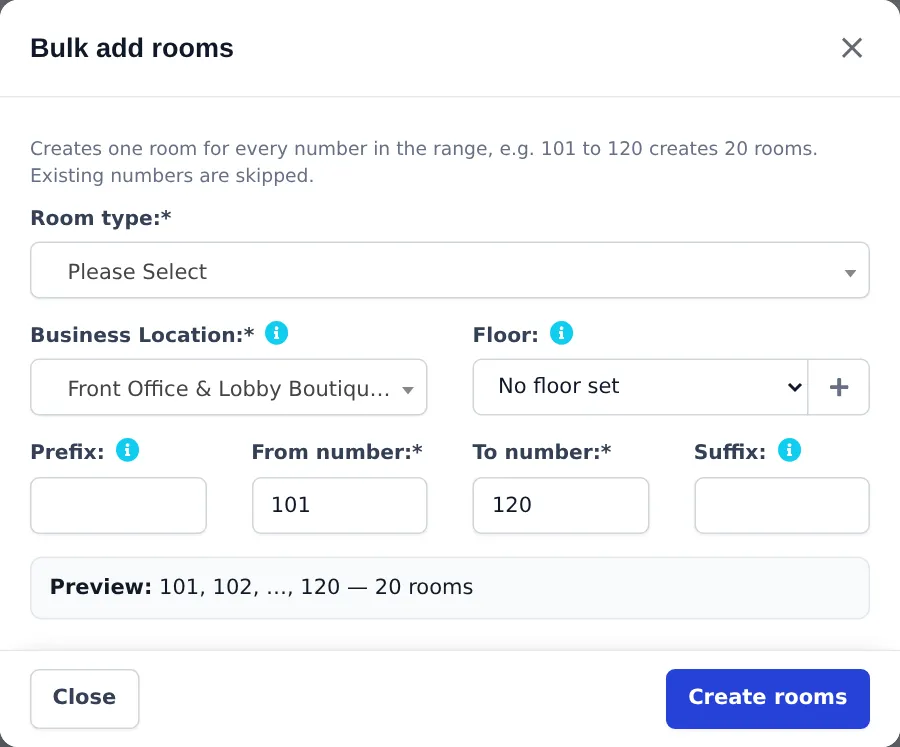
- On the Rooms tab, click Bulk add rooms.
- Pick the Room type, Business Location and Floor.
- Enter From number and To number (for example 101 and 120), and an optional Prefix or Suffix.
- Check the Preview (101, 102, …, 120 — 20 rooms) and click Create rooms.
New rooms start as Available. The statuses you will see later are Available, Inspected, Occupied, Dirty, Cleaning, Maintenance and Out of order.
Tips and mistakes to avoid
Section titled “Tips and mistakes to avoid”- Every room needs a location. A booking can only hold rooms of one location.
- Use clear short codes. Housekeepers read them on small phone tiles.
- Don’t delete a room type that has bookings. Set it inactive instead, so old bookings keep their history.
- Use the filters on the Rooms list (location, floor, type, status) and its bulk actions to change many rooms at once.
Next step
Section titled “Next step”Frequently asked questions
What is the difference between a room type and a room?
A room type is what you sell, such as Deluxe King Sea View, with its price, capacity, amenities and photos. A room is the physical door, such as 204, that belongs to one room type, one floor and one location.
Can I import ready-made room types?
Yes. Room types and Extras both have an Import prebuilt button with common hotel examples. Change the names and prices to yours afterwards.
How do weekend prices work?
Each room type has a base price and a weekend price per night, plus the weekend days it applies to (for example Thursday and Friday). Nights that fall on those days use the weekend price.
Can I add 30 rooms at once?
Yes. Bulk add rooms creates one room for every number in a range, with an optional prefix and suffix, on the floor and location you choose. Numbers that already exist are skipped.
How do I take a room out of service for repairs?
Open the room on the Room board and mark it Out of order with a reason and an Out of order until date. It is blocked for bookings and comes back by itself after that date.
Can I add several photos per room type?
Yes. Drag photos onto the uploader in the room type form, drag them into order and choose a cover. The cover shows next to the room type in the Room types list.