
Jewelry store step 5: custom orders and engraving
Custom rings, name pendants and engraved bands are high-margin work, but only if the details are right: size, metal, stone, the exact engraving text and the date the customer needs it. Order options & personalisation asks those questions at the till, adds the price of each choice and follows the order until pickup.
Before you start
Section titled “Before you start”- The module is on (step 1).
- Products for custom work exist, for example “Custom Ring (made to order)” and “Engraving service”, in a category such as Personalisation.
1. Import the jewelry forms
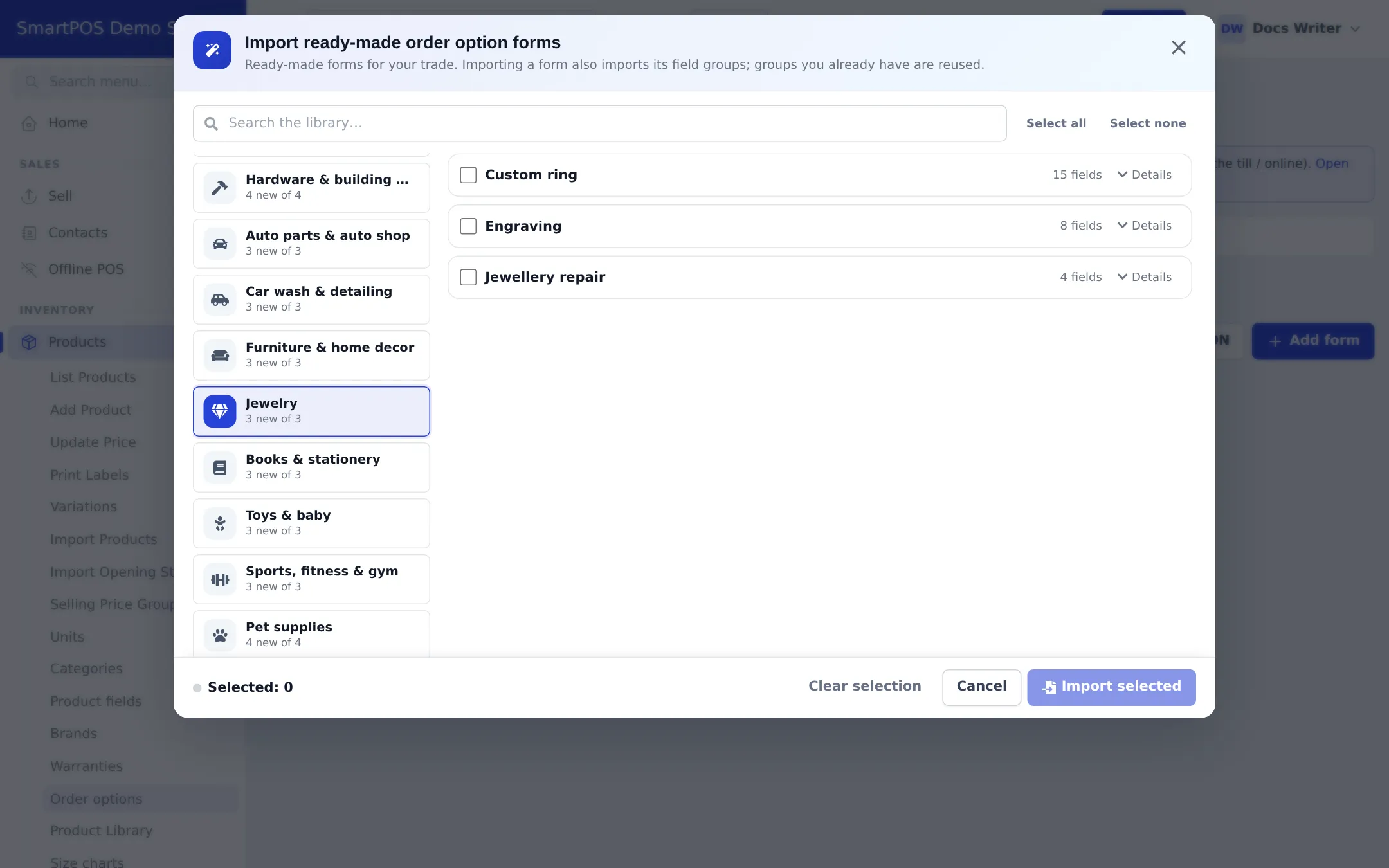
Section titled “1. Import the jewelry forms”- Open Products › Order options and click Import prebuilt.
- Pick Jewelry. Three forms are ready: Custom ring (15 fields), Engraving (8 fields) and Jewellery repair (4 fields). Click Details to see every field and price.
- Tick the forms and click Import selected. Their field groups (Ring size, Metal and stone, Engraving, Certificate and valuation, Gift wrap, Due date) come with them.
2. Adjust prices and attach the forms
Section titled “2. Adjust prices and attach the forms”- Open the Custom ring form on the Forms tab. Change the prices of metals and stones to yours (for example white gold, platinum, diamond), mark Ring size and Due date as required, and choose which answers print on the invoice and the work ticket.
- Open Where they apply › Attach to products and attach Custom ring to your made-to-order ring product (or a category), and Engraving to engravable items or an engraving service.
3. Take a custom order at the till
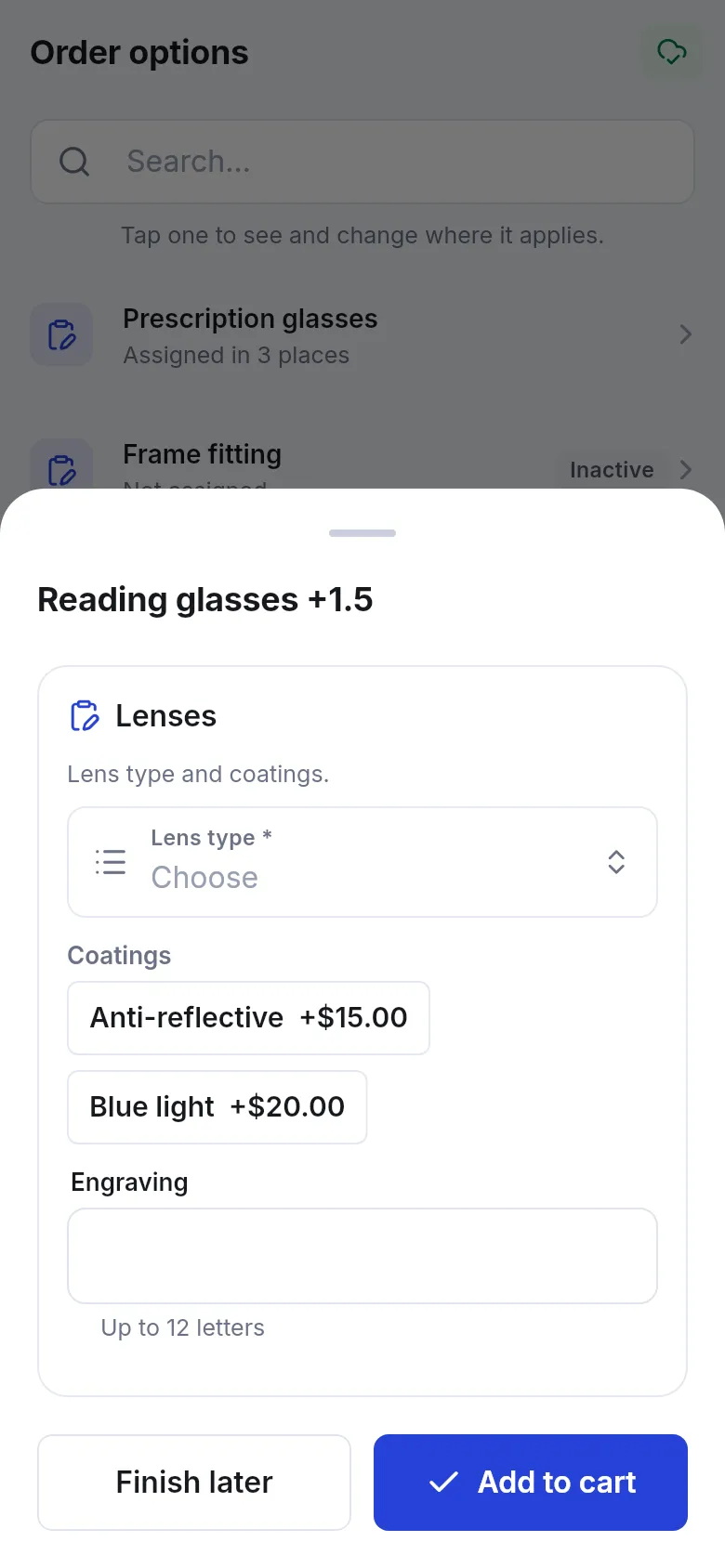
Section titled “3. Take a custom order at the till”- In the POS, select the customer and add the custom product. The order options window opens.
- Fill in the details. Required fields are checked as you go and the price add-on updates live.
- Tick Save on the customer for next time to keep the ring size; next time use Use saved.
- Click Save details. The cart line shows a summary and the add-on.
- Take the deposit as a part payment (step 6) or pay in full. If the customer will confirm the design later, click Finish later and save the sale as a draft, quotation or sales order.
4. Track the work until pickup
Section titled “4. Track the work until pickup”- Open Sell › Personalised orders. The cards count Open, Overdue, Due today, Ready and Details missing.
- Print the Work ticket for the goldsmith.
- Move each line through its statuses (for example Design review, Awaiting customer approval, In production, Quality check, Ready, Collected).
- When the customer collects, take the remaining balance on the sale with Add payment.
Full reference: Order options module.
Frequently asked questions
What does the ready-made Custom ring form ask?
Ring size, engraving text, font and position, metal (with a price per metal), stone and stone size (with prices), finish, a certificate of authenticity and an insurance valuation (each with a price), gift wrap and a due date.
Are the option prices added to the sale?
Yes. The price of each choice is added to the line's price before tax, so the total, tax, receipt and any later return include it.
Can I take a deposit on a custom order?
Yes. Save the sale with a part payment as the deposit, or save it as a sales order and record the payment. The rest is collected at pickup.
How do I know which custom pieces are due this week?
Sell › Personalised orders shows Open, Overdue, Due today, Ready and Details missing, with a filter by due date.
Can I print a job card for the workshop?
Yes. Each personalised line has a Work ticket with the customer's choices for the goldsmith.
Can I keep a customer's ring size for next time?
Yes, if the field group saves to the customer profile. Next time click Use saved at the till.