
Gym step 8: online memberships and reminders
Let people join or renew at midnight instead of queuing at the desk. This page switches on online memberships that start once paid, shows what members see in the SmartPOS Shopper app, and turns on expiry reminders. It is for the owner.
Before you start
Section titled “Before you start”- A card gateway or an offline method (bank transfer) is set up in Settings › Payments (Payments hub).
- Your store is visible in the Shopper app (Shopper app for your store), or customers use the customer portal.
Set the online membership rule
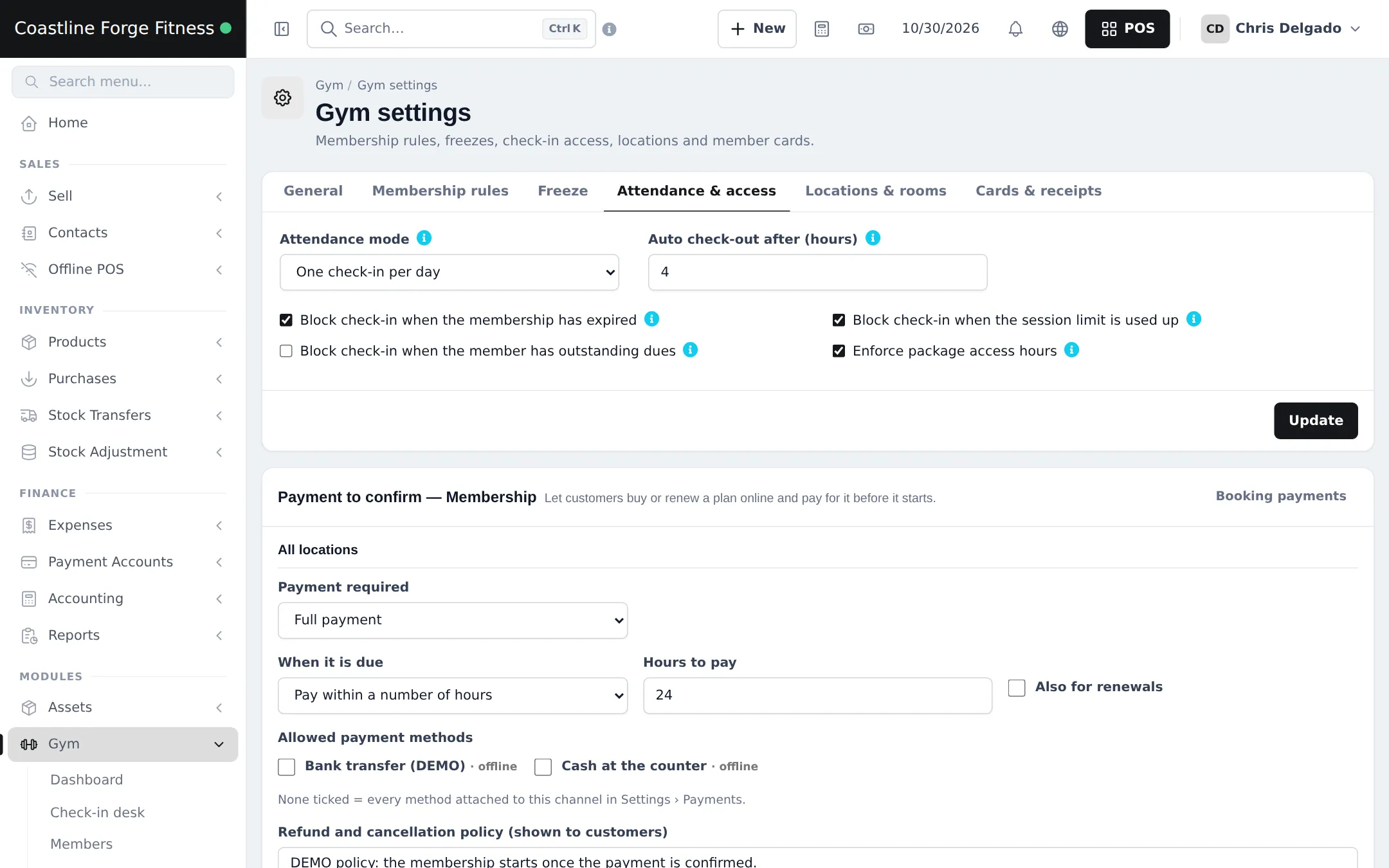
Section titled “Set the online membership rule”- Open Gym › Settings and scroll to Payment to confirm — Membership.
- Set Payment required to Full payment (or a deposit).
- Under When it is due, choose Pay within a number of hours and enter Hours to pay, for example 24.
- Tick Also for renewals if members may renew online.
- Tick the Allowed payment methods (none ticked = every method attached to memberships in Settings › Payments).
- Write the Refund and cancellation policy (shown to customers) and save.
What members see
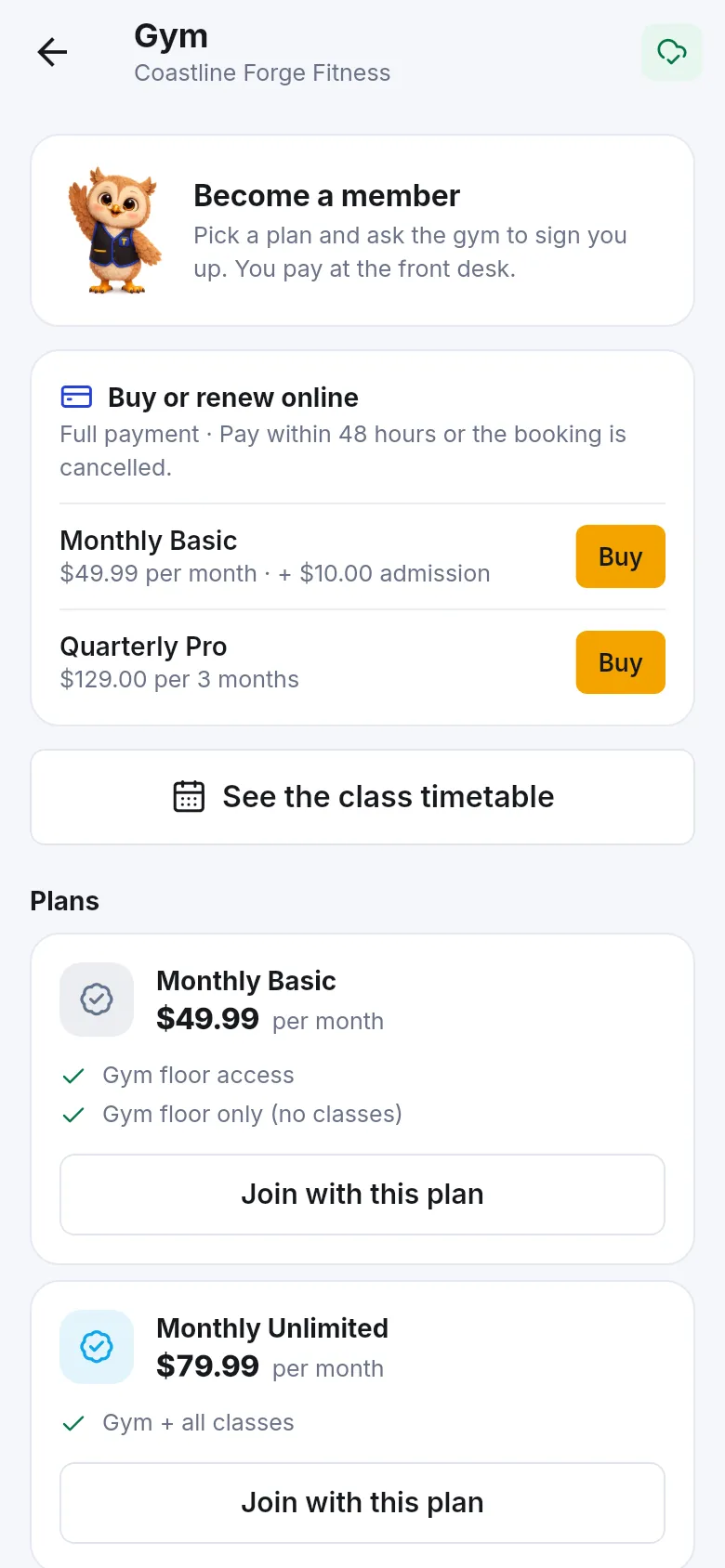
Section titled “What members see”In the SmartPOS Shopper app (Google Play), your gym page shows Become a member, Buy or renew online with your payment rule, your plans with Buy or Join with this plan, and See the class timetable. The customer portal has the same Buy or renew a plan online option.
Follow online payments
Section titled “Follow online payments”New online memberships wait as pending payment. Follow them in Settings › Booking payments, approve bank receipts in Receipts to review, or use Mark as paid when the member paid at the desk. Once paid, the membership becomes Active and its sale and payment are recorded like a desk sale. More: Booking payments.
Expiry reminders
Section titled “Expiry reminders”- Set the Expiry reminder window (days) in Gym › Settings › Membership rules, for example 7.
- Open Notification Templates, find Gym: membership expiry reminder, check the text and turn on auto-send.
- Make sure email is set up for your business. Each membership gets the reminder once.
The dashboard’s Expiring in 7 days card and the Expiring & expired report (with Renew links) let the front desk call members too.
Frequently asked questions
How do members buy a plan online?
Turn on a Payment to confirm rule for memberships in Gym › Settings. Members then see Buy or renew online in the SmartPOS Shopper app and the customer portal, pick a plan and pay.
When does an online membership start?
The membership waits as pending payment. Once the payment succeeds, or you approve an uploaded bank receipt, it becomes active and the member is active.
What if the member never pays?
The hold expires at the deadline you set (for example 24 hours) and the pending membership is cancelled. Nothing is charged.
Can renewals be paid online too?
Yes, when Also for renewals is ticked on the membership rule.
How do expiry reminders work?
In Notification Templates, turn on auto-send for Gym: membership expiry reminder. Each membership gets one email when it enters the expiry window set in Gym settings, if email is set up for your business.
Can members see the class timetable in the app?
Yes. The gym page in the SmartPOS Shopper app has See the class timetable next to the plans.