
Hotel step 1: locations, modules and hotel settings
In this step you give the property its business locations, switch on the Hotel Management (HMS) module and fill in the hotel settings every booking uses: booking numbers, default check-in and check-out times, the room tax and which locations rent rooms.
Before you start
Section titled “Before you start”- Your business name, currency, time zone and logo are set (Business settings).
- You know your room tax. Add it in Settings › Tax Rates first.
Create your locations
Section titled “Create your locations”A typical resort uses one location per place where money is taken:
| Location | Used for |
|---|---|
| Front Office & lobby | Room bookings, deposits, check-out, a small lobby shop |
| Restaurant | The restaurant POS, tables and kitchen display |
| Spa | Spa appointments and retail |
| Store / back office | Stock for housekeeping and minibar supplies |
- Open Settings › Business Locations and click Add.
- Enter the name, address and Location ID, and pick the invoice scheme and receipt layouts.
- Save, then repeat for every outlet.
Full details: Add multiple locations.
Switch on the hotel module
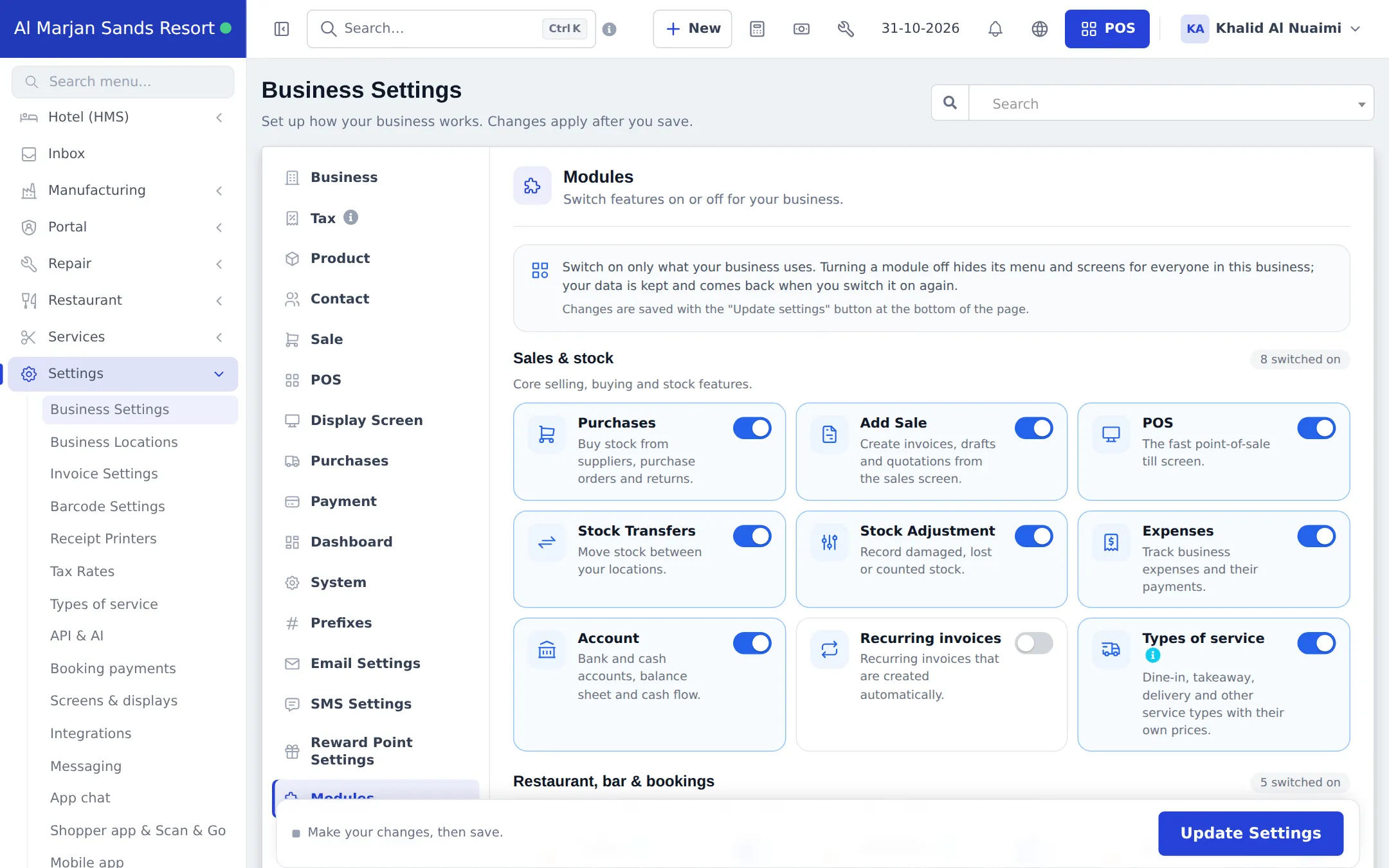
Section titled “Switch on the hotel module”- Open Settings › Business Settings and click the Modules tab.
- Turn on Hotel Management (HMS). If you will keep your books in SmartPOS Hub, also turn on Accounting & Bookkeeping.
- Click Update Settings. The Hotel (HMS) menu appears in the sidebar.
Fill in the hotel settings
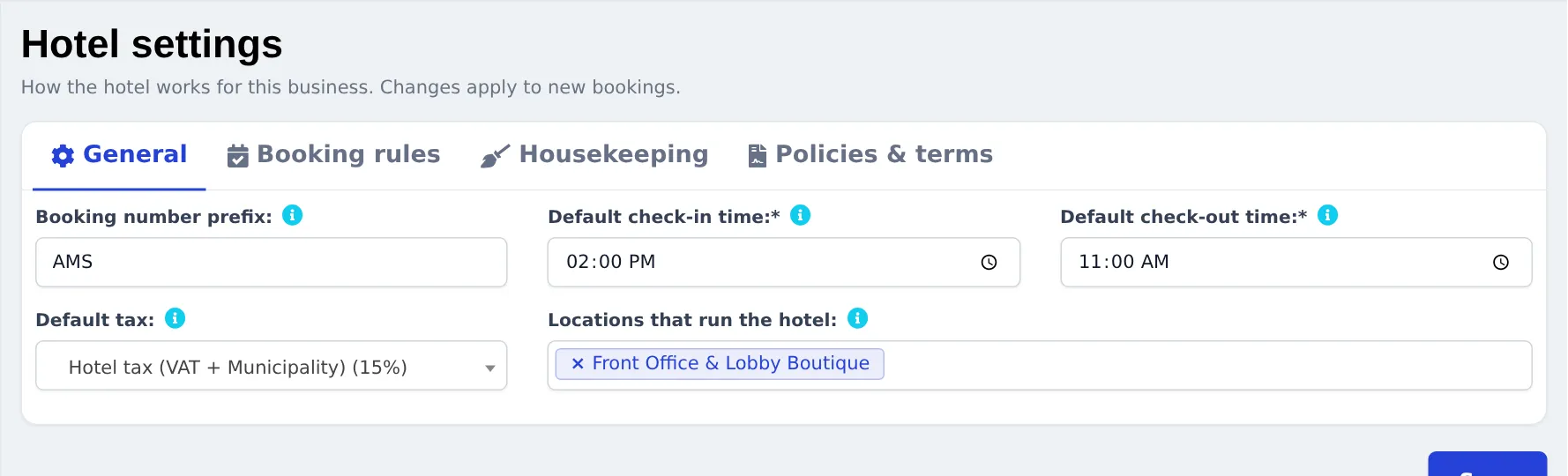
Section titled “Fill in the hotel settings”- Open Hotel (HMS) › Settings. You start on the General tab.
- Enter a short Booking number prefix.
- Set the Default check-in time and Default check-out time (for example 02:00 PM and 11:00 AM).
- Choose the Default tax for room charges.
- Under Locations that run the hotel, pick the location(s) that rent rooms, usually the front office.
- Click Save.
- Open the Booking rules tab: set the child age limit, Deposit required to confirm (a percentage, 0 = none), weekend days, same-day turnover and whether overbooking is allowed (off is safest). Save.
- On the Housekeeping tab, decide whether rooms become dirty automatically after check-out. On Policies & terms, enter the cancellation policy and the terms printed on invoices and confirmations. Save each tab.
Give staff their access
Section titled “Give staff their access”In User Management › Roles, create a Front desk role with the Hotel permissions for the dashboard, bookings, check-in, check-out and booking payments, and a Housekeeping role with only Hotel: housekeeping (change room status). Then add each person as a user (Users and roles). The full permission list is in the Hotel module reference.
Tips and mistakes to avoid
Section titled “Tips and mistakes to avoid”- Pick the right currency and time zone before you take the first booking; arrivals and departures follow the business time zone.
- Keep overbooking off unless you deliberately sell more rooms than you have.
- If staff can’t see a page, check the role first: the sidebar only shows hotel pages the role is allowed to open.
Next step
Section titled “Next step”Frequently asked questions
Do I need a separate location for the restaurant and spa?
It is recommended. Each location has its own invoice numbering, receipt layout, cash register and reports, so you can see how the rooms, the restaurant and the spa each perform. The hotel itself runs from the locations you tick in Hotel settings.
Why can't I see the Hotel (HMS) menu?
Either the module is not in your plan, it is switched off in Settings › Business Settings › Modules, or your role has no Hotel permission. Check those three in that order.
Can one account run two hotels?
Yes. Add both properties as locations and tick both under Locations that run the hotel. Each room belongs to one location and a booking can only hold rooms of one location.
What does the booking number prefix do?
It starts every booking number, for example AMS0435. Pick something short that staff recognise, such as the property's initials.
Which tax should be the default?
The tax your rooms are charged with, for example a combined VAT and tourism fee. Create it first in Settings › Tax Rates. You can still change the tax on each booking.