
Florist step 5: delivery orders with card messages
Most flowers are a gift for someone else. A delivery order needs more than the product: the card message, the recipient, the address and the day and time it must arrive. Order options & personalisation asks for all of it at the till (and online), adds any surcharge and lists the orders by due date.
Before you start
Section titled “Before you start”- Your bouquets and arrangements exist (step 3).
- A Delivery product (unit Service, Manage Stock? off) exists if you charge delivery at the till.
1. Import the florist forms
Section titled “1. Import the florist forms”- Open Products › Order options and click Import prebuilt.
- Pick Flowers & gifts. You get Flower delivery (12 fields), Order for collection (6 fields) and Event flowers (5 fields). Click Details to see the fields.
- Tick the forms and click Import selected.
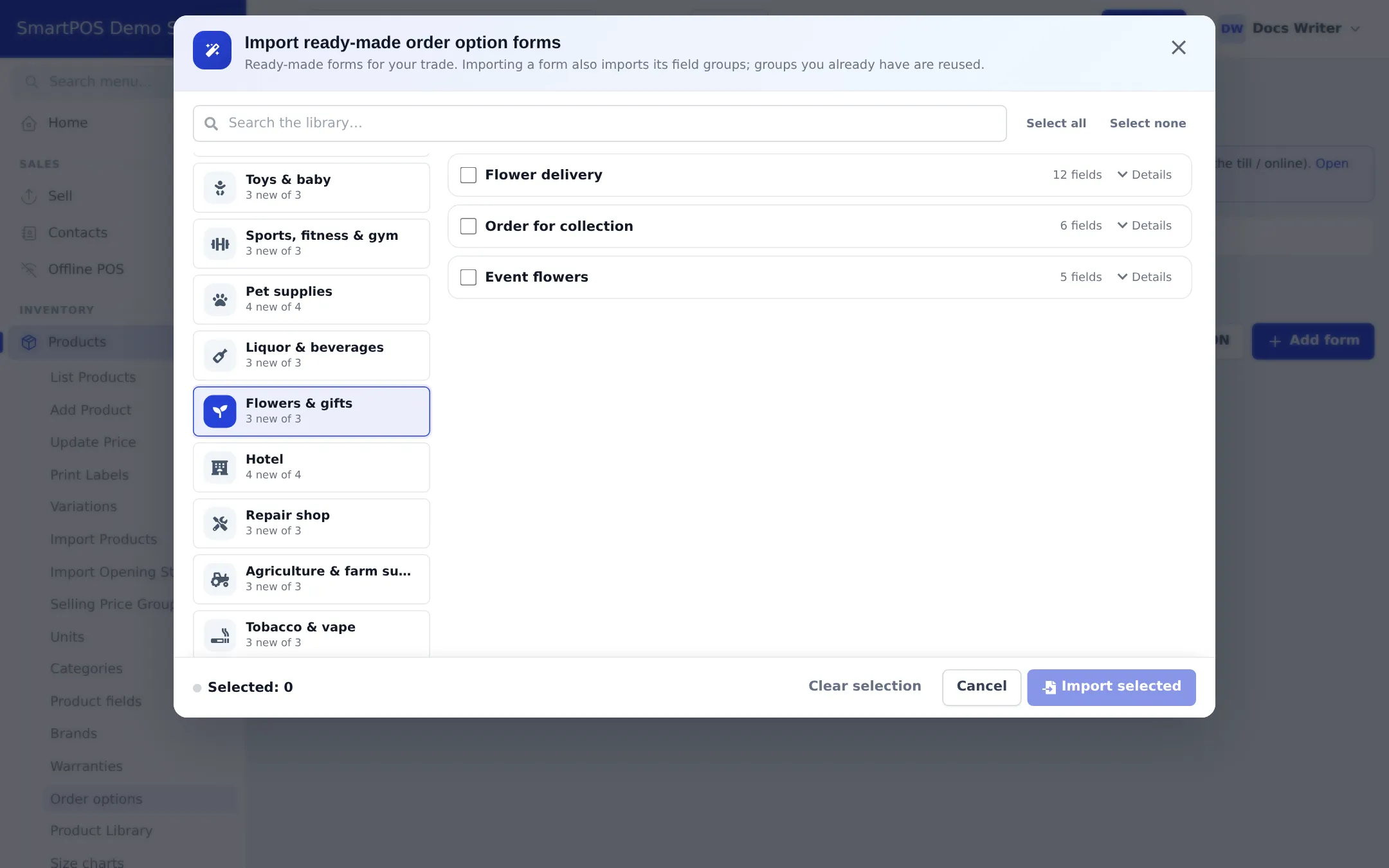
2. Adjust and attach
Section titled “2. Adjust and attach”- Open Flower delivery on the Forms tab. Set your time slots and their surcharges, make Delivery date and the recipient fields required, and choose what prints on the work ticket (card message, recipient, address, slot).
- Use the delivery date as the form’s due date, so orders sort by delivery day.
- Open Where they apply › Attach to products and attach the forms to your bouquet and arrangement categories. Staff choose delivery or collection per order.
3. Take a delivery order
Section titled “3. Take a delivery order”- In Sell › POS, pick the sender as the customer and add the bouquet. The order options window opens.
- Choose the Occasion, type the card message exactly as dictated, then the recipient, address, delivery date and time slot.
- Click Save details. The line shows a summary and any surcharge.
- Add the Delivery charge product if you charge it separately, take payment and print the receipt.
4. Plan and deliver
Section titled “4. Plan and deliver”- Each morning open Sell › Personalised orders and filter by today’s due date. Print the Work tickets for the designers.
- Move each order through its statuses (for example In production, Ready, Out for delivery, Delivered).
- Drivers can update status from the SmartPOS Business app.
If you run your own riders with zones and proof of delivery, or use couriers, see the Shipping & delivery module.
Online delivery orders
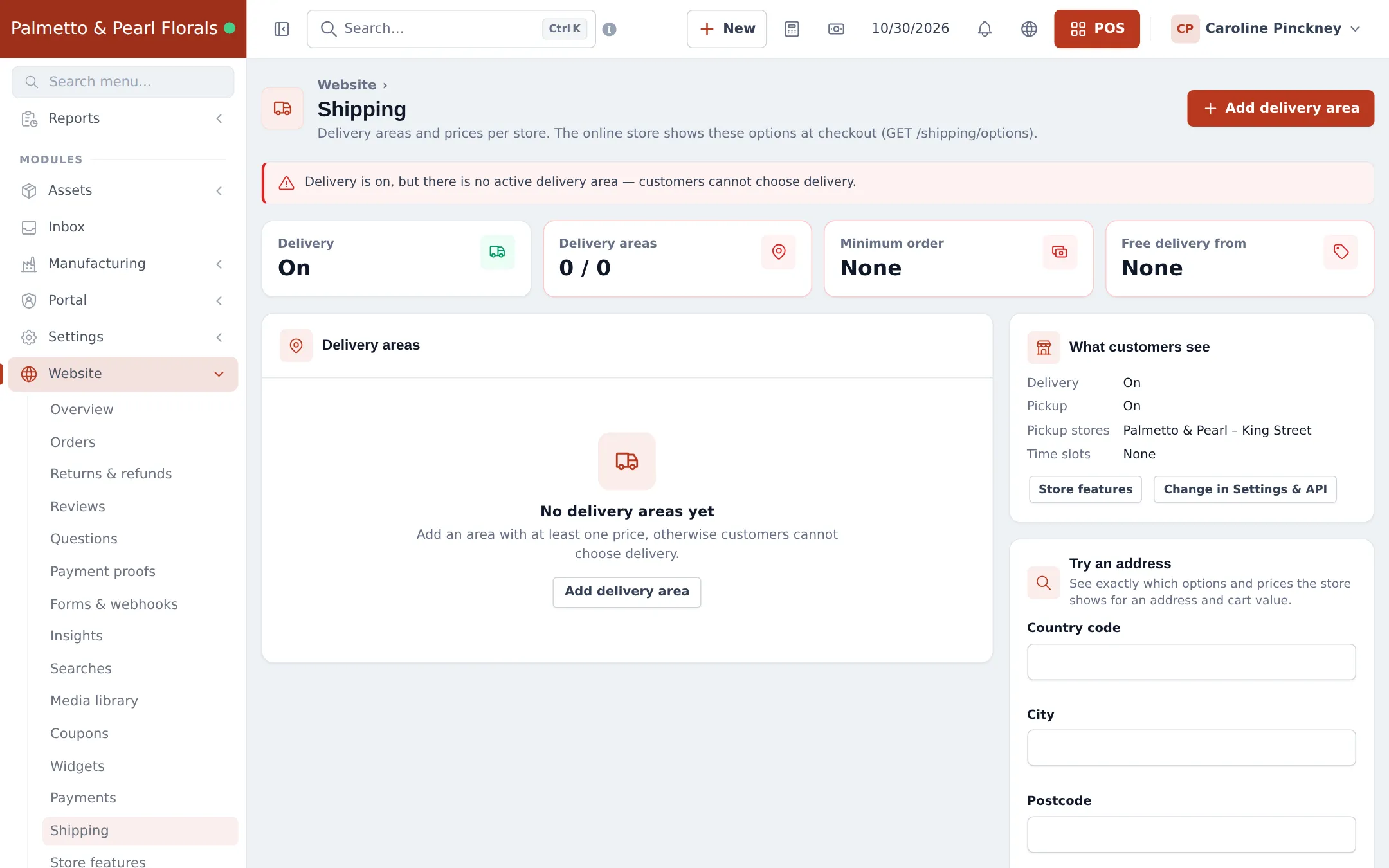
Section titled “Online delivery orders”Online customers choose delivery or pickup at checkout. Set delivery areas and prices in Website › Shipping; without at least one active area, customers can’t choose delivery.
Next: step 6: events and bookings.
Frequently asked questions
What does the ready-made Flower delivery form ask?
The occasion, the card message, who it is from (or send anonymously), the recipient's name and phone, the delivery address and area, the delivery date, a time slot (with an optional surcharge for an exact time) and delivery notes. 12 fields in all.
Can a timed delivery cost more?
Yes. Each time-slot choice can carry a price, for example an exact-time delivery with a surcharge. It is added to the line automatically.
Does the card message print?
You choose per field whether it prints on the invoice and on the work ticket. Print the work ticket for the designer and the card writer.
Where do I see tomorrow's deliveries?
Sell › Personalised orders, filtered by due date. The cards show Open, Overdue, Due today and Ready.
How do I charge for delivery itself?
Add a delivery charge product (no stock) to the sale, or for online orders set delivery areas with prices in Website › Shipping.
The customer orders for pickup. Is there a form for that?
Yes, Order for collection asks for the card message, the pickup date and time and who will collect.