
Jewelry store step 4: tags, certificates and warranties
A diamond ring or a gold set is a unique, high-value item. You want to know exactly which piece was sold to whom, with its certificate, and you want the warranty in writing. This step sets that up.
Before you start
Section titled “Before you start”- Products are added with prices (step 3).
- Warranties are imported or added in Products › Warranties (step 1).
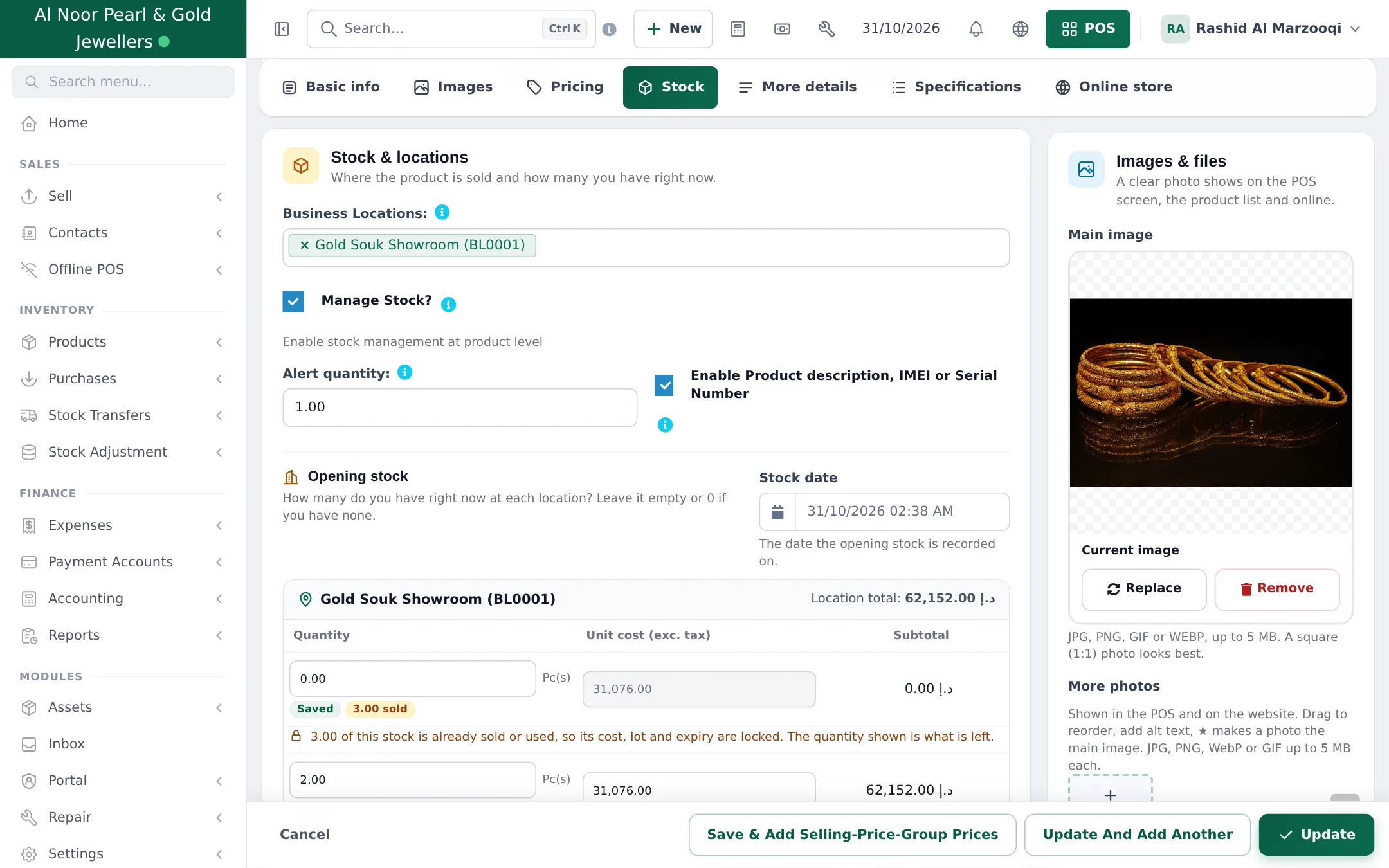
Turn on the tag / serial box
Section titled “Turn on the tag / serial box”- Edit the product and open Stock.
- Keep Manage Stock? ticked and set a low Alert quantity (1 for unique pieces).
- Tick Enable Product description, IMEI or Serial Number.
- Click Update.
Record the tag and certificate when you sell
Section titled “Record the tag and certificate when you sell”- Add the piece to the cart in Sell › POS (scan its tag barcode).
- Each piece is added as its own line. Open the line’s details window and type the tag number in Description and, for diamonds, the certificate lab and number (for example “Tag 01042 · GIA 2214567890”). On Sell › Add Sale the description box sits right under the product name.
- Finish the sale. The text prints under the product on the invoice and stays on the sale for later searches.
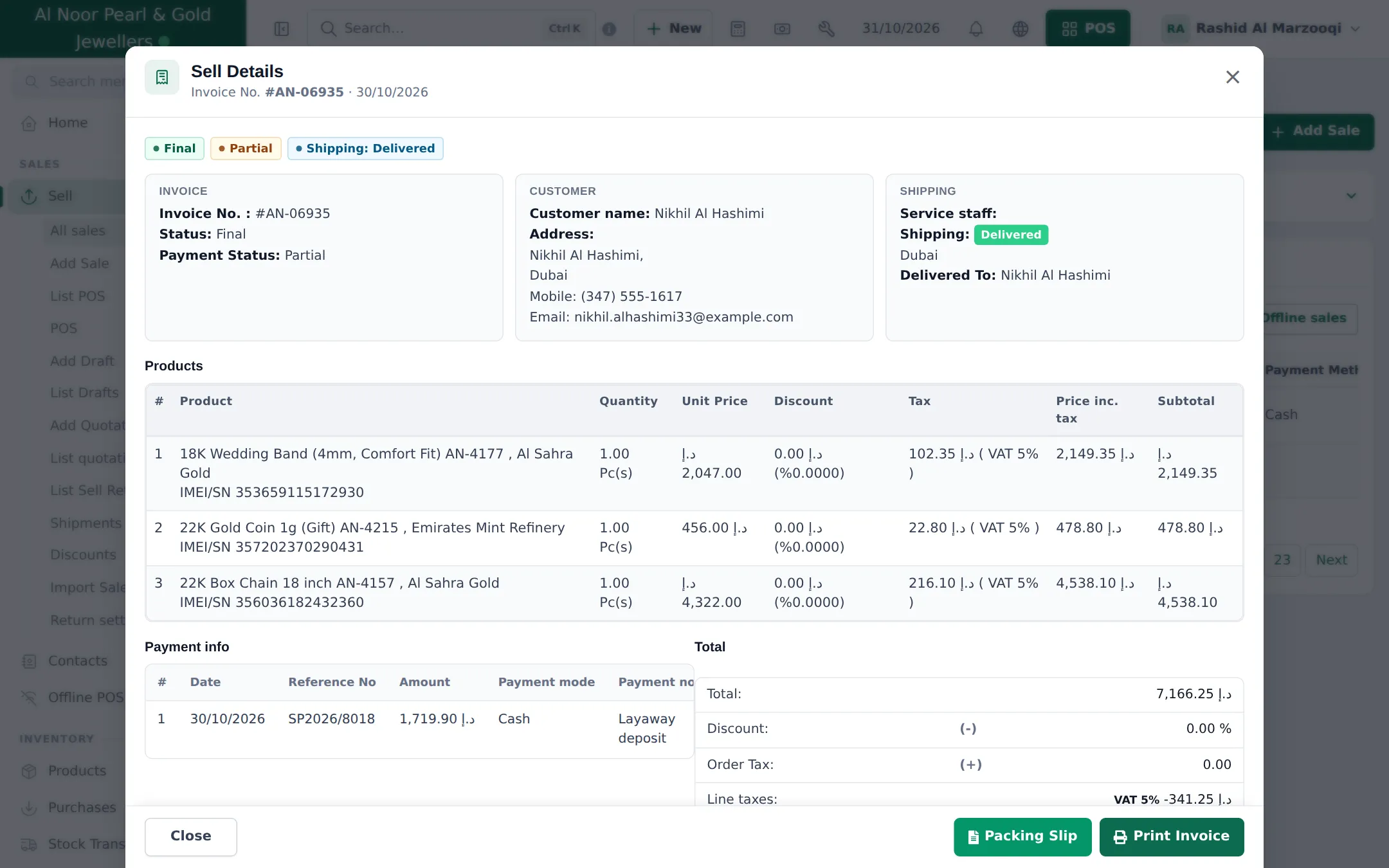
Make sure your invoice layout prints it: tick Show sale description in the layout. See Serials, IMEI and lots.
Warranties
Section titled “Warranties”- On the product, pick the Warranty (for example Lifetime Free Polish & Cleaning for gold, Silver Jewellery 6 Months Warranty for silver).
- Sell as usual. The invoice prints the warranty name and the date it ends.
A jewelry invoice
Section titled “A jewelry invoice”- Open Settings › Invoice Settings, switch to the Invoice Layouts tab and click Import invoice templates.
- Filter by A4 and pick Jewellery invoice: an elegant A4 layout with purity (karat) and weight columns and a certificate note.
- Choose Use for location (your showroom), click Import and confirm.
Details: Invoice designer and Receipts and invoice layouts.
Security for high-value stock
Section titled “Security for high-value stock”- Count daily: a short stock count of the showcase at closing (daily operations).
- Limit adjustments: only managers may record stock adjustments (web adjustments only remove stock).
- Two-step sign-in for owner and manager logins: see Account security.
Frequently asked questions
Where does the tag number go?
On the sale line. With Enable Product description, IMEI or Serial Number ticked on the product, each line in the POS has a box for the tag number, certificate number or a description, and it prints on the invoice.
Can I find which customer bought tag number 01042?
Yes. Search the sales list or the customer's sales for the number, because it is stored with the sale line.
How do I keep one piece per tag in stock?
Give each unique piece its own product (one SKU, stock 1). Identical pieces (for example plain 22K bands of one weight) can share a product with stock above 1.
Does the warranty print on the invoice?
Yes. The warranty attached to the product prints with its end date, calculated from the sale date.
Can I sell a lifetime polishing service?
Yes. Import the Lifetime Free Polish & Cleaning warranty and attach it, or sell an aftercare plan as a service product.
Can I print a valuation or certificate copy?
Print the invoice on the Jewellery invoice template, which has a certificate note. For valuations on demand, the Certificate and valuation order option group collects the request.