
Auto shop step 5: invoice, warranty and history
The last part of a job is the money and the paperwork: an invoice with parts, labour and warranty, the deposit used up, the car handed back, and a history you can look up when the car returns.
Before you start
Section titled “Before you start”- The job is Ready for pickup (step 4).
- The cashier’s role has Convert job sheet to invoice and a POS sale permission.
Convert the job to an invoice
Section titled “Convert the job to an invoice”- Open the job and choose Actions › Convert to invoice.
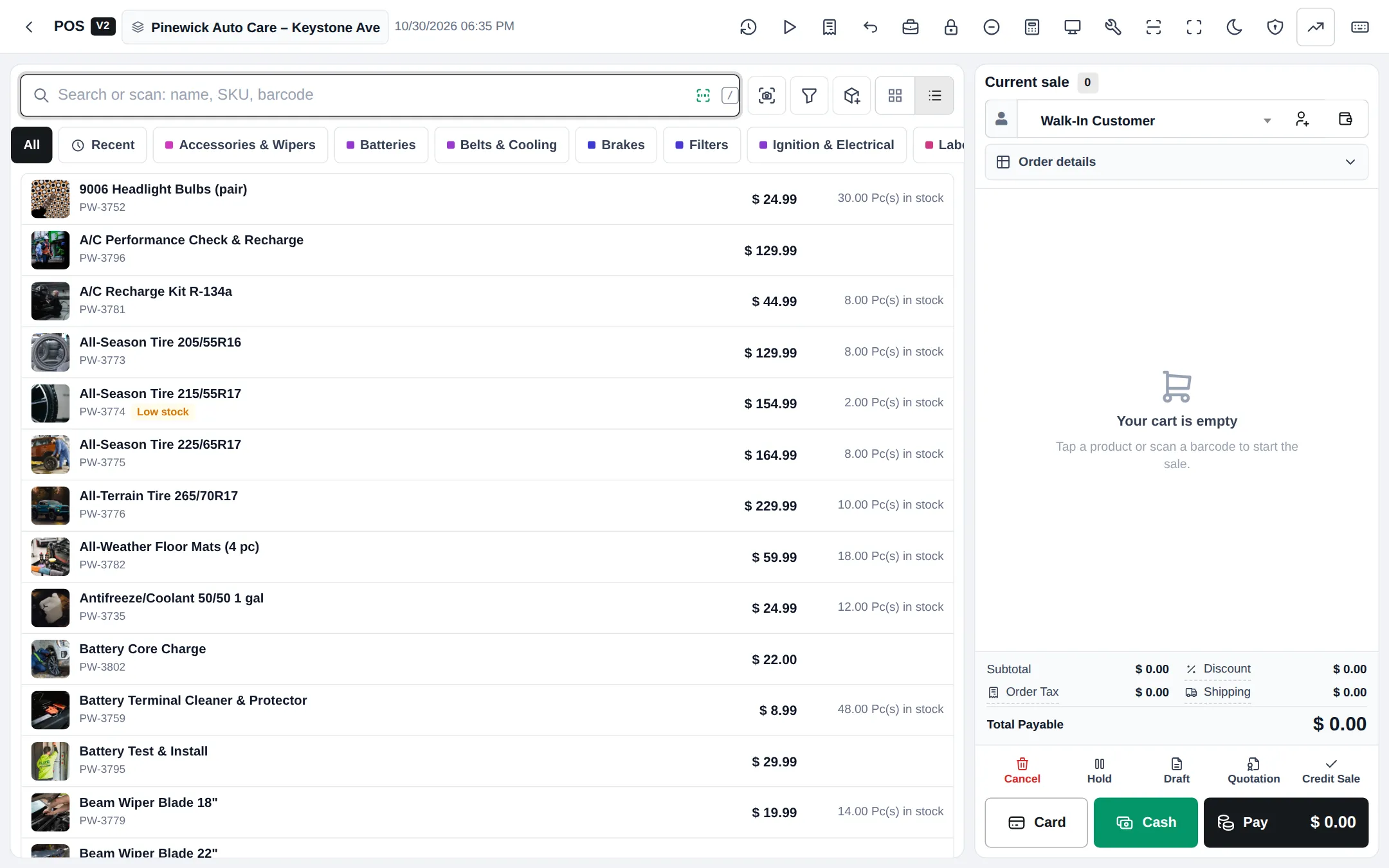
- The POS opens with the customer, every part and labour line and any surcharge. Check quantities and prices.
- Take payment: choose Store credit (advance) for the deposit, then cash or card for the rest. For a fleet account press Credit Sale.
- Save. Parts are taken out of stock now, and the invoice prints the vehicle, VIN, faults and warranty if your invoice layout shows them.
- Back on the job, click Mark as delivered and record who collected the car.
Parts-only and walk-in sales
Section titled “Parts-only and walk-in sales”Customers who only buy parts or a quick service (wipers fitted, bulb replaced) don’t need a job card. Sell them in Sell › POS like any shop sale; add a labour product if you fit the part.
Warranty and comebacks
Section titled “Warranty and comebacks”- Warranties chosen on parts print on the invoice; the job’s warranty covers the work.
- When a car comes back, create a new job and tick Warranty claim / re-repair (comeback). The Comebacks tab of the job list shows them, and Repair › Reports shows the re-repair rate per technician.
- If a part is faulty, return it on the original sale (Sell › All sales › Actions › Sell Return) and fit a new one on the comeback job.
Vehicle history
Section titled “Vehicle history”- Repair › Repair status lookup searches job number, customer phone and name, alternate phone and VIN.
- The job list filters by status, technician, priority and date.
- The customer page shows every sale and payment, including repair invoices.
Tips and mistakes to avoid
Section titled “Tips and mistakes to avoid”- Always convert from the job. A separate sale breaks the link between the car, its parts and its warranty.
- Don’t leave delivered cars in Ready for pickup; the dashboard counts them as waiting.
Next: daily operations.
Frequently asked questions
How do I bill a finished job?
Open the job and choose Actions › Convert to invoice. The POS opens with the customer, the parts and labour and any surcharge already in the cart. Take payment and save.
How is the deposit used?
In the payment window choose Store credit (advance) for the deposit amount and take the rest in cash, card or on account.
Can a fleet customer pay at the end of the month?
Yes. Give them a pay term and credit limit, finish the converted invoice with Credit Sale, and collect later with Add payment.
Where do I see all repair invoices?
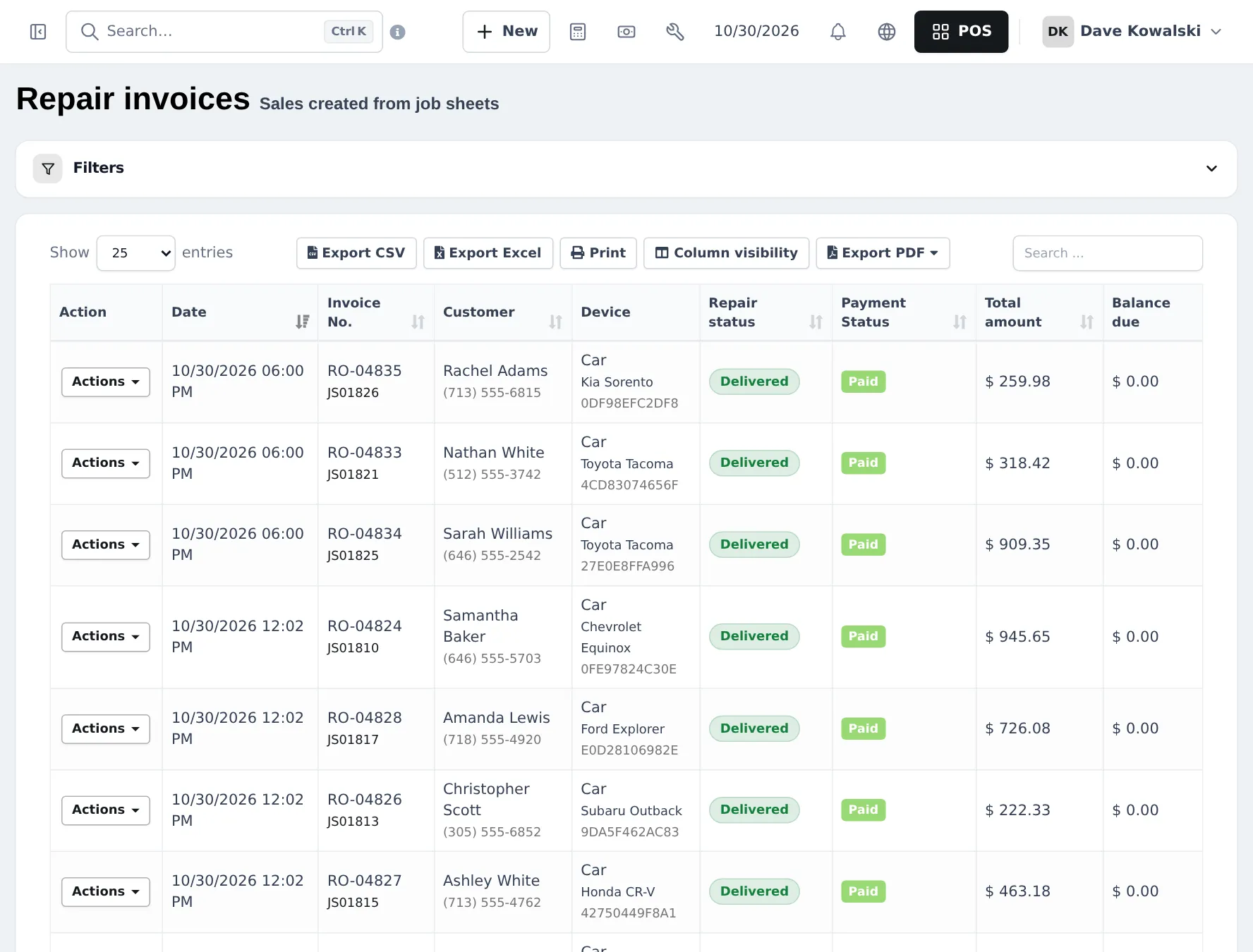
Repair › Repair invoices lists every sale created from a job card with its repair status, payment status and balance due. They also appear in Sell › All sales.
The car came back with the same problem. What do I do?
Book a new job card and tick Warranty claim / re-repair (comeback). It shows in the Comebacks tab and in the re-repair rate in reports. Charge 0 for covered work.
How do I find a car's previous jobs?
Use Repair › Repair status lookup with the job number, customer phone or name, or the VIN, or filter the job sheet list by customer.