
Car wash step 5: fast checkout, tips and clubs
At the pay station, speed is everything: a car should be rung up in a few seconds. This page sets up the POS for that, adds tips, checks out booked work and covers wash clubs and gift cards.
Before you start
Section titled “Before you start”- Packages and add-ons exist (step 2).
- The register is open at the pay station.
Ring up a wash
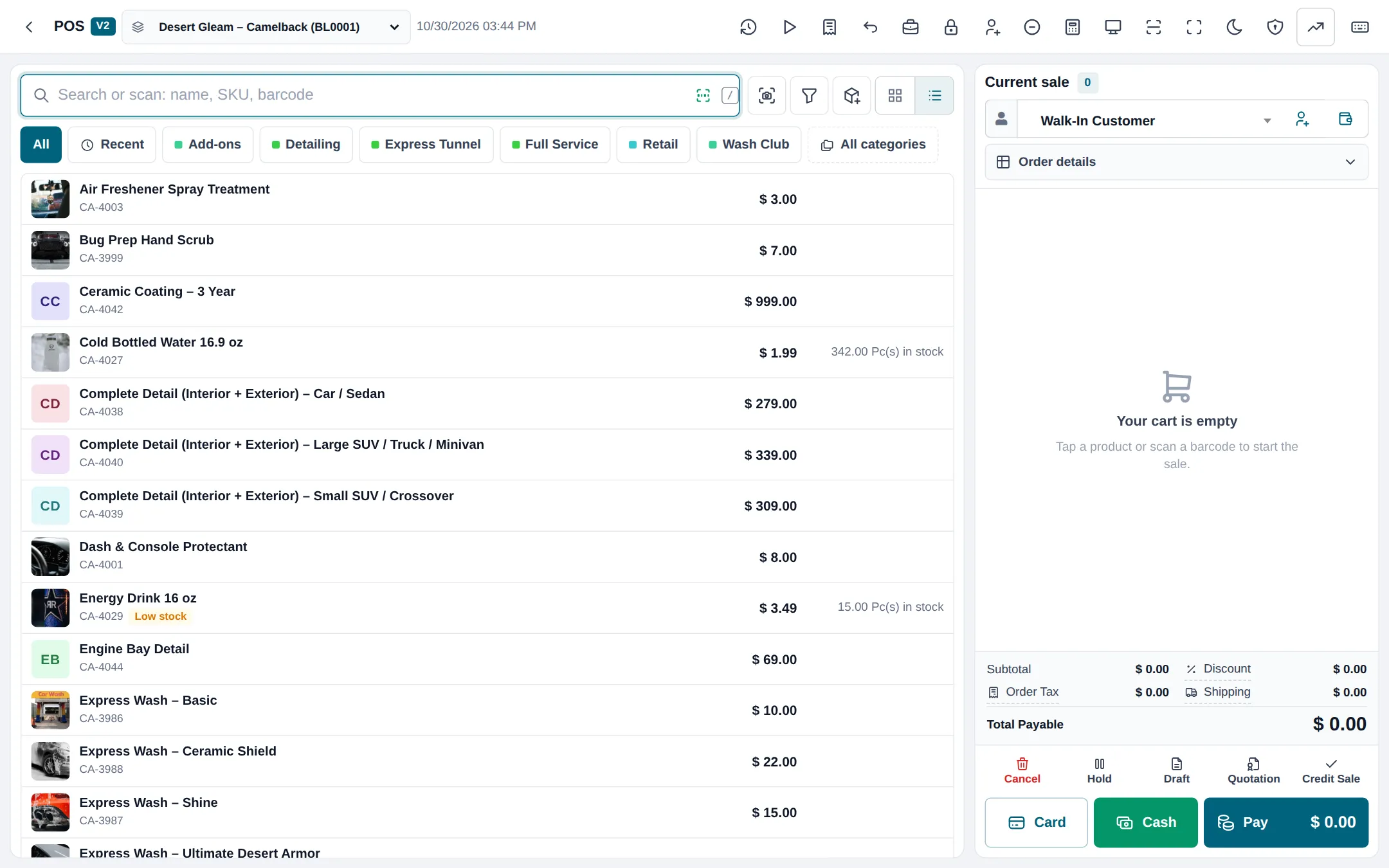
Section titled “Ring up a wash”- Open Sell › POS. Tap the Express Tunnel or Full Service tab.
- Tap the package; for full service choose the vehicle size.
- Add add-ons (tire shine, bug prep) from the Add-ons tab.
- Press Card or Cash for a one-tap payment, or Pay for split payments.
Add a tip
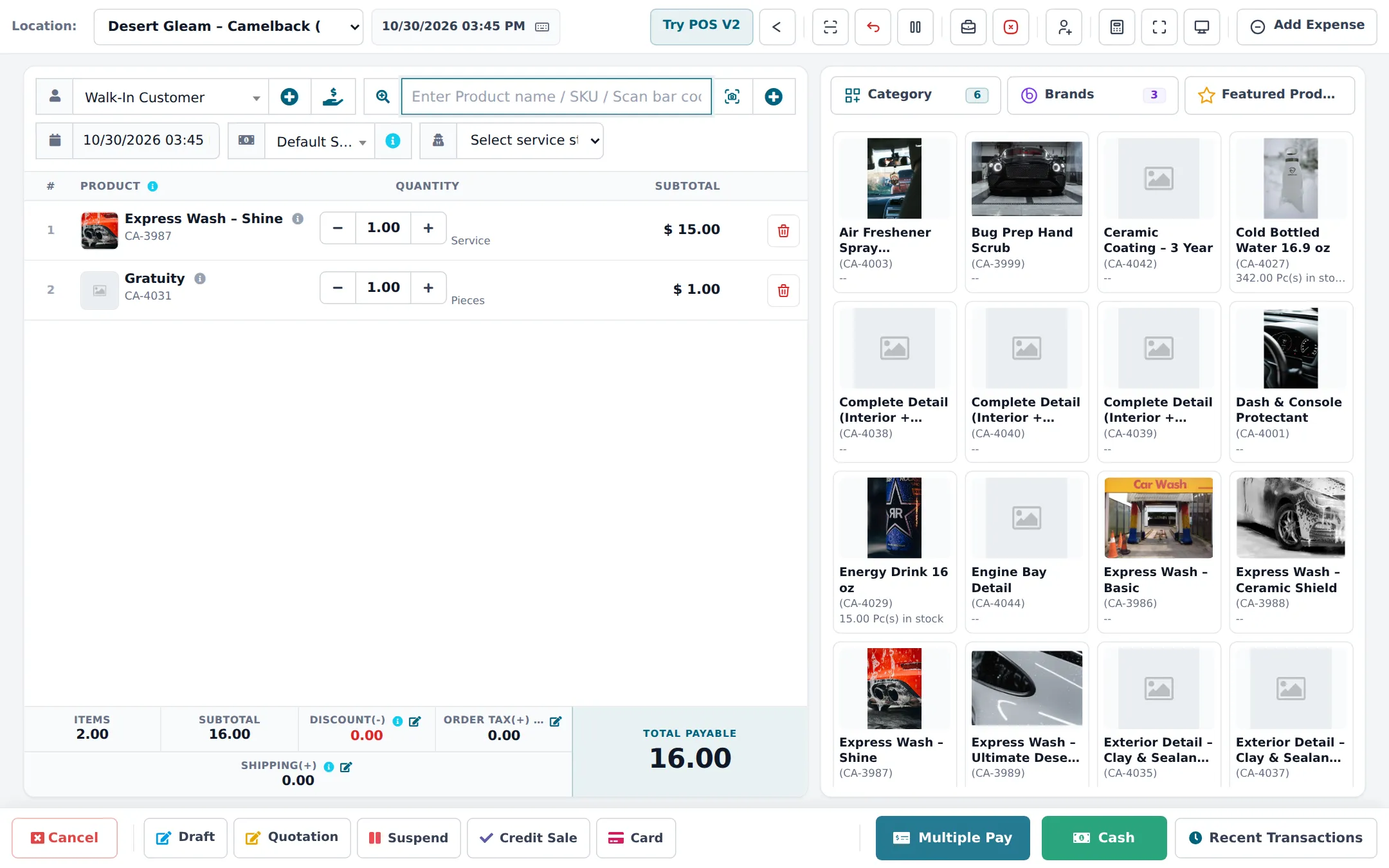
Section titled “Add a tip”- Create a product Gratuity: Manage Stock? unticked, price 1.00, no tax if tips are not taxed where you are.
- At checkout, add Gratuity and set the quantity to the tip (5 = 5.00).
- If you split tips per person, choose the crew member in Select service staff.
Check out booked work
Section titled “Check out booked work”Open the appointment (from Bookings or Services › Overview) and click Checkout. The POS opens with everything filled in; take payment as usual. With Mark the appointment completed when its sale is paid in the POS on, the appointment closes and commission is recorded.
Wash clubs and fleet accounts
Section titled “Wash clubs and fleet accounts”| Need | How |
|---|---|
| Monthly club fee | A product in a Wash Club category, for example “Full Service Club (monthly, 2 full services)”, sold each month |
| Member prices | A customer group Wash Club with a percentage or a price group (customer groups) |
| Automatic monthly invoice | Recurring invoices module: tick Subscribe? on Sell › Add Sale |
| Fleet washes billed monthly | Customer with pay term and credit limit; ring each wash on Credit Sale, collect with Add payment |
| Record which cars are covered | Order options form Wash membership or fleet (number of vehicles, plates, wash frequency) |
Gift cards
Section titled “Gift cards”Turn on the Gift cards module to sell gift cards with a balance and accept them as a payment method. Products named “Gift Card” without the module are just sales, not spendable balances. See gift cards and store credit.
Next: daily operations.
Frequently asked questions
How do I add a tip?
Create a product called Gratuity with Manage Stock? unticked and a price of 1.00. Add it to the sale and set the quantity to the tip amount, for example 5 for a 5.00 tip. Credit the crew member with Select service staff if you track tips per person.
Do tips count as revenue?
They are a sale line, so they appear in sales reports under the Gratuity product. Exclude that product or its category when you look at wash revenue, and pay it out to the crew as you agree.
How do I check out a booked detail?
Open the appointment and click Checkout. The POS opens with the customer, the services, prices and the crew member. Any online deposit already paid is shown.
Can members wash for free?
There is no automatic unlimited-wash check. Sell the membership as a product each month and put members in a customer group; for a member wash, give a 100 % discount on the wash line or use a member price group.
Can the monthly membership be billed automatically?
With the Recurring invoices module, Add Sale has a Subscribe? option that creates the invoice again on a schedule. Collecting the money still happens through your payment methods.
Can I sell gift cards?
Yes. Switch on the Gift cards module to sell real gift cards with a balance that customers spend as a payment method.