
Convenience store step 2: fast scanning checkout
In a convenience store most baskets have one to five items and most customers are in a hurry. The goal is: scan, scan, one key, next customer. This page sets up POS V2 for that.
Before you start
Section titled “Before you start”- Products have barcodes (step 1).
- A USB or Bluetooth barcode scanner is connected (it works like a keyboard). See devices and printers.
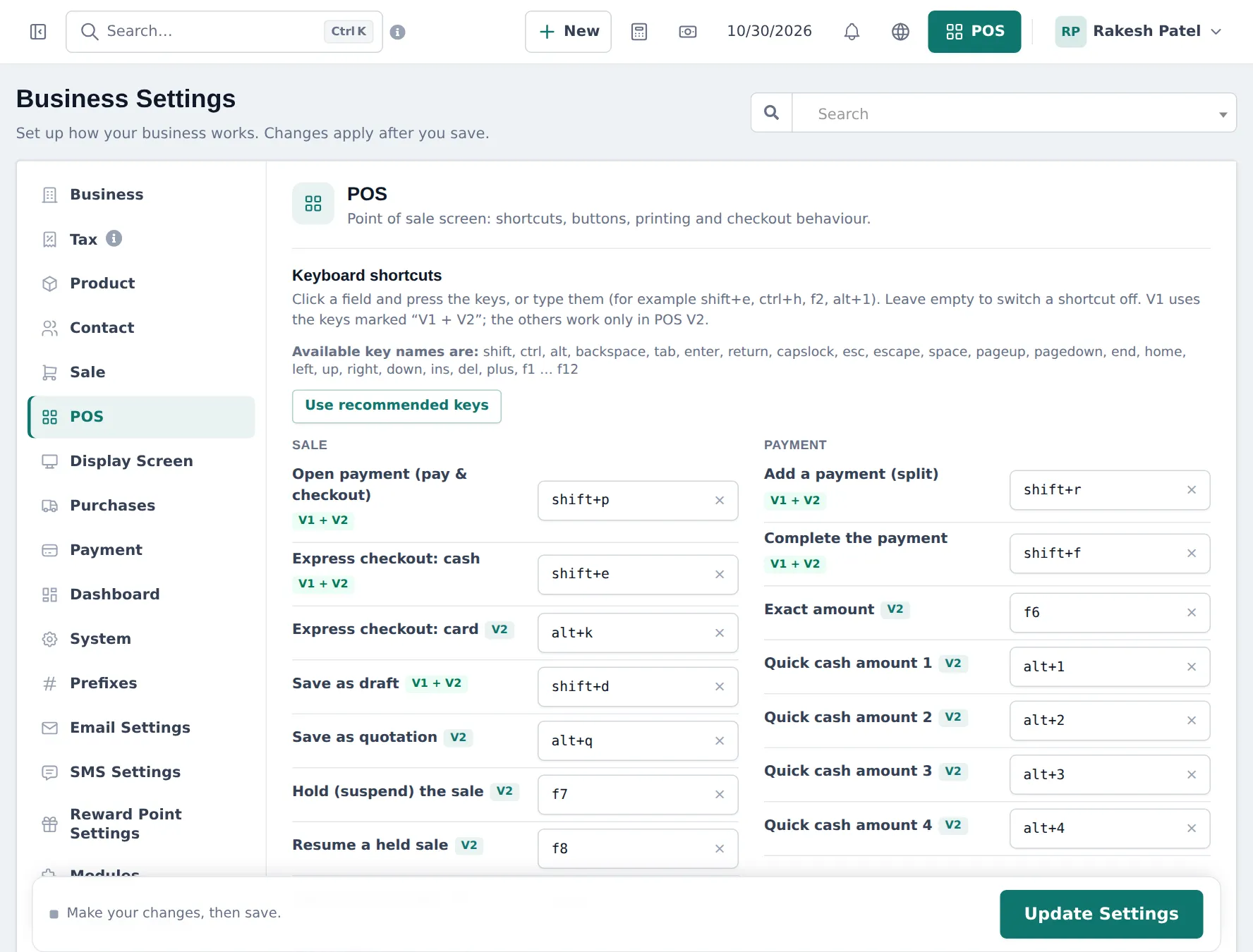
Set up the shortcuts
Section titled “Set up the shortcuts”- Open Settings › Business Settings and the POS tab.
- Under Keyboard shortcuts, click Use recommended keys, or click a field and press the keys you want.
- Set at least Express checkout: cash, Express checkout: card, Hold (suspend) the sale and the Quick cash amount keys (POS V2).
- Click Update Settings.
A typical sale
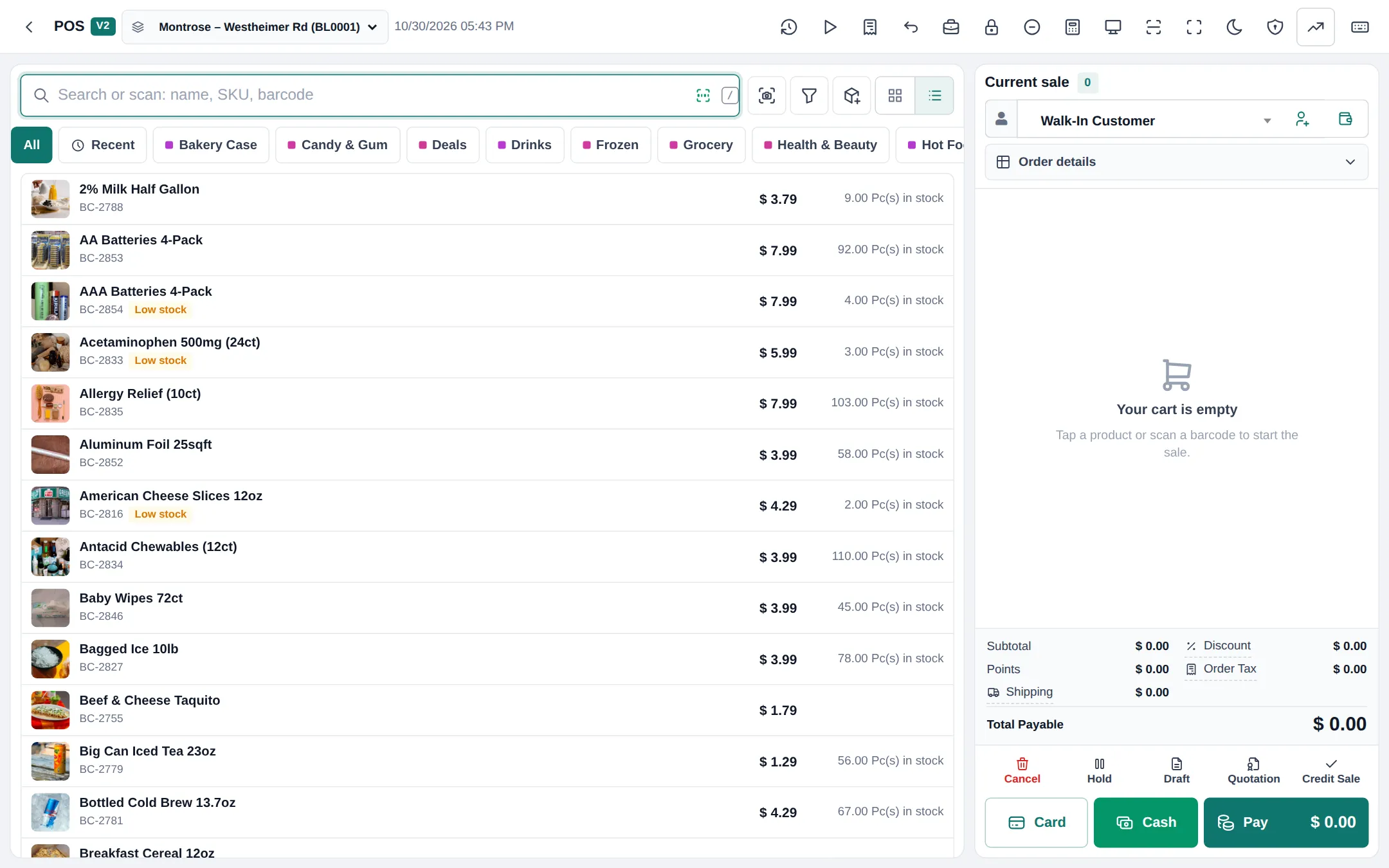
Section titled “A typical sale”- The cursor waits in Search or scan. Scan each item.
- For hot food or coffee, tap the category tab and the item.
- Press the Express checkout: cash key, or Cash and a quick cash amount, and give change. For card, press Card.
- The receipt prints (if a printer is set) and the POS is ready for the next customer.
Useful extras
Section titled “Useful extras”- Hold parks a sale while a customer fetches something; resume it from the held list.
- Customer display: show the cart and total on a second screen (screens and displays).
- Offline POS: keep selling if the internet drops (offline selling).
- Cash denominations: count notes in the payment window, set on the Payment tab of Business Settings.
Frequently asked questions
Which POS should a c-store use?
POS V2. It is built for scanning and keyboard shortcuts. Sell › POS opens whichever version is set as the default; switch to V2 from the POS V1 top bar with Try POS V2.
Can a sale be finished with one key?
Yes. In POS V2 set Express checkout cash and Express checkout card shortcuts (for example shift+e and alt+k). The sale is paid in full with that method.
What are quick cash amounts?
POS V2 buttons for common notes (for example 10, 20, 50). Set the keys for Quick cash amount 1 to 4 in the POS settings.
What happens if the same item is scanned twice?
Depending on Sales Item Addition Method in the Sale settings, the quantity goes up or a new line is added.
Can I use a phone camera as a scanner?
Yes. The POS has a camera scan button, and the SmartPOS Business app scans with the camera.