
Food truck step 3: sell offline with no signal
Parking lots, festivals and highway stops often have weak or no signal. Offline POS lets a registered device keep selling with no internet and sends the sales to SmartPOS Hub by itself when the connection comes back.
Before you start
Section titled “Before you start”- The truck’s device is online for the first setup.
- Products and prices are final for the day (they are downloaded to the device).
Register the truck’s device
Section titled “Register the truck’s device”- On the truck’s tablet or laptop, open Offline POS › Open Offline POS.
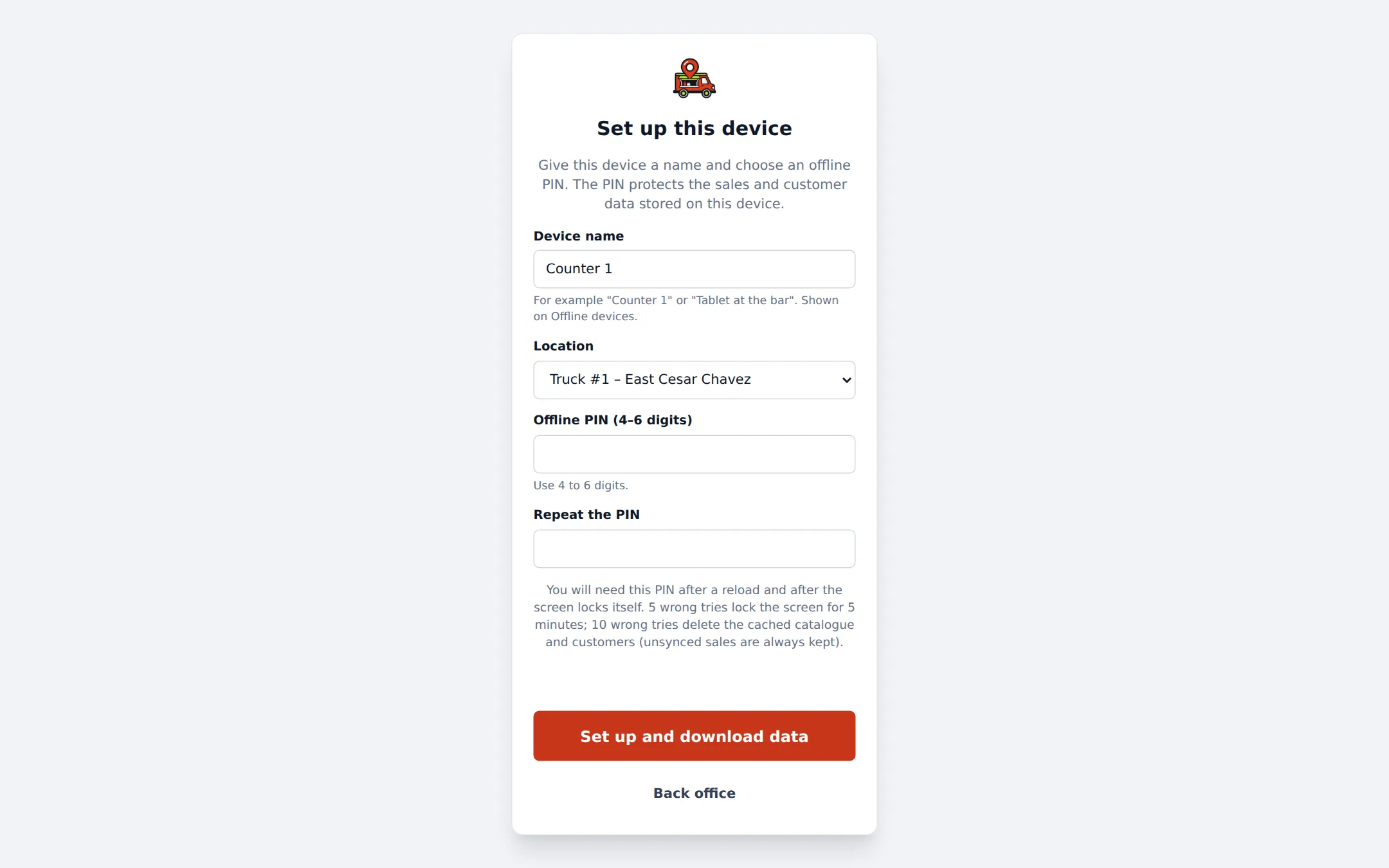
- In Set up this device, enter a Device name (“Truck 1 window”), pick the truck’s Location, and choose an Offline PIN (4–6 digits) twice.
- Click Set up and download data. Products, prices, stock and customers are stored encrypted on the device.
Selling with no signal
Section titled “Selling with no signal”When the internet drops, POS V1 and V2 show a banner. Open Offline POS (it opens without internet), enter the PIN and keep selling. Receipts carry an offline reference. When the signal is back, sales sync on their own and get their real invoice numbers.
More: Sell offline when the internet drops.
Check devices and sync issues
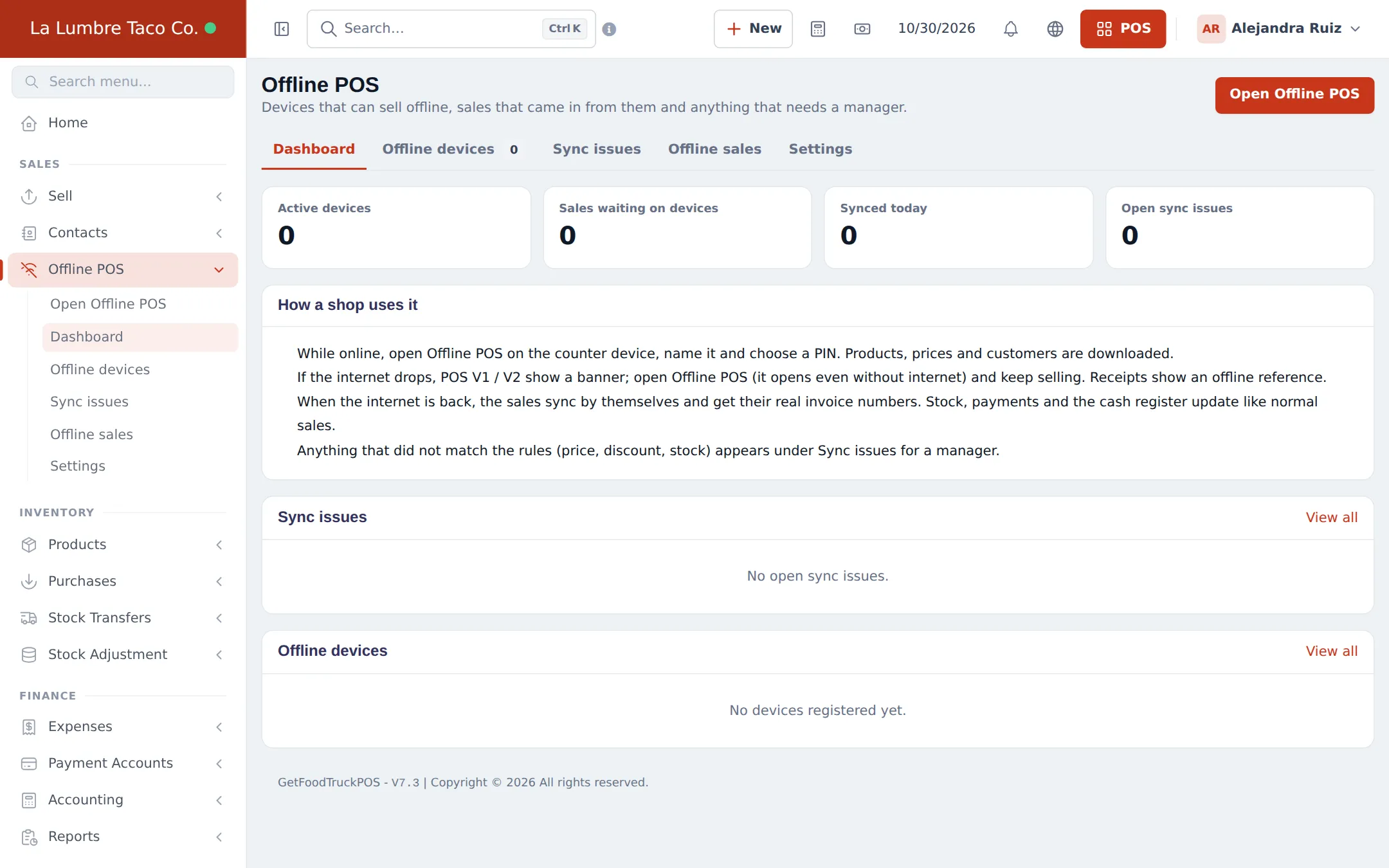
Section titled “Check devices and sync issues”Offline POS › Dashboard shows Active devices, Sales waiting on devices, Synced today and Open sync issues. Sales that broke a rule (price, discount, stock, closed register) appear under Sync issues for a manager to review.
Settings that matter for trucks
Section titled “Settings that matter for trucks”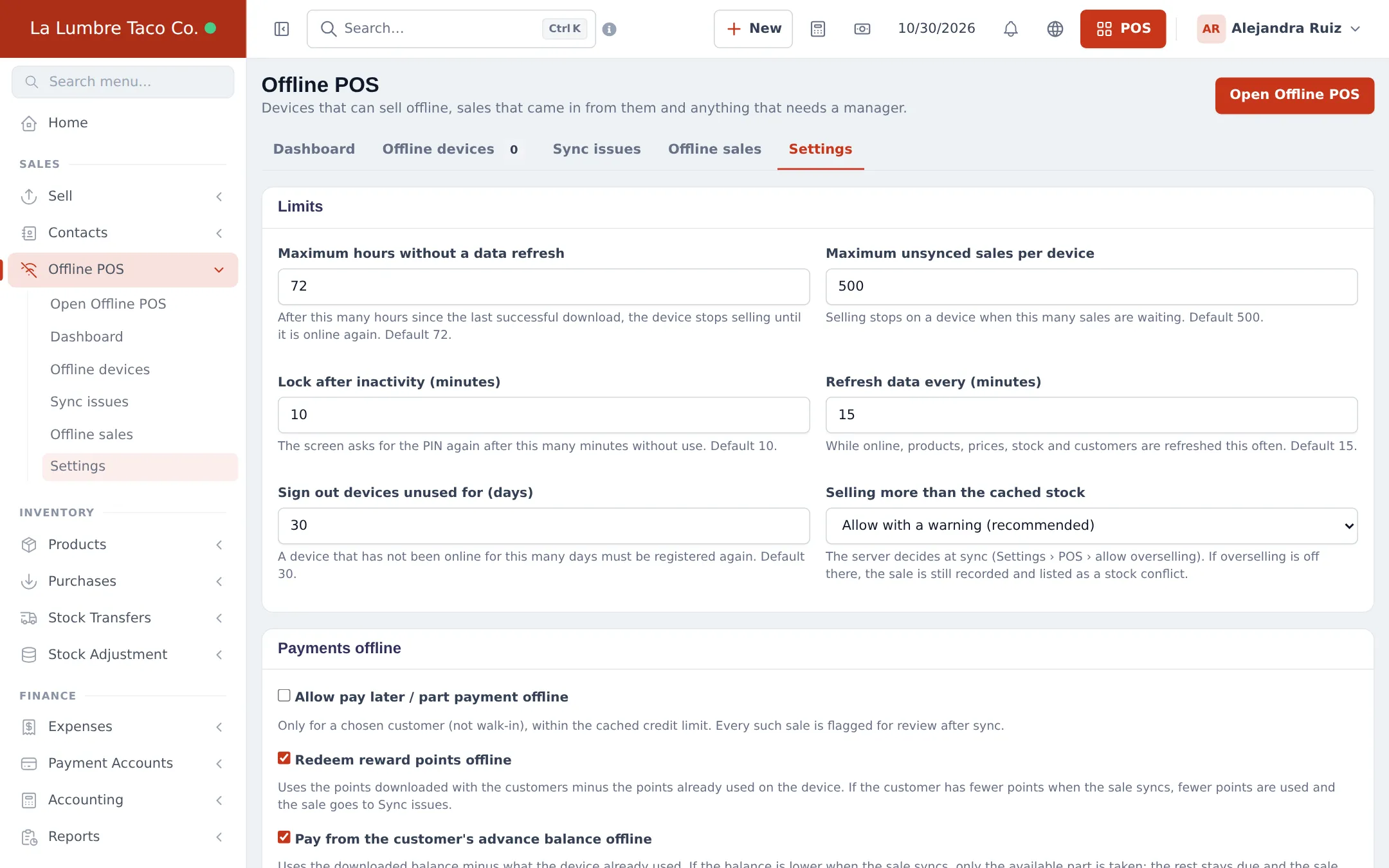
| Setting | Default | For a truck |
|---|---|---|
| Maximum hours without a data refresh | 72 | Raise for multi-day events |
| Maximum unsynced sales per device | 500 | Raise for very busy festivals |
| Lock after inactivity (minutes) | 10 | Keep it; the window is public |
| Selling more than the cached stock | Allow with a warning | Keep for cooked food |
| Allow pay later / part payment offline | Off | Leave off unless you cater on account |
Full list: Offline POS.
Tips and mistakes to avoid
Section titled “Tips and mistakes to avoid”- Connect the device to the internet before every shift so prices and stock refresh.
- Never clear the browser data on a device with sales waiting; check Sales waiting on devices first.
Next step
Section titled “Next step”Frequently asked questions
Do I have to set up the device while online?
Yes. Register it once while you have internet, so products, prices and customers are downloaded. After that it opens and sells without internet.
How long can a device stay offline?
By default 72 hours since its last data refresh and up to 500 unsynced sales. Both limits can be changed in Offline POS › Settings.
When do offline sales get an invoice number?
When they sync. Until then the receipt shows an offline reference. Stock, payments and the cash register update like normal sales after sync.
Can I give credit offline?
Only if Allow pay later / part payment offline is ticked, only for a chosen customer within their credit limit, and every such sale is flagged for review.
What if the tablet is stolen?
Revoke it under Offline POS › Offline devices. Its access stops at once, and the data on it is encrypted with the PIN.
Does offline selling work in the phone app?
Yes. The SmartPOS Business app has its own Offline selling screen with Set up this phone. See step 4.